
If the fingerprint sensor on your iPad mini (7th generation) has suddenly stopped recognizing your touch, it can lock you out of your device or apps. This usually comes down to a software hiccup or a simple setting that needs a refresh. Let's get it working again.
Restart Your iPad mini
This is almost always the first thing I'd try. A quick restart clears out temporary software glitches that can confuse the Touch ID sensor. Just press and hold the top button and either volume button until the power off slider appears.
Slide to power off, wait about 30 seconds, then press the top button again to turn it back on. Once it boots up, try placing your registered finger on the Home button to see if it responds.
Check Your Finger and the Sensor
Take a close look at the Home button itself. The sapphire crystal can get smudged with oil, lotion, or dirt from your hands. Give it a gentle wipe with a soft, lint-free cloth.
Also, check your finger. The sensor needs a clear, dry print to read. If your hands are wet, sweaty, or have any lotion on them, dry them off completely. Minor cuts or dry skin can also throw off the recognition.
Re-register Your Fingerprint
Sometimes the stored fingerprint data gets corrupted. Removing it and adding it back often does the trick. Head to Settings > Touch ID & Passcode.
Enter your passcode, then tap the fingerprint that's giving you trouble. Tap Delete Fingerprint and confirm. Now, tap Add a Fingerprint and follow the on-screen prompts, making sure to move your finger around to capture the edges.
Update iPadOS
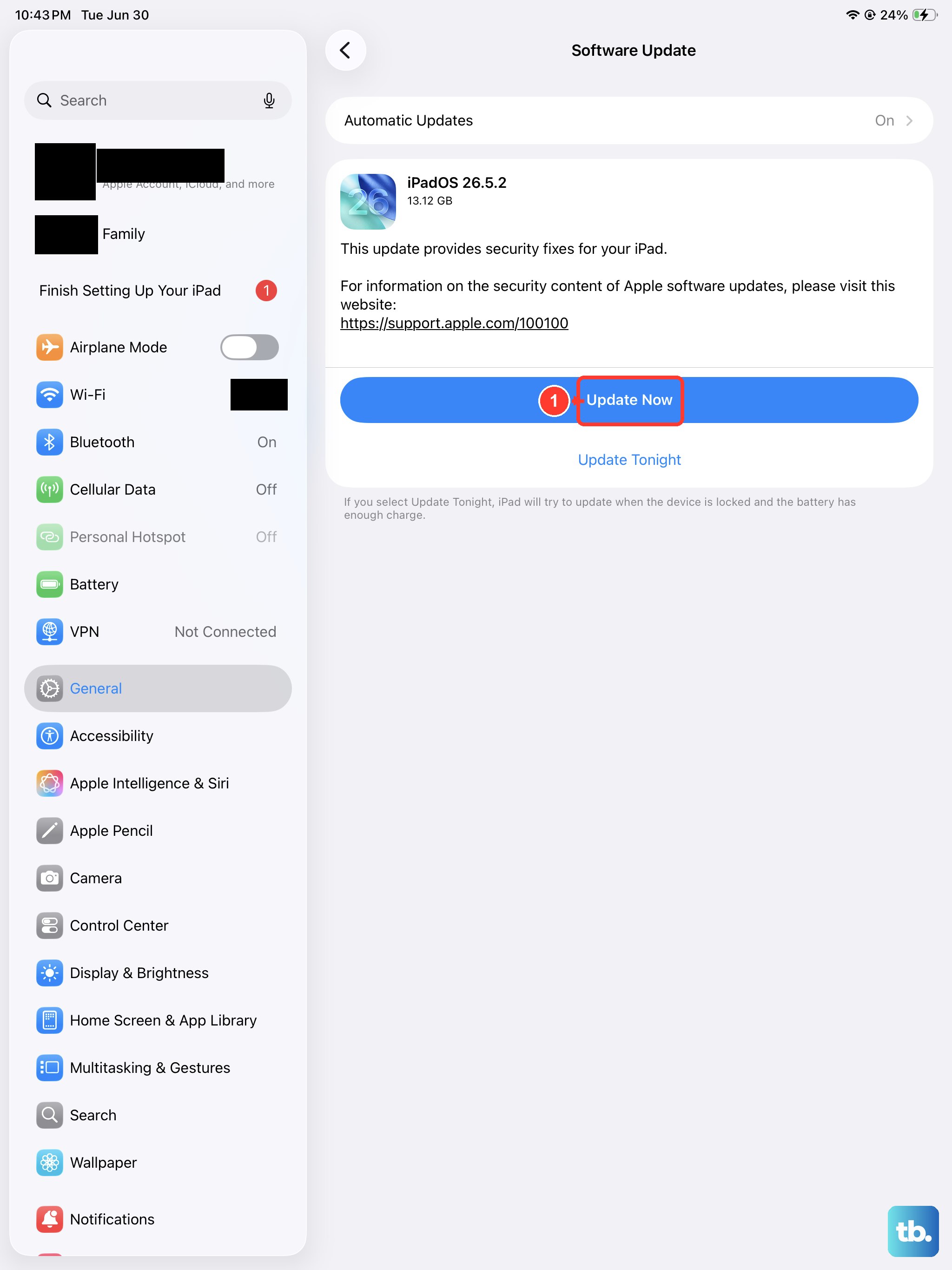
An outdated version of iPadOS can have bugs that affect system features like Touch ID. Make sure you're running the latest software. Go to Settings > General > Software Update.
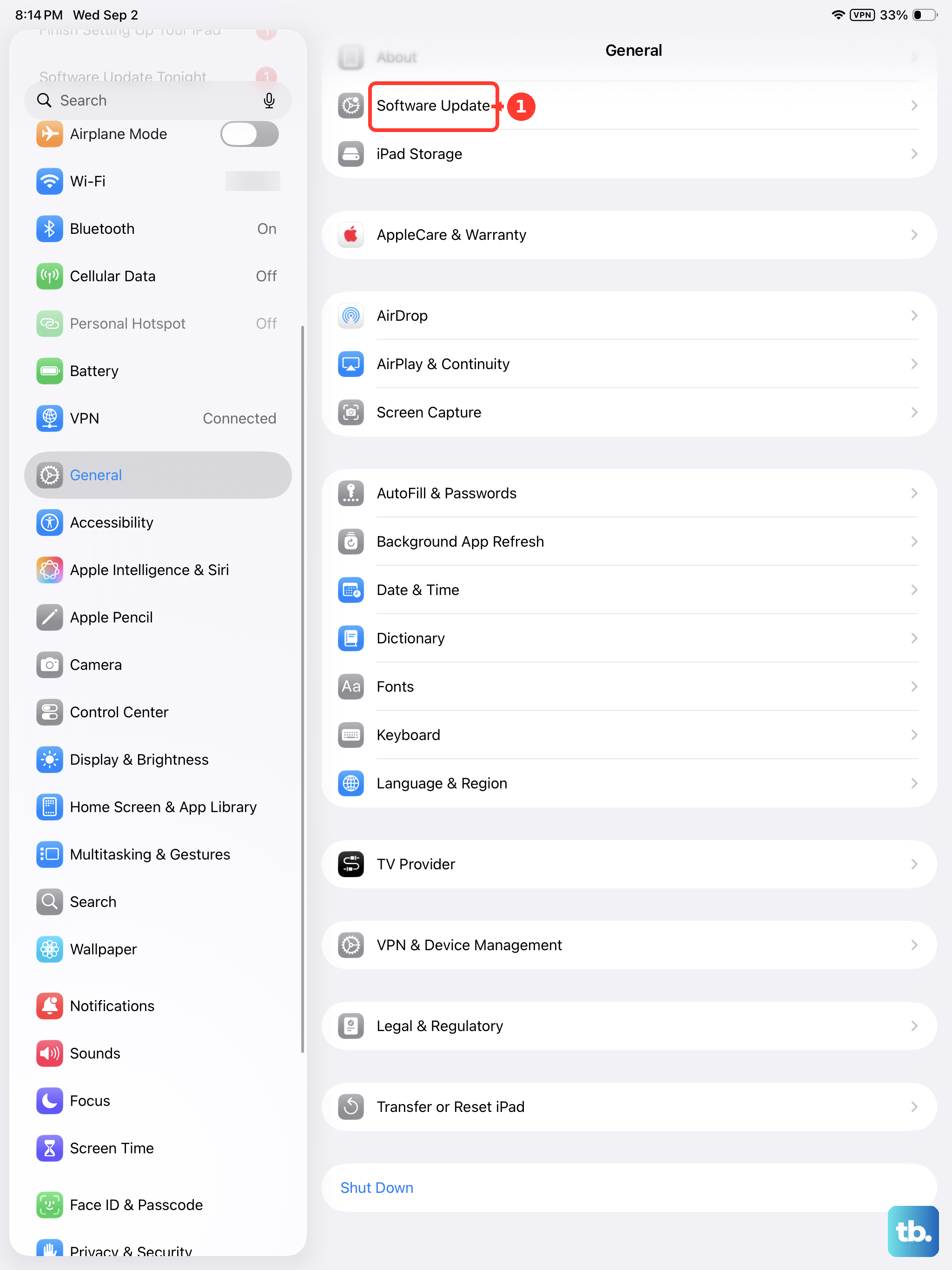
If an update is available, tap Download and Install. It's a good idea to plug your iPad mini into power using its 30W USB-C charger during this process. After the update completes, test the fingerprint sensor again.
Check for Case or Screen Protector Interference
Take a look at your case. A poorly designed case or a thick screen protector that overlaps the bezel around the Home button can physically block your finger from making proper contact with the sensor.
Try removing the case and any screen protector temporarily. If the fingerprint sensor starts working, you'll know the accessory was the culprit. You might need to look for a case that has a more precise cutout.
Reset All Settings
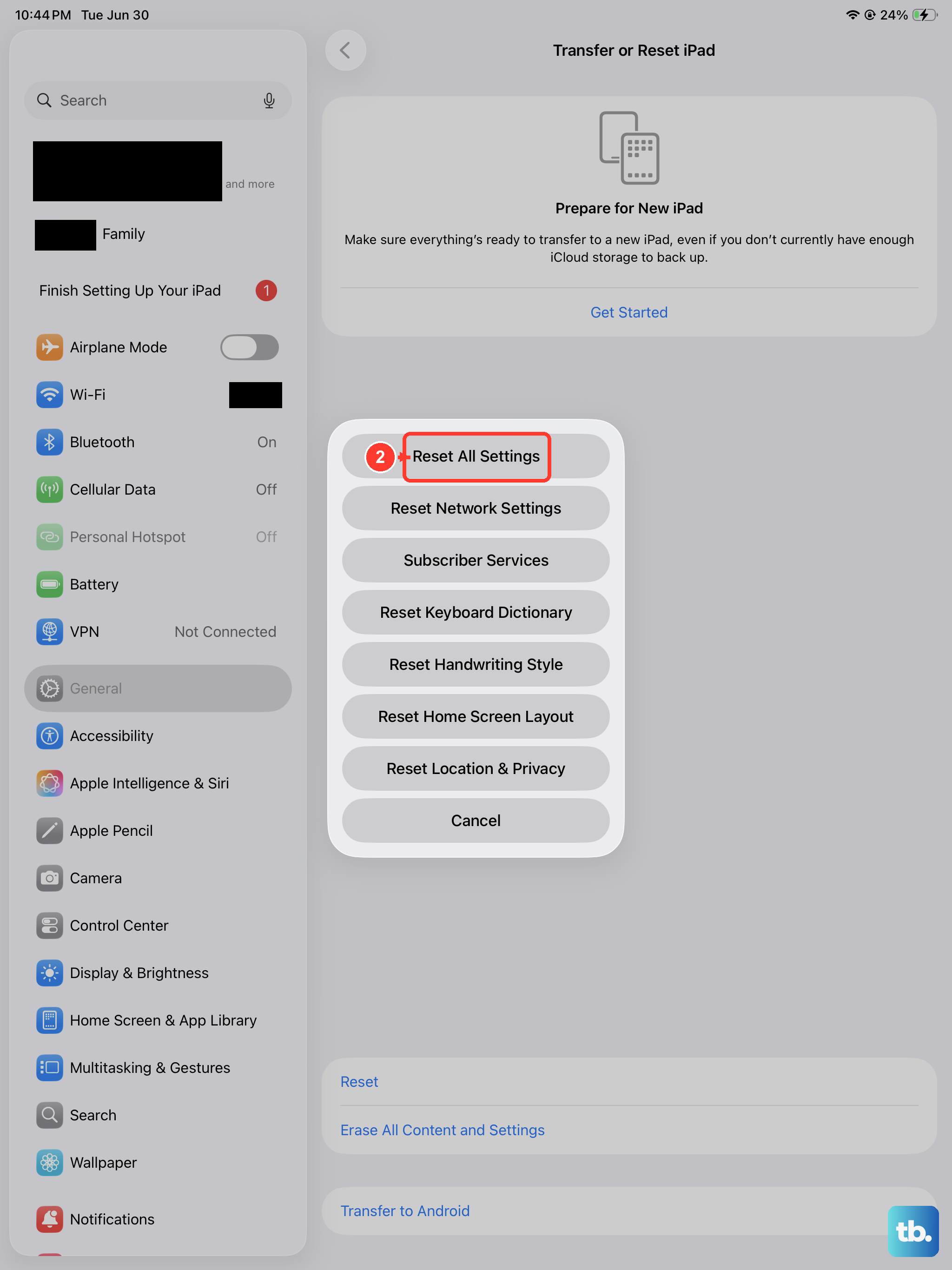
If the problem persists, a deeper software reset might be necessary. This will not erase your personal data like photos or apps, but it will reset all your system settings to default.
Go to Settings > General > Transfer or Reset iPad > Reset. Choose Reset All Settings. You'll need to enter your passcode and confirm. After the iPad mini restarts, you'll have to re-enter Wi-Fi passwords and reconfigure some preferences, but it can clear up persistent Touch ID issues.
Perform a Force Restart
This is different from a normal restart and can clear more stubborn system hangs. Quickly press and release the Volume Up button, then quickly press and release the Volume Down button. Immediately press and hold the Top button.
Keep holding the Top button until you see the Apple logo appear, then release. This won't delete any data. Once the iPad mini boots up, check if Touch ID is responsive.
Consider Hardware Factors
If you've tried all the software fixes and the sensor is still dead, the issue could be physical. The Home button on the iPad mini contains the Touch ID sensor, and it's connected to the logic board by a cable.
If the iPad has been dropped or suffered liquid damage, this connection could be compromised. In my experience, a completely unresponsive sensor that also feels "dead" to the touch (no click feedback) often points to a hardware problem that needs professional diagnosis.