
Videos stuttering or freezing on your iPad Air M3 can really kill the mood, especially when you're trying to watch something important. The good news is that most video lag issues on iPadOS 18 come down to a few common causes, and you can usually fix them in minutes without any technical skills.
Whether you're streaming from YouTube, playing locally stored movies, or editing clips in iMovie, the same troubleshooting approach works. Let's go through the fixes that actually make a difference on the M3 iPad Air.
Force Restart Your iPad Air M3
This should be your first move every time. A force restart clears out temporary system glitches that can cause video playback to stutter or freeze. It does not erase any data.
On the iPad Air M3, press and quickly release Volume Up, then Volume Down, then press and hold the Top button until the Apple logo appears. Release the button and let the iPad reboot normally. Test your video after it comes back.
Close Unused Background Apps
Too many apps running in the background can eat up memory and processing power. Video playback is sensitive to system load, and if your iPad is juggling a dozen apps, frames will drop.
Swipe up from the bottom of the screen to open the App Switcher, then swipe each app card upward to close it. Pay special attention to any streaming apps, social media, or games you were using earlier. Try your video again after closing them.
Free Up Storage Space
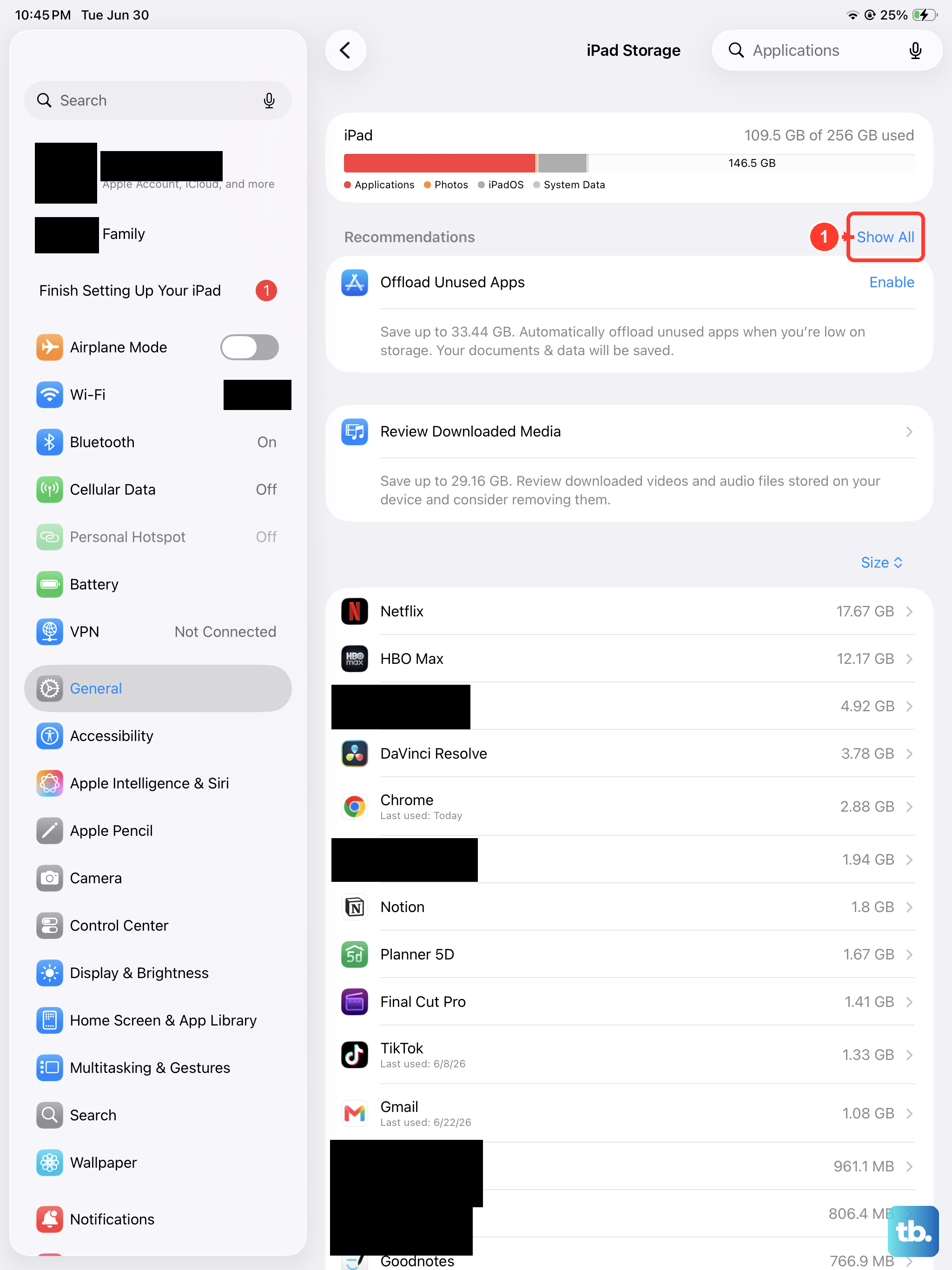
When your iPad's storage gets tight, video apps struggle to write and read large files efficiently. This often shows up as choppy playback or random freezes.
Go to Settings > General > iPad Storage. If you're below 2GB of free space, start cleaning. Offload unused apps, delete old videos you've already watched, and clear out your Recently Deleted album. The M3's fast internal storage only helps if there's room to work.
Check Your Internet Connection
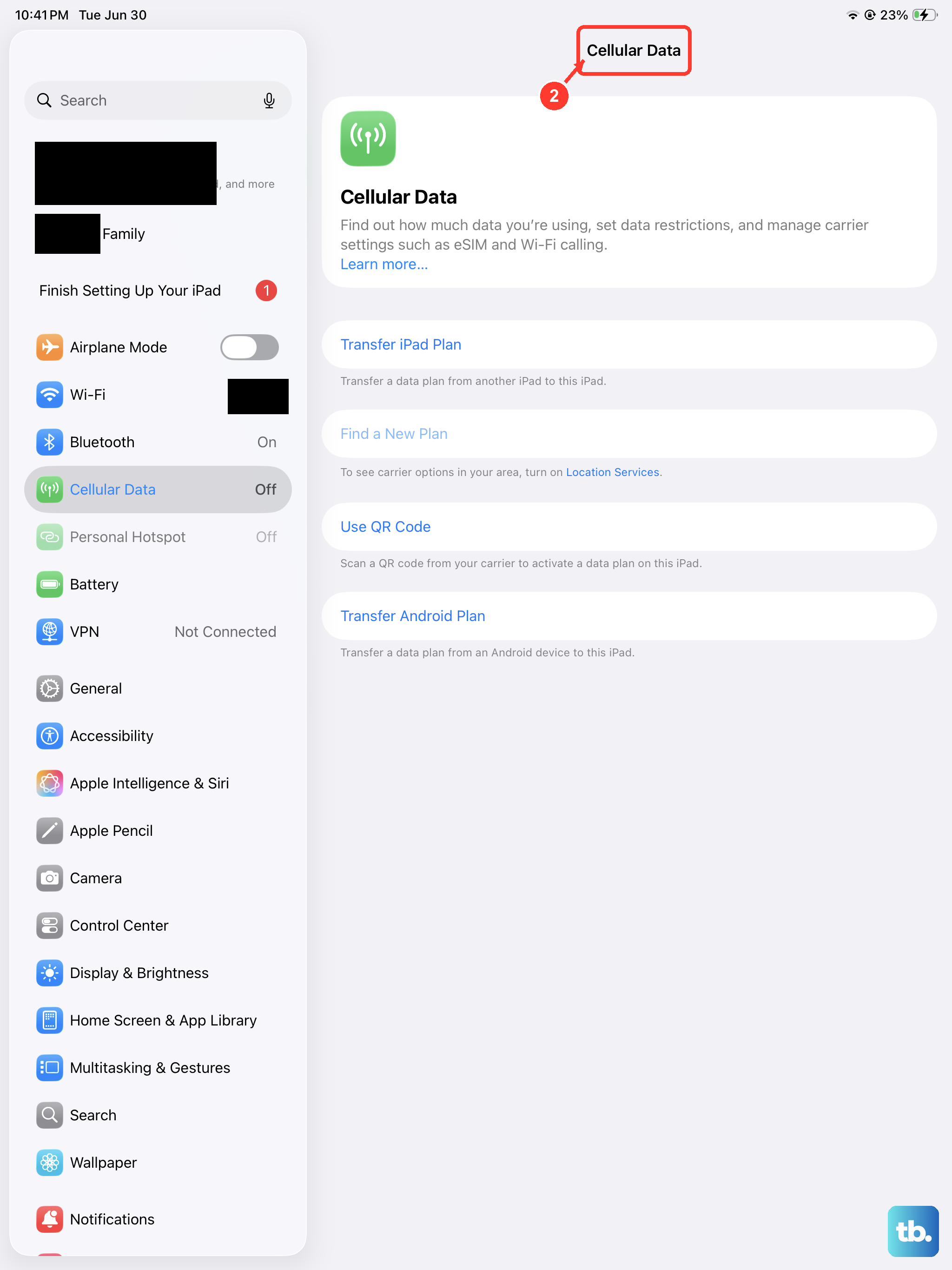
Streaming video over a weak Wi-Fi signal is the most common cause of buffering and lag. Even if your connection looks fine, interference from other devices or a distant router can cause issues.
Open Settings > Wi-Fi and tap the "i" next to your network. Check the signal strength you want at least two bars. If it's weak, move closer to the router or try switching to cellular data temporarily. You can also restart your router by unplugging it for 30 seconds.
Update iPadOS and Your Video Apps
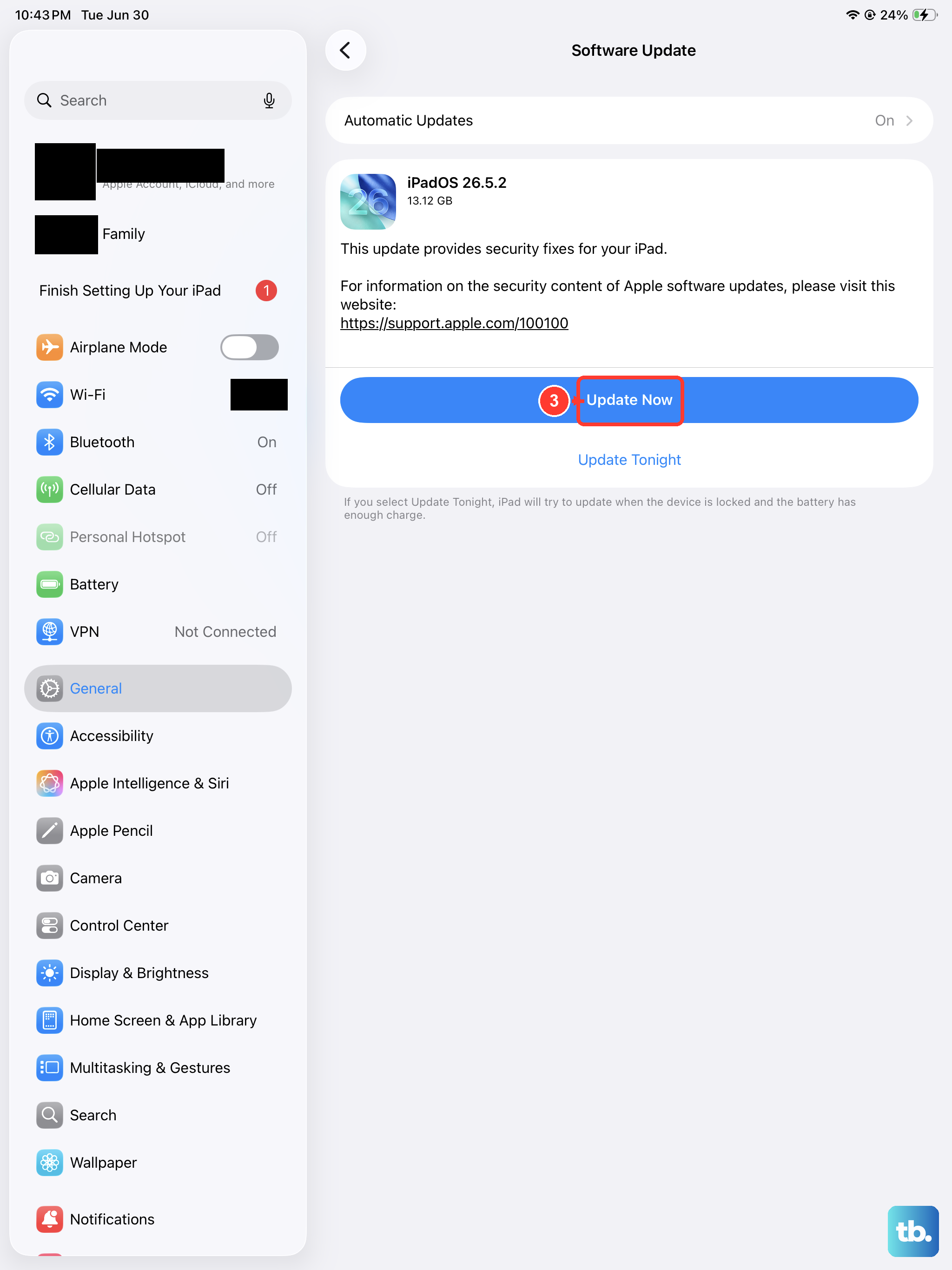
Outdated software can introduce compatibility issues with video codecs and streaming protocols. Apple regularly pushes patches for video playback bugs in iPadOS updates, and app developers do the same.
Go to Settings > General > Software Update to install any pending iPadOS updates. Then open the App Store, tap your profile icon, and scroll down to update all video-related apps like Netflix, YouTube, Safari, and any player you use.
Disable HDR Video Playback
The iPad Air M3 has a stunning Liquid Retina display that supports HDR content, but not all videos are optimized for it. HDR playback demands extra processing power, which can cause stuttering on certain streams.
In apps like YouTube or Netflix, look for video quality settings and switch from HDR to standard dynamic range (SDR) or a lower resolution. You can also go to Settings > Accessibility > Display & Text Size and turn on Reduce Motion to smooth transitions.
Let Your iPad Cool Down
The iPad Air M3's M3 chip is incredibly powerful, but it throttles performance when the device gets hot. Prolonged video playback, especially in bright sunlight or while charging, can push temperatures up and cause lag.
If your iPad feels warm to the touch, stop the video and leave it in a cool, shaded spot for 15-20 minutes. Remove any case that might trap heat. Once it's cooled down, try playing the video again. This is a common fix that often gets overlooked.
Reset Network Settings
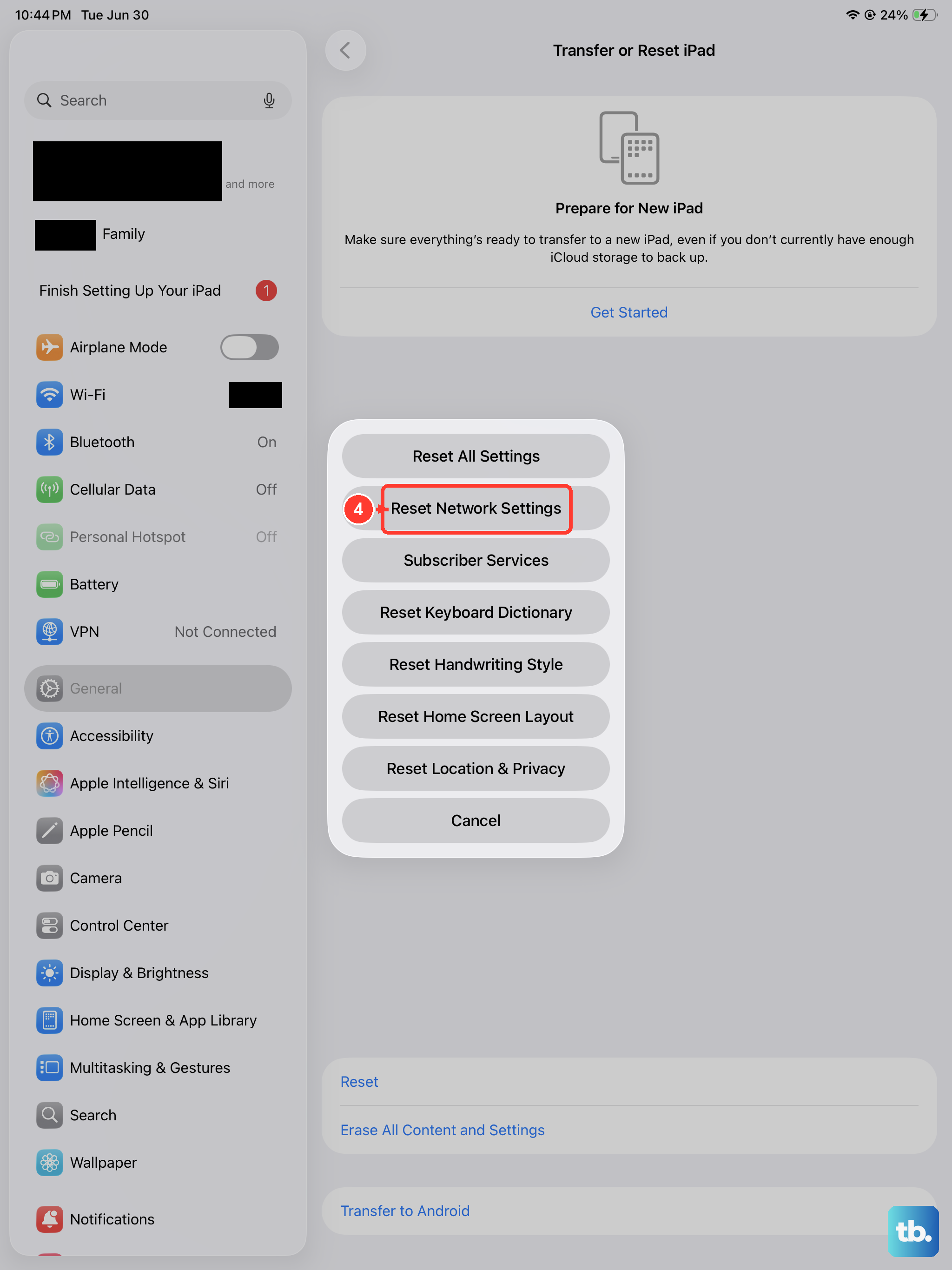
If streaming video is the only problem and local files play fine, your network configuration might be corrupted. Resetting network settings clears saved Wi-Fi passwords, Bluetooth pairings, and cellular settings, but it doesn't delete your personal data.
Go to Settings > General > Transfer or Reset iPad > Reset > Reset Network Settings. You'll need to re-enter your Wi-Fi password afterward, but this often clears stubborn streaming issues.
Reset All Settings
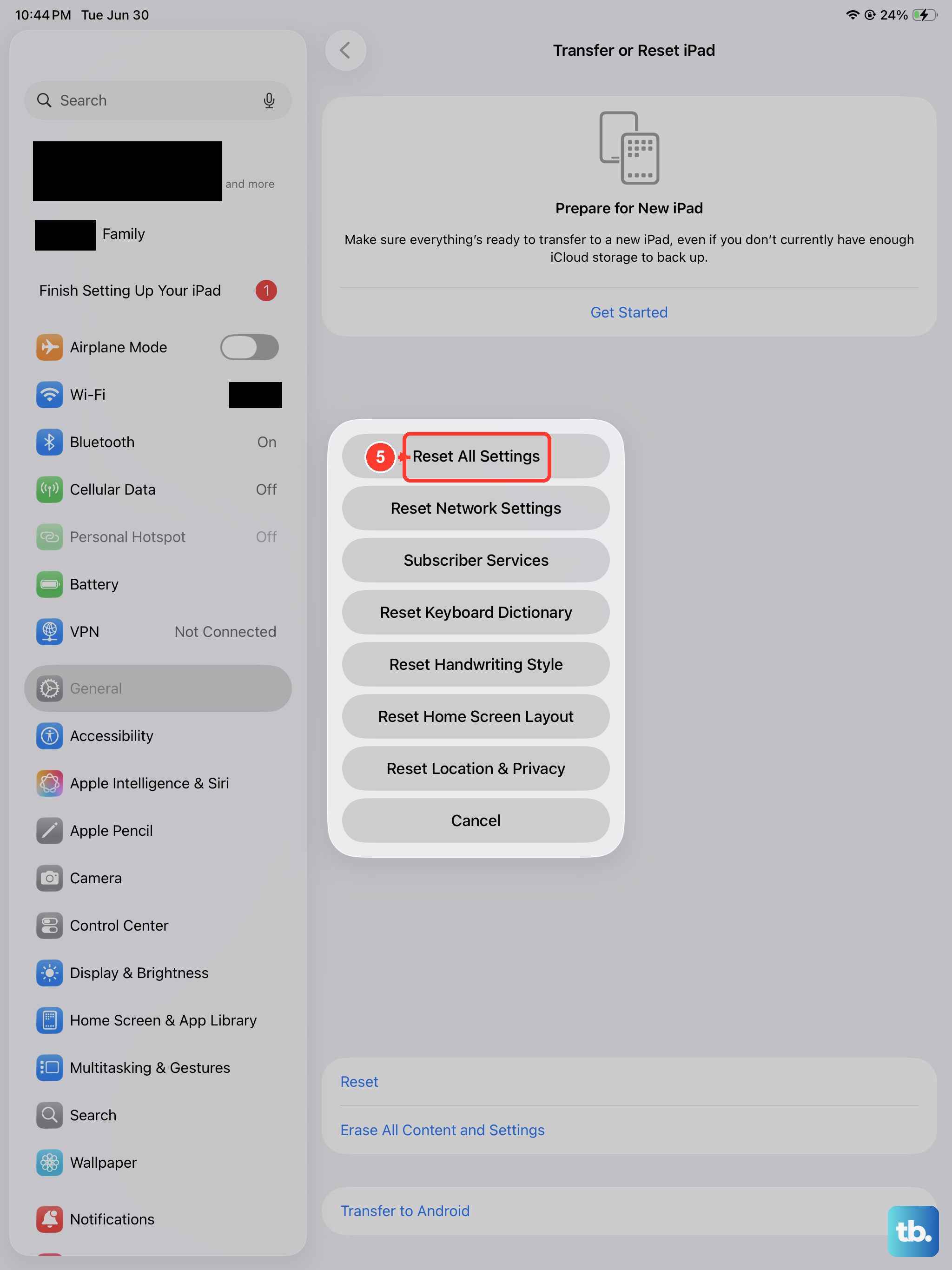
This step is more thorough than a network reset but still keeps your apps, photos, and data intact. It resets system settings like display, privacy, and accessibility options to their defaults. Sometimes a misconfigured setting interferes with video playback.
Go to Settings > General > Transfer or Reset iPad > Reset > Reset All Settings. Your iPad will restart, and you'll need to set up a few preferences again, but your content stays. Test your video after the restart.
Erase All Content and Settings
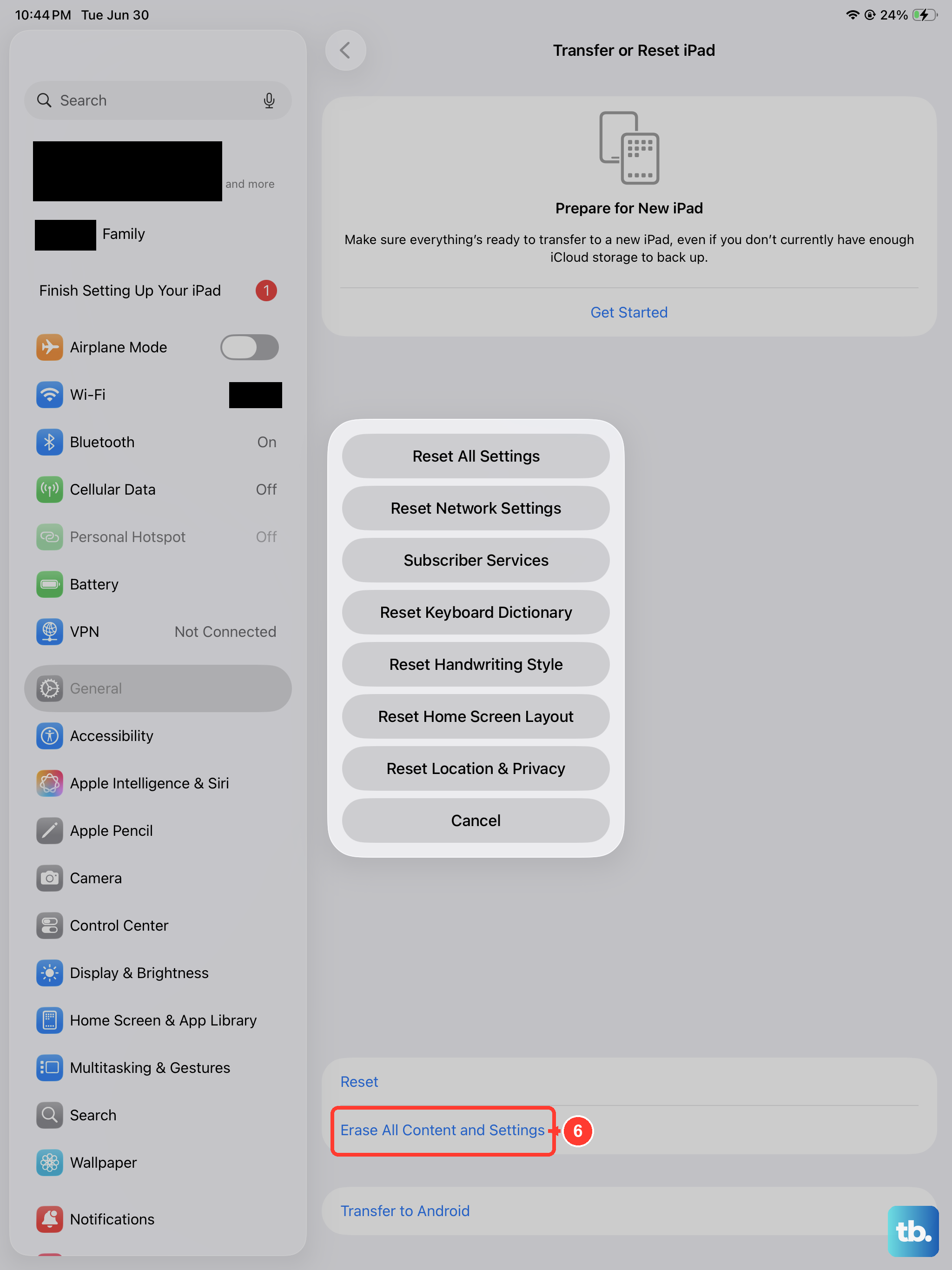
This is the nuclear option. A full factory reset wipes everything on the iPad and restores it to a clean state. It fixes deep software corruption that other resets can't touch. Back up your iPad via iCloud or a computer before proceeding, because you will lose all data.
Go to Settings > General > Transfer or Reset iPad > Erase All Content and Settings. Follow the prompts, then set up your iPad as new or restore from a backup. Most users see video issues disappear after a fresh start.