
When you tap send on a photo from your iPad 10th Gen and nothing happens, it's a common hiccup. The picture might just sit there with a "Not Delivered" tag, or the progress bar gets stuck. This usually comes down to a setting that needs a tweak or a temporary glitch in the app or connection.
I'd start by checking the most obvious thing first, which is your internet connection. Open Safari and try loading a webpage. If it loads, your connection is fine. If it doesn't, that's your culprit.
For a WiFi model, make sure you're connected to the right network. You can try toggling Airplane Mode on and off from Control Center to quickly reset the radios. If you're using a cellular model, ensure you have bars of service and that cellular data is turned on for the Messages app.
Check Your iMessage and SMS/MMS Settings
Open the Settings app and tap on Messages. First, make sure iMessage is turned on. If it's already on, try turning it off, waiting a few seconds, and turning it back on. This refreshes its connection to Apple's servers.
Right below that, look for Send as SMS. If iMessage fails, having this enabled allows your iPad to send the photo as a traditional text message, which can often get through when iMessage is being finicky. This is especially useful if you're trying to send to an Android phone.
Also, tap on Send & Receive within the Messages settings. Verify that the email address or phone number you're using is checked under "You can be reached by iMessage at." Sometimes, if the recipient can only be reached at a number that isn't registered with iMessage, the photo won't send as an iMessage.
Verify Your Cellular Data Settings (Cellular Models)
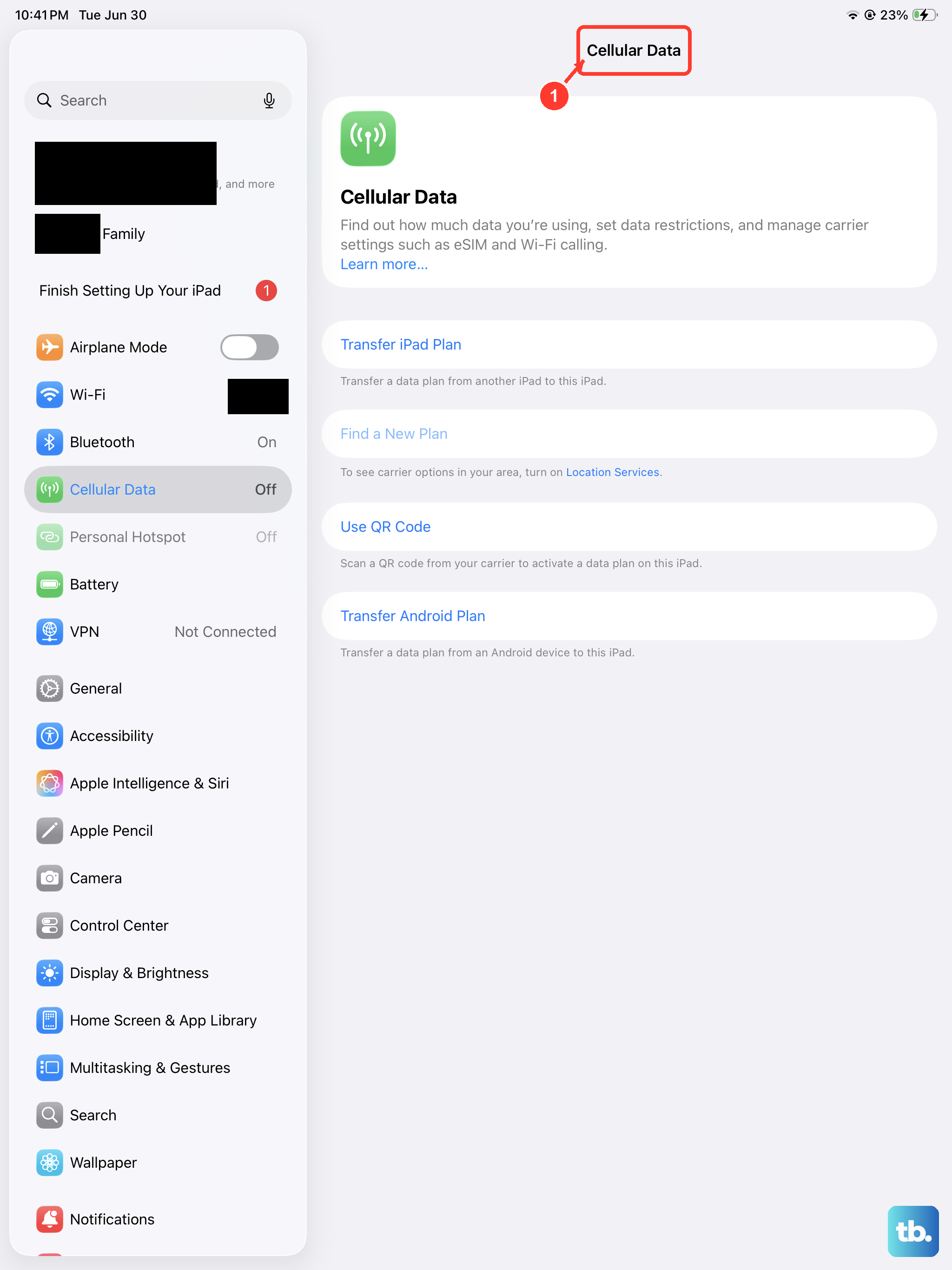
If you have the cellular model of the iPad 10th Gen and you're not on WiFi, you need to ensure cellular data is enabled for messaging. Go to Settings > Cellular Data (or just Mobile Data in some regions).
Scroll down to find the Messages app in the list and make sure its toggle is switched on. This grants the app permission to use your mobile data plan. While you're there, ensure the main Cellular Data toggle at the top is also enabled.
Force Quit and Reopen the Messages App
A temporary software hang in the Messages app is a frequent cause. To force quit it, swipe up from the bottom of the screen and pause in the middle to enter the app switcher. Find the Messages app card and swipe it all the way up to close it.
Wait a moment, then tap the Messages icon on your Home Screen to reopen it. Try sending the photo again. This clears the app's working memory and often resolves minor sending issues instantly.
Restart Your iPad
A full restart clears out system caches and resets all software processes. To restart your iPad 10th Gen, press and hold the top button and either volume button until the power slider appears. Drag the slider to turn it off completely.
After about 30 seconds, press and hold the top button again until you see the Apple logo. Once it boots back up, check if you can send the photo. This is a reliable fix for a wide range of intermittent problems.
Check for a Carrier Settings Update
This applies to cellular iPad models. Carrier updates are small files that help your iPad connect optimally to your mobile network. To check for one, make sure you're connected to the internet, then go to Settings > General > About.
If an update is available, a pop-up notification will appear on this screen. Just follow the prompts to install it. These updates can improve network connectivity and fix MMS sending issues.
Ensure Date & Time Are Set Automatically
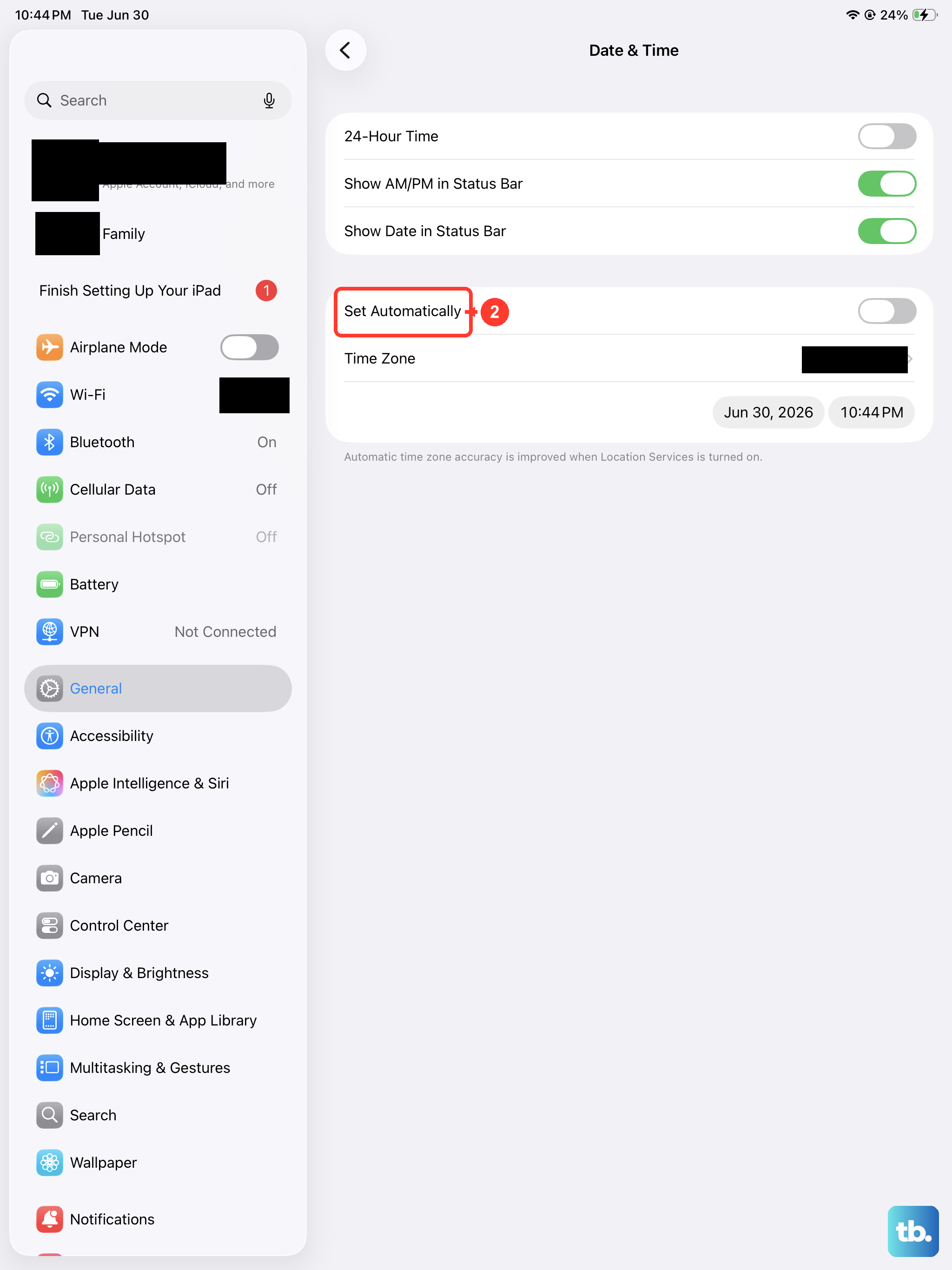
An incorrect system time can confuse messaging services. Go to Settings > General > Date & Time. Make sure the switch for Set Automatically is turned on (green).
This allows your iPad to get the correct time from the network. If it was off, turn it on and give it a moment to update. Then try sending your photo again.
Sign Out and Back Into Your Apple ID for iMessage
This refreshes your account's connection to the iMessage service. Go to Settings > [Your Name] at the top. Scroll all the way down and tap Sign Out. You'll be asked if you want to keep a copy of your key data on the iPad; you can say yes.
After signing out, restart your iPad using the method described earlier. Once it's back on, go back to Settings and sign into your Apple ID again. Finally, go back to Settings > Apps > Messages and turn iMessage back on.
Disable Low Data Mode on Your Network
Low Data Mode is designed to reduce data usage, but it can sometimes block the data needed to send a large photo. If you're on WiFi, go to Settings > Wi-Fi, tap the "i" icon next to your network, and make sure Low Data Mode is off.
For cellular data, go to Settings > Cellular Data > Cellular Data Options and turn off Low Data Mode. After disabling it, try sending the photo once more.
Update iPadOS to the Latest Version
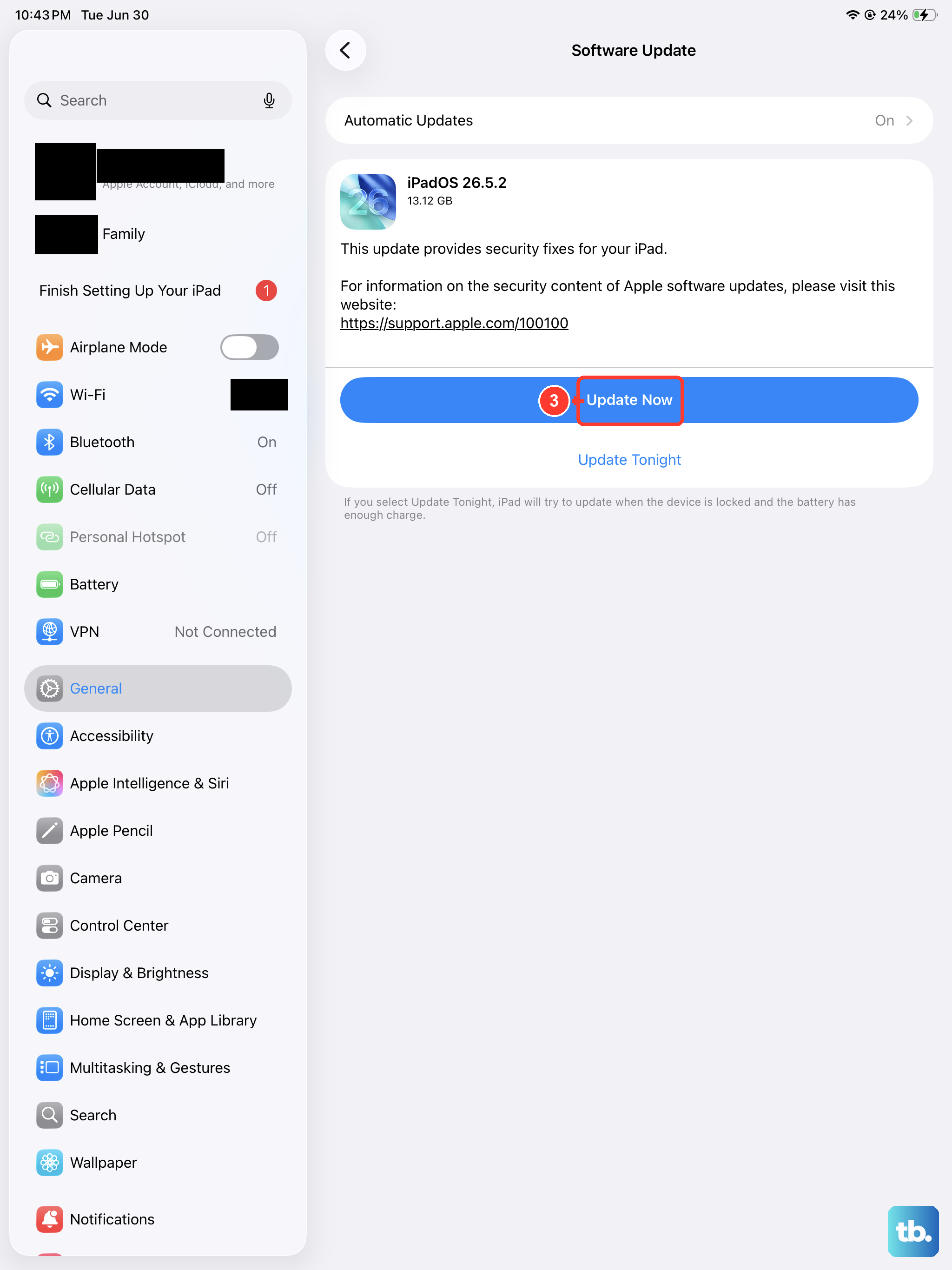
Software updates include bug fixes that can resolve messaging problems. Connect your iPad to a charger and a WiFi network. Go to Settings > General > Software Update.
If an update is available, tap Download and Install. I've seen updates specifically address iMessage delivery issues, so this is a worthwhile step if you haven't updated in a while.
Reset All Network Settings
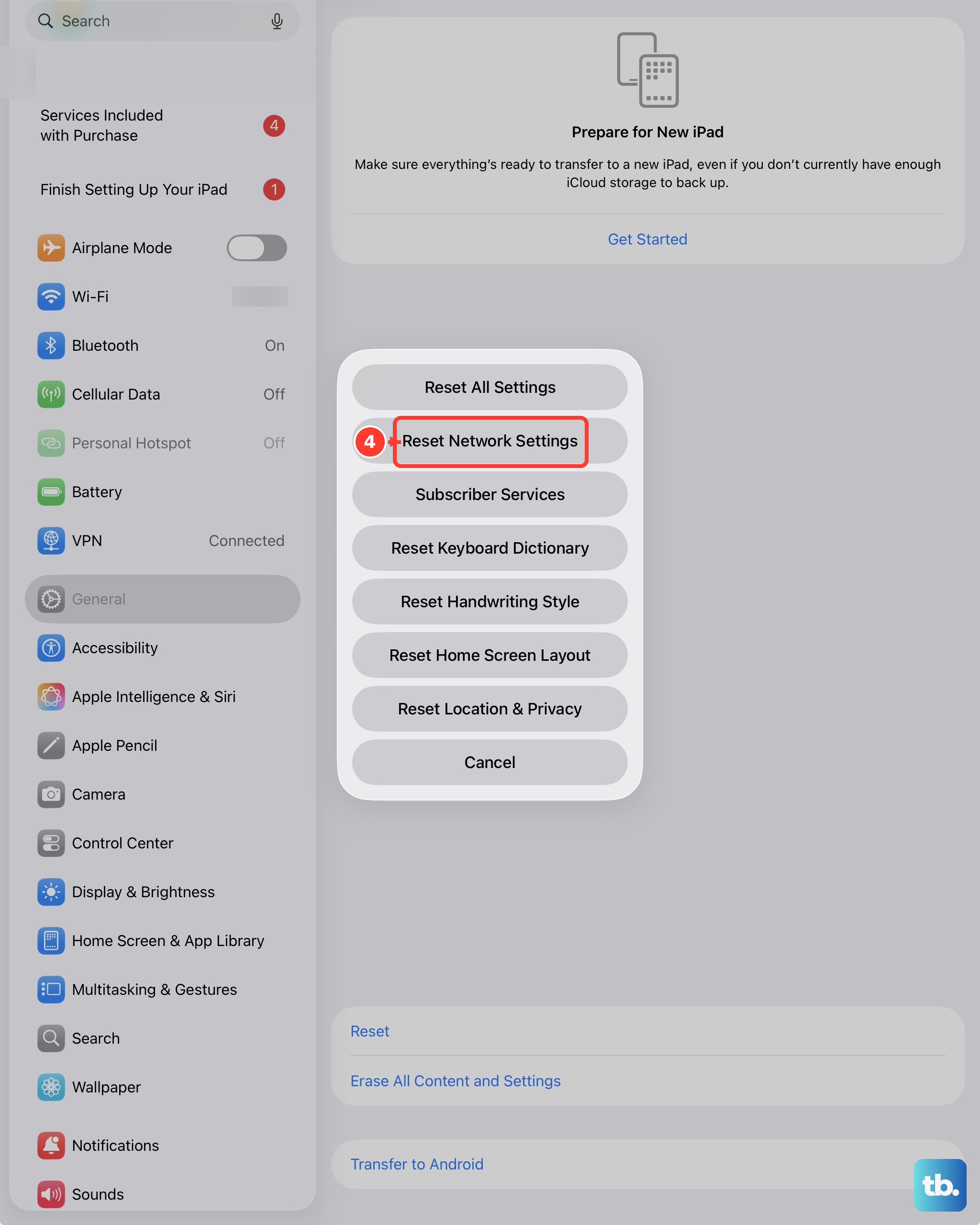
This is a more thorough step if the issue seems tied to your connection. It will erase all network-related settings, including saved WiFi passwords, VPN configurations, and cellular preferences. Go to Settings > General > Transfer or Reset iPad > Reset.
Tap Reset Network Settings and enter your passcode to confirm. Your iPad will restart. After it reboots, you'll need to reconnect to your WiFi network and re-enter the password. Test your photo sending afterward.