
So your iPad 10th Generation won't charge. You've plugged it in, maybe swapped cables, and the screen stays stubbornly black. It's a frustrating spot to be in, but this is a common issue that's almost always fixable without a trip to the store.
Whether you're dealing with a USB-C port that feels loose, a charger that seems dead, or an iPad that shows no signs of life at all, we'll walk through the fixes. Let's start with the quickest solutions and work our way through.
Force Restart Your iPad
This should always be your first move. A force restart clears out temporary software glitches that can interfere with the charging system. It takes about 30 seconds and fixes the problem more often than you'd think.
For the iPad 10th Generation, here's exactly what to do. Press and quickly release the Volume Up button. Then, press and quickly release the Volume Down button. Finally, press and hold the Top button until you see the Apple logo appear on the screen.
Once it boots back up, plug in your charger and check for the charging icon in the status bar.
Clean the USB-C Charging Port
This is the single most common fix for charging problems. Over time, lint, dust, and pocket debris get packed into the USB-C port. Eventually, there's so much gunk that the cable's connector can't make proper contact.
Grab a flashlight and take a close look inside the port. If you see any debris, you'll want to clean it out. First, turn off your iPad for safety. Then, use a wooden or plastic toothpick to gently scrape out the lint. Avoid metal tools, as they can scratch or damage the delicate gold contacts inside.
You can also try tapping the iPad gently with the port facing down to dislodge anything stuck. Do not use compressed air or liquid cleaners; Apple warns against using compressed air when cleaning iPad. After cleaning, try your cable again.
Try a Different Cable and Power Source
You need to isolate the problem. Is it your cable, your wall adapter, or the outlet itself? The best way is to test each component separately.
Start by trying a different USB-C cable, preferably one you know works with other devices. Then, test with a different wall adapter. The iPad 10th Generation supports up to 20W charging, so using a 20W or higher USB-C Power Delivery (PD) adapter will give you the fastest speed.
Also, try plugging into a different wall outlet entirely. Sometimes a faulty outlet or power strip is the culprit. Finally, remove your iPad case, especially if it's very thick or has a magnetic cover that might be putting pressure on the port.
Check for Software Updates
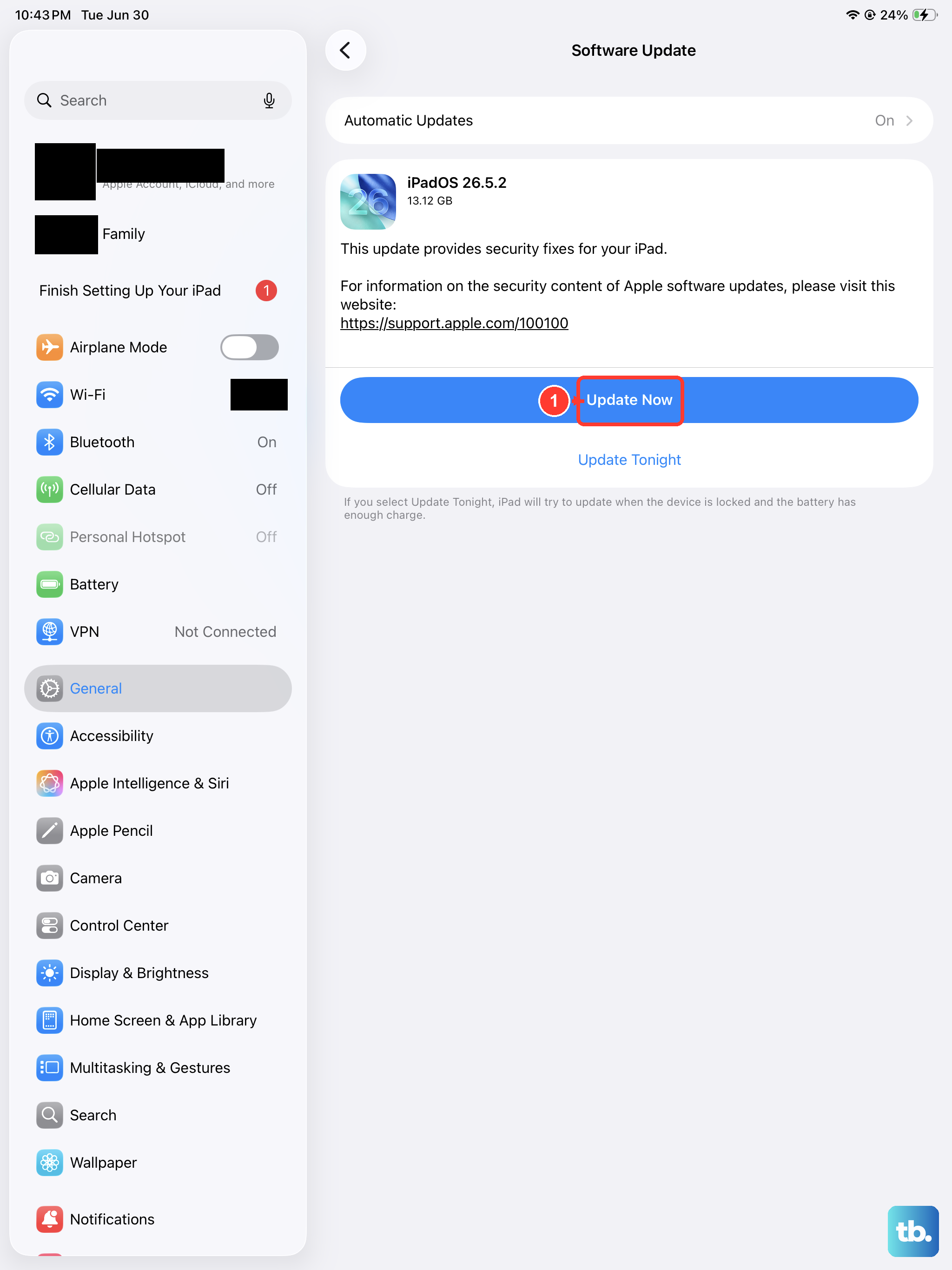
Apple regularly releases iPadOS updates that fix bugs, including ones related to power management and charging. If you're running an older version of iPadOS, updating could resolve your issue.
Go to Settings > General > Software Update. If an update is available, download and install it. Make sure your iPad is plugged in and has a good Wi-Fi connection during this process.
If your iPad won't turn on at all to check for updates, you can try updating via a computer. Connect it to a Mac or PC with a USB-C cable. On a Mac with macOS Catalina or later, open Finder. On a PC or older Mac, open iTunes. The computer should detect your iPad and may offer an update option.
Wait If the Battery Is Fully Drained
If your iPad's battery has hit absolute zero percent, it won't show any signs of life immediately when you plug it in. This is normal behavior. Leave it connected to a known-good wall charger (not a low-power computer port) for at least 30 minutes.
You should eventually see a low-battery icon or the charging indicator on the screen. If you see nothing after a half-hour, try a force restart while it remains plugged in. Sometimes it needs that little jolt to wake up the charging circuit.
Understand 80% Charge Behavior
The iPad 10th Generation does not have the newer Battery Health charge-limit controls that Apple lists for iPad (A16), iPad mini (A17 Pro), iPad Air (M2) and later, and iPad Pro (M4) and later.
If your iPad stops near 80%, heat is a more likely explanation. Apple says iPadOS may limit charging above 80 percent when battery temperatures are too high, so let the iPad cool down in a shaded, well-ventilated area and try again.
Charge with the iPad Turned Off
Sometimes a background app or process is causing a conflict that prevents proper charging. A simple test is to turn your iPad completely off, then plug it in. If the charging icon appears on the black screen, you'll know it was a software-related issue.
Charging while the device is off is also the fastest way to get power back into the battery. With the screen and all radios off, all available power goes straight to charging.
Look for Physical Damage or Overheating
Take a close look at the USB-C port on your iPad. Do the contacts look damaged, bent, or corroded? Is the cable connector loose when you plug it in? Physical damage to the port will require a repair.
Also, feel the back of your iPad. Is it unusually hot to the touch? iPads have built-in temperature protection. If the device gets too hot, it will slow down or stop charging entirely to prevent damage. Let it cool down in a shaded, well-ventilated area before trying to charge again.
Restore Your iPad via a Computer
If you've tried every other step and the problem persists, a deeper software issue might be to blame. Restoring your iPad to factory settings via a computer can wipe out these glitches. This will erase all data on your iPad, so ensure you have a recent backup in iCloud or on your computer first.
To enter recovery mode on the iPad 10th Generation, connect it to your computer with a USB-C cable. While it is connected, press and quickly release the volume button closest to the Top button, press and quickly release the volume button farthest from the Top button, then press and hold the Top button. Keep holding the Top button after the Apple logo appears until you see the recovery mode screen. On your computer, choose Restore if you are ready to erase the iPad and reinstall iPadOS.
After the restore is complete and you've set up your iPad (either as new or from your backup), test the charging again. If it still doesn't work, the issue is almost certainly hardware-related.