When your Infinix Note 40 Pro won't send photos, it's usually a quick fix. The most common culprit is a simple setting or a temporary network hiccup. I'd start by checking your mobile data or WiFi connection first, as that solves the issue more often than not.
Check Your Mobile Data and Network
First, make sure your cellular data is actually turned on. Swipe down from the top of your screen to open the Quick Settings panel and tap the mobile data icon. If it's already on, try toggling it off and back on.
If you're in an area with poor signal, the photo might fail to send. Check the signal bars in your status bar. Moving to a different location or near a window can sometimes provide a stronger, more stable connection for sending larger files.
Verify Your Internet Connection
If you're using WiFi, ensure you're properly connected. Go to Settings > Network & internet > Internet and see if your network shows as "Connected." Try forgetting the network and reconnecting by tapping the gear icon next to it and selecting "Forget."
For both WiFi and mobile data, a quick restart of your connection can help. Turn on Airplane mode from the Quick Settings panel for about 15 seconds, then turn it off. This forces your phone to re-establish a fresh connection to the network.
Enable MMS in Your Messaging App
Photos sent via standard text message (SMS/MMS) require the MMS setting to be enabled. Open your default Messages app and tap the three-dot menu in the top right. Go to Settings > Advanced and make sure "Auto-download MMS" is turned on.
Some carrier-specific or third-party messaging apps have their own MMS settings. If you're using Google Messages, you can find these under Settings > Advanced within the app. Ensuring this is enabled is crucial for picture messages.
Check Your APN Settings
Incorrect Access Point Name (APN) settings will break mobile data for MMS. You'll need to get the correct APN details from your mobile carrier, usually available on their website.
To check or enter them, go to Settings > Network & internet > Mobile network > Access Point Names. If there's already an APN listed for your carrier, tap it to view the details. If the fields are empty or incorrect, you can tap the "+" icon to add a new one with the information from your provider.
Clear the Cache for Your Messaging App
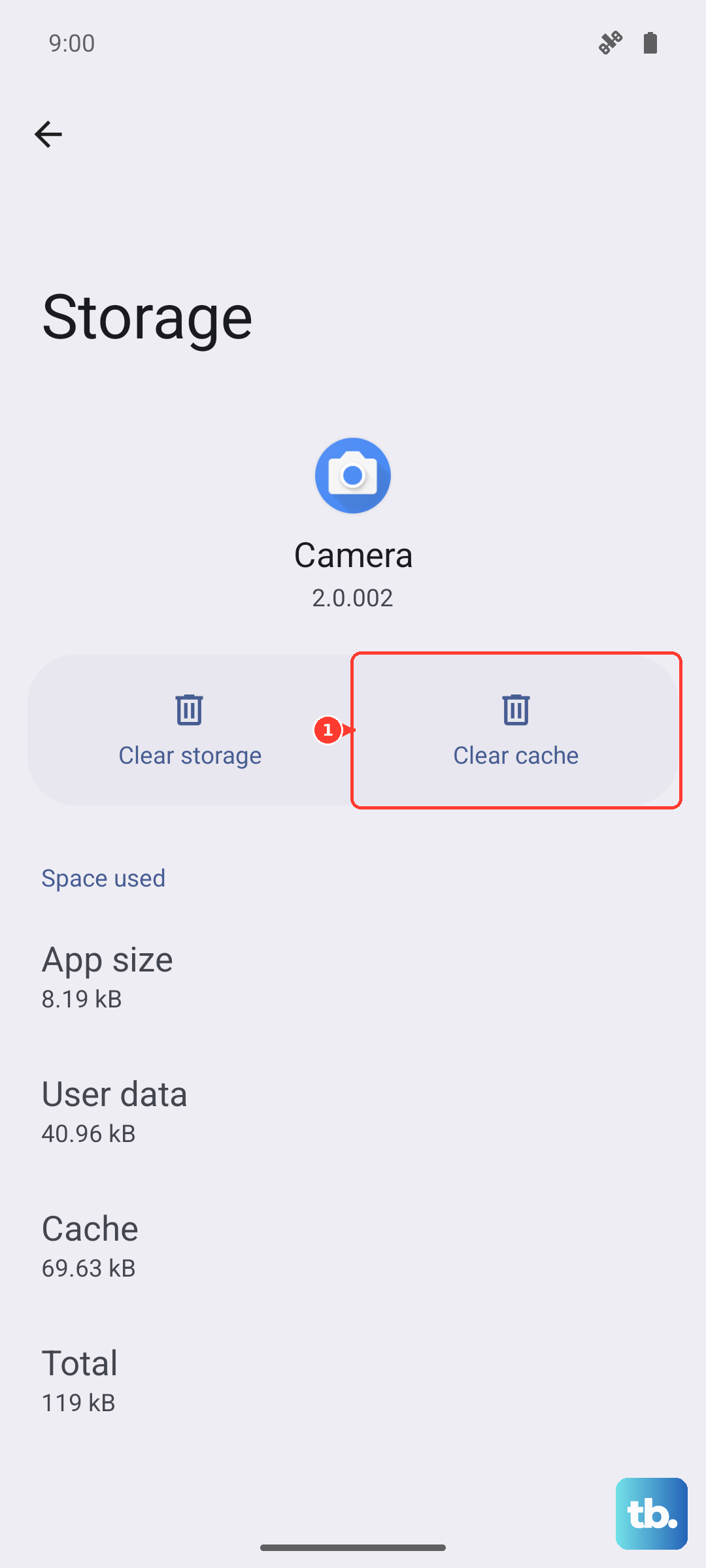
A corrupted cache in your messaging app can cause sending failures. Go to Settings > Apps > See all apps and find your messaging app in the list (like "Messages" or "Google Messages"). Tap on it and select Storage & cache.
Tap "Clear cache." This won't delete your messages, it just removes temporary files that might be causing a glitch. After clearing, open your messaging app again and try sending the photo.
Restart Your Infinix Note 40 Pro
A simple restart clears out temporary software bugs that can interfere with messaging. Press and hold the power button until the power menu appears, then tap "Restart."
If the phone is unresponsive, you can perform a force restart. Press and hold the Power button and the Volume Down button together for about 10 seconds until you feel a vibration and see the Infinix logo.
Disable Data Saver or Battery Saver Modes
Power-saving modes often restrict background data to save battery, which can prevent MMS from sending. Pull down the notification shade twice and look for icons like "Data Saver" or "Power Saving." Tap them to turn them off.
You can also manage these in settings. Go to Settings > Battery and ensure any power saving mode is disabled. Then, go to Settings > Network & internet > Data Saver and make sure that's turned off as well.
Update Your Apps and Software
An outdated messaging app or system software might have a known bug that's been fixed. First, open the Google Play Store, tap your profile icon, and go to Manage apps & device > Updates available. See if your messaging app has an update.
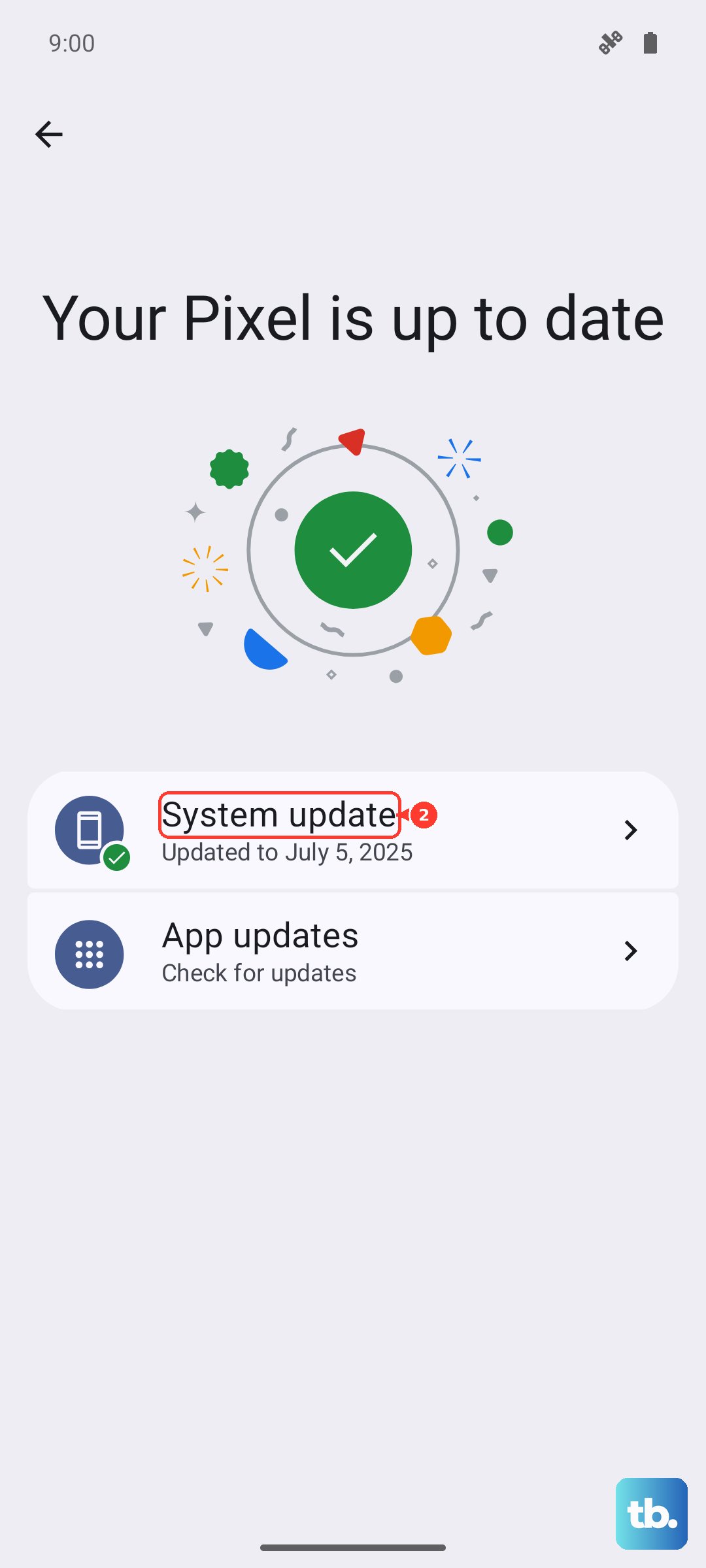
Next, check for a system update. Go to Settings > System > System update. Installing the latest version of XOS can resolve underlying connectivity issues that affect messaging.
Try a Different Messaging App
This can tell you if the problem is with your specific app or with the phone's system. Download a popular alternative like Google Messages or Signal from the Play Store.
Set the new app as your default if prompted, then try sending a photo. If it works, the issue is likely with your previous messaging app's settings or installation.
Reset Your Network Settings
This is a more thorough step that resets all network-related configurations to factory defaults. It will erase saved WiFi passwords, Bluetooth pairings, and mobile network settings.
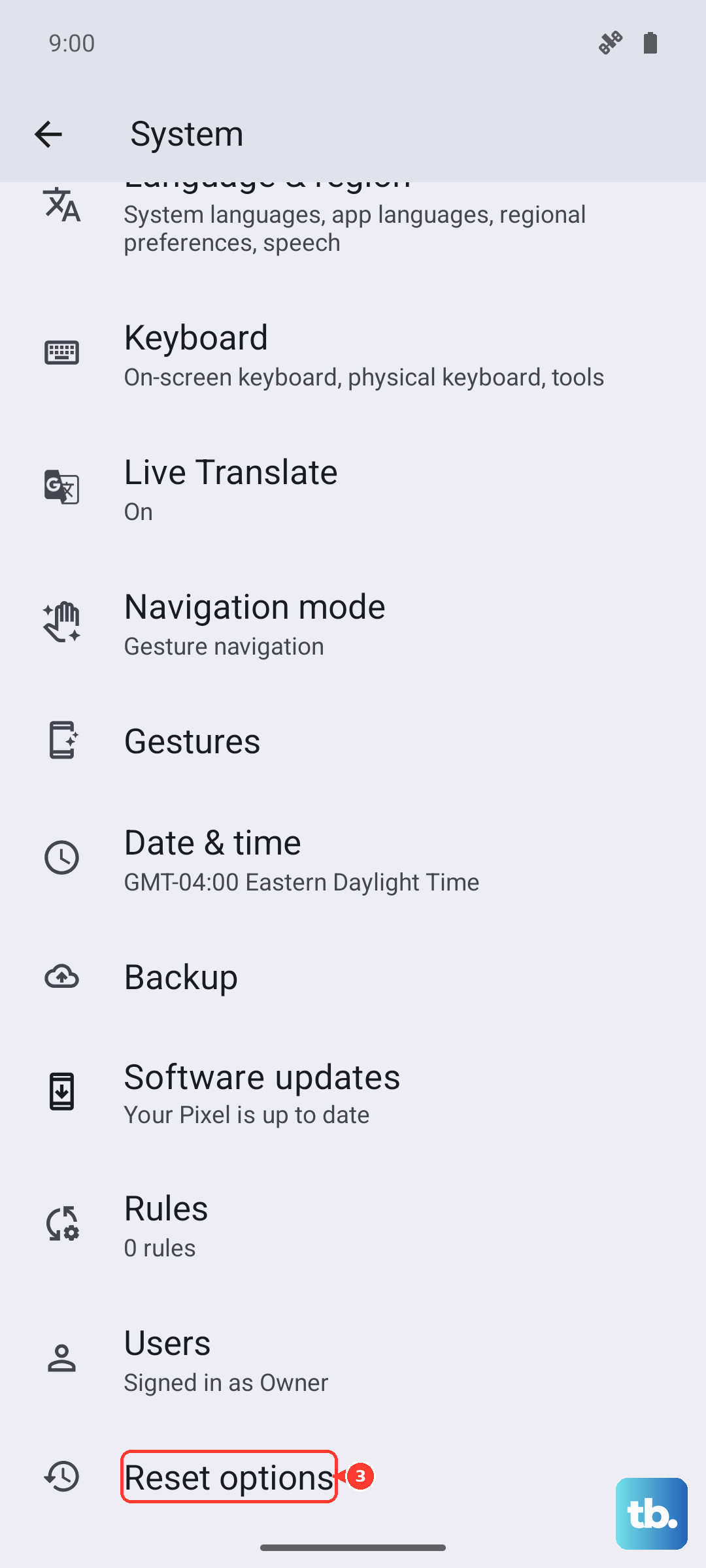
Go to Settings > System > Reset options. Tap on "Reset Wi-Fi, mobile & Bluetooth." Confirm the action and enter your PIN or password if asked. After the phone reboots, you'll need to reconnect to your WiFi and re-pair Bluetooth devices.