You set your Infinix Note 40 Pro down to charge wirelessly, expecting to come back to a full battery, and instead the percentage never moved, or never started climbing at all. Wireless charging on this phone is real and it works well once it is set up correctly, but it behaves differently from the flat pads you may be used to. Before you assume the coil is dead or the phone is faulty, it is worth running through the checks below in the order they appear.
The Note 40 Pro uses a magnetic system that Infinix calls 20W Wireless MagCharge, and the single most common reason it appears to stop working is simply that the magnets and coils never lined up. The fixes start with quick, safe alignment and accessory checks, then move on to software steps, and finish with the official reset and repair route. Work through them from the top and stop as soon as your phone starts charging.
How 20W Wireless MagCharge actually works on this phone
This phone does not rely on the loose drop it anywhere on the pad approach. Infinix delivers wireless charging through the Infinix MagKit, a magnetic, MagSafe-style set that includes the MagCase, a magnetic phone case, the MagPad, a magnetic wireless charging pad, and the MagPower, a magnetic power bank. You fit the MagCase first, then let the MagPad or MagPower snap onto the back so the charging coils sit directly over each other.
This applies to both versions sold under the Note 40 Pro name, the 4G model (codename X6850, MediaTek Helio G99 Ultimate) and the 5G model (codename X6851, MediaTek Dimensity 7020). Both run Android 14 with Infinix XOS 14 and carry a 5000mAh battery. Because the design is magnetic, a bare phone or a third-party case sitting on a generic pad usually means the coils never align, which is why understanding the MagKit is the foundation for everything that follows.
1. Confirm you are charging through the Infinix MagKit
The Note 40 Pro's wireless charging is 20W Wireless MagCharge, a magnetic system, and Infinix delivers it through the Infinix MagKit. That kit is the phone case (MagCase), the magnetic charging pad (MagPad), and the magnetic power bank (MagPower). Fit the Infinix MagCase first, then let the MagPad or MagPower snap magnetically onto the case.
A bare phone, or a non-Infinix case, placed on a generic flat pad is the most common reason wireless charging looks broken. If that describes your setup, switching to the proper MagKit is very often the entire fix, so confirm this before troubleshooting anything else.
2. Let the MagPad snap on and keep the phone still
MagCharge relies on magnetic alignment, so let the MagPad or MagPower click onto the magnets in the MagCase until the charging coils line up. If the pad is offset, sliding around, or not fully snapped on, charging will not start. Re-seat it until it grips firmly and sits centrally on the back of the phone.
Once it has clicked into place, leave the phone undisturbed. Nudging it out of position breaks the coil alignment, so resist the urge to pick it up to check the screen until charging has clearly begun.
3. Stick with the Infinix MagCase and clear the magnetic area
Because MagCharge depends on the Infinix-branded magnetic case to position the pad, swapping in a thick third-party case can stop the pad from attaching and aligning. Use the supplied MagCase rather than a generic alternative whenever you charge wirelessly.
Also clear the back of the phone before you charge. Metal objects such as cards, metal plates, or a PopSocket on the magnetic contact area block the pad from seating correctly, so keep that surface clean and unobstructed.
4. Feed the MagPad from an original Infinix charger
The MagPad still needs an adequate adapter behind it, so the quality of the wall charger and cable matters. Infinix's guidance is to use your original Infinix charger and to make sure the charging cable is in good condition.
If charging is still poor, try a different wall socket or power source. Powering the pad from a known-good Infinix charger and a healthy outlet removes a weak adapter or a worn cable from the list of suspects.
5. Test a wired charge to pin down the fault
Plug the phone in with its original cable and adapter to see how it behaves. If wired charging works but wireless does not, the problem is wireless-specific, meaning the MagCase, the MagPad, the alignment, or an accessory is to blame, and the earlier fixes are where your attention belongs.
If neither wired nor wireless charging works, treat it as a general charging fault instead. In that case, move on to checking the cable, the adapter, and the charging port in the next step.
6. Check the charging port for dirt and moisture
For a general charging fault, inspect the charging port closely for dirt, lint, or debris. If you find any, clean it out gently with a soft, dry brush, and avoid using anything metal or sharp that could damage the contacts inside.
Moisture is just as important. The phone will not charge if there are traces of moisture or water on the port, so if it has been exposed to liquid, let it dry fully before you try charging again.
7. Reboot, or force-restart a frozen phone
A quick restart clears temporary glitches that can interfere with charging. Press and hold the Power button, tap Restart, then try charging again.
If the phone is frozen or unresponsive, force a reboot instead:
- 1.Press and hold the Power button and the Volume Down button together.
- 2.Keep holding them for more than 5 seconds until the phone reboots.
- 3.Once it restarts, set it back on the MagPad and check whether charging begins.
8. Update XOS to the latest version
Software upgrades play a big part in solving charging issues, so make sure your firmware is current. Connect to a strong internet connection and confirm your battery is above 50% before you start.
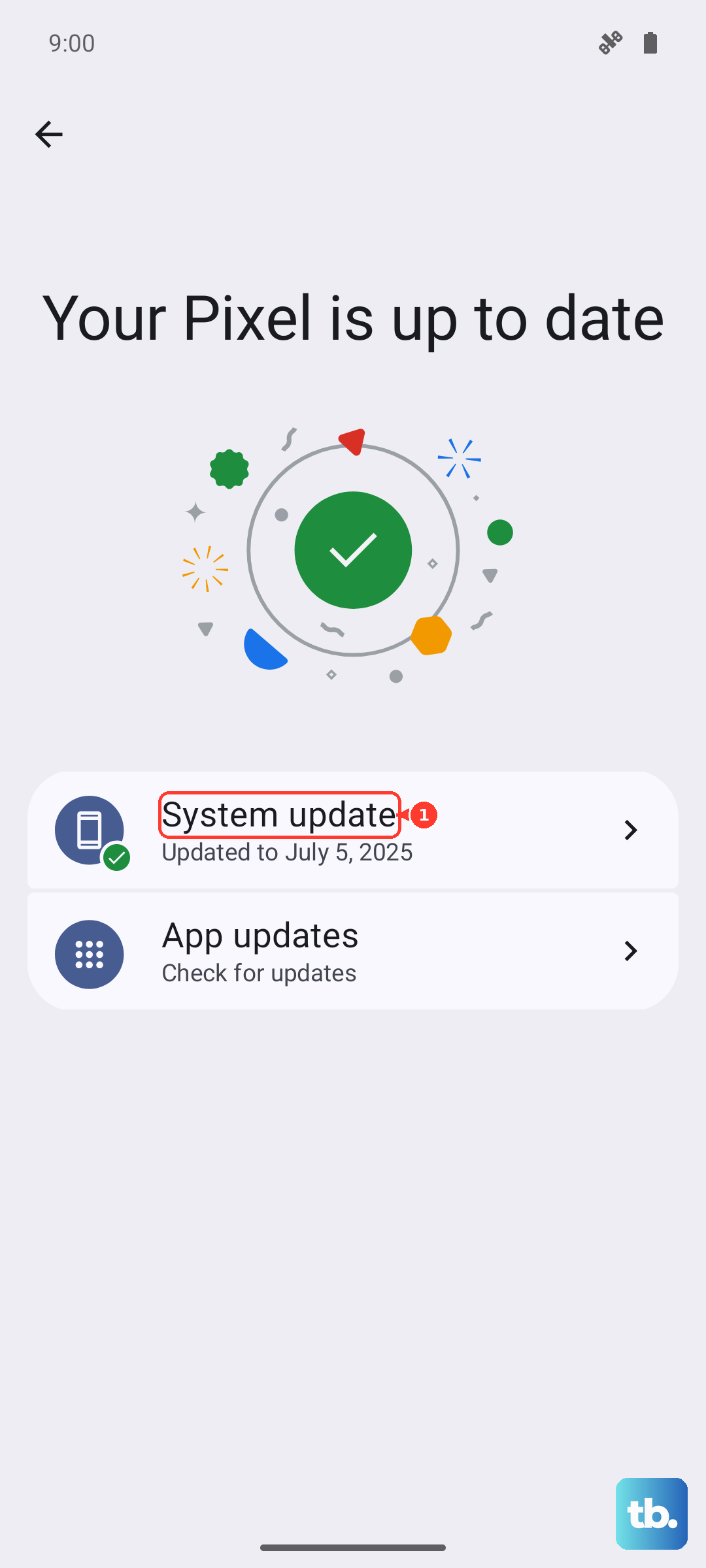
Then go to Settings > System > System Update > Online Update and install any available update. Once it finishes and the phone restarts, test wireless charging again with the MagKit properly seated.
9. Back up, factory reset, then book a Carlcare repair
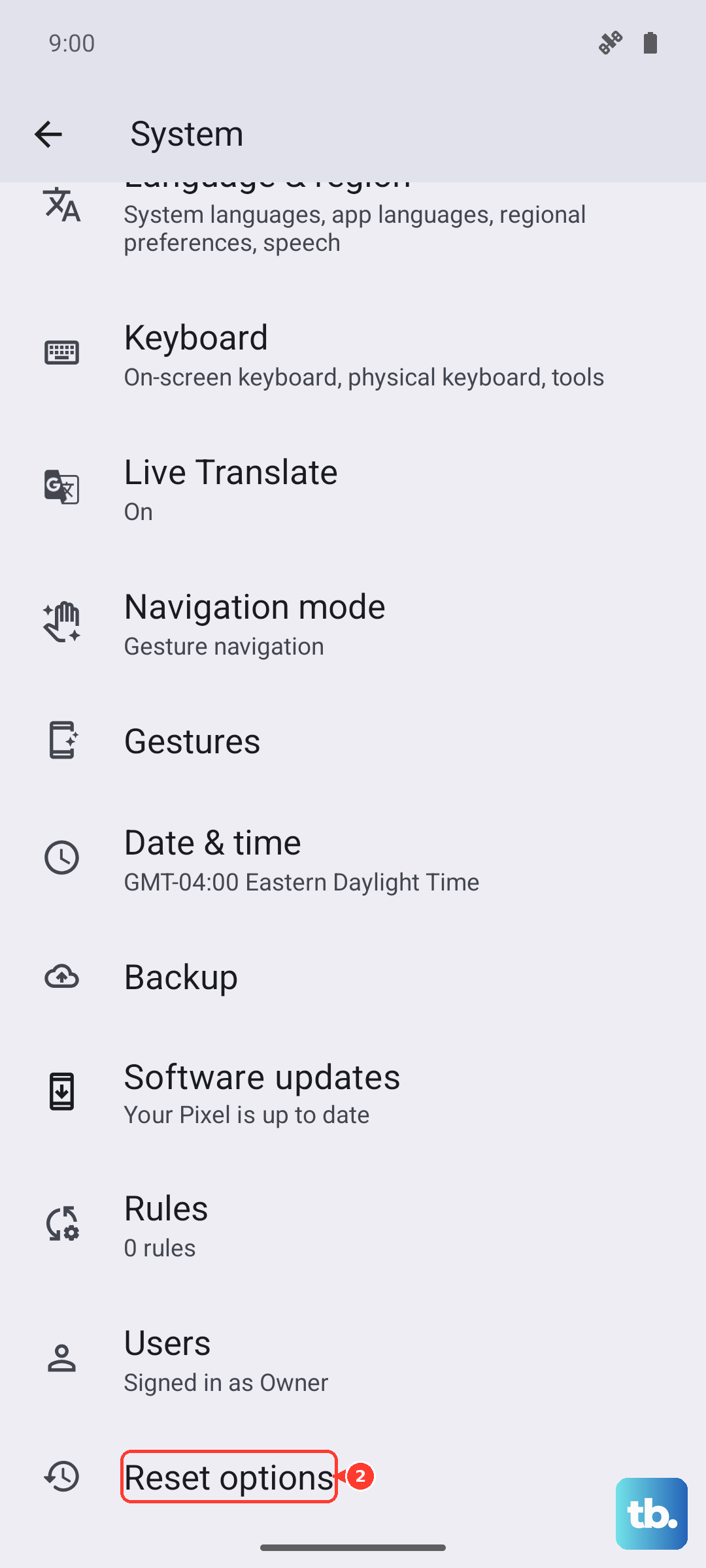
If nothing above has helped, a factory reset is the last software step to try. This wipes everything on the phone, so back up your data first, then go to Settings > System > Reset options > Erase all data (Factory settings).
If you cannot reach the menu, you can reach the reset through recovery mode instead. Press and hold Power and Volume Up until the Infinix logo appears, use the Volume keys to highlight Wipe data/factory reset, and confirm with the Power button. Remember that this also erases all of your data, so only do it after backing up.
If wireless charging still does not work after a reset, the issue is most likely hardware. Contact Carlcare, the official Infinix after-sales service, or reach Infinix Support to book a repair or warranty service.
Frequently Asked Questions
Does the Infinix Note 40 Pro support wireless charging?
Yes. The Note 40 Pro supports 20W Wireless MagCharge, a magnetic, MagSafe-style system delivered through the Infinix MagKit. This is true for both the 4G model (X6850) and the 5G model (X6851).
Can I charge it on a regular flat Qi pad without the Infinix MagCase?
Official Infinix documentation ties MagCharge to the MagKit, meaning the MagCase plus the MagPad or MagPower. Infinix does not say whether the phone can charge on a plain flat pad without the Infinix MagCase, so the reliable approach is to use the MagKit as designed.
Why does my phone charge with a cable but not wirelessly?
If wired charging works and wireless does not, the fault is wireless-specific. The usual culprits are the MagCase, the MagPad, the magnetic alignment, or an accessory blocking the contact area, so re-check those before assuming a hardware failure.
Will a factory reset fix wireless charging?
A factory reset is the final software step worth trying, since it clears software-level problems. It erases everything on the phone, so back up first. If wireless charging still fails afterward, it points to a hardware issue, and you should contact Carlcare or Infinix Support for a repair.
Why does the MagPad keep sliding off?
MagCharge depends on the magnets in the Infinix MagCase to hold the pad in place. A thick third-party case, a bare phone, or metal objects on the back will stop the pad from gripping, so use the supplied MagCase and keep the magnetic area clear.