
When your Infinix Note 40 Pro's GPS stops locking on, it can leave you stranded, especially since you might be relying on it for navigation in new areas. The good news is that most GPS problems are software-related and can be fixed without a trip to a service center. I'd start with the quick refreshes below, as they solve the issue more often than not.
Refresh Your GPS Connection
The fastest way to fix a temporary glitch is to toggle your location services off and back on. Swipe down from the top of your screen to open the Quick Settings panel. Look for the Location icon, which looks like a teardrop-shaped pin, and tap it to turn it off.
Wait about 30 seconds, then tap it again to turn it back on. This simple reset tells the phone's GPS radio to restart its search for satellites, which often clears up minor hiccups immediately.
Perform a Force Restart
If toggling doesn't work, a force restart is your next best step. This clears out any stuck processes in the phone's memory, including those related to the GPS. Press and hold the Power button and the Volume Down button together.
Keep holding both buttons for about 10 seconds, or until you see the Infinix logo appear on the screen. Let go and allow the phone to boot up completely. Once it's back on, try opening Google Maps or another navigation app to see if your location is now accurate.
Check App Permissions in XOS
Sometimes, the app you're using simply doesn't have permission to access your location. Infinix's XOS can be a bit aggressive with permissions. Open your phone's Settings and scroll down to Apps.
Find your navigation app, like Google Maps or Waze, and tap on it. Go to Permissions and make sure Location is set to "Allow all the time" or at least "Allow only while using the app." If it's set to "Deny," that's why your GPS seems broken.
Switch to High Accuracy Mode
Your Note 40 Pro has a few different location modes. The Battery Saving mode uses only Wi-Fi and mobile networks to estimate your location, which isn't true GPS. For proper navigation, you need High Accuracy mode enabled.
Go to Settings > Location. At the top, make sure the main Location switch is on. Then, tap on Location services or Mode. Select "High accuracy." This tells your phone to use GPS satellites, Wi-Fi, and mobile networks together to get the fastest, most precise lock.
Disable Power Saving Modes
Both the standard Battery Saver and any ultra power saving modes can severely limit background processes, including GPS functionality. This is a common culprit when your location seems to jump around or lags behind.
Open Settings and go to Battery. If Battery Saver or any similar mode is active, turn it off. For the most reliable GPS performance, I'd recommend keeping this off while you're navigating, as the Dimensity 7020 chipset can sometimes struggle with heavy tasks when power is restricted.
Update Your Apps and Software
An outdated version of Google Maps or an old system software patch can have bugs that break GPS. First, open the Google Play Store, tap your profile icon, and go to Manage apps & device. Install any pending updates for your mapping apps.
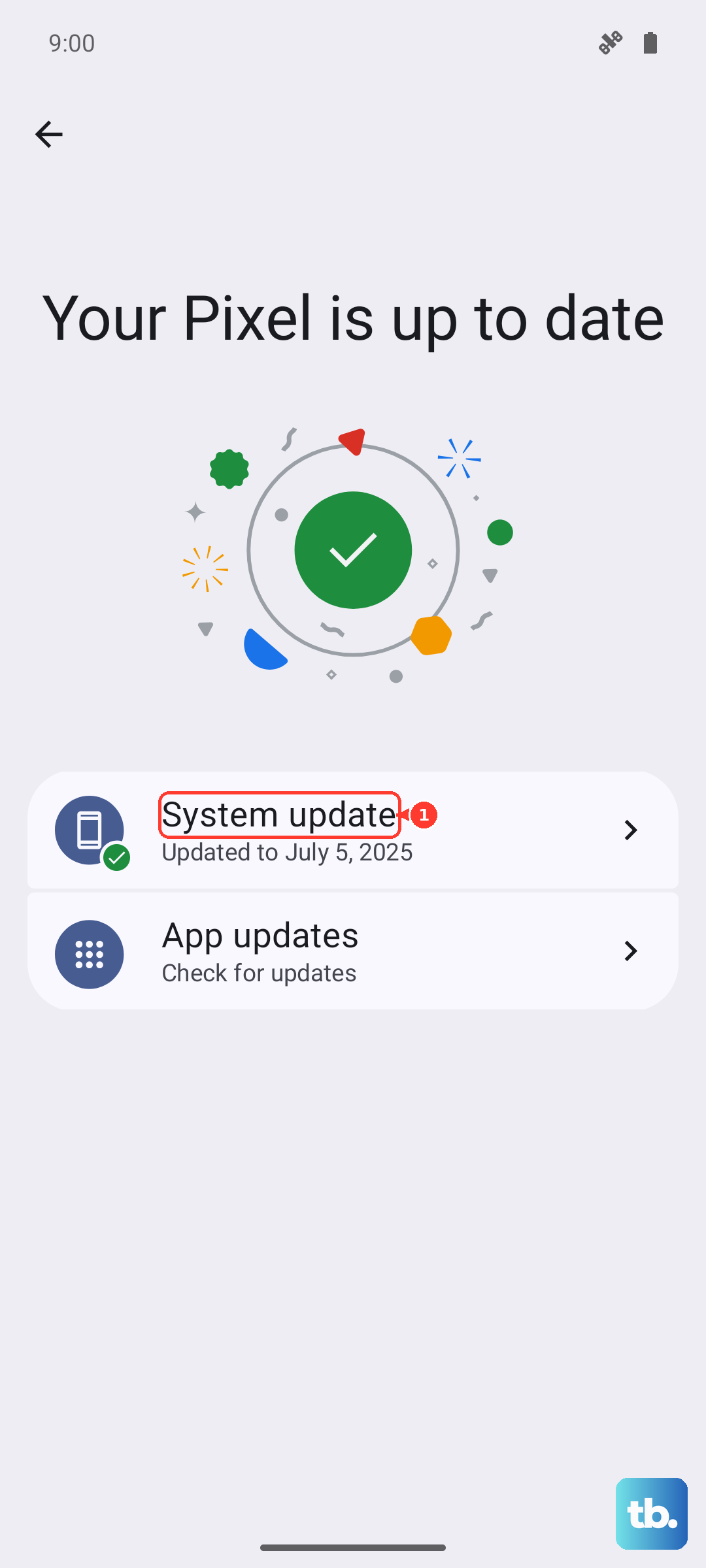
Next, check for a system update. Go to Settings > About phone > Software update. If an update is available, install it. Infinix occasionally releases updates that improve system stability and connectivity, which can include GPS performance.
Clear the App Cache and Data
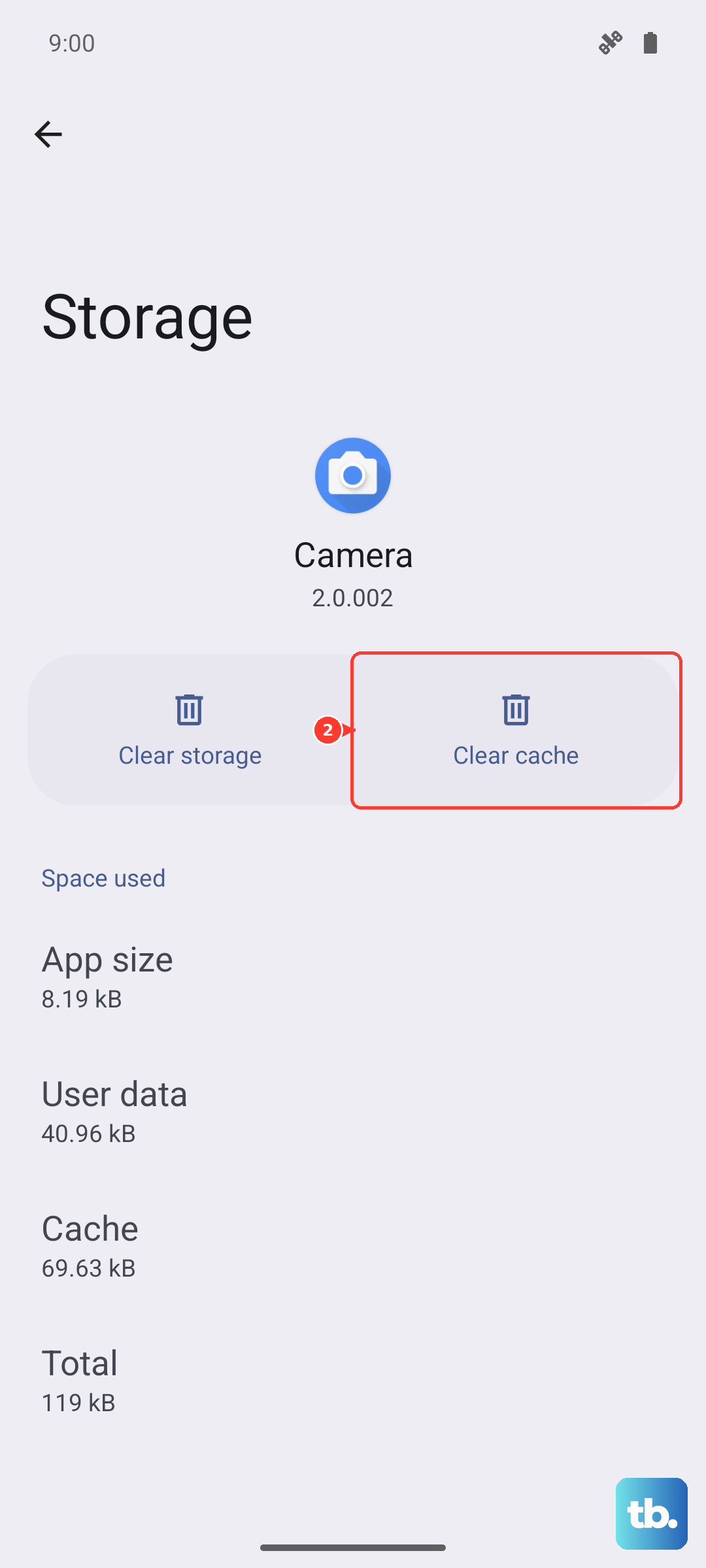
Corrupted temporary files within your navigation app can cause it to malfunction. This won't delete your saved places, but it's a good deep clean. Go to Settings > Apps, find your mapping app, and tap on it.
Tap Storage & cache. First, tap Clear cache. If the GPS is still problematic, you can tap Clear storage or Manage storage. Be aware that this will reset the app to its default settings, so you may need to log back in.
Reset Your Network Connections
Turning on Airplane mode resets all the phone's radios, cellular, Wi-Fi, and Bluetooth. This can also help reset the GPS module if it's stuck. Swipe down for the Quick Settings panel and tap the Airplane mode icon.
Wait for 15 full seconds to let all connections fully disconnect. Then, tap the Airplane mode icon again to turn it off. Your phone will reconnect to your mobile network and Wi-Fi. Give your GPS app another try after this full reset.
Test in Safe Mode
If you've installed any new apps recently, one of them might be interfering with location services. Booting into Safe Mode disables all third-party apps so you can test. Press and hold the power button until the power menu appears.
On the "Power off" option, tap and hold your finger on it. After a moment, a prompt to reboot to Safe Mode will appear. Tap OK. Once the phone restarts, you'll see "Safe Mode" in the bottom corner. Open Maps and test the GPS. If it works perfectly here, a recently installed app is the culprit.
Check for Physical and Environmental Issues
GPS signals are line-of-sight and can be blocked by all sorts of things. If you're indoors, in a basement, or in a car with a metallic tint, the signal will be very weak or nonexistent. Try moving to an open area with a clear view of the sky.
Also, consider your phone case. A very thick case, especially one with metal elements or a magnetic closure for the included wireless charging, can potentially interfere with the internal GPS antenna. Try removing the case temporarily to see if your signal improves.
Use a GPS Diagnostic Tool
If you've tried everything and the GPS is still dead, it's time to figure out if it's a software or hardware problem. Download a free app like "GPS Test" or "GPS Essentials" from the Play Store.
Open the app and look for a screen that shows satellites. Go outside with a clear view of the sky. If the app shows your phone connecting to multiple satellites but your navigation apps still don't work, it's a software or configuration issue. If it shows zero satellites after several minutes outdoors, there may be a hardware problem with the antenna.