You tap into your banking app, open a game, or launch the camera on your Infinix Note 40 Pro, and it freezes for a moment before throwing you straight back to the home screen. When an app keeps crashing like this, it is almost always something you can fix in software rather than a sign that the phone itself is failing. The Note 40 Pro runs XOS over Android (it ships with XOS 14 based on Android 14 and is eligible for the XOS 15, Android 15, update), so all of the dependable repair tools live right inside the Settings app and the Google Play Store. Work through the fixes below in order, starting with the quickest and safest, and you will usually have the app behaving again long before you reach the final reset.
Force stop the app, then restart the Note 40 Pro
The fastest first move for a single misbehaving app is to force stop it, which shuts down every stuck background process tied to that app so it can start fresh. Open Settings on your Note 40 Pro.
Go to Apps, then See all apps, and tap the app that keeps crashing.
Tap Force stop and confirm if prompted.
Return to the home screen and open the app again.
If the app still crashes right away, restart the whole phone. A full restart clears out lingering background processes and frees up memory, which often resolves an app that crashes because the system is low on resources. Turn the phone off completely, wait a few seconds, then power it back on and reopen the app.
If the screen is frozen and the phone will not respond to a normal shutdown, the official guidance is to press and hold the Power button until the device goes off, then power it back on. That is the correct way to force a restart on this model, so avoid any other button combination you may have seen elsewhere.
Install pending app updates from the Play Store
Outdated apps are one of the most common reasons for repeated crashes, because an old version may not be compatible with the current system or with other apps it depends on. Installing the latest version frequently fixes the problem outright.
Open the Google Play Store.
Tap your profile icon in the top right.
Tap Manage apps & devices.
Under Updates available, update the crashing app, or choose to update everything at once.
The official guidance similarly recommends opening the Play Store and updating any app that crashes often, so make this a habit if a particular app gives you trouble.
Clear the app's cache, then its data
Apps build up temporary cache files as you use them, and when those files become corrupted the app can crash on launch. Clearing the cache is harmless and keeps your sign-in and settings, so always try it before clearing data.
- 1.Open Settings and go to Application Manager.
- 2.Select the crashing app.
- 3.Remove the cached data first, then reopen the app to test it.
- 4.If it still crashes, return and remove the stored information (the app's data) as well.
Be aware that clearing data resets the app to its initial state, so you may need to sign in again or set up your preferences from scratch. That is a small price to pay if it stops the crashes.
Bring Google Play Services up to date
Many apps rely on Google Play Services in the background for sign-in, notifications, maps, and more, so when that component falls out of date a wide range of apps can start crashing. Updating it can fix problems that appear in several apps at once.
Open Settings and go to Apps and Notifications, then See all apps.
Scroll to Google Play Services.
Apply any available updates.
Once Google Play Services is current, reopen the apps that were failing and check whether they behave normally.
Make room when storage is nearly full
Apps need free space for cache, updates, temporary files, and background tasks, so when your Note 40 Pro is almost out of storage they can crash even though nothing is wrong with the app itself. Freeing up space is an easy fix that is simple to overlook.
Delete files you no longer need, clear out large downloads, and remove duplicate photos and videos, or back them up to the cloud to reclaim room. Once there is comfortable headroom again, the crashing usually stops.
Use Safe Mode to find a misbehaving download
Safe Mode loads only the system apps that came with the phone and temporarily disables everything you installed yourself. If the crashes stop while you are in Safe Mode, you know a downloaded app is the culprit.
To boot into Safe Mode, follow the official method. Press and hold down the Power and Lock button, then wait for your phone to boot up to the Infinix logo. Once the logo is visible, press and hold the Volume Down button and wait for the phone to finish booting into Safe Mode.
Use the phone for a while in this state. If everything runs smoothly, restart the phone normally to exit Safe Mode, then uninstall the app you most recently added or the one you suspect, and check whether the trouble returns.
Install the latest XOS system update
A buggy system build can cause apps to crash across the board, and the manufacturer regularly ships XOS and Android updates that patch these issues. Installing any pending update is often what finally settles widespread, hard-to-pin-down crashing.
Go to Settings, scroll down, and tap System, then select System Update and Online Update.
Alternatively, open Settings, go to Software Update, then Download, and select Verify and Install.
Tap OK to restart when prompted so the update can finish installing.
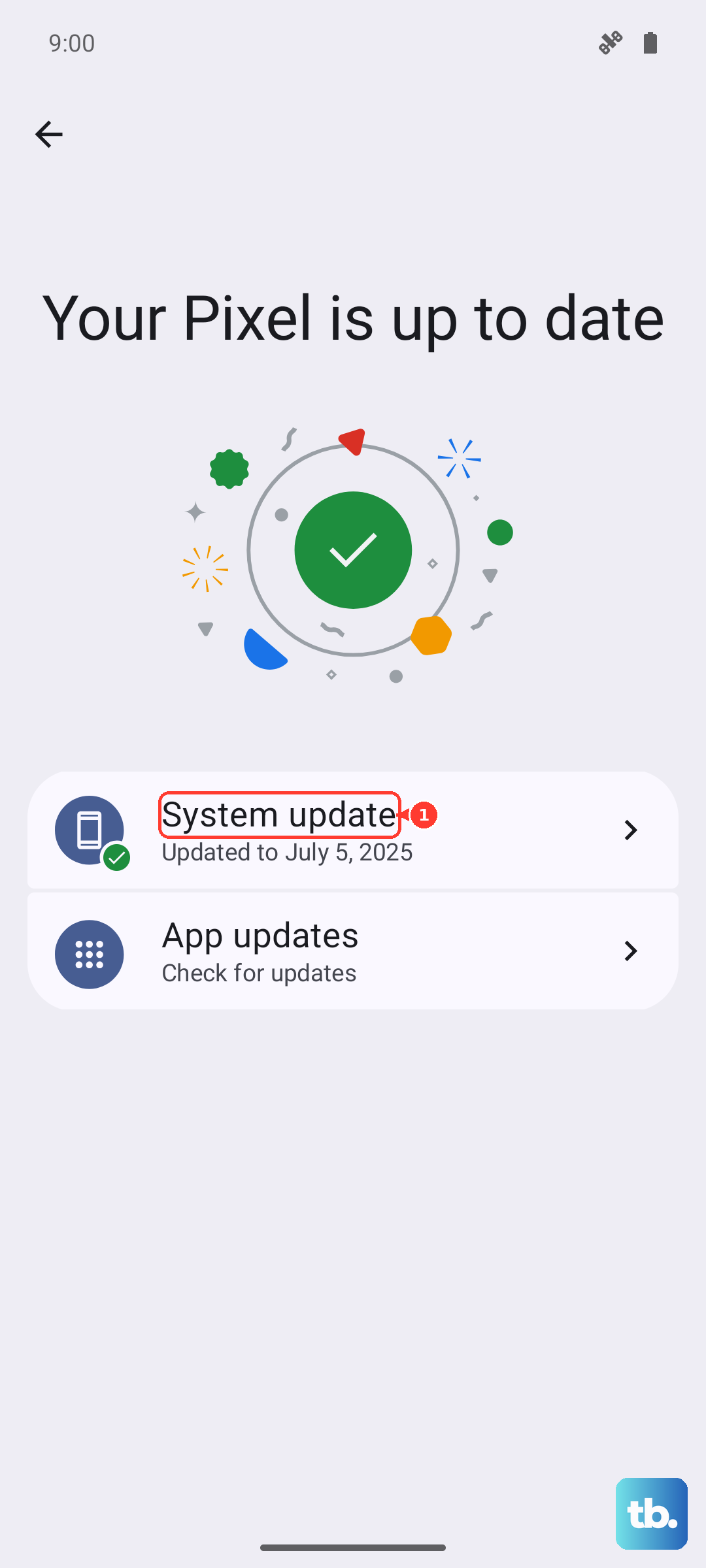
Keep the battery above 50 percent, stay on Wi-Fi, and do not interrupt the process once you have selected Verify and Install. Letting the update complete uninterrupted protects the phone from ending up in a half-updated state.
Remove the app and install a fresh copy
If a single app keeps crashing no matter what you try, a clean reinstall replaces any damaged files with a brand-new copy. This often succeeds where clearing data alone did not.
Open Settings and go to Application Manager.
Select the app and uninstall it.
Open the Google Play Store and reinstall the app.
Note that uninstalling erases any data saved in that app, so back up anything important, such as in-app notes, game progress, or unsynced content, before you remove it.
When a factory reset and Carlcare are the next step
If apps keep crashing across the whole phone even after everything above, a factory reset returns the Note 40 Pro to its original software state and clears out whatever is causing the trouble. This is a last resort because it wipes the device, so treat it carefully.
Back up your photos, contacts, messages, and files first, because the official warning is clear that a factory reset will wipe out all the existing data on your phone. When you are ready, go to Settings, scroll down and select System, then Reset options, and tap Erase all data (factory settings). Enter your password if you have one set, then continue.
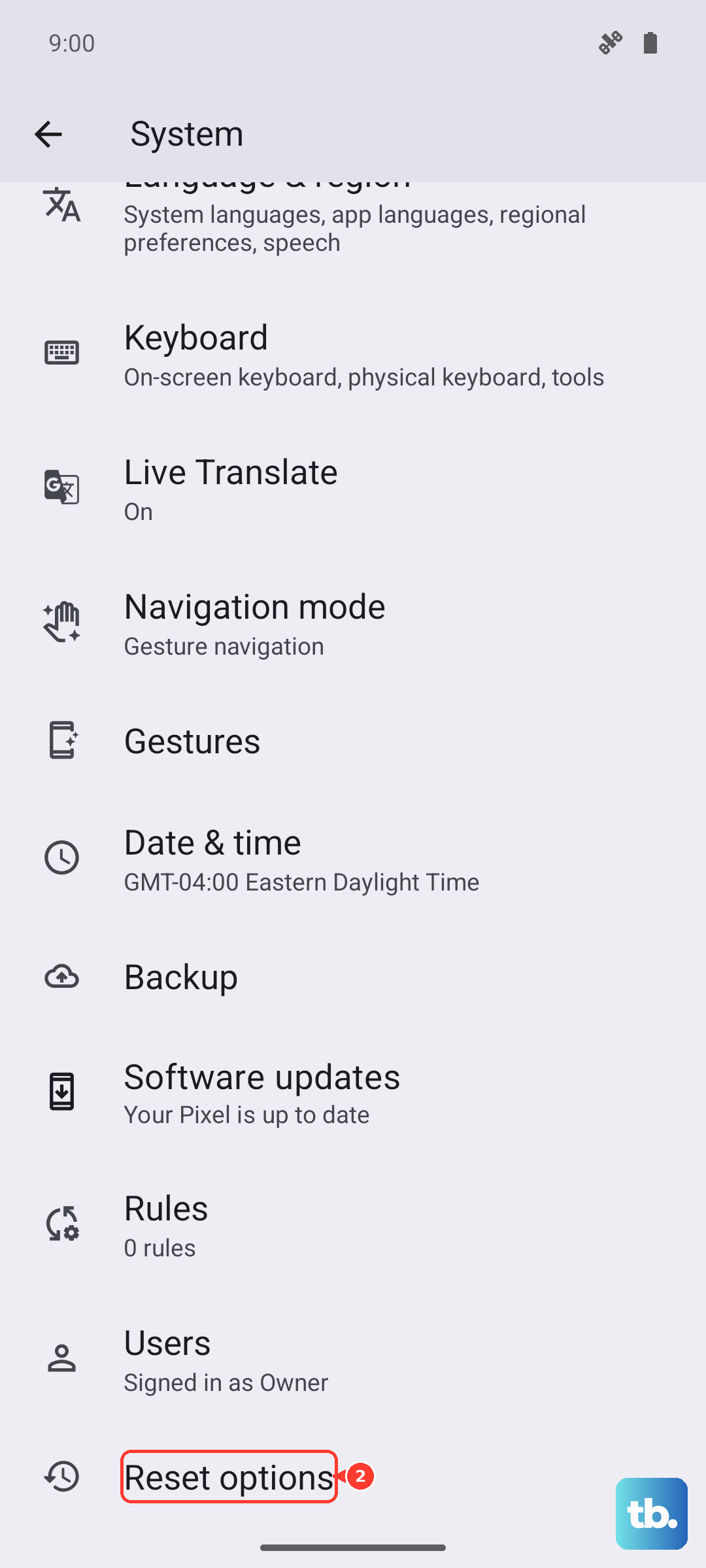
If the crashing continues even after a clean factory reset, the problem may be hardware rather than software. At that point, book a Carlcare reservation or visit an Infinix service center for a proper diagnosis, since Carlcare is the official after-sales support channel for the Note 40 Pro.
Frequently Asked Questions
Will clearing an app's data delete my photos and other apps?
No. Clearing data only resets that one app to its initial state, which means you may need to sign in again or redo its settings. Your other apps, photos, and personal files are untouched. Only a full factory reset wipes everything on the phone.
How can I tell whether a downloaded app is causing the crashes?
Boot into Safe Mode, which loads only the system apps that came with the phone. If the crashing stops in Safe Mode, a downloaded app is responsible. Restart normally to exit, then uninstall the suspect app to confirm.
Is the Note 40 Pro getting a newer version of Android?
Yes. The Note 40 Pro ships with XOS 14 based on Android 14 and is eligible for the XOS 15 update, which is based on Android 15. Installing the system update can fix crashes caused by an older build, so it is worth checking under Settings, System, System Update.
What should I do if apps still crash after a factory reset?
If problems continue once the phone has been reset to its original software, the cause is more likely hardware than software. Book a Carlcare reservation or take the phone to an official Infinix service center for a hands-on diagnosis.