
When your Huawei Pura 70 Pro won't send pictures, it's usually a quick fix. The most common culprit is a simple setting or a temporary app glitch. I'd start by checking your mobile data or WiFi connection first, as that solves the issue more often than not.
Check Your Mobile Data and Network
Open your Messages app and try sending a picture. If it fails, pull down the notification shade and make sure your mobile data icon is active. You can also go to Settings > Mobile network and ensure the Mobile data switch is turned on.
For a stronger signal, try toggling Airplane mode on and off. Swipe down from the top of your screen twice to open the full Quick Settings panel and tap the airplane icon. Wait about ten seconds, then tap it again to turn it off. This refreshes your connection to the cellular network instantly.
Verify Your MMS and APN Settings
MMS, or Multimedia Messaging Service, is what your carrier uses to send pictures over text. If these settings are wrong, photos will get stuck. Head to Settings > Mobile network > Access Point Names (APN).
Make sure the correct APN for your carrier is selected. If you're unsure what it should be, you can often find the right APN details on your carrier's official support website. You may need to add a new APN profile manually using the info from your carrier.
Force Close and Reopen Your Messaging App
A temporary bug in the Messages app can cause sending failures. Swipe up from the bottom of your screen and hold in the middle to enter the recent apps view. Find the Messages app and swipe it up off the screen to close it completely.
Wait a moment, then tap the Messages icon again to reopen it. Try sending your picture one more time. This clears the app's temporary memory and often gets things moving again.
Restart Your Huawei Pura 70 Pro
A full restart clears out minor software hiccups that might be blocking messages. Press and hold the Power button on the right side of the phone. When the power menu appears, tap Restart.
If the screen is unresponsive, you can perform a force restart. Just press and hold the Power button for about 10 to 15 seconds until you feel a vibration and see the Huawei logo appear on screen. This forces the phone to reboot.
Check Your Internet Connection for Chat Apps
If you're trying to send photos through an app like WhatsApp, Telegram, or WeChat, the problem is with your internet, not your SMS. Make sure you're connected to a stable WiFi network or have a strong mobile data signal.
For WiFi, try forgetting the network and reconnecting. Go to Settings > WLAN, tap on your network name, and select Forget network. Then, search for it again and enter the password to reconnect. A quick router restart can also help.
Clear the Cache for Your Messaging App
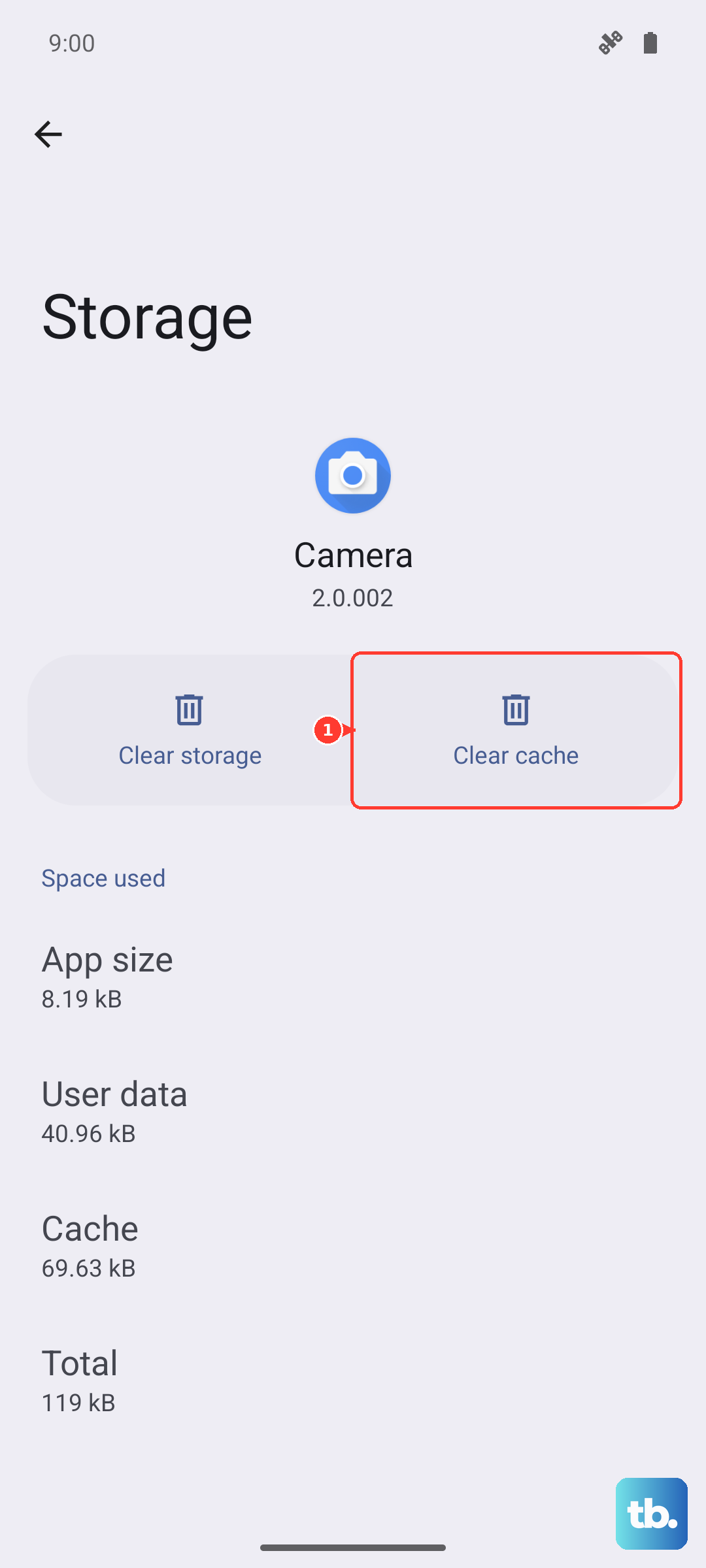
Over time, cached data in the Messages app can become corrupted. Go to Settings > Apps > Apps. Find and tap on Messages from the list. On the app info page, select Storage.
Tap Clear cache. This deletes temporary files without touching your actual message history or personal data. After clearing, open the Messages app and test if you can send a picture now.
Disable Data Saving or Ultra Power Saving Modes
Power-saving features on your Pura 70 Pro can restrict background data, which prevents MMS messages from downloading or sending. Swipe down for the Quick Settings panel and check if the power saving icon is highlighted.
You can also go to Settings > Battery to see if Power saving mode or Ultra power saving mode is active. Turn these modes off temporarily to see if it resolves your picture-sending issue.
Update Your Messaging App and EMUI
An outdated app or system software can have bugs that break MMS. Open the AppGallery and tap on the Me tab at the bottom. Go to App updates to see if there's a newer version of the Messages app available.
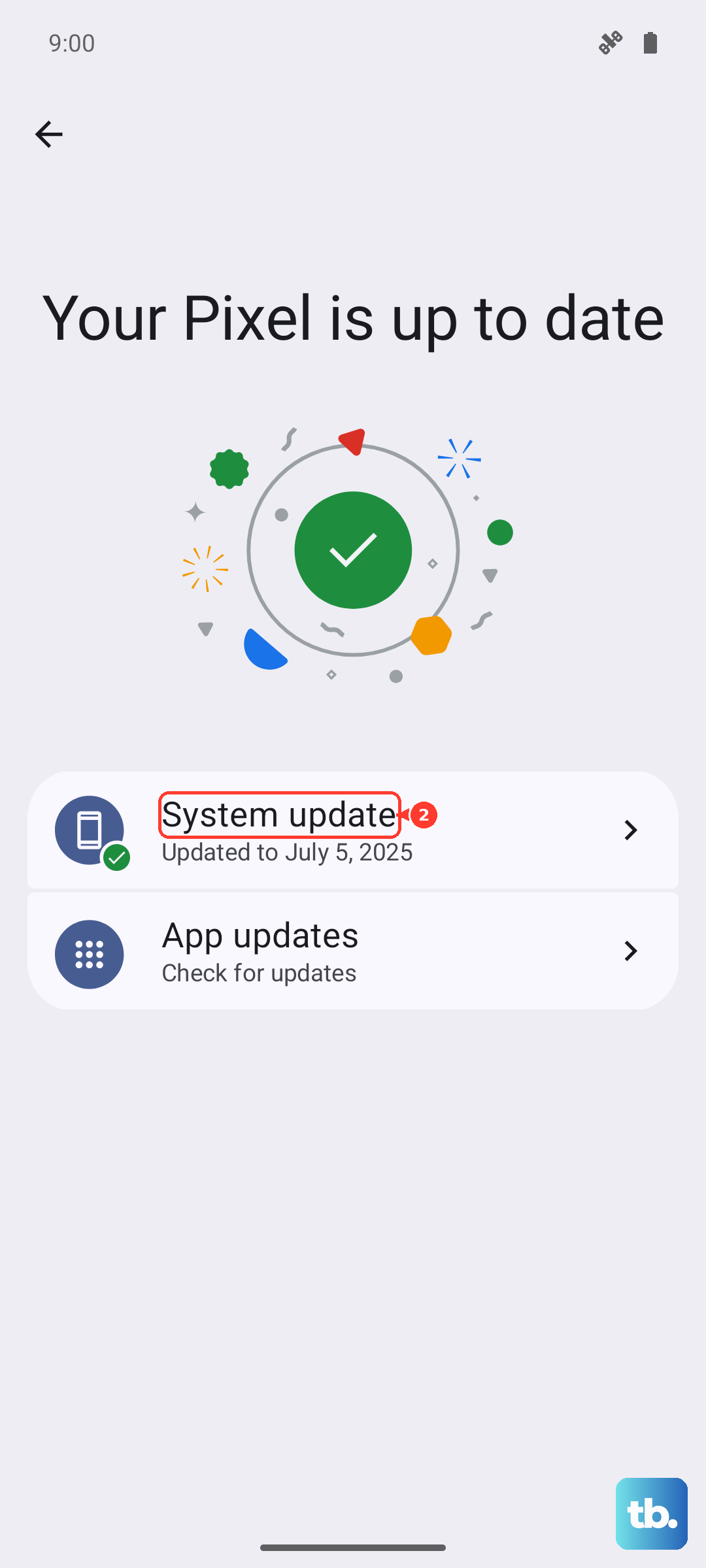
For a system update, go to Settings > System & updates > Software update. Tap Check for updates. If an update is available, install it, as it often includes important connectivity fixes.
Reset Your Network Settings
This is a more thorough step that resets all network-related configurations back to default. It will erase saved WiFi passwords, Bluetooth pairings, and mobile data settings. Go to Settings > System & updates > Reset.
Tap on Reset network settings. You'll need to enter your lock screen password or PIN to confirm. After the reset, you'll have to reconnect to your WiFi networks and re-pair Bluetooth devices, but it can resolve persistent MMS problems.
Try a Different Messaging App
If the stock Huawei Messages app continues to fail, the issue might be with the app itself. Since the Pura 70 Pro uses Huawei's AppGallery, you can search for and install an alternative like Google Messages (if you have it sideloaded) or another third-party SMS app.
Using a different app can help you determine if the problem is app-specific or a broader system issue. If pictures send fine from another app, you may want to stick with it or wait for an update to the stock Messages app.