
When your Huawei Pura 70 Pro's voice assistant stops responding, it can feel like you've lost a key feature of your phone. Whether it's the "Hey Celia" wake word that's not working or the assistant button that does nothing, getting it back is usually straightforward. I'd start by checking the most common settings first.
Make Sure the Voice Assistant is Enabled
First, let's confirm the assistant is actually turned on. On Huawei phones, the built-in assistant is called Celia. Head into your Settings app and scroll down to find Smart Assistant. Tap on it, then look for the Celia option.
Inside the Celia settings, ensure the toggle for Voice wake-up is switched on. This is what allows "Hey Celia" to work. Also, check that Power button wake-up is enabled if you want to trigger it by holding the power button.
Check for App and Microphone Permissions
If Celia can't access the microphone, it won't hear you. Go to Settings > Apps > Apps and find the Celia app in your list. Tap on it and select Permissions.
Make sure the Microphone permission is set to "Allow." While you're there, it's also a good idea to check that the app has permission to run in the background and isn't being restricted by any battery optimization settings, which can sometimes prevent it from listening.
Retrain the "Hey Celia" Wake Word
If Celia has trouble recognizing your specific voice, retraining it can make a big difference. Go back to Settings > Smart Assistant > Celia and find the option for voice wake-up training.
You'll be prompted to say "Hey Celia" several times in a quiet environment. Follow the on-screen instructions carefully. This helps the phone learn the nuances of your voice, which is especially useful if you've recently had a cold or if there's often background noise where you use it.
Restart Your Huawei Pura 70 Pro
A simple restart can clear out temporary software glitches that might be affecting Celia. Press and hold the power button for about 10 seconds until you feel a vibration and see the Huawei logo appear on screen.
This force restart method works even if the touchscreen is unresponsive. After the phone boots back up, try saying "Hey Celia" again to see if the issue is resolved.
Update Your Phone's Software
Running an outdated version of EMUI can lead to bugs, including ones that affect the voice assistant. Huawei regularly releases updates that include performance improvements and fixes.
To check, go to Settings > System & updates > Software update and tap on CHECK FOR UPDATES. If an update is available, connect to Wi-Fi and plug in your 100W charger to install it. This process can sometimes directly fix issues with Celia's functionality.
Clear the Celia App's Cache and Data
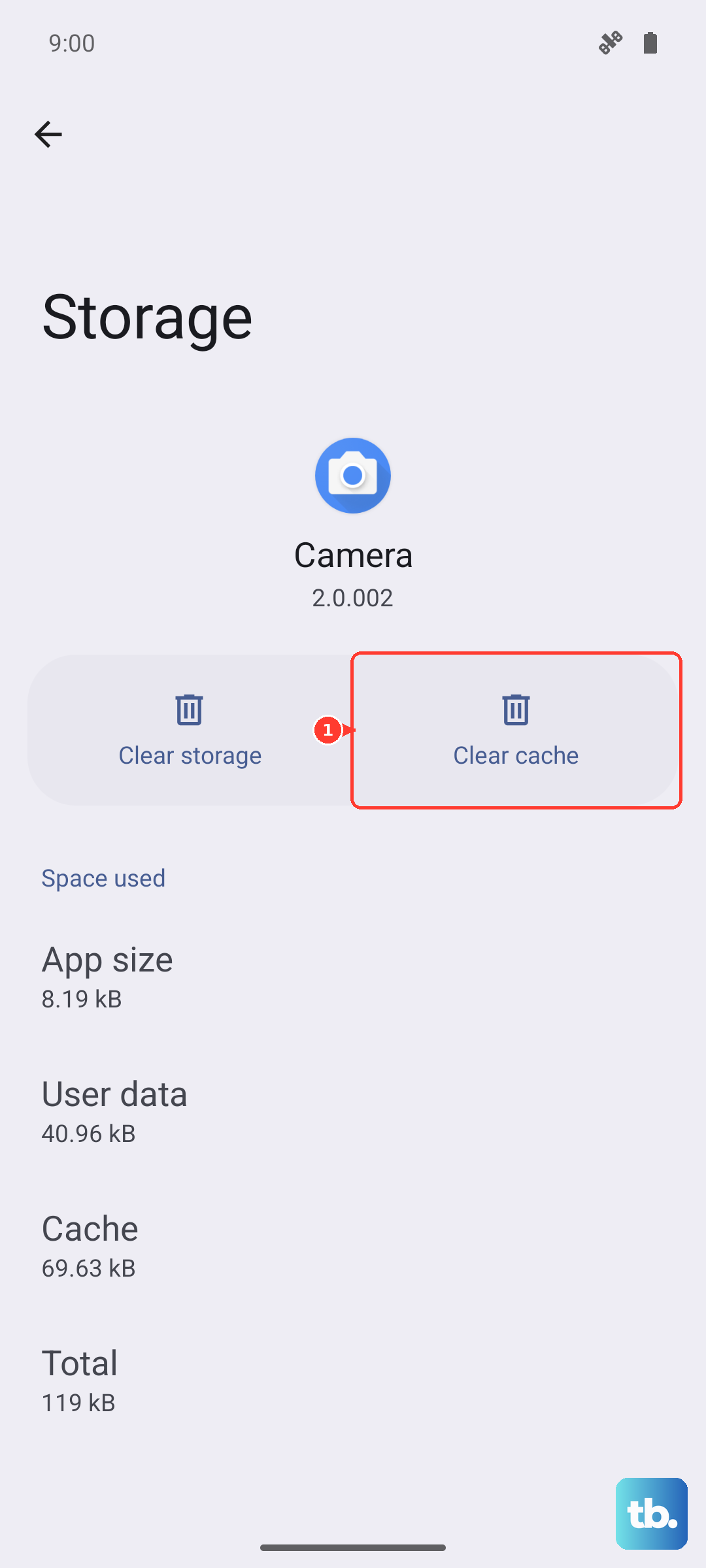
Corrupted temporary files can cause the assistant to malfunction. This step clears out that stored data without removing the app itself. Navigate to Settings > Apps > Apps, find Celia, and tap on it.
Select Storage and then tap DELETE DATA and CLEAR CACHE. You'll need to go through the initial voice wake-up setup again after this, but it often resolves persistent freezing or crashing issues.
Check for Conflicting Accessibility Features
Certain accessibility services, like screen readers or voice control features from third-party apps, can interfere with Celia. Go to Settings > Accessibility and review the services that are turned on.
If you have any third-party accessibility apps installed, try temporarily disabling them to test if Celia starts working again. You can usually find these under Downloaded services within the Accessibility menu.
Verify Your Network Connection
While basic commands might work offline, many of Celia's smarter features require an internet connection to process your requests. Make sure you're connected to a stable Wi-Fi network or that your mobile data is turned on and has a strong signal.
You can test this by asking a question that needs web info, like "What's the weather tomorrow?" If it fails only on these types of queries, the problem is likely related to your network.
Reset All Settings on Your Phone
If you've tried everything else and Celia is still not working, resetting your phone's settings can help. This will revert all your preferences (like Wi-Fi passwords and wallpaper) back to default without deleting your personal photos, messages, or apps.
Go to Settings > System & updates > Reset. Then, tap on Reset all settings and enter your lock screen password to confirm. After the phone reboots, you'll need to reconfigure your preferences, but this can eliminate any deep-seated configuration conflicts.