
If your Huawei Pura 70 Pro's autocorrect is making more mistakes than it fixes, you're not alone. The keyboard on EMUI 14.2 can sometimes get confused, especially if you're typing in multiple languages or using apps from outside the Huawei AppGallery. The good news is there are several straightforward ways to get it back on track.
Clear the Keyboard App Cache
Start by clearing the keyboard's cache. This removes temporary files that can become corrupted and cause the predictive text engine to malfunction. It won't delete your personal dictionary or settings.
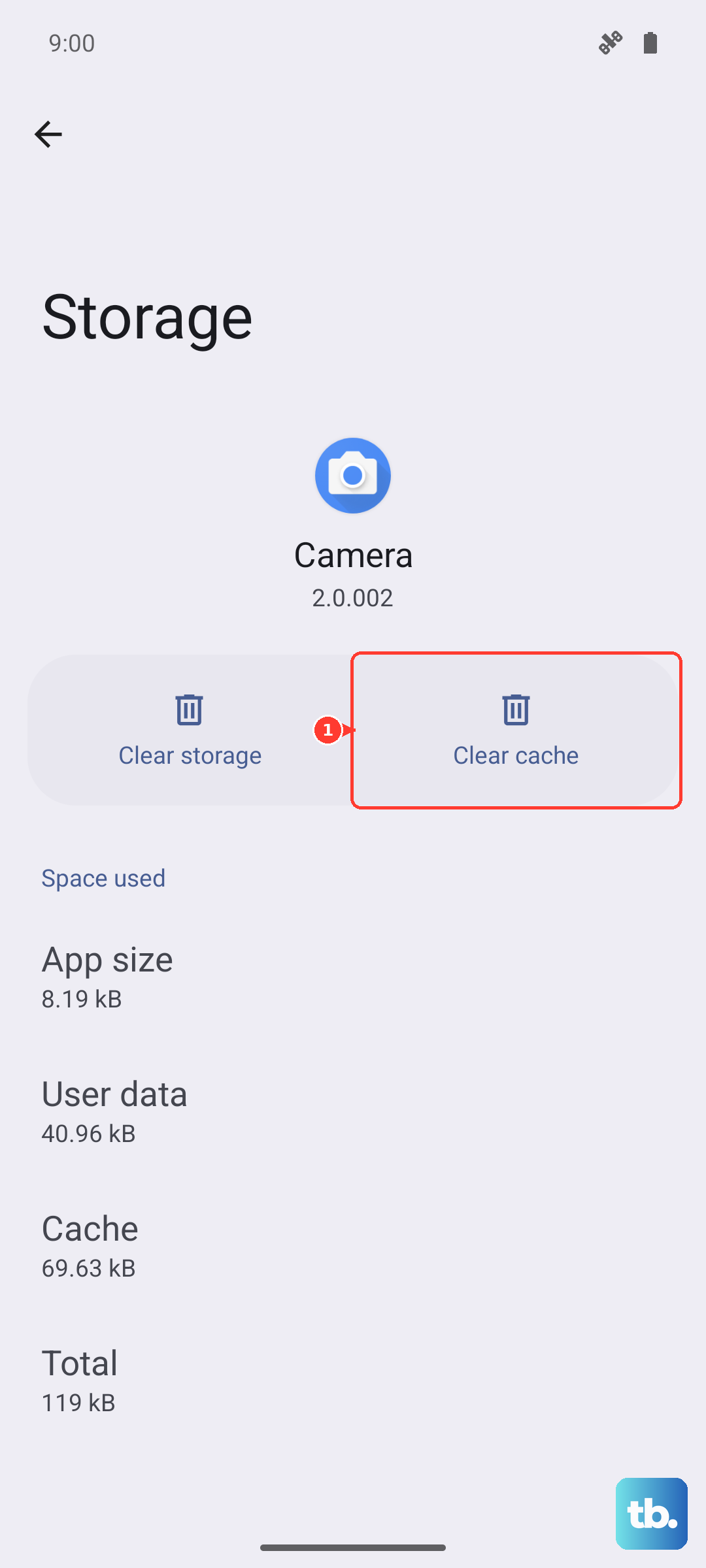
Open Settings and go to Apps. Tap the three-dot menu in the top right and select Show system apps. Scroll down and find Huawei Input Method or Baidu Input Method Huawei Edition. Tap on it, select Storage, and then tap Clear Cache.
Check Your Keyboard and Language Settings
Often, the issue is just a misconfigured setting. Head to Settings > System & updates > Language & input > On-screen keyboard. Here, you can manage your keyboards.
Tap on Huawei Input Method to enter its settings. Make sure your primary language is set correctly under Input languages. Then, go into Text correction or Smart typing. Ensure options like Auto-correction, Predictive text, and Next-word suggestions are toggled on.
If you have multiple languages enabled, the keyboard can struggle to switch contexts. I'd recommend reviewing your active input languages and removing any you don't actively use.
Reset the Keyboard's Learned Data
If the keyboard has learned bad habits from your typos, you can reset its personal dictionary. This is more thorough than clearing the cache. Go back to the storage page for the Huawei Input Method app.
This time, tap Clear data or Manage data. Look for an option to clear the user dictionary or learned words. Be aware this will erase all the custom words and corrections the keyboard has learned for you.
Update Your System and Keyboard
Huawei releases updates for EMUI that can include fixes for the input method. Go to Settings > System & updates > Software update and tap Check for updates.
Since the Pura 70 Pro uses Huawei's AppGallery, you should also check there for keyboard updates. Open the AppGallery, go to Me > Update management, and see if the system input method has an available update.
Try a Different Keyboard App
If the built-in keyboard continues to be problematic, consider installing a third-party alternative. The lack of Google Play Services means some popular keyboards might have limited functionality, but there are good options.
You can find keyboards like SwiftKey or Gboard through the Huawei AppGallery or by sideloading APK files from trusted sources. After installing one, go back to Language & input settings, tap On-screen keyboard, and enable your new keyboard. You can then set it as the default.
Perform a Force Restart
A simple force restart can clear out temporary software glitches affecting all apps, including the keyboard. On the Pura 70 Pro, just press and hold the Power button for about 10 seconds until the Huawei logo appears and the phone reboots.
This is a harmless first step that fixes a surprising number of minor issues. It's always worth trying before you dive deeper into settings.
Review App-Specific Behavior
Pay attention to whether the autocorrect is bad everywhere or just in specific apps, like social media or messaging apps downloaded from third-party stores. Apps not optimized for HarmonyOS/EMUI can sometimes interfere with system services.
If it's just one app, try clearing that specific app's cache from the Apps settings menu. For persistent issues with an essential app, check if there's a more recent version available in the AppGallery that might have better compatibility.