
When your Huawei Pura 70 Pro can't download a picture or video someone sent you, it's usually a quick setting or network hiccup. MMS messages need a mobile data connection to work, and a few things on your phone can block that process.
Let's start with the simplest fixes and work our way through the settings. I'd begin with a restart, as it clears out any temporary software glitches that might be hanging up the download.
Restart Your Huawei Pura 70 Pro
Press and hold the power button on the side of your phone for about ten seconds. Keep holding it until you see the Huawei logo appear, which forces a restart. This is different from just turning the screen off and on, and it often resolves one-off download failures.
Check Your Mobile Data Connection
MMS doesn't download over Wi-Fi alone. You need an active mobile data connection. Swipe down from the top of your screen to open the Quick Settings panel and make sure the mobile data icon is turned on.
Also, check your signal strength. If you're in a spot with only one or two bars, try moving to a different location. A weak signal can prevent the multimedia file from coming through.
Close and Reopen Your Messages App
Swipe up from the bottom of your screen and hold to enter the recent apps view. Find the Messages app and swipe it up off the screen to close it completely. Then, tap the Messages icon again to relaunch it and see if the MMS downloads.
Enable MMS Auto-Retrieve
Your phone might be set to wait for your permission before downloading MMS to save data. To change this, open the Messages app and tap the three-dot menu in the top-right corner. Go to Settings > Advanced.
Look for an option labeled "Auto-download MMS" or "Auto-retrieve MMS" and make sure the toggle is switched on. This tells your Pura 70 Pro to download multimedia messages as soon as they arrive.
Verify Your APN Settings
Incorrect Access Point Name (APN) settings are a common culprit, especially if you recently switched carriers or SIM cards. These settings tell your phone how to connect to your carrier's multimedia service.
Go to Settings > Mobile network > Access Point Names. You should see a list of APNs. If it's empty or looks wrong, you'll need to get the correct settings from your mobile carrier's website or customer service and enter them here.
Clear the Messages App Cache
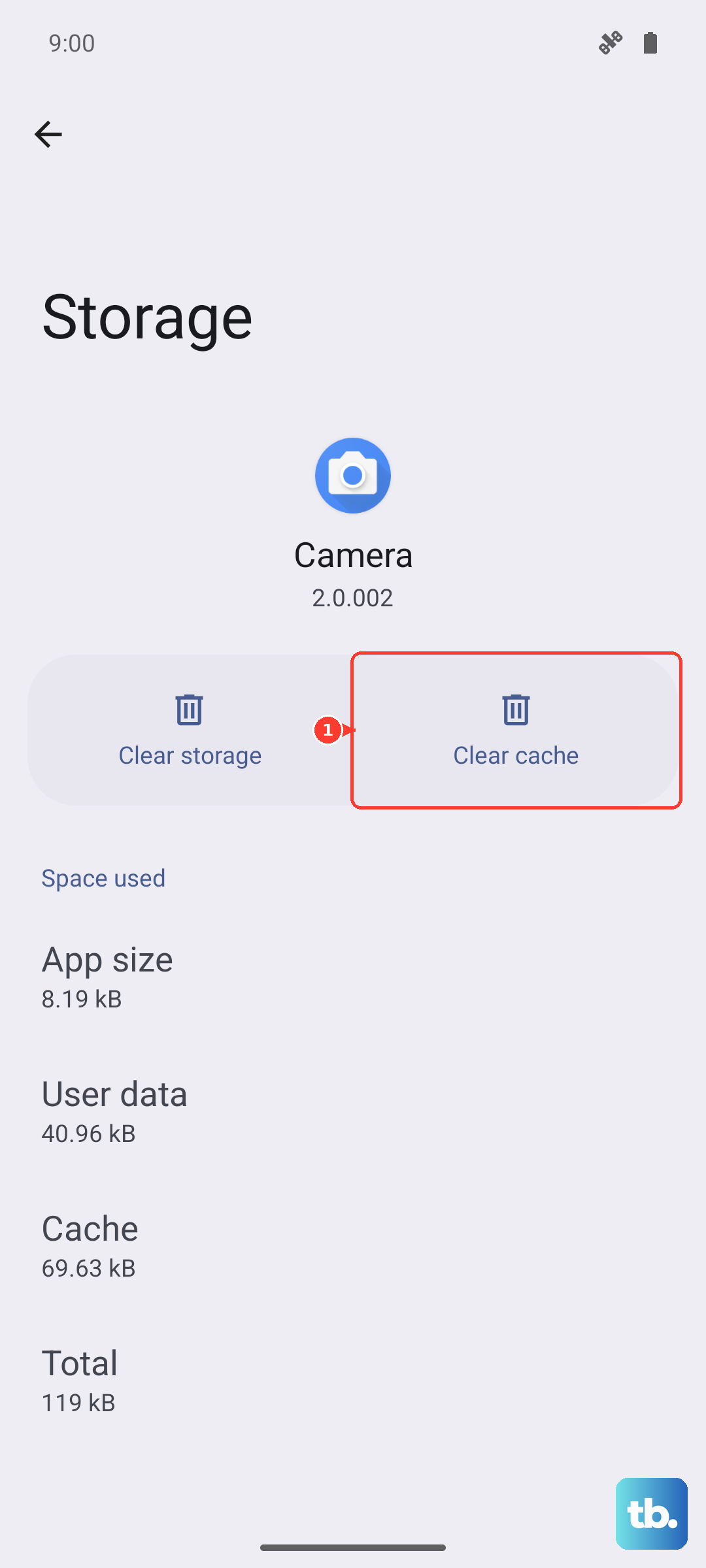
Sometimes, temporary files stored by the app get corrupted. Clearing the cache can fix this without deleting your conversations. Head to Settings > Apps > Apps again.
Find and tap on "Messages" in the list. Then, select Storage usage and tap Clear cache. This only removes temporary data, so your message history will be safe.
Check for a Software Update
Huawei releases updates for EMUI that can fix bugs affecting messaging. Keeping your Pura 70 Pro updated is important, especially since it runs EMUI 14.2 based on HarmonyOS.
Go to Settings > System & updates > Software update. Tap "Check for updates" and install any that are available. Make sure you're connected to Wi-Fi and have good battery life before starting the update.
Reset Your Network Settings
This will wipe all your network configurations, including Wi-Fi passwords, Bluetooth pairings, and mobile data settings, and restore them to default. It's a strong fix for persistent connection issues.
Navigate to Settings > System & updates > Reset. Tap on Reset network settings and confirm. Your phone will reboot, and you'll need to reconnect to Wi-Fi networks and re-pair Bluetooth devices afterward.
Try a Different Messaging App
Since the Pura 70 Pro doesn't have Google Play Services, you're likely using Huawei's default Messages app from AppGallery. You can try installing an alternative from the AppGallery, like "Simple SMS Messenger" or "YAATA SMS."
Sometimes, a third-party app can bypass a minor bug in the default one. Just remember to set it as your default messaging app in your phone's settings after installing.
Contact Your Mobile Carrier
If you've worked through all these steps and MMS still won't download, the problem might be on your carrier's end. They can check if there's an outage in your area or if there's an issue with your specific line provisioning for MMS.
Give them a call or use their online support chat. They can also resend the correct APN settings directly to your phone via a configuration message, which often solves the problem instantly.