
When your Huawei Pura 70 Pro won't pair with your headphones, car, or speaker, it can feel like you're stuck with a very expensive wired device. Bluetooth issues on EMUI 14.2 are usually just a temporary software hiccup, and I've found most people can get their wireless connections working again with a few targeted steps.
Let's jump straight into the most common fix. Pull down the notification shade from the top of your screen and tap the Bluetooth icon to turn it off. Wait about ten seconds, then tap it again to turn it back on. This simple refresh of the Bluetooth radio often clears up pairing problems instantly.
Check the Simple Things First
Before we go deeper, run through this quick checklist. Make sure both your Pura 70 Pro and the device you're trying to connect to have enough battery, ideally above 20%. Keep them within a few feet of each other without any major obstructions.
Double-check that the other device is actually in pairing mode. This usually involves holding a button until a light flashes. Also, remember that without Google Play Services, some companion apps for accessories might need to be downloaded from Huawei's AppGallery or a trusted third-party store.
Restart Your Phone and the Accessory
If toggling Bluetooth didn't work, a full restart is your next best move. For the Pura 70 Pro, press and hold the power button for about ten seconds until you feel a vibration and see the Huawei logo. This force restart is more thorough than a standard shutdown.
Do the same for the Bluetooth device you're trying to pair. Turn it off completely, wait a moment, and power it back on. Once both devices are fresh, try the pairing process from the beginning.
Forget and Re-Pair the Device
Sometimes a pairing record gets corrupted. Go into your phone's settings and remove the problematic device entirely, then try adding it as if it were brand new.
Open Settings > Bluetooth. Find the device in your list of paired gadgets and tap the settings icon next to it. Select Unpair or Forget. Now, put the accessory back into pairing mode and select it from the available devices list on your phone.
Clear the Bluetooth System Cache
EMUI stores temporary data for Bluetooth in a system cache. If this data gets messed up, it can prevent connections. Clearing it is safe and won't delete your personal files or paired devices.
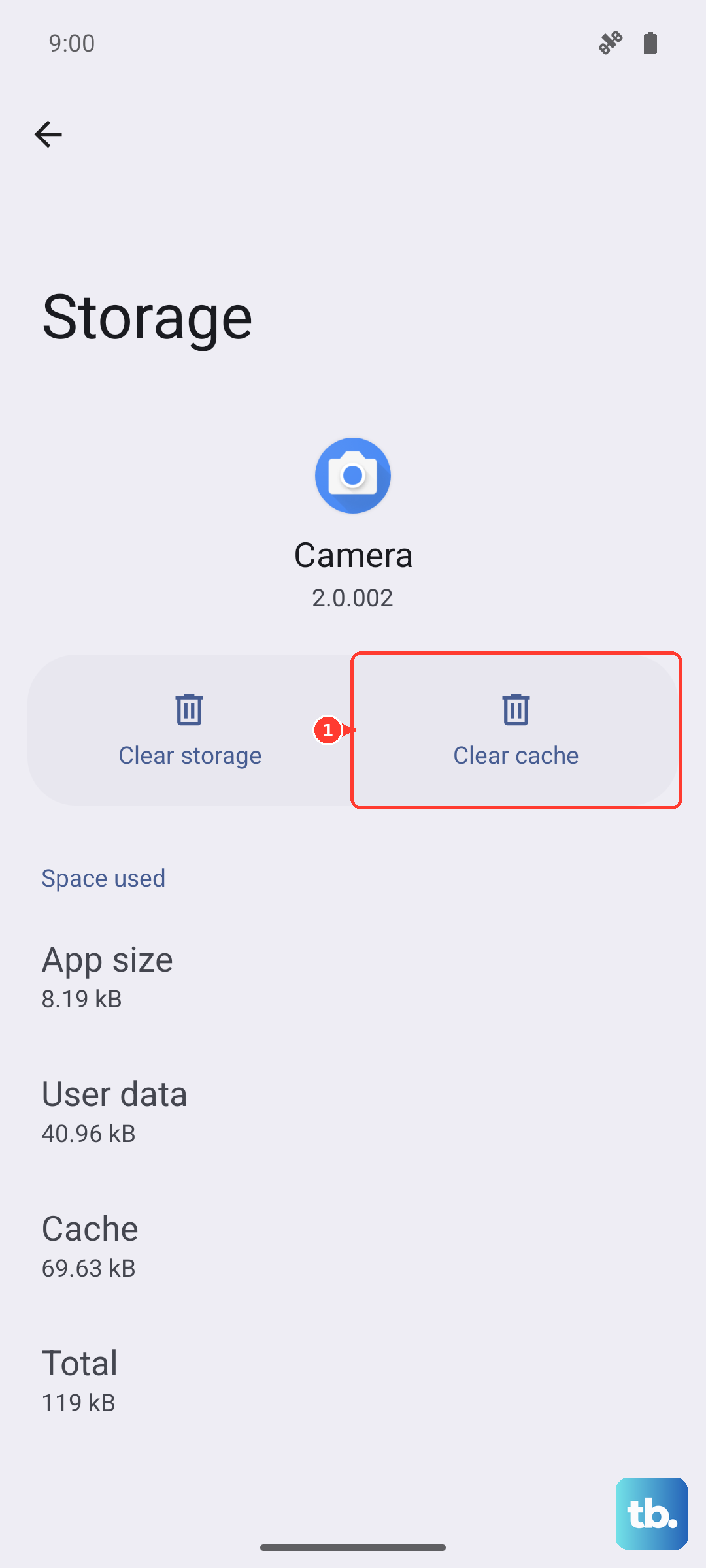
Navigate to Settings > Apps. Tap the four dots in the upper right and choose Show system processes. Scroll down and find Bluetooth in the list. Tap on it, then go to Storage & cache. Tap Clear cache and confirm. Restart your phone and test Bluetooth again.
Reset Your Network Settings
This is a more comprehensive step that resets all wireless communications on your phone, including Wi-Fi and mobile networks, back to their default state. You'll need to re-enter Wi-Fi passwords afterward.
Go to Settings > System & updates > Reset. Tap on Reset network settings. Confirm your choice, and your phone will reboot. This often resolves persistent Bluetooth conflicts that simpler steps can't fix.
Update Your Phone's Software
Huawei frequently releases updates for EMUI that include bug fixes and improved device compatibility. An outdated system could be the reason your Pura 70 Pro is struggling to pair.
Connect to a Wi-Fi network, then go to Settings > System & updates > Software update. Tap Check for updates and install any that are available. It's a good idea to do this periodically, especially since your phone handles app updates through AppGallery separately.
Boot Into Safe Mode
If a recently installed third-party app is causing interference, Safe Mode will tell you. This mode temporarily disables all apps you've downloaded.
Press and hold the power button until the power off menu appears. Then, tap and hold the Power off option on your screen. You'll get a prompt to reboot to Safe Mode. Tap OK. If Bluetooth works perfectly in Safe Mode, you know an app is the culprit. Restart normally and try uninstalling recent apps one by one.
Check for Physical Interference
Your environment can play a bigger role than you think. Other wireless signals like Wi-Fi routers, microwaves, or even dense USB-C charging cables can disrupt the Bluetooth signal. Try moving to a different room or turning off other wireless devices nearby.
Also, if you're using one of Huawei's 80W wireless SuperCharge pads, try removing the phone from the charger while pairing. The high-power charging cycle can sometimes generate electromagnetic interference.
Consider a Factory Reset
If every other step has failed, a factory reset is your last software option. This will erase all data, apps, and settings from your Pura 70 Pro, returning it to its out-of-the-box state.
You must back up everything important first using Huawei's backup tool or by manually transferring files to a computer. Once backed up, go to Settings > System & updates > Reset > Factory data reset. Follow the prompts to complete the process. If Bluetooth still doesn't work after this, the issue is likely with the phone's hardware.