
That sudden blue screen on your HP Spectre x360 14 is Windows hitting the emergency brake. It's usually a driver conflict, a hardware hiccup, or a corrupted system file. While the specific error code gives you a clue, these general fixes will tackle the most common causes behind the crash.
Write Down the Stop Code
When the blue screen appears, look for the all-caps stop code. Common ones include DRIVER_IRQL_NOT_LESS_OR_EQUAL, SYSTEM_SERVICE_EXCEPTION, or KERNEL_SECURITY_CHECK_FAILURE. Jot this down. It's the key to diagnosing the specific driver or component that failed, which you can search for after you get back into Windows.
Perform a Full Restart
A single, isolated blue screen can sometimes be a fluke. Hold the power button down for about 10 seconds to force a full shutdown. Wait a moment, then press the power button again to boot normally. If your Spectre starts up fine and runs without another crash for a while, you likely encountered a temporary glitch. If it blue screens again quickly, you have a persistent issue to solve.
Boot Into Safe Mode
If crashes happen during startup or right after logging in, you need to get into Safe Mode. From the sign-in screen, hold the Shift key and click the power icon, then select Restart. After the reboot, navigate to Troubleshoot > Advanced options > Startup Settings > Restart. When your laptop restarts again, press the 4 key to enable Safe Mode. This loads Windows with only essential drivers, which can help you isolate a problematic software or driver.
Use HP Support Assistant
HP's built-in tool is your first stop for driver issues. Open HP Support Assistant and run a check for updates. It will scan for the latest BIOS, chipset, audio, and graphics drivers specifically validated for your Spectre x360 14 model. I've found letting this tool handle driver updates often resolves conflicts that generic Windows Update drivers can cause.
Uninstall Recent Updates or Software
Think about when the crashes started. If it was right after a Windows Update, you can roll it back. Go to Settings > Windows Update > Update history > Uninstall updates. Look for the most recent quality update or feature update and remove it. Similarly, if you just installed a new program or peripheral, uninstall it from Safe Mode to see if the BSODs stop.
Update Drivers Manually
For critical components, especially the graphics driver, go straight to the source. If your Spectre has an Intel Iris Xe GPU, get the driver from Intel's website. For models with NVIDIA graphics, use the NVIDIA app or NVIDIA's site. In Device Manager, pay special attention to drivers for Intel Management Engine, chipset, and any Thunderbolt controllers.
Run System File Checker and DISM
Open Command Prompt as an administrator. Type sfc /scannow and press Enter. This command scans for and repairs corrupted Windows system files. If SFC finds problems it can't fix, run the Deployment Image Servicing tool first by typing DISM /Online /Cleanup-Image /RestoreHealth. After it completes, run the sfc /scannow command again.
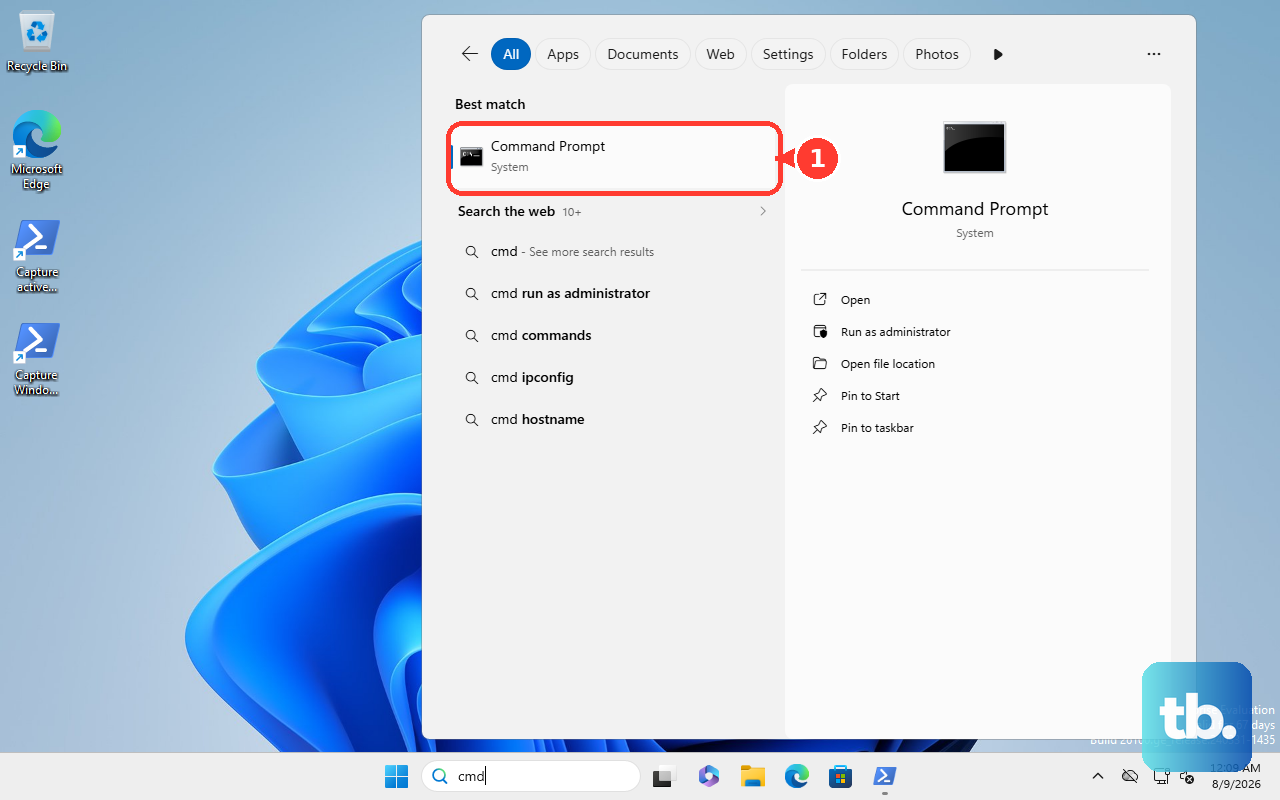
Test Your Memory and Storage
Faulty RAM is a classic BSOD culprit. Search for "Windows Memory Diagnostic" in the Start menu and run it. Your laptop will restart and perform the test automatically. For storage, open Command Prompt as admin and run chkdsk C: /f /r. This checks your SSD for file system errors. Since the Spectre x360 14 uses an NVMe SSD, also check its health using a tool like CrystalDiskInfo.
Check for Overheating
The slim design of the Spectre can lead to heat buildup under sustained load. If blue screens happen during video calls, gaming, or other intensive tasks, overheating is likely. Ensure the vents on the bottom and sides are clear of dust and obstructions. Consider using a laptop stand or cooling pad to improve airflow, especially if you often use the device on a soft surface like a bed or couch.
Run HP Hardware Diagnostics
Your laptop has built-in hardware tests. Restart it and immediately press the F2 key repeatedly to launch HP PC Hardware Diagnostics. Run the extensive system test, which will check memory, storage, and other components. This can help rule out a physical hardware failure as the root cause of your crashes.
Perform a System Reset
If all else fails, a reset can clear out deep-seated corruption. Go to Settings > System > Recovery and click Reset this PC. Choose Keep my files to reinstall Windows while preserving your personal data. For a completely clean slate, you can also use the HP Cloud Recovery Tool or press F11 at boot to access the HP Recovery partition, which restores the original factory image.