Selling a computer means clearing your files, apps, settings, and account locks before the next owner turns it on. The right wipe method depends on the operating system and whether the computer still starts normally. Start with the built-in reset tool, then remove the device from the account that can still link it to you.
Start with the right prep
Do these first so the wipe does not strand your files or leave the next owner blocked.
- 1.Back up anything you still need, because the reset, erase, or reinstall removes personal files, apps, and settings.
- 2.Keep the computer connected to power until the wipe and setup handoff are complete.
- 3.Use the current reset, erase, recovery, or installer path for the computer’s operating system.
- 4.After the wipe, remove the device from the account service that can still link it to you.
Reset a Windows 11 PC for sale
This fixes a Windows PC that still starts normally and needs your files, apps, and settings removed before resale.
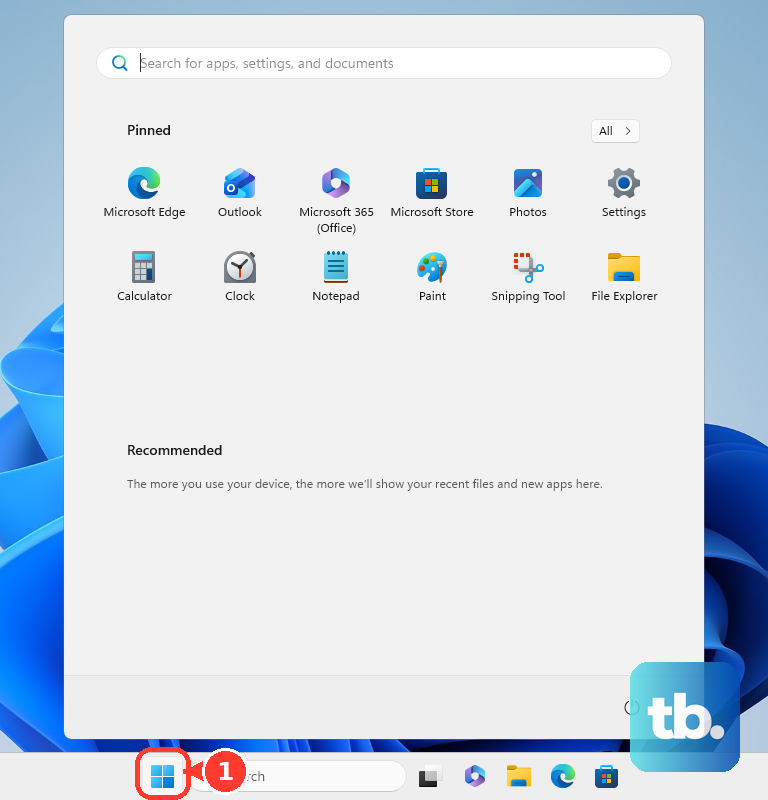
Open Settings. Go to System, then select Recovery. Under Recovery options, select Reset PC. Choose Remove everything.
Open Change settings and turn Clean data on. Choose Cloud download or Local reinstall. Follow the on-screen instructions until Windows finishes the reset.
Windows 10 support ended on October 14, 2025, and the current consumer path for supported Windows PCs is the Windows 11 Settings, System, Recovery, Reset PC flow. If the PC you are selling still runs Windows 10, Microsoft still documents its reset route: select Start, Settings, Update & Security, then Recovery, and under Reset this PC select Get started, then choose Remove everything.
Erase a Mac with Apple’s built-in reset
Use Erase All Content and Settings on a Mac with Apple silicon or an Apple T2 Security Chip running macOS Monterey 12 or later. On macOS Ventura 13 or later, open the Apple menu, choose System Settings, then go to General, Transfer or Reset, and Erase All Content and Settings.
On macOS Monterey 12, open the Apple menu, choose System Preferences, then choose Erase All Content and Settings from the System Preferences menu bar. Enter your administrator credentials when prompted.
Continue through the prompts, back up first when you need a copy of your data, and enter your Apple Account password if asked. Select Erase All Content & Settings to remove your content and settings.
When setup assistant appears, press and hold the power button to leave the Mac turned off for the next owner.
Powerwash a Chromebook
The most common cause of confusion on a Chromebook is that the reset starts from the sign-out screen.
Sign out of the Chromebook. Press and hold Ctrl, Alt, Shift, and r. Select Restart.
In the box that appears, select Powerwash, then choose Continue. Follow the steps on screen until ChromeOS returns the device to its reset state. A work or school Chromebook cannot be reset by the user, so that device needs the administrator instead.
Recover a computer that will not boot
Use these methods when the normal reset screen will not load, the operating system is damaged, or you need to reinstall from recovery media. They remove local data, so start only when you are ready to erase the computer.
On Windows, start the Windows Recovery Environment. Select Troubleshoot, then choose Reset this PC. Choose Remove everything.
Turn on Clean data when that option is offered. A BitLocker-encrypted device may require the BitLocker recovery key.
To reinstall Windows 11 from Microsoft installation media, create the installation media on a working PC. Boot the computer from the USB drive or DVD. In Windows 11 Setup, choose the language settings, select Next, choose keyboard settings, then select Next. Select Install Windows 11.
Select I agree everything will be deleted including files, apps, and settings, then choose Next. If setup asks for a product key, select I don’t have a product key when appropriate.
For a Windows recovery drive, create it before you need it by opening Recovery Drive or running recoverydrive.exe. Select Back up system files to the recovery drive, choose Next, connect a USB drive, choose Next, then select Create. To wipe later, boot from that USB drive, choose Recover from a drive, select Fully clean the drive, then choose Recover.
On a Mac with Apple silicon, shut down the Mac. Press and hold the power button until startup options load. Click Options, choose Continue, then select Disk Utility and Continue. Under Internal, confirm Macintosh HD.
Delete extra internal volumes other than Macintosh HD and Macintosh HD - Data if you added any. Select Macintosh HD, click Erase, use Macintosh HD as the name and APFS as the format, then select Erase or Erase Volume Group.
If asked, enter your Apple Account information. Click Erase Mac and Restart. After activation, click Exit to Recovery Utilities, then select Reinstall macOS so the buyer gets a Mac that starts up normally. When setup assistant appears after the install, quit it without completing setup, then click Shut Down.
Remove account locks after the wipe
A clean drive is not always the last step. Remove the device from your account so the buyer is not blocked by ownership or device-linking features.
- 1.For a Windows PC, sign in at account.microsoft.com/devices, find the computer, select Show details, then choose More actions and Remove. Check I’m ready to remove this device, then select Remove.
- 2.For a Mac you erased with Erase All Content and Settings, there is nothing left to do. Erase Assistant signs you out of Apple services and turns off Find My and Activation Lock, so the Mac is no longer associated with you.
- 3.For a Mac you still have and plan to erase with Disk Utility, turn Find My off before you erase: open the Apple menu, choose System Settings, select your name, go to iCloud, choose See All or Show More Apps, then turn off Find My Mac and enter your Apple Account password.
- 4.For a Mac you no longer have, sign in to iCloud.com/find, select the Mac, then click Remove.
Erase a Mac you no longer have
Remote erase works only when Find My Mac was already set up. Use another Apple device with Find My, or sign in on the web at iCloud.com/find.
Select Devices or All Devices, choose the Mac, then select Erase Mac and follow the prompts. The Mac must be powered on and connected to the internet for the erase to complete. Remote erase deletes local data, but Activation Lock can remain until the Mac is removed separately. If remote erase fails, use iCloud.com/find to remove the Mac from your account, then arrange a local erase with whoever has the computer.
Install Ubuntu over the whole disk
This method applies when you want to sell or repurpose a PC with Ubuntu instead of Windows. It replaces the existing system by installing Ubuntu across the disk.
Download Ubuntu Desktop for the computer’s architecture, such as Intel or AMD 64-bit architecture or ARM 64-bit architecture. Create a bootable USB stick, then boot the PC from that USB drive. In the Ubuntu installer, choose your language, accessibility settings, keyboard layout, and network.
Select Try or install Ubuntu, then choose Install Ubuntu. On Type of installation, select Erase disk and install Ubuntu. Confirm the setup summary, click Install, then restart when prompted and remove the USB drive.
Hand work and school computers to the admin
The most common cause of a reset that will not stick on a managed computer is that the organization still controls the device.
For managed Windows devices, an organization can use Microsoft Intune Wipe, Fresh Start, or Autopilot reset. These are administrator actions, not regular resale steps for a personal PC.
For managed ChromeOS devices, the administrator can open the Google Admin console, select Devices, choose Chrome, then select Devices. For one device, the administrator clicks its serial number, then selects Reset on the device details page. For several devices, the administrator checks the boxes next to them, then selects More and Reset.
In the reset box, the administrator selects Clear User Profiles or Factory Reset, selects I understand this will remove data from the device and cannot be undone, then clicks Reset again. Contact the organization that manages the computer and have it removed, wiped, or reassigned through its admin process before you sell or transfer it.
Frequently Asked Questions
Does removing a Windows PC from my Microsoft account erase it?
No. Removing it from your Microsoft account only unlinks the device. Use Reset PC with Remove everything and Clean data first, then remove the device from your account.
Should I leave the Mac at the setup screen after erasing it?
No. After Erase All Content and Settings reaches setup assistant, press and hold the power button so the Mac stays off for the next owner.
Can I Powerwash a school Chromebook before selling it?
No. Work or school Chromebooks cannot be reset by the user. The administrator has to handle the reset or factory reset process.
What if Windows asks for a BitLocker recovery key during reset?
A BitLocker-encrypted PC may require the BitLocker recovery key when using Windows Recovery Environment. You need that key to continue through the recovery reset path.