Windows Update Assistant problems usually come down to the wrong tool, a blocked Windows 11 upgrade, missing prerequisite updates, or a broken Windows Update component. For current Windows 11 upgrades, Microsoft uses the name Windows 11 Installation Assistant, while monthly quality and security updates still belong in Windows Update. Use the steps below to pick the right route and clear the failure without relying on old Windows 10 Assistant fixes.
1. Pick the right Windows update tool
Use Windows 11 Installation Assistant when you want to upgrade the PC you are using to Windows 11. For normal quality or security updates, use Windows Update in Settings. On an eligible Windows 10 PC, use Windows Update when Windows 11 is offered there.
Do not use Windows 11 Installation Assistant on Arm-based PCs. Microsoft lists the assistant for x64 PCs. Confirm you have administrator rights before you run the assistant. Start with Windows Update when you only need everyday security and quality updates.
2. Run Windows 11 Installation Assistant
- 1.Go to Microsoft’s Windows 11 download page.
- 2.Under Windows 11 Installation Assistant, select Download Now.
- 3.Open the downloaded tool.
- 4.Select Run.
- 5.After compatibility is confirmed, select Accept and Install.
- 6.When prompted, select Restart Now.
3. Update Windows before trying again
Select Start.
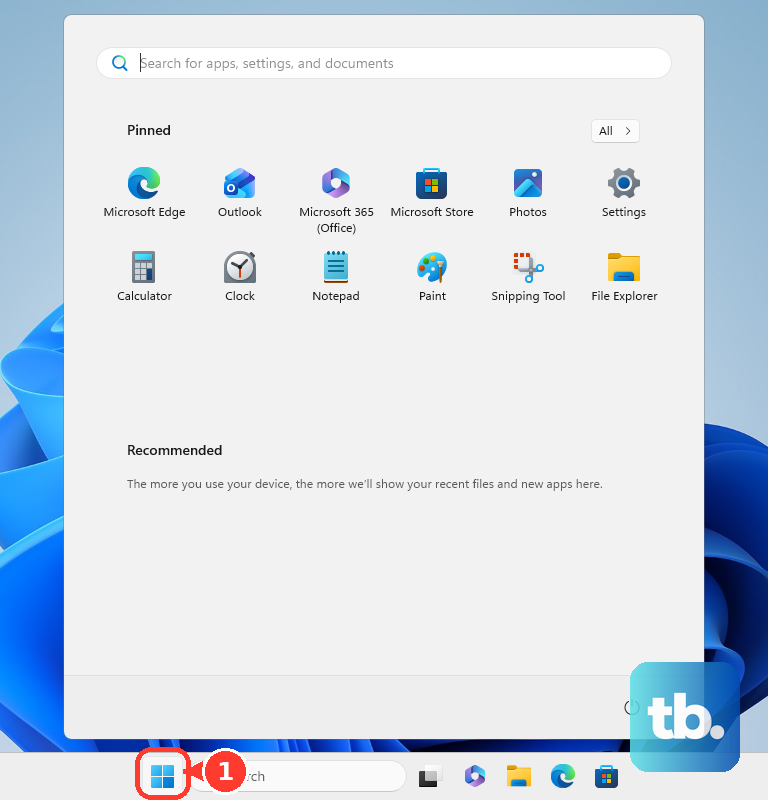
Open Settings, then select Windows Update. Select Check for Windows updates and install every available software, hardware, and third-party driver update.
Restart when Windows asks you to. Return to Windows Update, select Check for Windows updates again, then retry the assistant. This clears missing prerequisite updates and drivers that can block the upgrade.
4. Confirm the PC passes the requirements check
When Installation Assistant asks for PC Health Check, run the PC Health Check app. Use PC Health Check to check the minimum hardware requirements. Return to the Windows 11 Installation Assistant window, then select Refresh.
If you see This PC doesn’t meet the minimum system requirements to install Windows 11, stop using the assistant on that PC. Microsoft recommends staying on Windows 10 or using compatible hardware.
5. Clear the What needs your attention screen
Read the item listed on the What needs your attention screen. If the screen says No action is needed, stop there. Microsoft says that message is intentional, it means Windows Update hit a known issue on your PC, and the advice is to stay on your current version of Windows until Windows Update offers the upgrade again on its own.
For an incompatible app, select Learn more or update instead, update the app, return to the upgrade window, and select Refresh. If Setup offers removal, select Uninstall. If Setup does not offer a removal button, remove the app manually, return to the upgrade window, and select Refresh.
That screen is Windows Setup telling you what must change before the upgrade can continue, as long as it names a specific app, driver, hardware item, or setting. When it reports a known issue and says no action is needed, uninstalling things will not help, and waiting for Microsoft to clear the block is the fix.
6. Run the Windows Update troubleshooter
This fixes Windows Update errors before you retry the assistant.
Select Start, then open Settings. Select System, then Troubleshoot and Other troubleshooters.
Under Most frequent, select Run next to Windows Update. Restart the PC. Go to Start > Settings > Windows Update and select Check for updates.
7. Remove space and hardware blockers
Select Start > Settings > System > Storage. Turn on Storage Sense, then select Cleanup recommendations. Review the suggested files, select the items to remove, then select Clean up.
Unplug external storage devices, drives, docks, and hardware you do not need for basic use. Go to Start > Settings > Network & Internet > Wi-Fi, confirm the PC is connected, and reconnect if needed.
If you use a VPN, disable it and try the update again. If third-party antivirus or firewall software blocks the upgrade, open that app, go to its Settings, Tools, or Protection area, pause protection for a short time, then retry.
8. Repair Windows Update components
Press Win + R, type services.msc, and press Enter. Locate Windows Update, right-click it, and select Stop. Open C:\Windows\SoftwareDistribution, then delete all files and folders inside SoftwareDistribution.
Return to Services, right-click Windows Update, and select Start. If the service is disabled, right-click Windows Update, select Properties, set Startup type to Automatic, select Start, then select Apply and OK. Restart the PC and check for updates again.
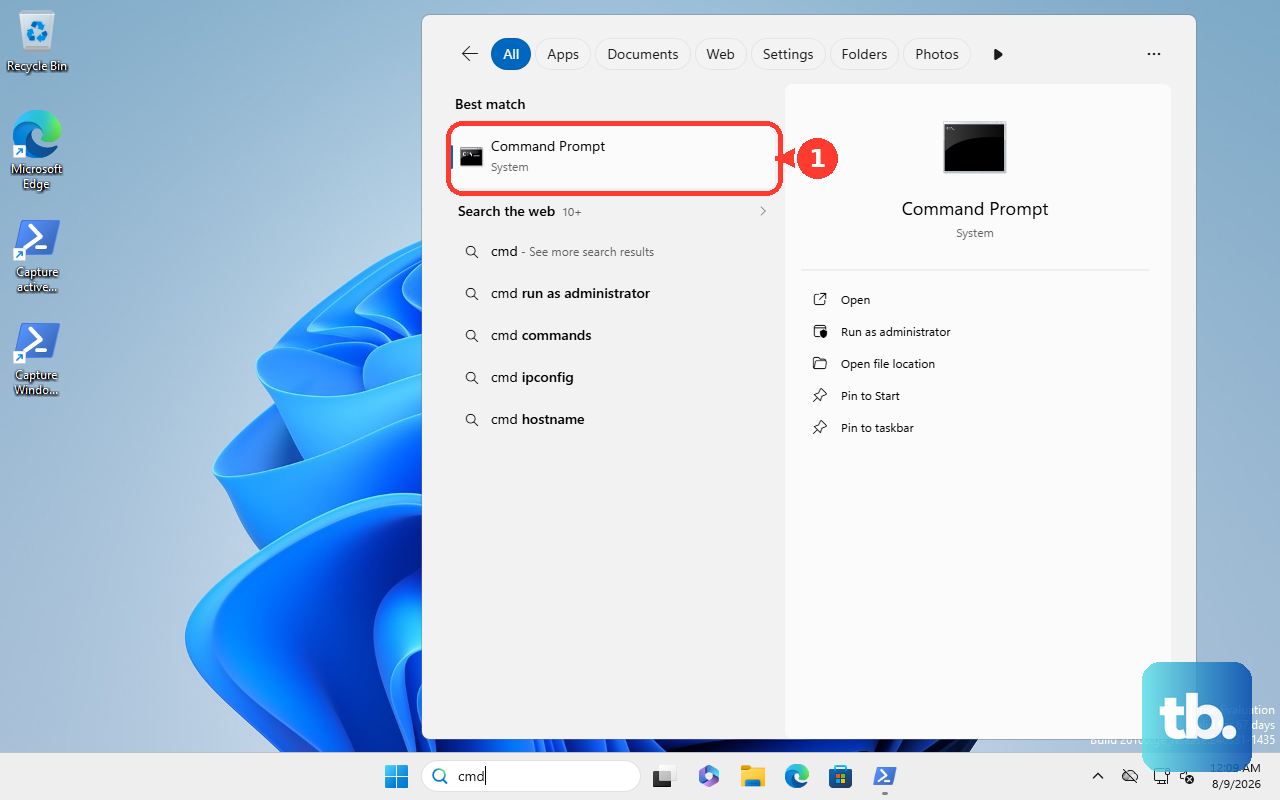
If Windows reports corrupted or missing system files, open Command Prompt as Administrator, run sfc /scannow, then retry Windows Update or the upgrade.
9. Stop using the assistant when Windows needs repair
Check Microsoft’s Windows release health page for known issues with the Windows version you are trying to install before you keep retrying.
On Windows 11, repair the current Windows version from Start > Settings > System > Recovery > Fix problems using Windows Update > Reinstall now.
That option needs Windows 11 with the 2022 annual update plus the February 2024 optional update or later, and Microsoft hides it on work or school PCs managed through Autopatch, the Windows Update deployment service, or update policies.
If Fix problems using Windows Update is missing, reinstall Windows with installation media, reset the PC, or ask your admin.
Ignore older Windows 10 Update Assistant removal commands for this problem because they are legacy Windows 10 cleanup steps, not current Windows 11 Installation Assistant fixes.
On work or school PCs, update timing can be controlled by your organization, so contact your admin instead of changing policy settings yourself.
Frequently Asked Questions
Is Windows Update Assistant the same as Windows 11 Installation Assistant?
For current Windows 11 upgrades, Microsoft calls the tool Windows 11 Installation Assistant. Many people still search for Windows Update Assistant, but the current download page uses the newer name.
Should I use the assistant for regular monthly Windows updates?
No. Microsoft says quality and security updates should be installed through Windows Update in Settings. The assistant is for feature upgrades.
Can I use Windows 11 Installation Assistant on an Arm-based PC?
No. Microsoft lists Windows 11 Installation Assistant for x64 PCs only, not Arm-based PCs.
What should I do if my PC fails the Windows 11 requirements check?
Stop using the assistant on that PC. Microsoft recommends staying on Windows 10 or using compatible hardware when the PC does not meet Windows 11 minimum system requirements.