You deleted a file from a Windows PC, external drive, or USB device, and the Recycle Bin is no help. Windows File Recovery can still search local drives when you use the right mode, destination, and filter. Start with the safest setup, then run the command that matches the drive and how long ago the file was deleted.
Set up the recovery job first
Give Windows File Recovery the right conditions before you scan.
- 1.Use it only on local internal drives, external drives, or USB devices; cloud storage and network file shares are not supported.
- 2.Install Windows File Recovery from the Microsoft Store page for the app.
- 3.Choose a destination drive that is different from the source drive you are recovering from.
- 4.Make sure the destination drive has enough room for the recovered files.
- 5.Use a narrow file or folder filter when recovering from the operating system drive, often C:.
Install and open Windows File Recovery
Open the Microsoft Store page for Windows File Recovery and install the app. Microsoft lists the app for Windows 11, and its support material also lists Windows 10, though Windows 10 support ended on October 14, 2025.
After installation, press the Windows key, type Windows File Recovery in the search box, and select Windows File Recovery. When Windows asks whether to allow the app to make changes to your device, select Yes.
The app opens in a Command Prompt window. Recovery runs through a winfr command. Microsoft’s general syntax is winfr source-drive: destination-drive: [/mode] [/switches], and the brackets mark the optional parts: the source and destination drives are required, and you add a recovery mode and one or more filters to match the job. Every example below uses both.
Choose Regular mode for recent NTFS deletions
Use Regular mode when the deleted file was on an NTFS drive and the deletion was recent. This is the first mode to try on a healthy Windows drive when you know the file type or folder you need.
In the Windows File Recovery Command Prompt window, run winfr source-drive: destination-drive: /regular /n <filter>. Keep the source and destination drives different.
To recover from Documents on C: to E:, use Microsoft’s example: Winfr C: E: /regular /n \Users\<username>\Documents\. To search for document types, use Winfr C: E: /regular /n *.pdf /n *.docx.
When Windows File Recovery asks for confirmation, enter Y to start.
Narrow the scan with filters
Filters keep the recovery focused, especially on your main Windows drive.
- 1.Add one or more /n filters to the command.
- 2.Use an exact file name such as /n myfile.docx.
- 3.Use a folder path such as /n /users/<username>/Documents/.
- 4.Use wildcards such as /n myfile.*, /n *.docx, or /n *<string>*.
- 5.Put names with spaces in quotation marks, such as winfr C: E: /regular /n "\Users\<username>\Documents\Quarterly Statement.docx".
Switch to Extensive mode for harder recoveries
Use Extensive mode when the file was deleted a while ago, the NTFS disk was formatted or corrupted, or the device uses FAT or exFAT. Run winfr source-drive: destination-drive: /extensive /n <filter>, again with different source and destination drives.
For a broad name match, use Microsoft’s example: Winfr E: C: /extensive /n *invoice*. For pictures in a specific folder, use Winfr C: E: /extensive /n \Users\<username>\Pictures\*.JPEG /n\Users\<username>\Pictures\*.PNG. Enter Y when prompted.
If Extensive mode does not find the files, check the file system and filters again, then run winfr /! to view Microsoft’s advanced syntax.
Check the file system when recovery is empty
The most common cause is using Regular mode on the wrong file system or on a deletion that needs a deeper scan.
Open File Explorer, right-click the drive, select Properties, and check the file system. Use Regular for recently deleted NTFS files.

Use Extensive for older NTFS deletions, formatted or corrupted NTFS disks, and FAT or exFAT devices. Run the command again with the corrected mode and keep the destination on a different drive.
While a recovery is running, press Ctrl + C to stop it.
Install with WinGet when Store search gets in the way
This method applies when you are comfortable with Command Prompt or Windows Terminal and want to install the app through WinGet. WinGet works on Windows 10 version 1809 build 17763 or later, Windows 11, and Windows Server 2025 with App Installer; Windows File Recovery itself is for Windows 11 and Windows 10 client devices.
Open Command Prompt or Windows Terminal and run winget search Windows File Recovery. Confirm the Microsoft Store result before installing.
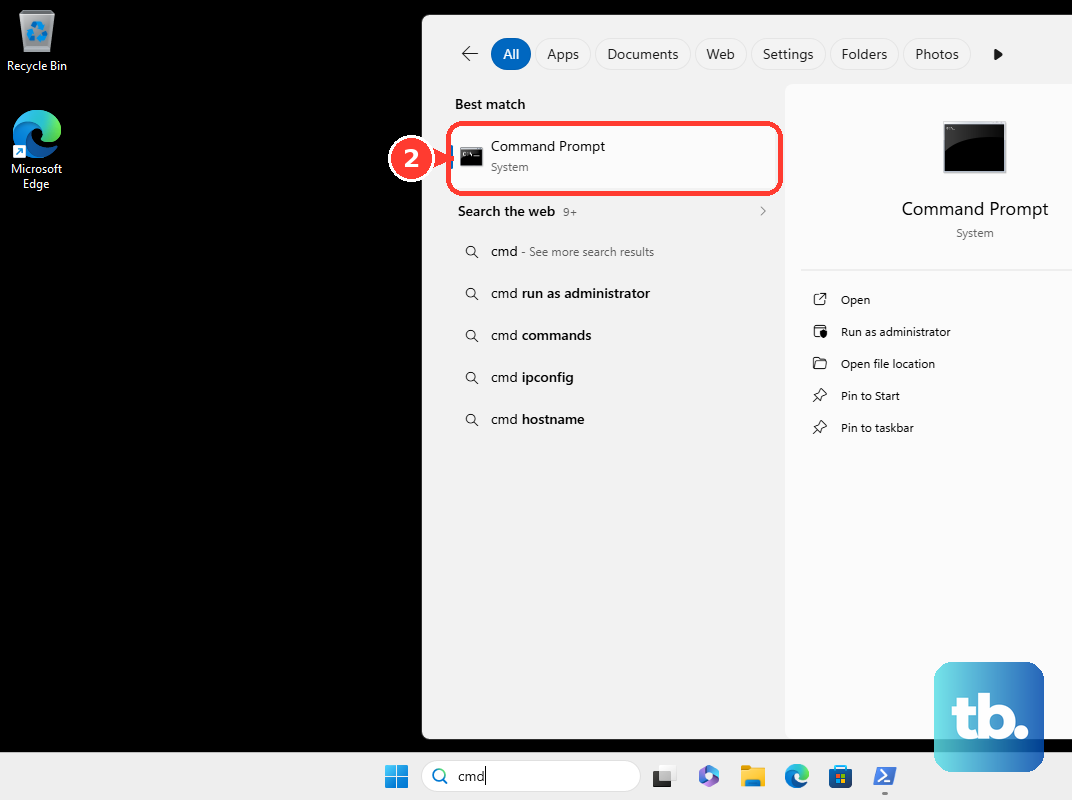
Install by name with winget install <appname>, or use the Store ID with winget install 9N26S50LN705 -s msstore. If source agreements appear, accept them only when you agree.
Update or remove the app cleanly
To update Windows File Recovery, open Microsoft Store, select Library, then select Get updates. When an update is available, Microsoft Store starts installing it automatically.
To remove it from Start, select Start, open All apps, find Windows File Recovery, right-click it or press and hold it, then select Uninstall.
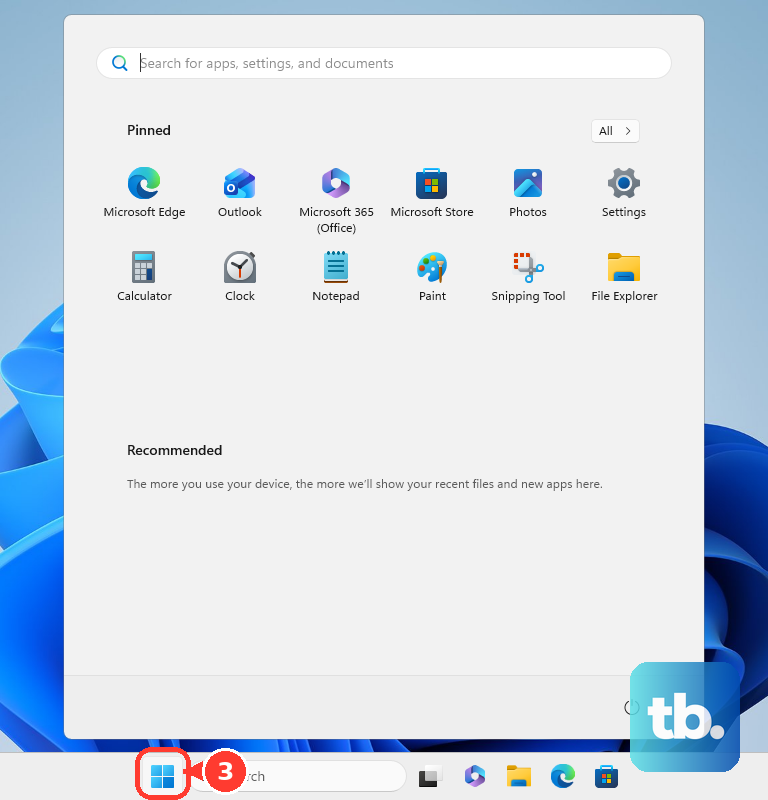
You can also select Start > Settings > Apps > Installed apps, find Windows File Recovery, select More, then select Uninstall.
If update or uninstall fails, use the Microsoft Store update path again first, then remove the app from Installed apps instead of Start.
Use Company Portal on managed PCs
The most common cause on work or school PCs is that your organization controls Microsoft Store access or app availability.
If your admin makes Windows File Recovery available for enrolled devices, open the Company Portal app or the Company Portal website. Find Windows File Recovery and select Install.
Some managed Windows PCs can have Store access blocked while still allowing admins to install Microsoft Store apps. If the Store install route is blocked, use Company Portal or contact the person who manages the device.
Frequently Asked Questions
What command shows the basic Windows File Recovery syntax?
Run winfr /? to see the general syntax for Windows File Recovery commands.
What command shows advanced Windows File Recovery options?
Run winfr /! to see Microsoft’s advanced syntax, including long-form modes and switches.
Can Windows File Recovery use Signature mode?
Yes. Microsoft lists /signature as an advanced mode that works across file system types by using file headers.
Can an admin deploy Windows File Recovery with Intune?
Yes. An Intune admin can add it as a Microsoft Store app (new), search for Windows File Recovery or Store app ID 9N26S50LN705, configure assignments, and create the deployment.