You need Windows 10 installation media, a repair USB, or a reinstall path that starts from Microsoft’s own tool. The Windows 10 Media Creation Tool still creates Windows 10 22H2 media for licensed PCs, but Windows 10 support ended on October 14, 2025, so the final step is making sure the PC is covered for security updates.
Start with the path that matches what you are trying to do: upgrade this PC, build USB media, save an ISO, or reinstall from media you already made.
Download the tool from Microsoft
Use this method when you need the official Windows 10 22H2 Media Creation Tool for a consumer Windows 10 edition. It is also the right starting point before creating a USB drive, saving an ISO, or running setup on the current PC.
Open Microsoft’s Windows 10 download page at microsoft.com/software-download/windows10.
Go to Create Windows 10 installation media and select Download Now.
Save the downloaded file, named MediaCreationTool.exe or a versioned file such as MediaCreationTool_22H2.exe.
Run the file as an administrator.
The tool provides all Windows 10 editions except Windows 10 Enterprise, including Home, Pro, Pro for Workstations, Education, and Pro Education.
Upgrade or reinstall this PC
This path starts setup from inside Windows and is meant for a licensed PC upgrading or reinstalling Windows 10. It applies to PCs already activated with Windows 10 and to licensed Windows 7 or Windows 8.1 upgrade scenarios, although Windows 7, Windows 8.1, and regular Windows 10 Home and Pro support have ended.
Run the Media Creation Tool, read the license terms, and select Accept.
On What do you want to do?, choose Upgrade this PC now, then select Next.
When setup asks what to keep, select Change what to keep.
Choose Keep personal files and apps, Keep personal files only, or Nothing, then select Install.
If this method fails, create USB installation media and run setup from the USB drive instead.
Create a bootable USB drive
A USB drive is the most useful option when you need to install Windows 10 on another PC or start a computer from installation media.
Attach a blank USB flash drive with at least 8GB before you begin. The Media Creation Tool deletes anything already on the USB drive.
Run the tool and select Accept. On What do you want to do?, choose Create installation media for another PC, then select Next.
Select the Windows 10 language, edition, and architecture. Choose USB flash drive, then let the tool create the bootable drive.
Save a Windows 10 ISO file
Choose the ISO option when you want a Windows 10 22H2 image for a virtual machine, a later DVD burn, or another media workflow.
Run the Media Creation Tool and select Accept.
On What do you want to do?, choose Create installation media for another PC, then select Next.
Select the language, edition, and architecture, then choose ISO file.
Choose where to save the ISO and wait for the tool to finish.
Keep the ISO somewhere easy to find if you plan to mount it or burn it to DVD later.
Burn the ISO to DVD
Use Windows Disk Image Burner when you need DVD installation media instead of USB.
- 1.After the ISO is saved, select Open DVD burner.
- 2.To open the burner later, right-click the ISO in File Explorer and select Properties.
- 3.On General, select Change, choose Windows Explorer, then select Apply.
- 4.Right-click the ISO again and select Burn disc image.
- 5.Use a blank DVD, or use Dual Layer DVD media when the image is too large for a standard disc.
Mount the ISO and start setup
Mounting the ISO lets you start Windows 10 setup without making a USB drive or DVD.
Open File Explorer, right-click the ISO, and select Properties.
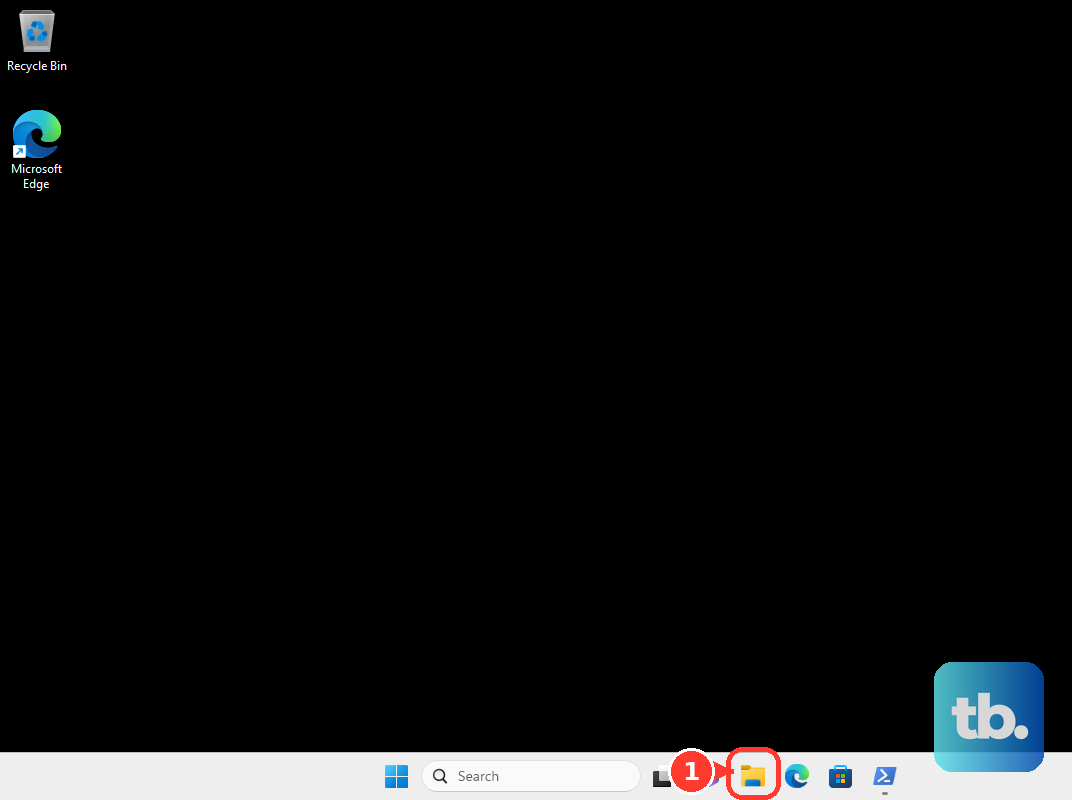
On General, select Change, choose Windows Explorer, and select Apply.
Right-click the ISO again and select Mount.
Open the mounted ISO drive and double-click setup.exe.
This starts an upgrade of the current operating system to Windows 10, so the PC needs compatible licensing and hardware.
Boot from the USB or DVD
Use this route when you want the PC to start from the Windows installer instead of launching setup from inside Windows. It is also the clean install path, which removes personal files, apps, manufacturer customizations, and settings changes.
Attach the USB flash drive or insert the DVD.
Restart the PC.
If the computer does not boot from the media, open the boot menu or change the boot order by pressing F2, F12, Delete, or Esc immediately after powering on.
On Install Windows, select your language, time, and keyboard preferences.
Select Next, then select Install Windows.
If Windows Setup asks for an edition, choose the edition that matches your license, accept the license terms, select the target disk or partition, and select Install.
Reinstall while signed in to Windows
When Windows still opens, use the media you already created to reinstall without booting from it.
- 1.Connect the Windows 10 installation media to the PC.
- 2.Open File Explorer and select the drive that contains the installation media.
- 3.Open setup.exe from the root directory and select Yes at User Account Control.
- 4.Choose Change what to keep, then select Keep personal files and apps, Keep personal files only, or Keep nothing.
- 5.Select Next, then select Install.
Clean up and cover Windows 10
After an upgrade or reinstall that created previous installation files, Windows can remove those files from Settings.
Open Start, then go to Settings > System > Storage > Temporary files.
Select Previous version of Windows or Previous Windows Installation(s).
Select Remove files.
The Media Creation Tool itself is only the downloaded executable, so deleting that file removes the tool from your Downloads folder.
Because Windows 10 support ended on October 14, 2025, an eligible Windows 10 version 22H2 Home, Professional, Pro Education, or Workstations device needs Extended Security Updates for ongoing security updates. Enroll through Settings > Update & Security > Windows Update > Enroll now; consumer ESU runs until October 12, 2027.
If cleanup or ESU enrollment fails, run Windows Update first, then return to the same Settings path.
Use the right Enterprise download path
Windows 10 Enterprise uses a separate download channel from the Media Creation Tool. Other editions that run on work and school devices, including Education and Pro Education, are still available through the tool, subject to your organization’s policies. The standard Windows 10 Media Creation Tool does not provide Windows 10 Enterprise.
For Windows 10 Enterprise media, sign in to the Microsoft 365 admin center and use the Enterprise or volume licensing download area. Eligible Visual Studio subscribers can sign in to the Visual Studio Subscriptions portal and check available downloads.
Windows Insider Preview builds are separate from the public Windows 10 22H2 Media Creation Tool flow. Use the Windows Insider download path only when you are intentionally installing preview builds.
Older command-line switches for Enterprise ISO downloads are not a supported consumer method on Microsoft’s current Windows 10 download page. If you need Enterprise media, use the Microsoft 365 admin center.
Frequently Asked Questions
Does the Windows 10 Media Creation Tool still work after Windows 10 support ended?
Yes. Microsoft still hosts the Windows 10 download page and Media Creation Tool for Windows 10 22H2 media, but Windows 10 support ended on October 14, 2025. Continued consumer use needs Extended Security Updates for security coverage.
Will creating a USB drive erase my files?
It erases the USB flash drive you choose in the tool. It does not erase the PC until you use the media for a clean install or choose an option such as Keep nothing during setup.
Can I use the tool for Windows 10 Enterprise?
No. The standard Media Creation Tool UI does not provide Windows 10 Enterprise. Enterprise downloads are handled through the Microsoft 365 admin center, and eligible users can check Visual Studio Subscriptions.
Which option should I choose when setup asks what to keep?
Choose Keep personal files and apps to preserve apps and files, Keep personal files only to remove apps while keeping files, or Nothing when you want a fresh install and have backed up your data.