Windows can fail in a few different ways: it may still open, crash after an update, or stop before the sign-in screen. System recovery gives you a repair path for each case, from a light Windows repair to a reset or reinstall. Use these Windows 11 options in order, and move to USB or manufacturer recovery only when the built-in tools cannot get you back in.
Start with recovery inside Windows
Use this first when Windows still opens.
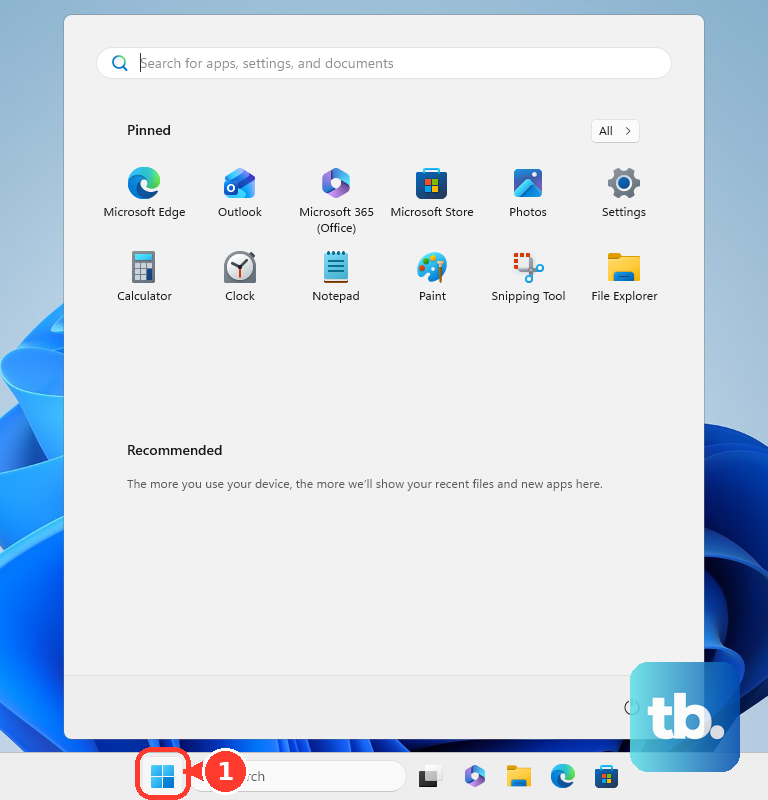
- 1.Select Start > Settings > System > Recovery.
- 2.Under Recovery options, choose Fix problems using Windows Update when it appears, then select Reinstall now.
- 3.Restart when Windows asks you to finish the reinstall.
- 4.If the problem remains, return to Recovery options, select Reset PC, then choose Keep my files or Remove everything.
- 5.Choose Cloud download or Local reinstall, then follow the on-screen instructions.
Open Windows Recovery Environment when Windows will not load
Windows Recovery Environment is the repair area for startup repair, System Restore, update removal, reset, and other recovery tools. From a working sign-in screen or desktop, hold Shift while selecting Power > Restart.
You can also open it from Start > Settings > System > Recovery > Advanced startup > Restart now. When the recovery screen opens, choose Troubleshoot and select the repair option that matches the problem.
If this method fails, interrupt startup twice: start the PC, wait for the Windows logo or manufacturer logo, press and hold the power button until shutdown, then turn the PC on and repeat that step once more. Start the PC a third time and let it run; Windows should display Automatic Repair. Select Advanced options.
Run Startup Repair for boot problems
This fixes boot problems caused by damaged boot configuration or system files. Open Windows Recovery Environment, then select Troubleshoot. Select Advanced options, then select Startup Repair. Select Restart.
Undo a bad update
The most common cause is a recent Windows update that changed system files or drivers. When Windows still opens, go to Start > Settings > Windows Update > Update history > Uninstall updates.
Select the update, then choose Uninstall. Some updates cannot be uninstalled.
When Windows will not open normally, enter Windows Recovery Environment and select Troubleshoot > Advanced options > Uninstall Updates. Choose Uninstall latest quality update or Uninstall latest feature update. For Windows 11, try Fix problems using Windows Update first when that option fits the problem.
Use System Restore when a restore point exists
System Restore restores system files, settings, and the installed programs state. It does not restore personal files.
From Windows, open Control Panel > Recovery > Open System Restore, or press Windows key + R, enter rstrui.exe, and press Enter. Select Next, choose a restore point, use Scan for affected programs to see what changes, then select Next > Finish.
From Windows Recovery Environment, choose Troubleshoot > Advanced options > System Restore. Pick a restore point, select Next > Finish, and after the restore completes, select Restart. A BitLocker-encrypted device can ask for the BitLocker recovery key.
System Protection is not enabled by default for every consumer PC, so a restore point may not exist unless protection was turned on earlier.
Create recovery media before trouble starts
Open Start search and type Recovery Drive, or run recoverydrive.exe.
Select Back up system files to the recovery drive, then select Next. Connect an empty USB drive, select Next, then select Create. Recreate the recovery drive every year so the USB reflects a current Windows setup.
Recover from USB media when built-in repair fails
This fixes a PC when built-in recovery will not start or external repair media is needed. Start the device from a USB recovery drive you already created. Select Recover from a drive, then choose Just remove my files or Fully clean the drive. Select Recover.
For Windows 11 installation media, create official media on a working PC. Boot the problem PC from that media, then choose language and preferences. Select Next, then select Repair my PC. Select Next.
Use brand recovery keys and factory images
Some PCs include manufacturer recovery shortcuts or tools. Use them when Windows Recovery Environment does not open through the normal Windows path.
On supported Surface devices, use Microsoft's Surface Recovery Image Download page, sign in with a Microsoft account, choose the product or enter the serial number, download the recovery image, and prepare a USB recovery drive. To use it, turn off and plug in the Surface, insert the USB recovery drive, hold volume-down, press and release power, release volume-down when the Microsoft or Surface logo appears, then choose language and keyboard layout.
Dell systems that support SupportAssist OS Recovery can open it by repeatedly tapping F12 at the Dell screen and selecting SupportAssist OS Recovery. HP consumer PCs that support the shortcut can restart and press F11 repeatedly to reach recovery options such as Troubleshoot > Reset this PC.
Lenovo models with a Novo button can power off, press the Novo button, select System Recovery, then continue to Troubleshoot > Reset this PC. ASUS systems use F9 or F12 on supported models to reach Windows Recovery Environment, and Acer systems with the Alt + F10 path can press Alt + F10 at the Acer logo and continue through Troubleshoot > Reset this PC.
Prepare backup before recovery options disappear
Sign in with a personal Microsoft account before using the consumer Windows Backup app. Open Start, type backup, open Windows Backup, choose the folders and settings categories you want, then select Back up. Use Start > Settings > Accounts > Windows backup for Windows backup settings such as OneDrive folder syncing, remembered apps, and remembered preferences.
On a work or school managed PC, organization policy can hide recovery or reinstall options. Use your organization's support path when Windows hides recovery controls or asks for management-related credentials.
Frequently Asked Questions
Does System Restore recover my personal files?
No. System Restore restores system files, settings, and installed programs state, not personal files.
What is the safest system recovery option to try first?
When Windows still opens, start with Fix problems using Windows Update. It reinstalls the current Windows version before you move to reset or full reinstall options.
What should I do if Windows will not reach the sign-in screen?
Enter Windows Recovery Environment by interrupting startup twice: start the PC, press and hold the power button until it shuts down as the logo appears, then repeat that once more. On the third startup, Windows should display Automatic Repair, so select Advanced options. You can also use a configured manufacturer recovery key or boot from recovery or installation media. Holding Shift while choosing Power > Restart only works when you can already reach the sign-in screen or desktop.
Will Reset this PC delete everything?
Reset this PC lets you choose Keep my files or Remove everything, then Cloud download or Local reinstall. Review the prompts before confirming.