Want to dictate in Google Docs but can't find the microphone? On a computer, use Docs' built-in Voice typing tool; on a phone or tablet, use your keyboard's microphone. Here's how to get your words onto the page, add punctuation, and fix microphone access when nothing appears.
Start voice typing on your computer
Open an editable Google document in current desktop Chrome, Edge, or Safari. Built-in Voice typing works in all three.
Choose Tools > Voice typing to open the microphone box.
Click the microphone to start.
Allow microphone access when your browser prompts you.
Speak the words you want in the document.
Click the microphone again when you're finished.
If your words don't appear, try the browser and system microphone permission fixes below.
Add punctuation and spoken edits
Choose your spoken language from the language dropdown in the microphone box.
Activate the microphone.
Say “Period” to add a period. Punctuation support varies by language.
Say “New paragraph” to start another paragraph.
Say “Select paragraph” to select a paragraph.
Say “Bold” to apply bold formatting to selected text. Editing commands require both your Google Account language and your document language to be English.
To change your account language, open Google Account language settings while signed in.
Choose Language > Edit.
Select English.
Click Select.
Close and reopen your browser to finish the account language change.
Tip: Your document language must also be English, even after you've changed your account language.
Restore microphone access when Docs can't hear you
Blocked microphone access stops Google Docs from hearing you.
In Chrome, approve the microphone prompt with Allow while visiting the site or Allow this time.
To fix an existing block, open More > Settings > Privacy and security > Site settings > Microphone.
Select the blocked Docs site.
Change its microphone permission to Allow.
Select your preferred input from Chrome's microphone dropdown.
Unmute your headset's hardware switch if it's muted.
In Edge, select Allow when Voice typing requests microphone access.
For an existing Edge permission, open Settings and more > Settings > Privacy, search, and services > Site Permissions > All sites.
Select the Docs site to inspect its Microphone permission.
In Safari, open Safari > Settings > Websites > Microphone.
Set the open Google Docs website to Allow.
Browser permission is only one part of microphone access. If it's already allowed, check your computer's settings next.
On Windows 11, open Start > Settings > Privacy & security > Microphone.
Enable Microphone access.
Enable Let apps access your microphone.
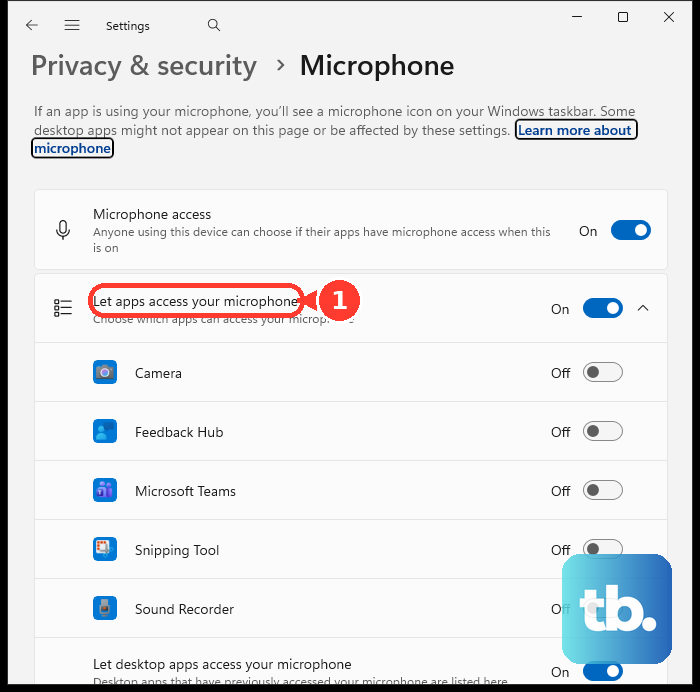
Enable Let desktop apps access your microphone. Desktop browsers use this permission rather than individual Microsoft Store app toggles.
On a Mac, open the Apple menu > System Settings > Privacy & Security > Microphone.
Enable access for the browser you use with Docs.
On a work or school device, contact your administrator if microphone permissions are locked or speech recognition is blocked.
Dictate on Android with Gboard
On your phone, the microphone lives in your keyboard. The Docs app uses keyboard voice input because Docs' own Tools > Voice typing feature is desktop-only.
With Gboard installed and selected as your keyboard, open a document for editing in the Google Docs app.
Tap the insertion point where you want your words to go.
Tap the Microphone at the top of Gboard.
Start speaking when Speak now appears. Gboard enters your dictated text into the document; supported languages vary.
If mobile dictation isn't working, try the document on a computer using Docs' built-in Voice typing and the microphone checks above.
Use Dictation on iPhone or iPad
Apple's keyboard Dictation lets you speak into an editable Google document.
- 1.Open Settings > General > Keyboard.
- 2.Turn on Enable Dictation.
- 3.Open your document for editing in Google Docs.
- 4.Tap the insertion point where you want text.
- 5.Tap the keyboard's Dictate button and speak.
- 6.Tap Dictate again or say “Stop dictation” to finish.
Turn a recording into document text
Already have a recording? Desktop Voice typing can transcribe audio played near your computer's microphone. It listens in real time, so this method doesn't upload an audio file.
In your document, choose Tools > Voice typing.
Select the recording's language from the language dropdown.
Activate the microphone.
Play the recording from a phone or recorder near your computer's microphone.
Click the microphone again when playback ends.
Proofread the transcription for mistakes.
Correct any errors in the document.
If the recording transcribes poorly, try listening through headphones and repeating the words clearly into the microphone while Voice typing is listening, adding punctuation as you go.
Frequently Asked Questions
What is the Google Docs speech-to-text keyboard shortcut?
In Chrome, focus your document and press Ctrl+Shift+S on Windows or ChromeOS, or Command+Shift+S on Mac. Activate the microphone if it isn't already listening.
Is Google Docs voice typing available with a free Google account?
Yes. Voice typing is available for personal Google accounts, all Google Workspace editions, and Workspace Individual.
Does iPhone dictation require Apple Intelligence?
No. Basic iPhone keyboard Dictation doesn't require Apple Intelligence. Supported languages and enhanced features vary by device.