A driver updater solves the wrong problem fast when it changes every driver on a Windows PC at once. Start with Windows, use official hardware tools, and keep a rollback path ready before anything touches graphics, Wi-Fi, audio, chipset, or BIOS drivers.
That gives you the update you need without turning a working device into the next problem.
Start With Windows Update First
This method fits routine maintenance and minor hardware issues when you do not already know the exact driver you need.
On Windows 11, open Start, choose Settings, then open Windows Update. Go to Advanced options and turn on Receive updates for other Microsoft products.
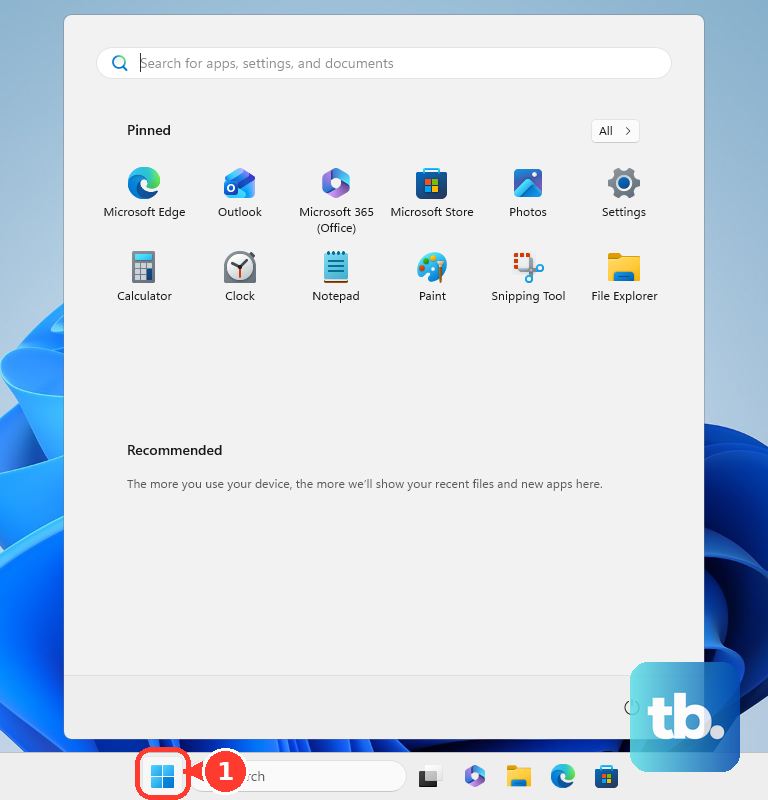
Use Optional updates only for a specific driver you actually need. Open Driver updates, select the driver, choose Download and install, then restart from Start, Shutdown or sign out, and Restart.
Windows 10 free support ended on October 14, 2025. Treat Windows 10 optional-driver instructions as legacy. Paid Extended Security Updates deliver only critical and important security updates, not optional driver updates and not general support. A managed PC still gets drivers through whatever policy the organization runs.
Use Device Manager For One Broken Device
The most common mistake is running a bulk driver updater when one device is the only thing failing.
Right-click Start and open Device Manager. Expand the matching device category, right-click the device, choose Update driver, then select Search automatically for updated driver software.
If Windows offers Search for updated drivers on Windows update, choose it. Select Close when the search finishes, then test the device before changing another driver.
For a driver downloaded from the device manufacturer's site, choose Browse my computer for drivers, select Browse..., pick the downloaded driver folder, choose OK, then choose Next. Avoid driver downloads from non-manufacturer sites.
Create A Restore Point Before Bulk Updates
Before any driver updater changes multiple drivers, create a rollback point.
- 1.Open Start, type Create a restore point, and open Create a restore point.
- 2.On the System Protection tab, choose Create....
- 3.Enter a clear description, then choose Create.
- 4.If System Protection is off, choose Configure..., select Turn on system protection, adjust the disk-space slider, and choose Apply.
Tighten App Source Settings
Before installing a driver-updater app from the web, open Start, go to Settings, then Apps. Open Advanced app settings and choose Choose where to get apps.
Select The Microsoft Store only (Recommended) for the strictest app-source control. Select Anywhere, but warn me before installing an app that's not from the Microsoft Store when you plan to install a vendor utility from the web.
After installing a driver updater, keep Windows Security driver protections on. If Program Compatibility Assistant says a driver cannot load or a security setting is blocking it, update the driver through Windows Update or Device Manager.
If no updated driver appears, contact the hardware manufacturer instead of disabling protection.
Prefer Official Hardware And PC Maker Tools
This method fits PCs and components that have their own updater. Use these tools before broad third-party driver updater apps because they target specific hardware families.
For Intel hardware, check Intel's compatibility list first, because some Intel products are not supported by the tool. Then install Intel Driver & Support Assistant from Intel and open it from the tray icon or Start. In the browser dashboard, review Available Updates, choose Download all or an individual update, then use Install all or the individual install option. Keep WHQL Certified Updates checked for Intel Graphics updates when stability matters.
For AMD Radeon graphics or Ryzen chipsets, use AMD's Auto-Detect and Install Tool from AMD Drivers and Support. When packages appear, choose Recommended for Microsoft-certified stability. Use Optional only when you need the newest features or fixes.
For NVIDIA GeForce or creator systems, use NVIDIA App or the official NVIDIA driver page. To choose a driver type, open NVIDIA App, use the three-dot menu, select Game Ready or Studio, then download and install that driver type.
For Dell, HP, Lenovo, and ASUS PCs, use the maker's support app when available: SupportAssist, HP Support Assistant, Lenovo Vantage, or MyASUS. Read the update categories that app actually shows before installing, because the labels differ by vendor: Dell SupportAssist for Home PCs sorts updates as Urgent, Security, Recommended, and Optional, and other maker apps use their own severity names. Install the urgent and recommended items first, and restart when the tool requires it.
Use Third Party Updaters Carefully
Install the updater only from the company that makes it. Avast Driver Updater, AVG Driver Updater, and IObit Driver Booster publish official Windows driver updater pages, so skip third-party download portals.
In Avast Driver Updater, choose Scan drivers or Scan again.
Review the outdated-driver list, open Filters, untick drivers you do not want, then choose Update selected.
In AVG Driver Updater, choose Scan drivers or Scan again.
Deselect drivers you do not want, then choose Update selected. Restart only when prompted.
In Driver Booster, choose SCAN, review the results, then use Update on a single driver row or Update Now only after checking what is selected.
Open Settings, choose Stability First, and disable automatic scans when you do not want frequent update prompts.
Keep automatic installs disabled unless the app creates restore points or backups before installation.
Skip Updates You Do Not Need
Not every available driver update belongs on your PC today.
- 1.Skip broad updates when the device already works normally.
- 2.Use Recommended, Critical Updates, or WHQL Certified Updates when stability matters.
- 3.In Avast Driver Updater, open the driver panel, choose More options, then select Skip update or Ignore driver.
- 4.In Intel Driver & Support Assistant, expand the update details, check Hide just this update, and choose how long to hide it.
- 5.In Driver Booster Pro, keep Automatically create a system restore point before a driver is installed enabled before using automatic driver updates.
Undo A Bad Driver Update
The most common sign of a bad driver update is a device that starts failing right after installation.
First use Windows rollback. Right-click Start, open Device Manager, expand the device category, right-click the device, choose Properties, open Driver, then select Roll Back Driver. Choose a reason, select Yes, and restart if Windows asks.
If Windows has no previous driver available, uninstall the problem device and let Windows reinstall an available driver. Save your work, close apps, open Device Manager, right-click the device, choose Uninstall device, then choose Uninstall. Restart from Start, Shut down or sign out, and Restart.
If you created a restore point, open Control Panel, go to Recovery, choose Open System Restore, select Next, pick the restore point, optionally use Scan for affected programs, then choose Next and Finish. From Windows Recovery Environment, use Troubleshoot, Advanced options, and System Restore; BitLocker devices may require the recovery key there.
If Avast Driver Updater installed the driver, open See overview, expand the driver, choose Driver versions, then use Revert next to the version you want. Avast reverts only drivers it updated itself.
Handle Work And School PCs Differently
This method applies when Windows says your organization manages updates, or when the PC belongs to an employer or school.
Do not install a consumer driver updater on a managed PC without permission. Managed Windows devices use organization tools to approve, pause, or deploy driver updates, and a consumer updater can work against that setup.
Use Windows Update and the support path your IT team provides. If a driver keeps reinstalling or disappearing on a managed device, report the device model, the driver name, and what stopped working.
Frequently Asked Questions
Is a driver updater necessary on Windows 11?
No. Windows Update, optional driver updates, Device Manager, and official PC or hardware maker tools handle most driver updates without a third-party updater.
Should I update every outdated driver a driver updater finds?
No. Update the device that is causing a problem, or choose recommended, critical, or WHQL-certified updates from official tools. Bulk updates change drivers that were already working.
What should I do before using a driver updater?
Create a restore point, install tools only from official vendor pages, review each selected driver, and keep rollback or backup features enabled when the updater offers them.
What if a new driver breaks my PC?
Use Device Manager's Roll Back Driver option first. If that option is unavailable, uninstall the problem device and restart, use System Restore, or use the updater's own revert option when it installed the driver.