Bad sound drivers can leave Windows with no audio, crackling output, missing speakers, or HDMI sound that will not play through a monitor or TV. Start with the built-in Windows 11 update paths, then use the exact driver package from your PC, motherboard, sound-card, USB audio, or headset maker when Windows has nothing new.
1. Start With Windows Update
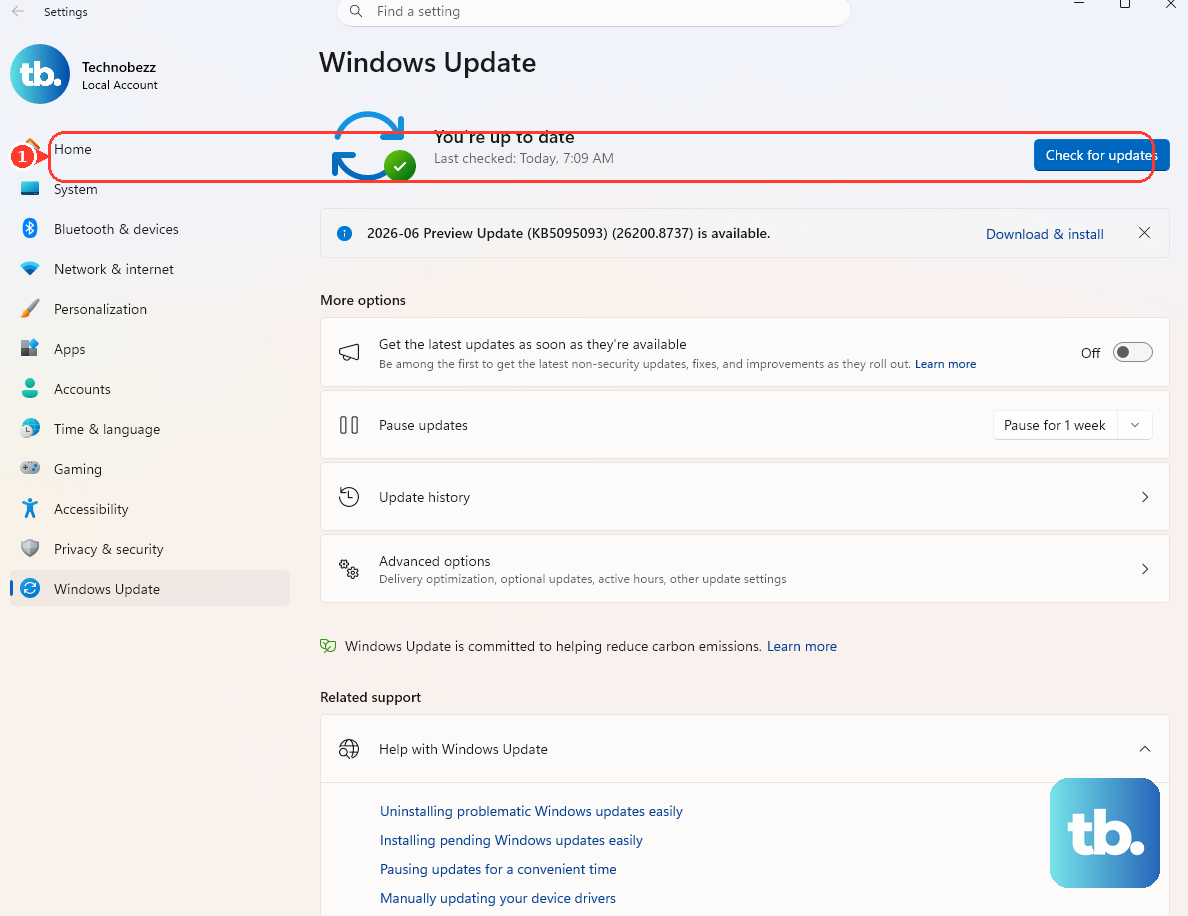
Make Windows Update the first stop because Windows automatically downloads and installs recommended driver updates when they are offered for your device.
- 1.Open Start.
- 2.Select Settings.
- 3.Choose Windows Update.
- 4.Select Check for updates.
- 5.Install every available update.
- 6.Restart your PC.
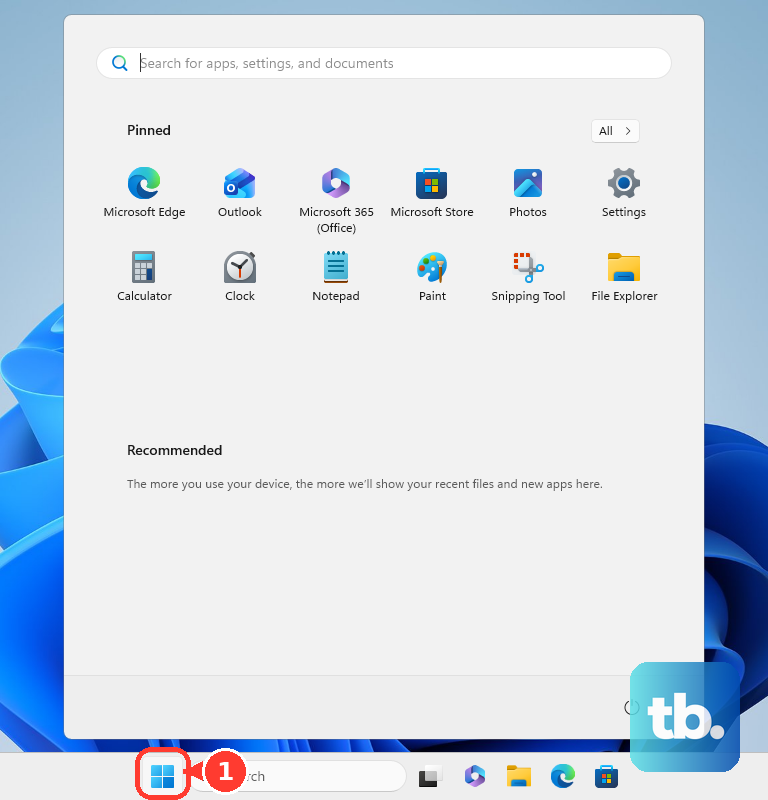
Audio driver updates appear here when Microsoft or your PC maker publishes them through Windows Update.
2. Check Optional Driver Updates
Open Start, then go to Settings > Windows Update. Open Advanced options, select Optional updates, and open Driver updates. Select the audio or related driver update, choose Download and install, then restart by right-clicking Start and selecting Shutdown or sign out > Restart.
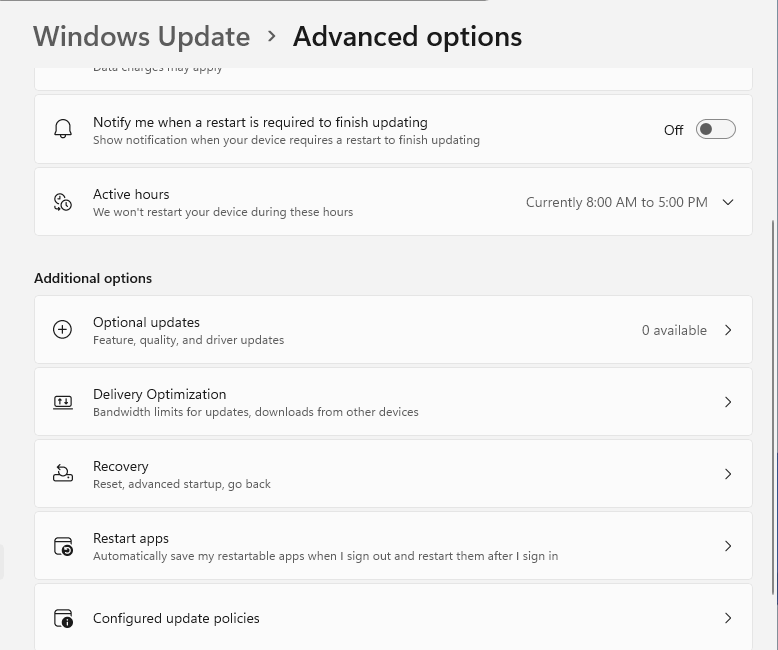
Not every driver lands in the automatic queue. Optional driver updates sit in this separate Windows Update menu, and they need a manual install.
3. Update Through Device Manager
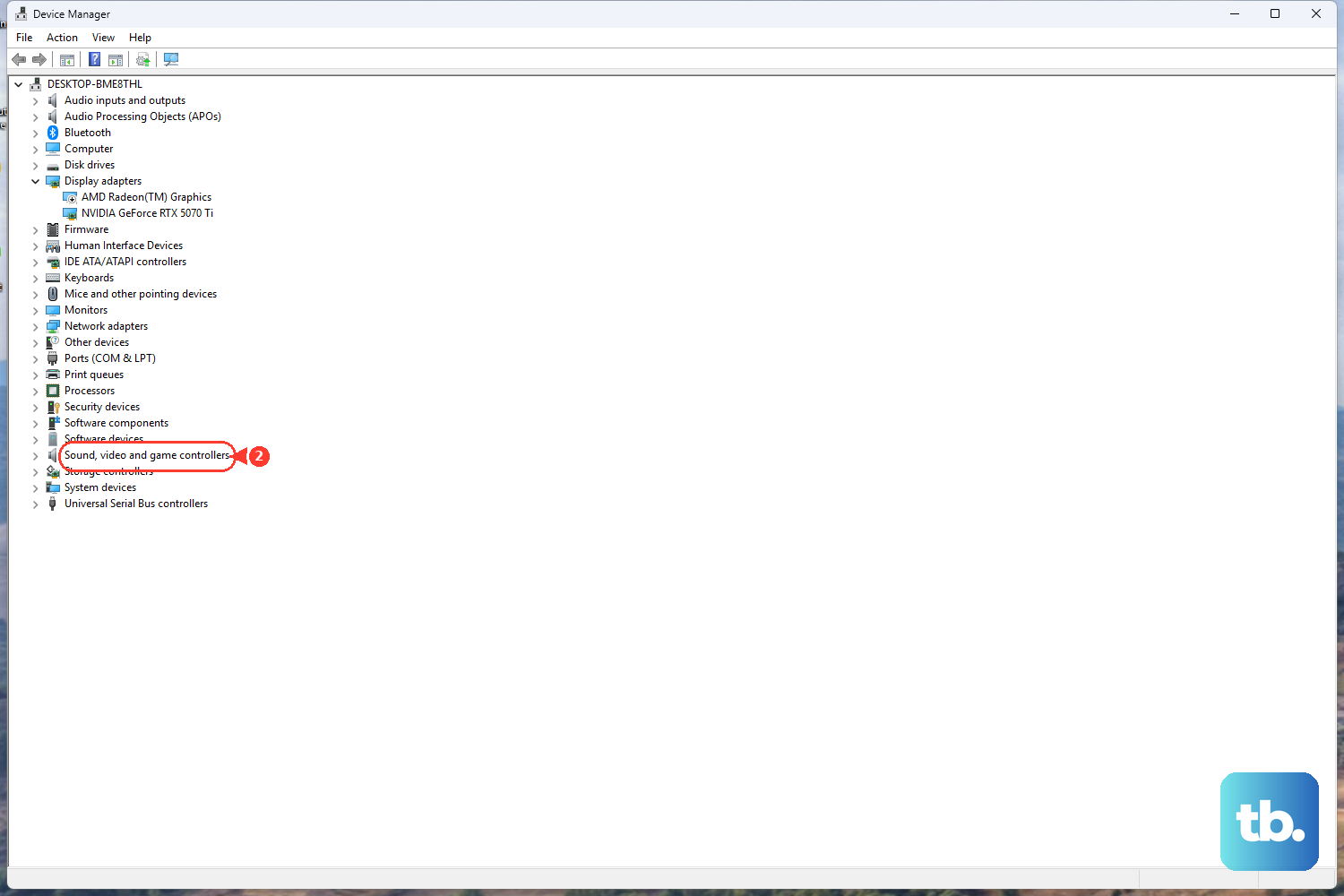
Use Device Manager when Windows Update finishes but the sound device still needs attention.
Right-click Start, then select Device Manager. Expand Sound, video and game controllers, right-click your audio device, and select Update driver. Choose Search automatically for drivers, follow the on-screen instructions, and restart your PC.
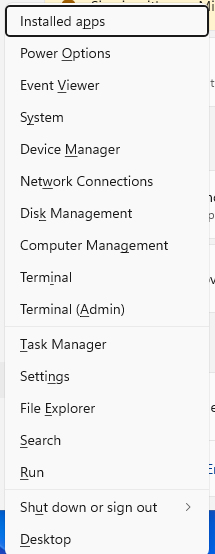
Device Manager checks the installed audio device directly.
4. Install the Manufacturer Driver
Use the manufacturer route when Windows does not find the right audio package. Go to your PC, motherboard, sound-card, USB audio, or headset maker's support website, then search for your exact device model. Download the latest audio driver for your Windows version, run the installer using the maker's instructions, and restart your PC.
Dell - Open Dell Drivers & Downloads, select the computer or enter the Service Tag, choose Search, select Check for Updates, open Show drivers, then choose Download and Install.
HP - Open HP Support Assistant, select your device, check software and driver updates, then install available firmware and driver updates. You can also use HP Support > Software and Drivers for your product model.
Lenovo - Open Lenovo Vantage > System Update > Check for Updates, then install all updates or selected updates. Lenovo Support also lists model-specific drivers under Drivers & Software.
ASUS - Open MyASUS > System Update, then select and install available updates. ASUS Download Center also provides model-specific drivers under Support > Driver & Tools.
Acer - Open Acer Care Center > Update, then install the latest Acer drivers and software updates. Acer Drivers and Manuals also lets you enter a serial number, SNID, model, or part number, open the Drivers tab, select Operating System, and download the driver.
Surface - Search for View optional updates, open Driver updates, and install every Surface-named driver. If needed, download the Surface driver and firmware package for your exact Surface model, install it, then restart.
This is the right fix for laptops, desktops, motherboards, sound cards, USB audio devices, and headsets that use model-specific drivers. For Realtek audio, use the PC or motherboard maker's package first. Realtek's general audio codec driver page provides general drivers, and those packages do not include every system or motherboard customization.
5. Refresh HDMI and DisplayPort Audio
NVIDIA - Go to NVIDIA Drivers, choose Get Automatic Driver Updates and use the NVIDIA App, or choose Latest Driver Downloads, select the product type, series, product, operating system, and download type, then install the driver package.
AMD - Go to AMD Drivers and Support, choose Download Windows Drivers, run the tool, select Install, let AMD Software Installer check hardware compatibility, then install the latest AMD drivers.
Intel - Go to Intel Driver & Support Assistant, select Download now, install it, open Visit Support Assistant, then review and install customized updates for detected Intel hardware.
When sound plays through a monitor, TV, or dock, the graphics driver package is part of the audio path. Update the current graphics package for the hardware in the PC.
Skip old standalone NVIDIA HDMI Audio packages for Windows XP, Windows Vista, and Windows 7. Current Windows 11 PCs use current NVIDIA graphics driver packages for NVIDIA HDMI and DisplayPort audio.
6. Reinstall a Broken Audio Driver
A driver can stay broken even after Windows says it is current. Reinstall it and let Windows load the audio device again after restart.
Type device manager in the taskbar search box, then open Device Manager. Expand Sound, video and game controllers, right-click the sound card or audio device, and select Uninstall device. Select Attempt to remove the driver for this device when that checkbox appears, choose Uninstall, then open Start > Power > Restart.
Windows reinstalls the audio driver after restart when it has a matching driver.
For a repair fallback, open Update driver > Browse my computer for drivers > Let me pick from a list of available drivers on my computer. Select the audio device or driver, then choose Next.
7. Bring Back a Missing Sound Device
Check whether the hardware is hidden or disabled before downloading anything. Open Start, type Device Manager, and open Device Manager. Expand Sound, video and game controllers.
If the device appears disabled, right-click it and select Enable device. If the device is missing, open View > Show hidden devices. Select Action > Scan for hardware changes.
Microsoft also provides the Get Help audio troubleshooter on supported audio issue pages. Select Run the troubleshooter there and let Get Help run diagnostics and repairs.
8. Roll Back a Bad Driver Update
Right-click Start, then select Device Manager. Expand Sound, video and game controllers, right-click your audio device, and select Properties. Open the Driver tab, select Roll Back Driver, choose a reason, and select Yes. Restart when Windows prompts you.
Roll back to the previous driver stored by Windows if audio broke right after a driver update. Roll Back Driver requires administrator permissions and only works when Windows has a previous driver available.
9. Use Advanced Driver Tools Carefully
Microsoft Update Catalog and PnPUtil are advanced paths, not the normal consumer route.
Microsoft Update Catalog - Go to Microsoft Update Catalog, search for the driver or exact hardware name, select the matching update, choose Download, and save the file.
Device Manager folder install - Download the driver from the device manufacturer, right-click Start, open Device Manager, expand Sound, video and game controllers, right-click the audio device, choose Update driver > Browse my computer for drivers > Browse..., pick the downloaded driver folder, select OK, choose Next, then select Close.
PnPUtil - Open Command Prompt with Run as Administrator, then run pnputil /add-driver path\to\driver.inf /install for a valid extracted INF driver package.
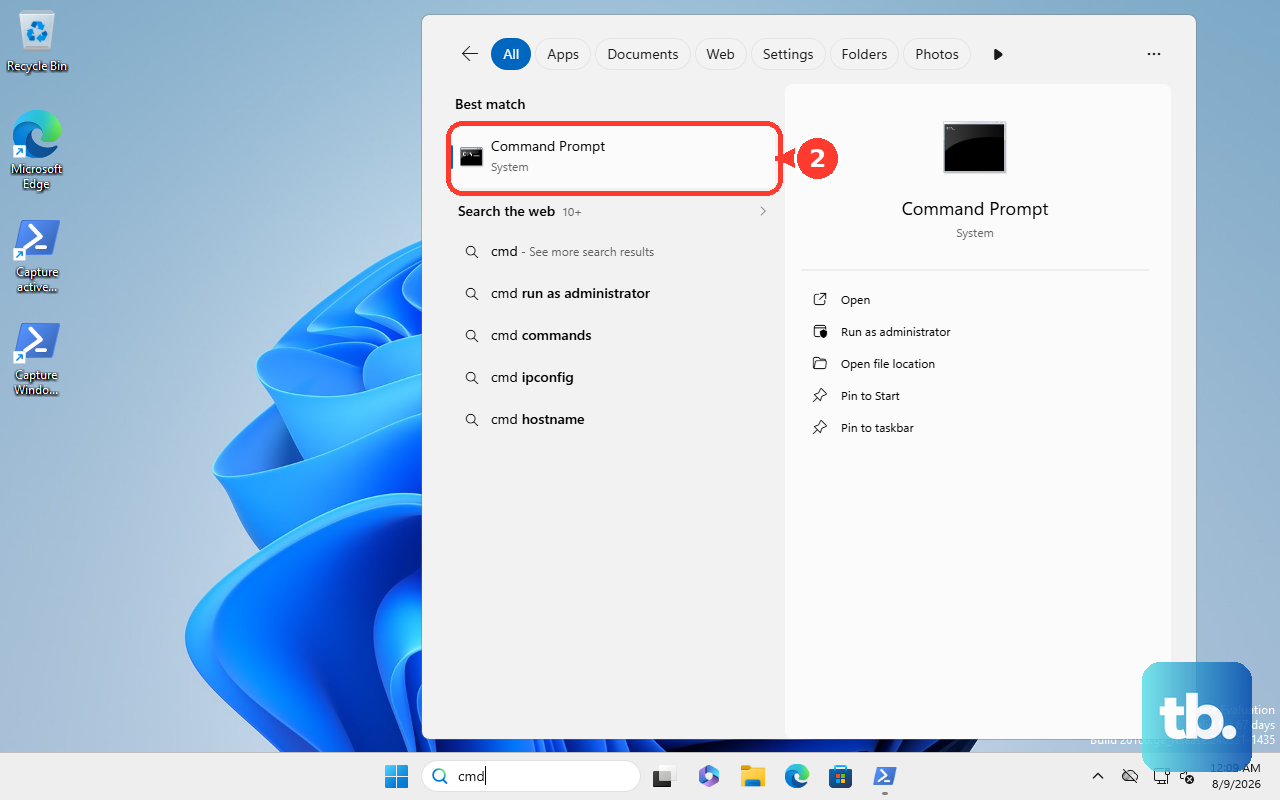
Use these tools only when you already have the exact driver package for the hardware. Skip third-party driver updater apps from download portals. For current Windows sound drivers, use Windows Update, Device Manager, the PC or hardware maker's official support app or website, Microsoft Update Catalog for advanced installs, or the hardware vendor's official driver tool.
Frequently Asked Questions
What is the safest way to update sound drivers in Windows 11?
Start with Windows Update. Open Start > Settings > Windows Update > Check for updates, install available updates, and restart.
Why is there no audio driver in optional updates?
Optional driver updates only appear when Microsoft or the device maker offers one for that PC. Use Device Manager or the PC maker's support page when the optional list is empty.
Should I install a Realtek audio driver from Realtek?
Use the PC or motherboard maker first. Realtek provides general drivers, while OEM packages include the customizations built for the exact system.
How do I update audio for HDMI or DisplayPort?
Update the current graphics driver package from NVIDIA, AMD, or Intel. HDMI and DisplayPort audio often come through the graphics driver package.
Can I roll back an audio driver after an update breaks sound?
Yes. Open Device Manager, open the audio device Properties, use the Driver tab, and choose Roll Back Driver when Windows has a previous driver available.