A Samsung J7 software update usually means one of two things: Samsung system firmware or the apps installed on the phone. Start with the built-in updater, then use Smart Switch on a computer if the phone does not offer anything. Galaxy J7 models are legacy devices, so the phone only installs firmware Samsung or your carrier still provides for that exact model.
Check for a Samsung system update in Settings
Open Settings on your Galaxy J7. Go to Software update or System updates.
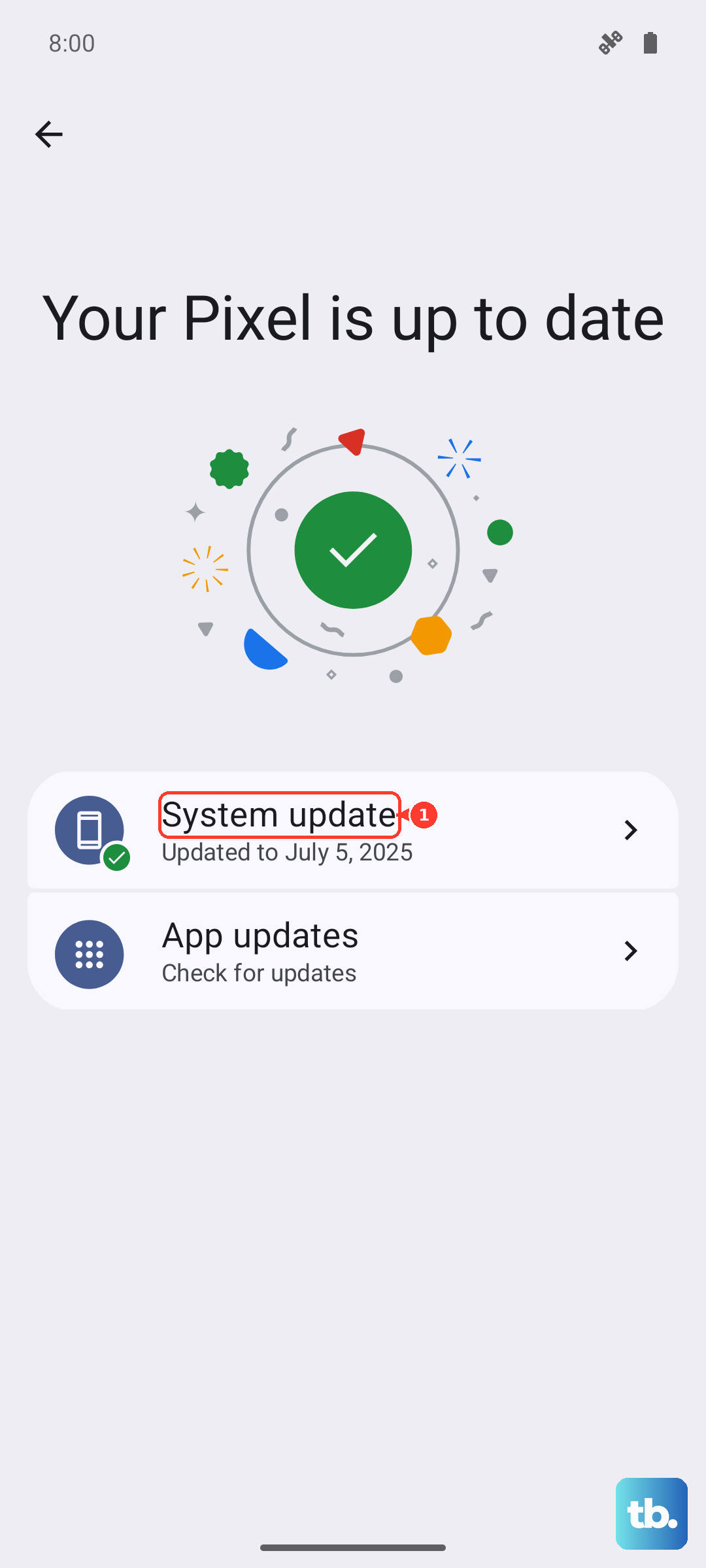
Tap Download and install, Download updates manually, Check for system updates, or Check for software updates. The button varies by Android version, model, and carrier: Samsung documents Download updates manually on Nougat and Oreo, the releases most J7 models ended on, and Download and install on newer software.
Follow the on-screen instructions if the phone finds an update. If Settings says the phone is up to date or the update does not install, try Smart Switch on a Windows PC or Mac next.
Use an update notification when one appears
This method applies when your J7 shows a system update notification from Android, Samsung, or your carrier. The phone has already detected an available update, so this is the shortest route.
Open the update notification. Tap the update action or update button. Follow the on-screen instructions until the installation finishes.
A Galaxy J7 receives only Android versions and security updates still approved for its exact model and carrier.
Confirm the installed software version
This fixes the uncertainty about whether the update actually changed your phone's software. Open Settings. Tap About phone, About device, or About tablet.
Open Software information. If your J7 shows About device, the version details are on that screen already and you can skip this step. Review the installed version details. Check this screen before and after updating when you want to confirm that the phone moved to a newer build.
Update the J7 with Smart Switch on a computer
Use Samsung Smart Switch when the built-in updater does not offer a result or when you prefer updating through a Windows PC or Mac.
- 1.Install Smart Switch from Samsung's official Smart Switch page on your computer.
- 2.Connect the Galaxy J7 to the computer with a USB cable.
- 3.Open Smart Switch on the computer.
- 4.Select Update if Smart Switch shows that an update is available.
- 5.Follow the on-screen prompts until the process is complete.
Smart Switch support applies to Samsung Galaxy devices it detects. Samsung lists Android OS version 4.3 or later, Windows 7 or later, and macOS 10.9 or later. For a Galaxy J7, Smart Switch only installs firmware still offered for that model, region, and carrier.
Turn on automatic Samsung updates over Wi-Fi
Open Settings. Go to Software update or System updates. Tap Auto download over Wi-Fi.
Turn the switch on so eligible Samsung system updates download automatically when available over Wi-Fi. This setting helps only while Samsung or your carrier still offers an update for your exact J7 model.
Understand why your Galaxy J7 says it is up to date
Most J7 phones are simply out of updates. Samsung no longer lists any J7 model among its current monthly or quarterly security-update devices as of September 2026, so a check can only report that the phone is already current.
Run the Settings update check first. Try Smart Switch if you want a second supported check from Samsung's desktop software.
When both methods say there is no update, nothing is currently being offered to that exact model and carrier, which usually means the phone is on its final build. It is not proof. Samsung says Smart Switch can also show no update because the release has not reached your region yet, or because your phone needs an intermediate update first.
Skip Odin, download mode, firmware ZIP sideloading, Apply update from SD card, Apply update from ADB, and custom ROM instructions when your goal is a supported consumer update. Settings and Smart Switch are Samsung's self-service update paths. Where Samsung offers it, a Samsung Experience Shop can also run the software upgrade for you in person.
Update apps from Google Play and Galaxy Store
This method applies when your apps are outdated, crashing, or missing newer app features. App updates are separate from Samsung system firmware updates.
For Google Play apps, open Play Store. Tap your profile picture, then choose Manage apps & device. Open Updates available, then tap Update next to one app, or tap Update all.
To allow Google Play apps to update automatically, open Play Store. Tap your profile icon. Go to Settings, then Network preferences, then Auto-update apps. Choose the auto-update setting you want, such as Wi-Fi only.
For Galaxy Store apps, open Galaxy Store. Tap Menu, then Updates. Tap the circling arrow next to one app, or tap Update all.
To auto-update Galaxy Store apps, open Galaxy Store. Tap Menu, then tap the Settings icon. Choose Auto update apps and select the setting you want.
Refresh Google Play itself and Google Play services
Open the Google Play app and tap your profile picture. Go to Settings, then About. Tap Update Play Store, then tap Got it. When an update is available, it downloads and installs automatically in a few minutes.
To update Google Play services, open Settings. Tap your profile picture, then choose All services. Go to Privacy & Security, then System services. Open Google Play services and tap Update or Install.
These steps follow Google's current menu layout, and the path varies by Android version and device software, so older J7 software may not show the same screens. Google Play services is supported only on Android 7.0 and up.
If Play services cannot update on a first-generation J7 running Android 5 or Android 6, finish the Samsung system update checks above. Then keep using Play Store and Galaxy Store for app updates for as long as those apps still work on your phone.
Frequently Asked Questions
Can a Samsung J7 still get new Android versions?
Only when Samsung or your carrier still offers firmware for that exact J7 model. As of September 2026, J7 models are not listed among Samsung's current monthly or quarterly security-update devices.
Is Smart Switch safer than downloading firmware from random websites?
Yes. Samsung's supported consumer desktop method is Smart Switch, and Samsung's Smart Switch page is the official place to get it.
Why are app updates available when no system update is available?
System firmware and app updates are separate. A Galaxy J7 can be finished receiving Samsung firmware while Google Play or Galaxy Store apps still update.
Can I remove a bad app update?
For some preinstalled apps, Samsung allows Uninstall updates from Settings. That only returns the app to its factory version; it does not update or downgrade the phone's operating system.