
Keeping your Galaxy Z Fold 7 updated is the best way to get new features, performance tweaks, and critical security patches. Samsung pushes out updates pretty regularly, usually a mix of monthly security fixes and bigger One UI upgrades a couple times a year. Here's how to make sure you're running the latest software.
First, Check Your Current Version
Before you go searching for an update, it helps to know what you're currently running. Head to Settings > About phone > Software information. You'll see your One UI version, Android version (you're likely on Android 15), and the latest security patch level. This comes in handy if you're waiting for a specific feature that rolled out in a certain update.
Get Your Fold Ready
Major updates, like a new One UI version, need some breathing room. Make sure you have at least 5-10 GB of free storage or the download might fail. It's also a good idea to back up your data at Settings > Accounts and backup > Back up data, just to be safe. Plug your Fold into a charger or make sure it has over 50% battery, the 25W wired or 15W wireless charging will top it up quickly enough.
Update Over the Air (The Easy Way)
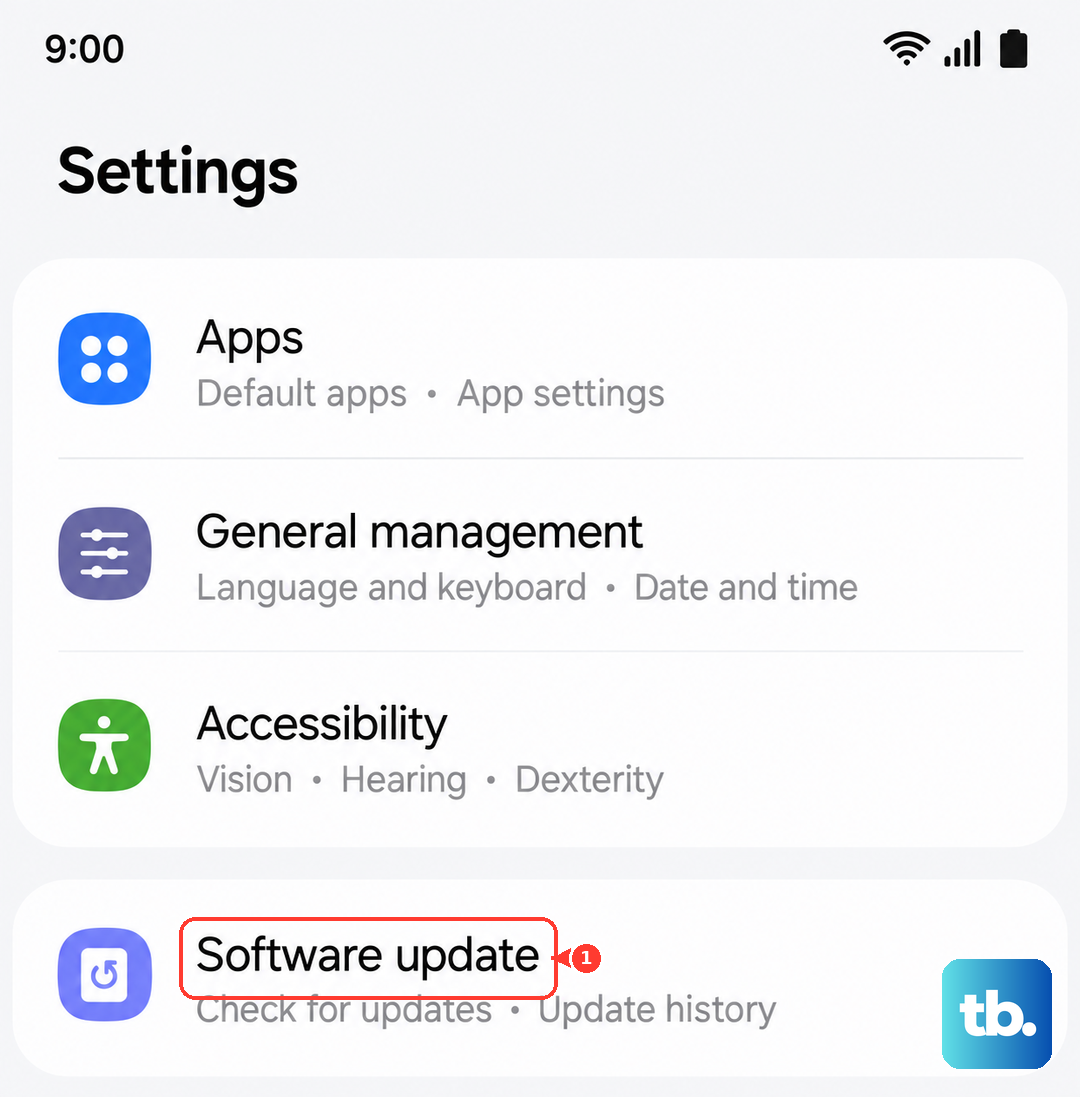
The simplest way to update is right from the phone. Go to Settings > Software update > Download and install. Your Fold will check for available updates. If one pops up, tap Download, then Install now. You can schedule the install for later if you're in the middle of something. Just make sure you're on a stable Wi-Fi network so the download doesn't chew through your data plan.
Turn On Automatic Downloads
You can make this even easier on yourself. In Settings > Software update, toggle on Auto download over Wi-Fi. Your Z Fold 7 will grab updates in the background whenever it's connected to Wi-Fi. You'll still need to tap Install, but you can enable Install updates overnight to have it happen automatically while you sleep.
Use Smart Switch When the OTA Won't Work
If the over-the-air update keeps failing or your phone is low on storage, Samsung Smart Switch is your backup plan. Download Smart Switch on a Windows or Mac computer. Connect your Fold using a USB-C cable, open Smart Switch, and it will check for updates. Click Update to download and install the firmware through your computer.
Fix a Stuck or Failed Update
Updates don't always go smoothly. If the download gets stuck or the install hangs, the first thing to try is a forced restart. Press and hold Volume down and Side buttons simultaneously for 10 seconds until the device restarts. This won't erase your data, it just kicks the phone out of a frozen state. Try downloading the update again after it boots up.
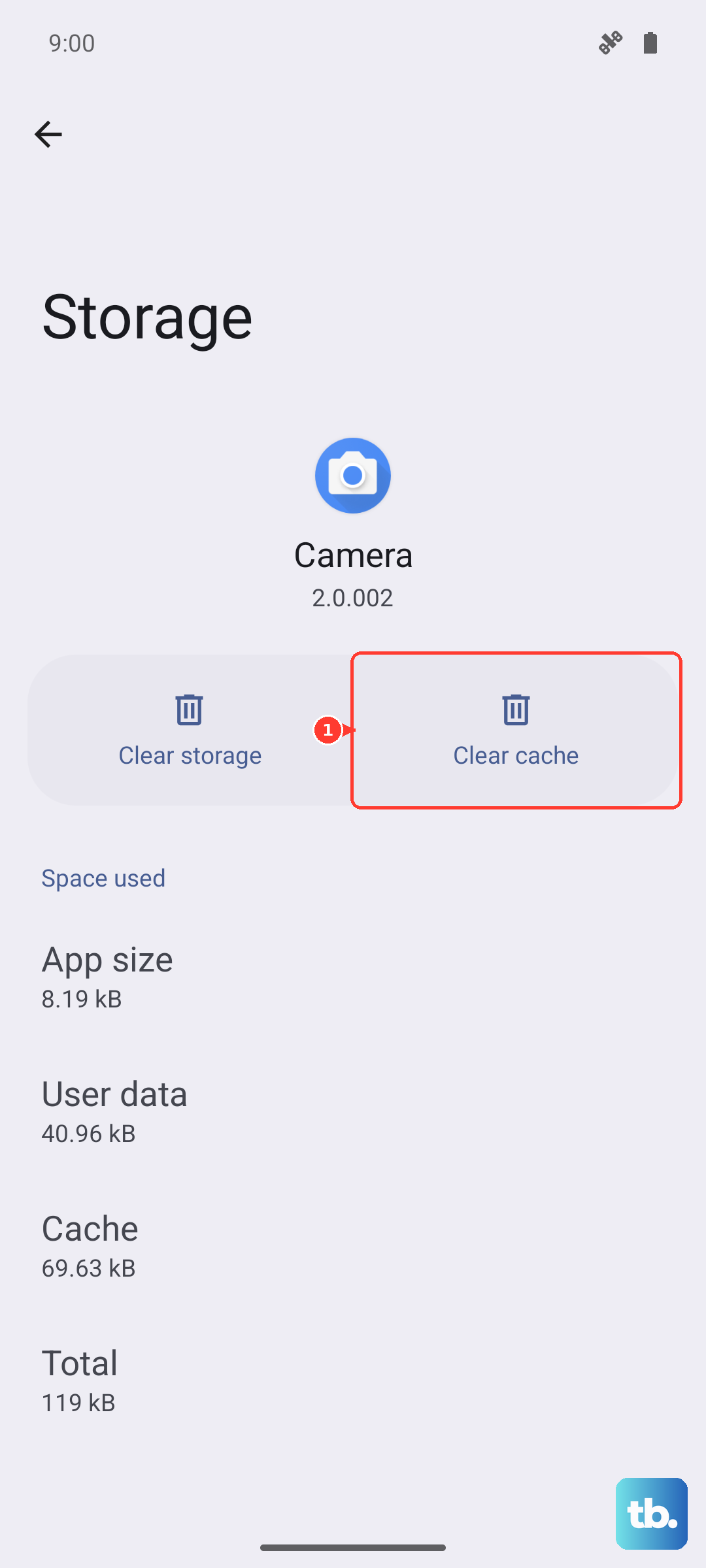
If that doesn't do the trick, you might need to clear the system cache. Go to Settings > Apps > Software update, tap Storage, and hit Clear cache. For a deeper clean, boot into recovery mode (Power + Volume Up) and select Wipe cache partition. This clears temporary system files without touching your personal data and can clear up update conflicts. If your Fold is still unresponsive, check the USB-C port for dust or lint, a clogged port can sometimes cause weird behavior during recovery flashes.
That's it. Staying on the latest software keeps your Z Fold 7 secure and running smoothly with the best battery optimization Samsung has baked in.