
One UI 8 is expected to land on the Galaxy A26 5G sometime in 2026, bringing Android 16 and a fresh set of Samsung features. Here's how to make sure your phone gets it as soon as it's available, and what to do if the update gets stuck.
Check for the Update Manually
Open Settings > Software update > Download and install. Your A26 will check for any available updates. If One UI 8 shows up, tap Download and then Install now. You can also schedule the install for later if you prefer.
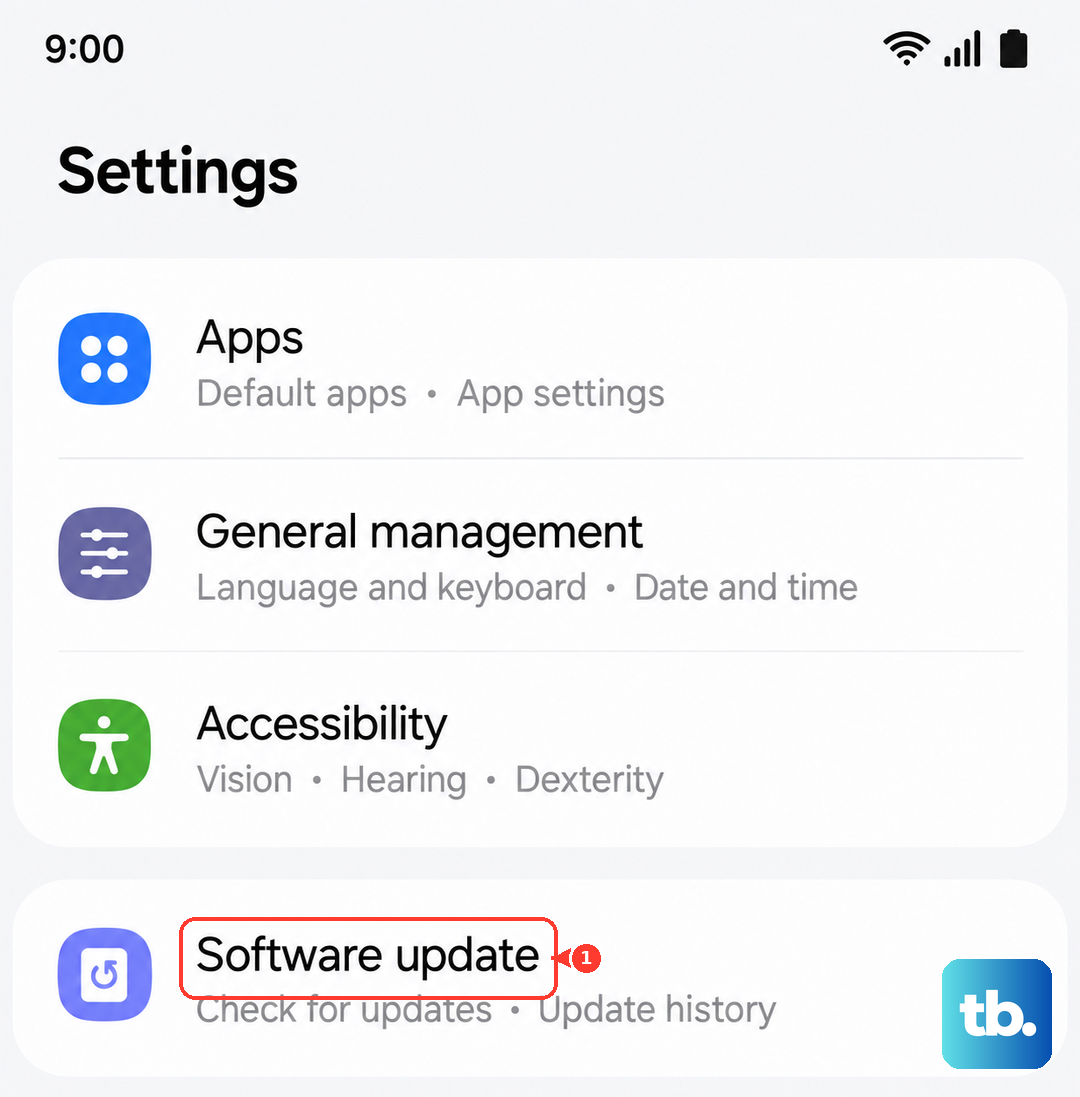
Make sure you're on Wi-Fi and your phone has at least 50% battery before starting. Major upgrades like One UI 8 can be several gigabytes, so give yourself time for the download.
Enable Automatic Downloads
Go to Settings > Software update and toggle on Auto download over Wi-Fi. Your A26 will grab updates in the background when connected to Wi-Fi, so you won't have to wait around for the download. You'll still need to tap Install, but the heavy lifting happens automatically.
You can also enable Install updates overnight to have the phone complete the install while you're asleep, as long as it's plugged in.
Update via Smart Switch on a Computer
If the over-the-air method isn't working or your phone doesn't have enough storage free, try Samsung Smart Switch on a PC or Mac. Download it from Samsung's website, connect your A26 with a USB cable, and open Smart Switch. It will check for available updates automatically. If One UI 8 is ready, click Update and let the computer handle the download and installation.
Fix a Stuck Update
If the update freezes partway through or just won't complete, force restart your A26. Press and hold the Volume Down and Power buttons together for about 10-15 seconds until the device restarts. That usually kicks things back into gear.
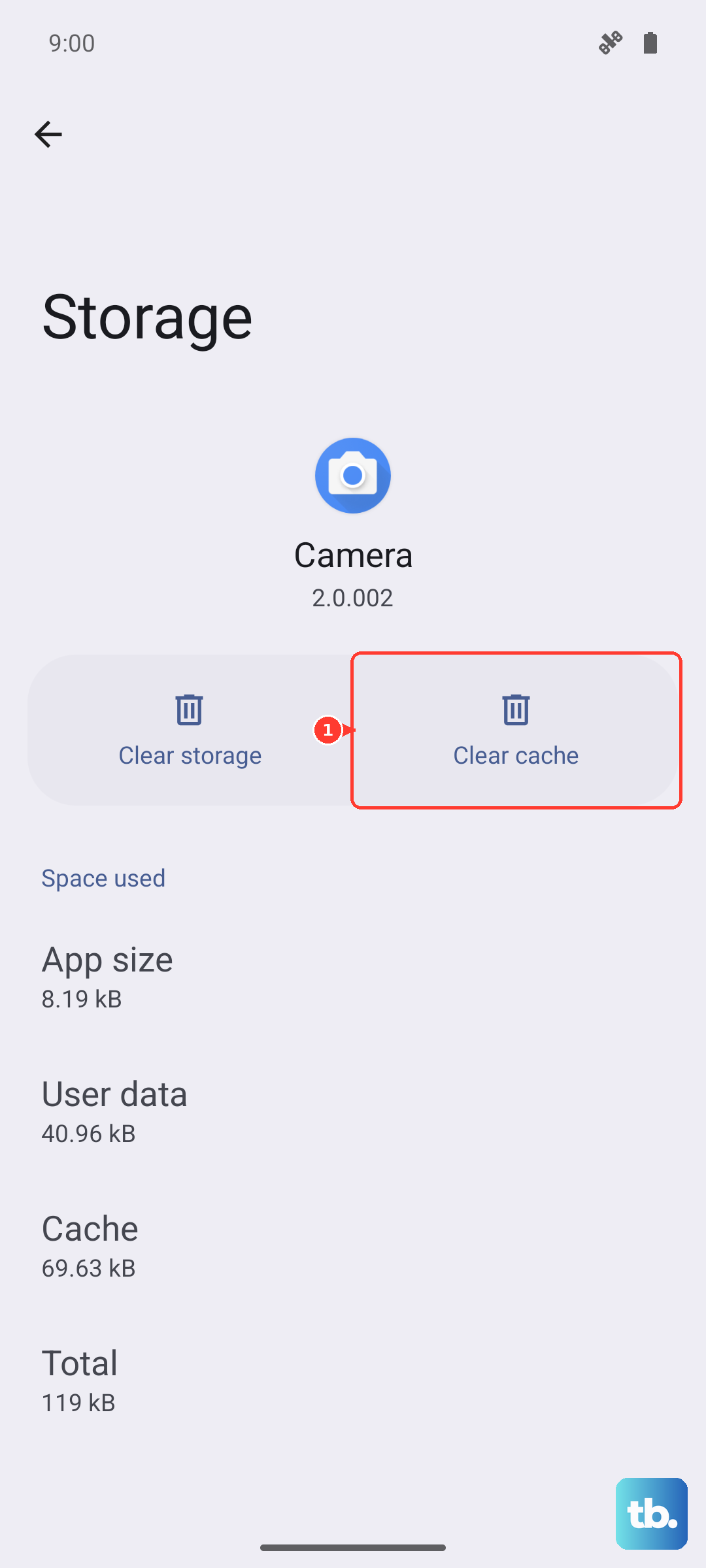
If the update still won't go through, clear the Software update app cache. Go to Settings > Apps > Software update > Storage and tap Clear cache. Then try downloading again.
For persistent issues, boot into recovery mode (Power + Volume Up) and select Wipe cache partition. This clears the system cache without deleting your data and often resolves update problems.
Known Charging Issues After Big Updates
Some A26 users have reported charging quirks after major software updates. Slow charging, incorrect battery time estimates, or the phone stopping charging randomly can happen. If you notice any of this after installing One UI 8, try turning off fast charging first. Go to Settings > Battery > Charging settings and toggle off fast charging. This stabilizes the charging process and often fixes post-update charging weirdness.
Also use a USB PD 3.0 charger with PPS support for the A26's optimal 25W charging speed. A charger that doesn't support the proper standard can cause inconsistent charging behavior.
Before You Update
Back up your data before jumping to One UI 8. Go to Settings > Accounts and backup > Back up data and run a backup to your Samsung account or Google Drive. Major Android version upgrades change enough behind the scenes that it's worth having a safety net.
Make sure you have at least 5-10 GB of free storage. Check available space in Settings > Battery and device care > Storage. If you're low, clear out unused apps and cached files first.
What Version Are You Running Now?
Go to Settings > About phone > Software information. You'll see your current One UI version, Android version, and security patch level. If you're still on One UI 7 (Android 15), you're due for the One UI 8 upgrade when it rolls out to your region.
Samsung rolls out updates in waves by region and carrier, so not all A26 units get the update on the same day. If you don't see it yet, check again in a few days or a week.
Keep the Phone Clean While You Wait
While you're waiting for One UI 8 to drop, keep your phone in good shape. Check the USB-C port for lint or debris, and avoid using the phone while it's charging. Clean the cache partition monthly to keep system performance smooth. When the update finally arrives, your A26 will be ready for it.