Roblox normally refreshes when you launch an experience, but a stuck Player install, delayed Store update, or old Store app can still block you. The fix depends on which PC version you use: the website-installed Roblox Player or the Microsoft Store/Xbox app. Start with the update path you installed from, then use a clean reinstall when Roblox still says it is out of date.
1. Update Roblox Player from the Roblox website
Open the Roblox website in Microsoft Edge, Firefox, or Chrome, then sign in to your Roblox account. Open any experience and select the green Play button. Follow the pop-up that says Roblox Player is installing.
After installation finishes, open any experience again and select Play. If a second pop-up appears, select Roblox and confirm. Use Roblox's website or official download page only, and skip third-party download sites.
2. Update Roblox from the Microsoft Store
This fixes the Store-installed version named Roblox - Windows. Open Microsoft Store, select Library, then select Get updates. Install the available update for Roblox - Windows.
3. Turn on automatic Store updates
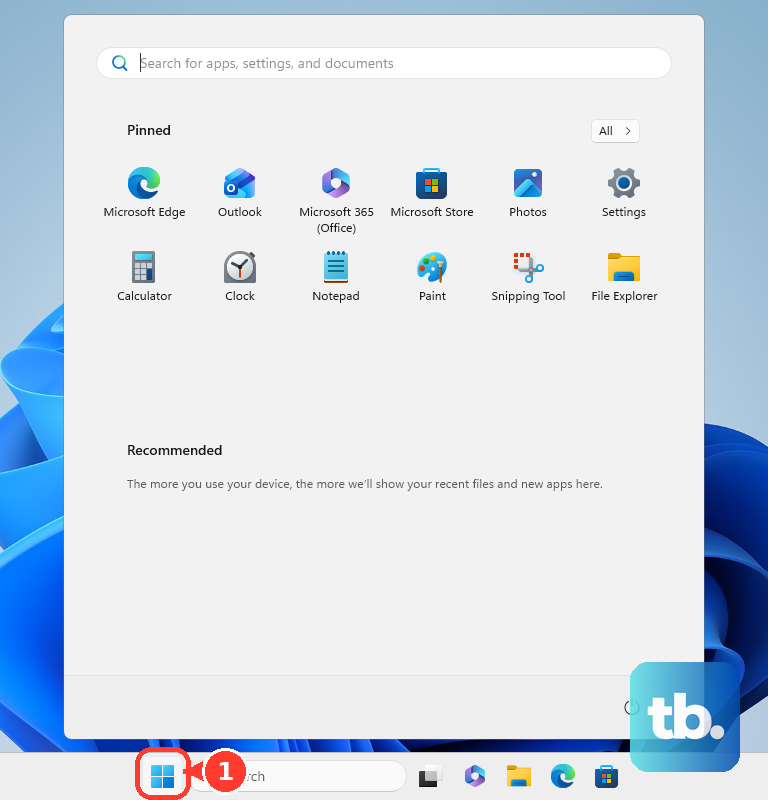
For the Microsoft Store version, automatic updates reduce the chance that Roblox - Windows falls behind again. Open Start > Microsoft Store > Profile > Store Settings, then turn App updates on. Microsoft notes that some publishers manage updates inside their own apps, but this is the Windows setting for Store app updates.
4. Install the current Roblox - Windows app
This fixes PCs that still have the older Microsoft Store Roblox app or need a fresh Store install. Open Microsoft Store, the Xbox PC app, or the Xbox product page for Roblox - Windows. Select Get, Install, or Get it now.
If prompted, link your Roblox and Microsoft/Xbox accounts. After that, sign in to Roblox.
5. Remove the old Store app
The current Microsoft Store app is named Roblox - Windows, while the old Store app was named Roblox. Install Microsoft Store > Roblox - Windows first, sign in successfully, then remove the old Roblox app so you do not keep opening the wrong version. Roblox identifies the current app with a blue icon and the old app with a light gray icon.
6. Reinstall Roblox Player when updating gets stuck
Select Start and type Control Panel in the taskbar search field. Open Control Panel, then go to Programs > Programs and Features. Press and hold or right-click Roblox.
Select Uninstall or Uninstall/Change, then follow the on-screen directions. Reinstall Roblox from the Roblox website or the official Roblox download page. This is the clean fix for Roblox Player when the out-of-date message keeps coming back.
7. Remove Roblox from Windows Settings
This fixes Roblox installs that are easier to remove through Windows Settings than Control Panel. Select Start, open Settings, and go to Apps > Installed apps. Find Roblox.
Select More, then select Uninstall. Once that finishes, reinstall Roblox from the official Roblox website, official download page, Microsoft Store, or Xbox product page for the edition you want.
8. Update Roblox Player with winget
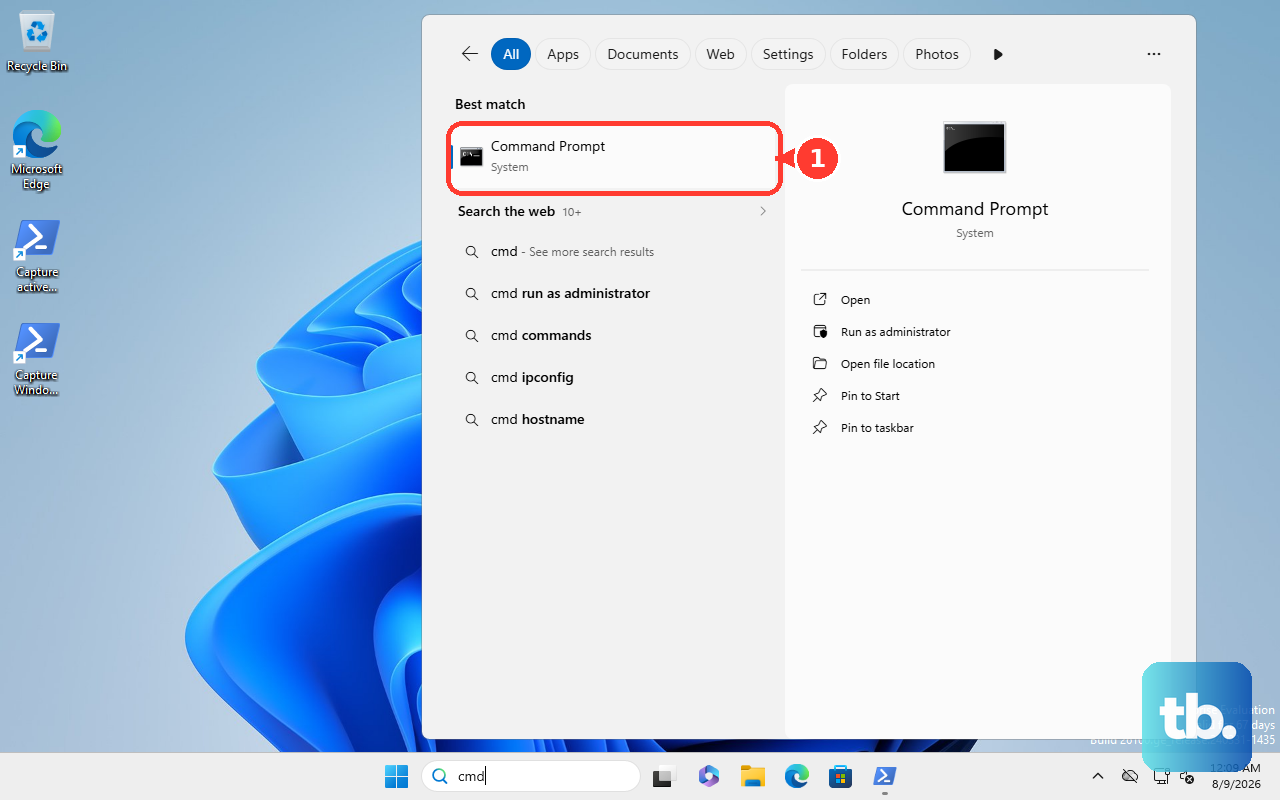
For the website-installed Roblox Player, winget can update the Roblox.Roblox package from Windows Terminal. Open Command Prompt > winget source update > winget upgrade --id Roblox.Roblox -e, or use PowerShell or Windows Terminal for the same commands. To preview upgrades first, run winget upgrade; if Roblox Player is not installed, run winget install -e --id Roblox.Roblox.
9. Skip old browser plugin fixes
This fixes update advice that points you to a retired browser-plugin route. Skip browser plugin and Roblox Launcher Plugin update steps from old tutorials. Use Roblox website > Play for the website-installed Player.
Use the official Roblox download page for a direct Player install. For Roblox - Windows, use Microsoft Store > Library > Get updates.
Frequently Asked Questions
Does Roblox update automatically on PC?
The website Player updates through the launch and install flow when you start an experience. The Microsoft Store version can update through Store updates when automatic app updates are enabled.
Which Windows versions does Roblox support on PC?
Roblox says PC/Windows installs run on 64-bit Windows 10 or Windows 11.
Should I download Roblox updates from other websites?
No. Use Roblox's official website, the official download page, Microsoft Store, Xbox.com, the Xbox app, or winget for the Roblox.Roblox package.
What if Roblox is on a school or work computer?
A managed PC can block Store updates or app installs. The administrator needs to allow Store automatic app updates or deploy Roblox through Microsoft Store app management.