
Keeping your Infinix Note 40 Pro updated is the best way to get the most out of it. Updates bring new features, fix bugs, and patch security holes. Since you're running Android 14 with XOS 14, updates come from Infinix, and they're important for keeping that Dimensity 7020 chip running smoothly.
Check for an Update Now
Open your phone's Settings app and scroll down to System. Tap on System updates. Your phone will connect to Infinix's servers to see if an update is available. If one is ready, you'll see a button to download it.
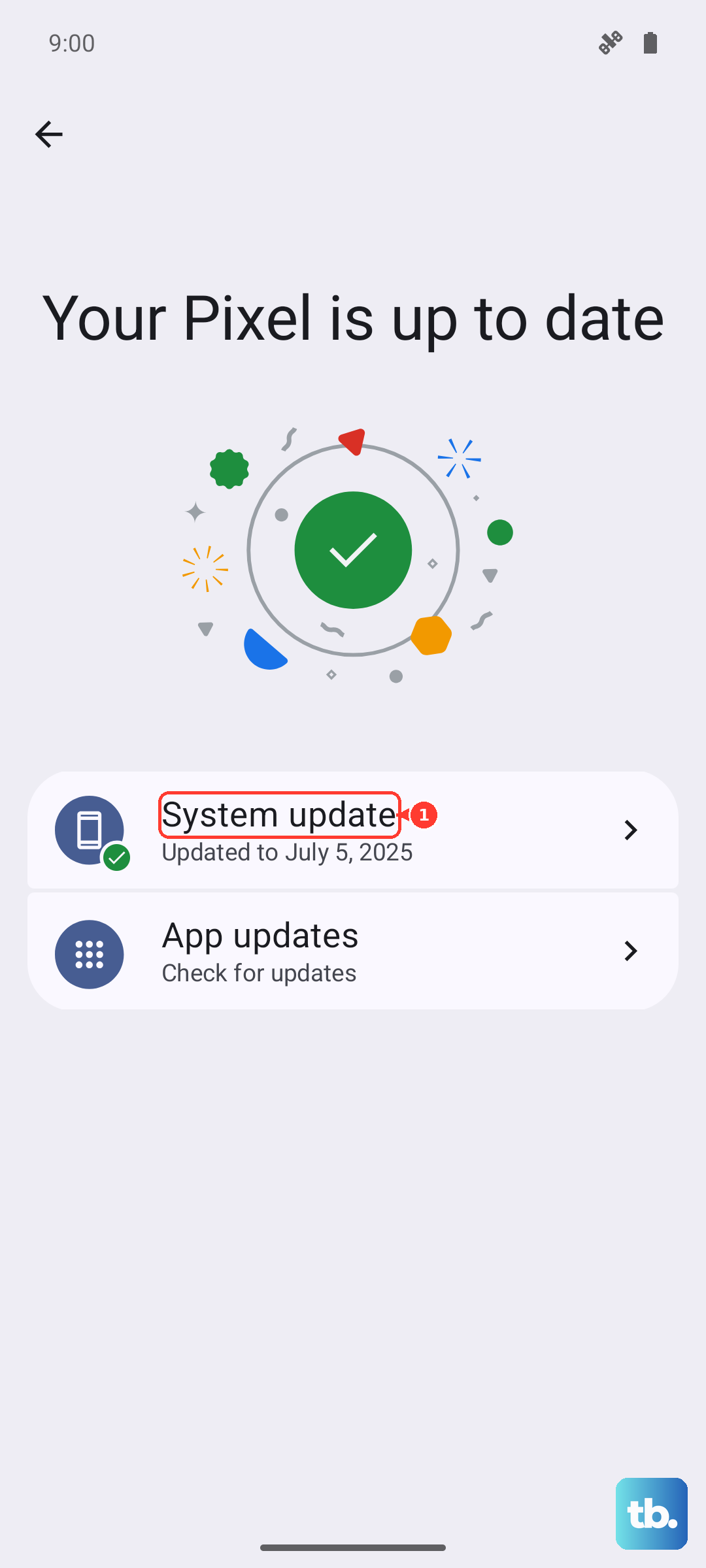
Before you start, plug your phone into the included 70W charger. These updates can be large, and you don't want the battery to die mid-install. A strong Wi-Fi connection is also a must.
Set Up Automatic Updates
You can have your Note 40 Pro handle the boring part for you. In the System updates menu, look for a settings cog or an Auto-download over Wi-Fi option. Turn this on. Your phone will automatically download new updates when they're released and connected to Wi-Fi, then just notify you to install.
This is a great set-it-and-forget-it feature. I'd recommend enabling it so you never miss an important security patch, especially since XOS updates can also help manage the system's performance and bloatware.
What to Do If an Update Fails
If the download gets stuck or the installation fails, don't panic. First, force restart your phone by pressing and holding the Power button and the Volume Down button together for about 10 seconds until the screen goes black and the Infinix logo reappears.
After it reboots, try checking for the update again. Sometimes, simply switching from your mobile data connection to a different Wi-Fi network can resolve a stubborn download error. Clearing the cache for the system update service can also help.
Update Your Apps Regularly
System updates are crucial, but your apps need love too. Open the Google Play Store, tap your profile icon in the top right, and go to Manage apps & device. Under the "Updates available" section, tap Update all.
This ensures everything from your camera app to your games has the latest performance tweaks and security fixes. Outdated apps are a common cause of lag and battery drain, so making this a weekly habit is a good idea.
Check Your Current Software Version
It's useful to know exactly what version your phone is running. Go to Settings > About phone. Here you'll see your Android version, the XOS version, and the Android security patch level.
This information is handy if you're troubleshooting a specific issue or checking online to see if a feature you've heard about has rolled out to your device yet. Infinix typically lists the changes in each update, so you can see what's new.
Don't Forget Google Play System Updates
This is an important layer of security that works alongside Infinix's updates. Go to Settings > Security & privacy. Look for an option called Google Play system update (it might be under "More security settings"). Tap it to check for updates.
Google uses these to update core Android components directly through the Play Store. Installing them helps protect against vulnerabilities without waiting for a full system update from Infinix.
Why Updates Matter for Your Note 40 Pro
For a phone like this, updates can directly address some of its known quirks. Infinix might release optimizations that improve the camera processing speed or tweak the software to better manage the thermal performance during gaming sessions on the Dimensity 7020.
They also frequently include enhancements for battery life and charging efficiency, which is key for making the most of that 70W wired and 20W wireless charging. Most importantly, every update includes the latest security patches, which are non-negotiable for keeping your data safe.