
Your Pixel 9 Pro XL is built to get updates straight from Google, often before any other Android phone. That direct pipeline usually means a smooth experience, but update issues can still pop up. Here's how to keep your Pixel current and fix things if an update goes sideways.
Check Your Current Version and Install the Latest OTA
Start by opening Settings and heading to System > System update. Your Pixel will automatically check for available updates. If you see a security patch or new Android version, tap Download and install.
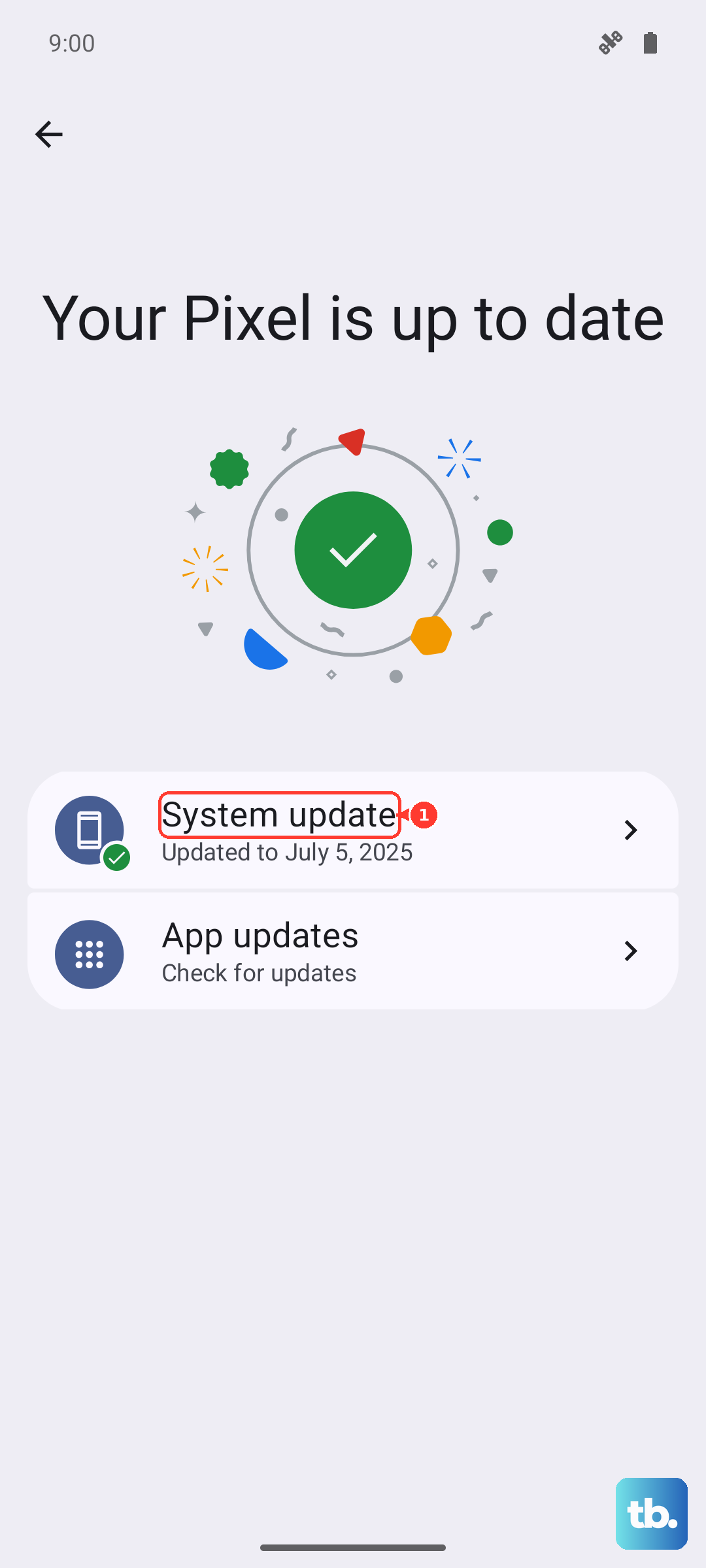
Make sure your phone is connected to Wi-Fi and has at least 50% battery life. Plugging it in while it installs is the safest bet to avoid interruptions.
Turn on Automatic Updates
You can set your Pixel to grab updates without you having to remember. In Settings > System > System update, look for the Auto download updates over Wi-Fi toggle and turn it on. Your phone will download the files automatically, but you'll still need to approve the final installation when it's ready.
Keep Google Play System Updates Current
App updates are critical for security and stability. Open the Google Play Store, tap your profile picture, then go to Manage apps & device > Update all. Outdated apps can cause crashes and battery drain even on a fully updated phone.
Beyond regular apps, go to Settings > Security & privacy > System & updates > Google Play system update. These updates patch core system components without needing a full OS reboot. Install whatever comes up.
Fix a Stuck or Failed Update
If your Pixel freezes on the "Installing" screen or the download just won't start, force restart it by pressing and holding the Power button and Volume up button simultaneously, then selecting Restart from the menu. This clears temporary glitches that can lock up the update process.
Sometimes the problem isn't the update itself but how your phone is charging. If you see the Check charging accessory notification pop up, it can throttle system performance. Try a different high-quality USB-C cable, like one from an iPad, to rule out a bad connection.
Pixel's smart charging features can also interfere during an update. Go to Settings > Battery > Charging optimization and toggle off any adaptive charging settings while you run the update. You can turn it back on once everything is installed.
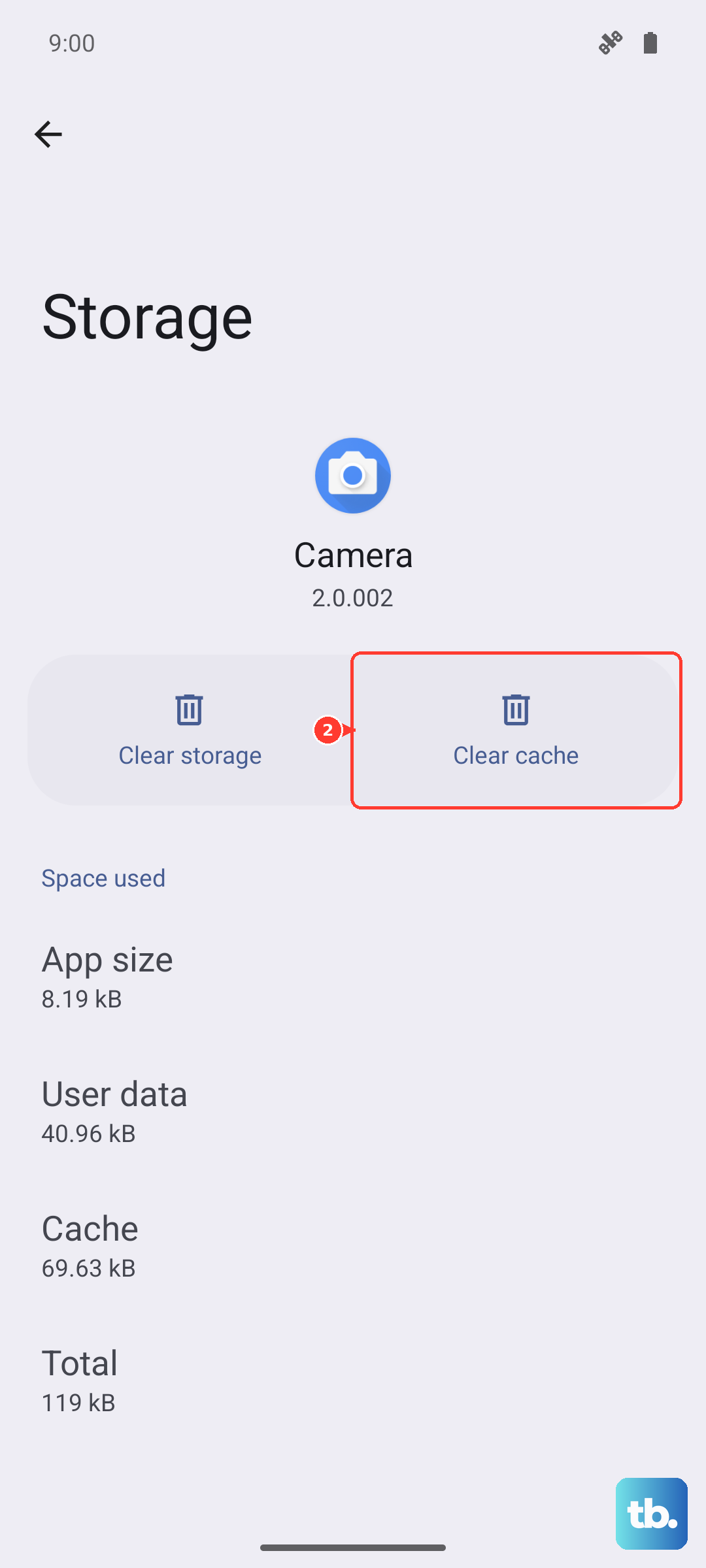
If the download keeps failing, clear the update app's cache. Head to Settings > Apps > See all apps > Google Play services > Storage & cache > Clear cache. Then go back to System update and try again.
Using a Computer for a Fresh Install
If the wireless update path is completely broken, you can flash the update manually. For Pixel phones, Google provides the Android Flash Tool through a web browser. Connect your Pixel 9 Pro XL to a computer via a USB-C cable and follow the on-screen prompts. This is a more advanced step, but it works when the normal OTA process refuses to cooperate.
Why Updates Matter for Your Pixel
Each update patches security holes specific to the Android ecosystem. For the Pixel 9 Pro XL, updates also bring exclusive Pixel features, camera improvements, and battery optimizations that other Android phones don't get. Skipping them leaves your device exposed to known threats.