
Keeping your Google Pixel 9 updated is the best way to ensure it runs smoothly and securely. Google releases monthly security patches, quarterly Feature Drops, and major Android version updates directly to your device. Here's how to check for and install them.
Check for System Updates
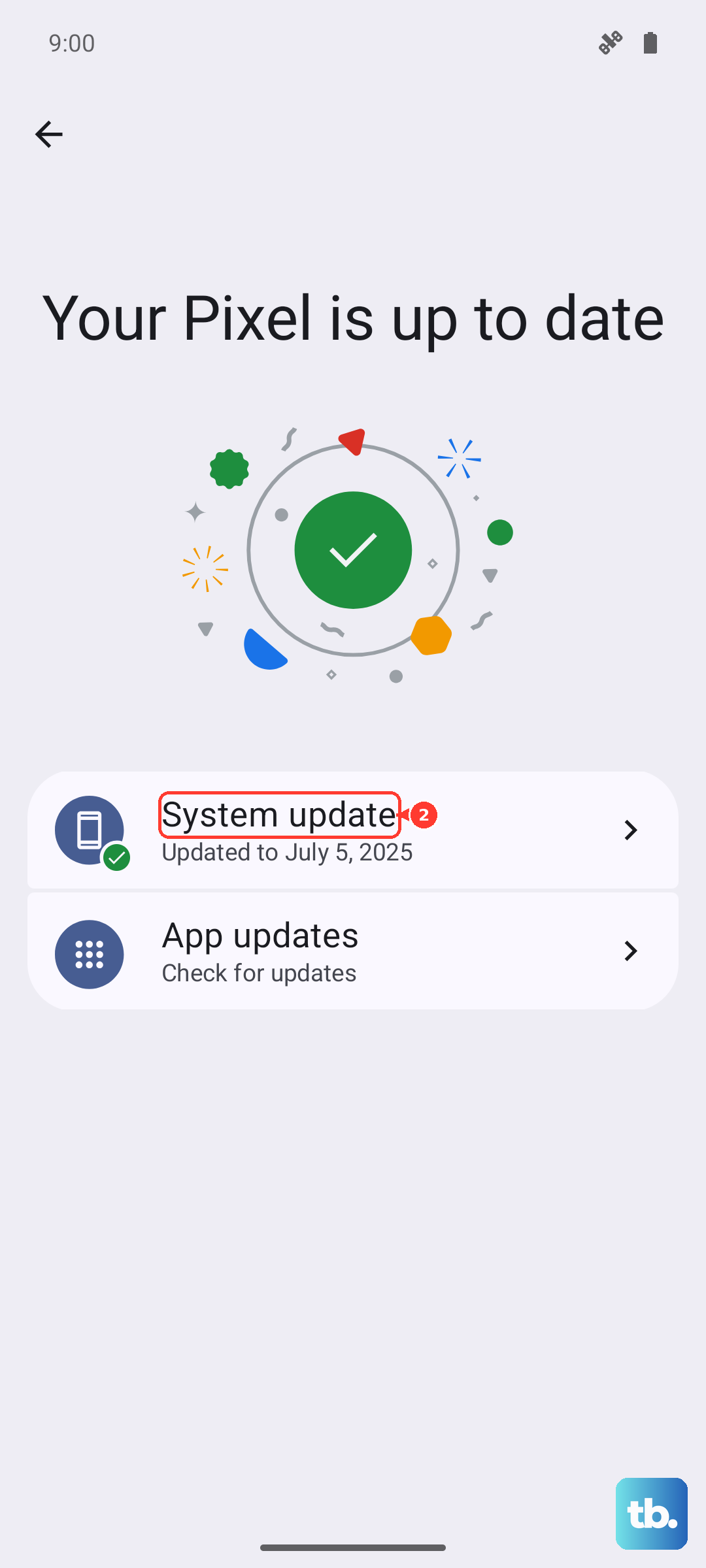
Open your Settings app and navigate to System > Software update. Tap Check for update. If an update is available, you'll see the option to download and install it. I'd start here first, as it's the most common method.
Make sure your Pixel 9 is connected to a Wi-Fi network and has at least a 50% charge, or better yet, is plugged in. Large OS upgrades can be several gigabytes in size and take a while to install.
Enable Automatic Updates
To have your Pixel 9 handle updates automatically, go back to Settings > System > Software update. Look for the gear icon or "Automatic updates" option. You can typically set it to download updates automatically over Wi-Fi and even install them overnight while your phone is charging.
This is a great set-it-and-forget-it option, especially for the crucial monthly security patches that help protect your device.
Update Using Android Flash Tool
If an over-the-air update is failing or your phone is having serious software issues, you can use Google's official web tool. On a computer, visit the Android Flash Tool website, enable USB debugging on your Pixel 9 in Settings > About phone (tap "Build number" 7 times first to unlock Developer options), and connect with a USB-C cable.
The tool will guide you through flashing the latest factory image. This is a more technical process and will erase your data, so it's a last resort for most people.
Fix a Stuck Update
If an update seems frozen during installation, you can force a restart. Press and hold the Power button for about 30 seconds until the screen goes black and the Google logo reappears. This reboots the system and often clears a temporary hang-up.
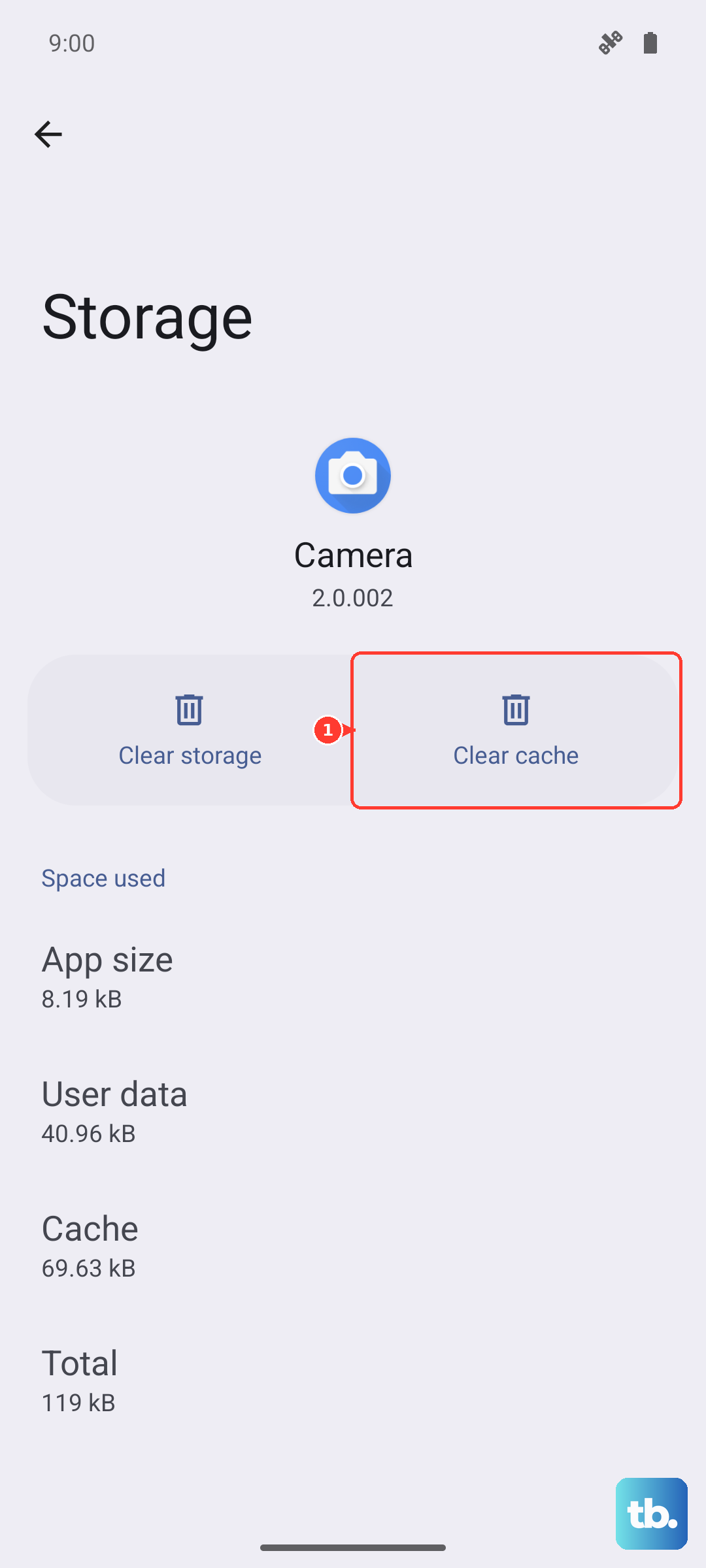
For persistent download failures, try switching to a different Wi-Fi network. You can also clear the cache for the Google Play Store and Google Play Services apps by going to Settings > Apps, selecting each app, tapping Storage & cache, and then Clear cache.
Verify Your Current Android Version
It's useful to know exactly what software you're running. Go to Settings > About phone. Here you'll see your Android version (like Android 15), the Android security update level, and the build number.
This information is handy if you're checking online to see if a specific bug fix or feature has been released for your model yet.
Update All Your Apps
System updates work hand-in-hand with app updates. Open the Google Play Store app, tap your profile picture in the top right, and select Manage apps & device. Under "Updates available," tap Update all.
Outdated apps can sometimes cause instability or battery drain, even on a fully updated phone. I make a habit of checking this every week or so.
Check for Google Play System Updates
This is an important layer of updates that's separate from the main Android version. Go to Settings > Security & privacy > System & updates > Google Play system update. Tap "Check for update."
These updates can deliver security fixes and new functionality to core Android components directly through the Play Store, often bridging the gap between major OS releases.
After a Feature Drop Update
Google's quarterly Feature Drop updates can be particularly large. After installing one, give your Pixel 9 some time to re-optimize apps in the background, which can take a few hours. You might notice slightly faster battery drain during this period, but it should settle down.
If you experience any odd behavior like a charging bug after a Feature Drop, a simple restart usually resolves it. If problems persist, the community fix is often to clear the cache for the "Device Health Services" app in your Settings.