Your Windows microphone can be muted at the headset, inside Windows, in a browser, or in the meeting app itself. Start with the controls people miss most, then move into Windows permissions and driver repair when the mic still stays silent.
1. Check the physical mute control first
Look for a mute switch or button on your headset cable, USB microphone, webcam, laptop, or wireless headset.
Turn the mute switch off or press the mute button again.
On a boom headset, move the microphone into its speaking position.
For Microsoft Modern Wireless Headset in Teams, flip the boom mic down to unmute it.
Join your call again or open your recording app and test your voice.
2. Unmute the mic in Windows Sound settings
Open Start > Settings > System > Sound.
Under Input, choose the microphone you want to use.
Next to Volume, make sure the microphone is unmuted.
Raise the Volume slider.
Speak into the microphone and check the input level.
If you use a Bluetooth microphone, select Add device in the input area, follow the prompts, then choose that microphone.
3. Allow Windows microphone access
Open Start > Settings > Privacy & security > Microphone.
Turn on Microphone access.
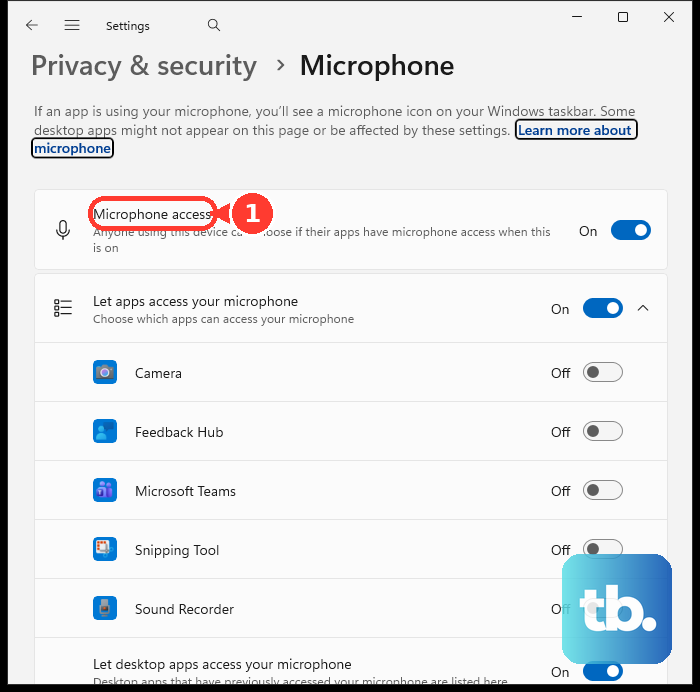
Next, turn on Let apps access your microphone.
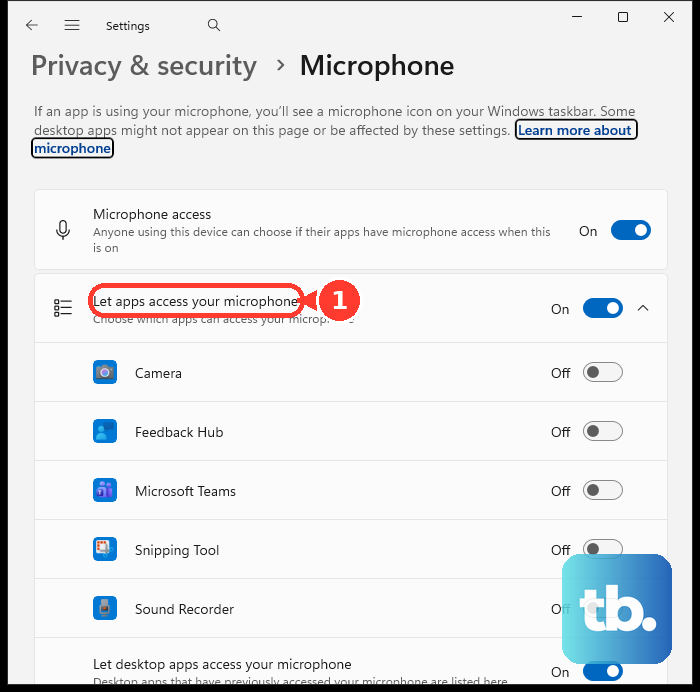
Under Choose which apps can access your microphone, turn on the app that needs your mic.
For classic desktop apps, turn on Let desktop apps access your microphone.
4. Choose the right microphone in your meeting app
In Microsoft Teams, open Settings and more > Settings > Devices > Audio settings, then use the Microphone dropdown.
During a Teams meeting, select the dropdown arrow next to Mic > More audio settings, then choose the correct microphone.
Before joining a Teams meeting, turn on the Microphone toggle on the pre-join screen, then select Join now.
Once you are in a Teams meeting, select Mic to unmute, or press Ctrl + Shift + M.
In Zoom, click the muted Audio icon or Microphone icon in the meeting controls toolbar, or press Alt + A.
In Google Meet on Windows or ChromeOS, press Ctrl + D to mute or unmute your microphone.
For quick speaking turns, Teams uses Ctrl + Spacebar after you turn on Keyboard shortcut to unmute, and Zoom uses Spacebar after you enable its press-and-hold audio setting.
5. Fix a blocked microphone in your browser
In Chrome, open More > Settings > Privacy and security > Site settings > Permissions > Microphone, select the blocked site, change the microphone permission to Allow, and choose the default microphone from the selector.
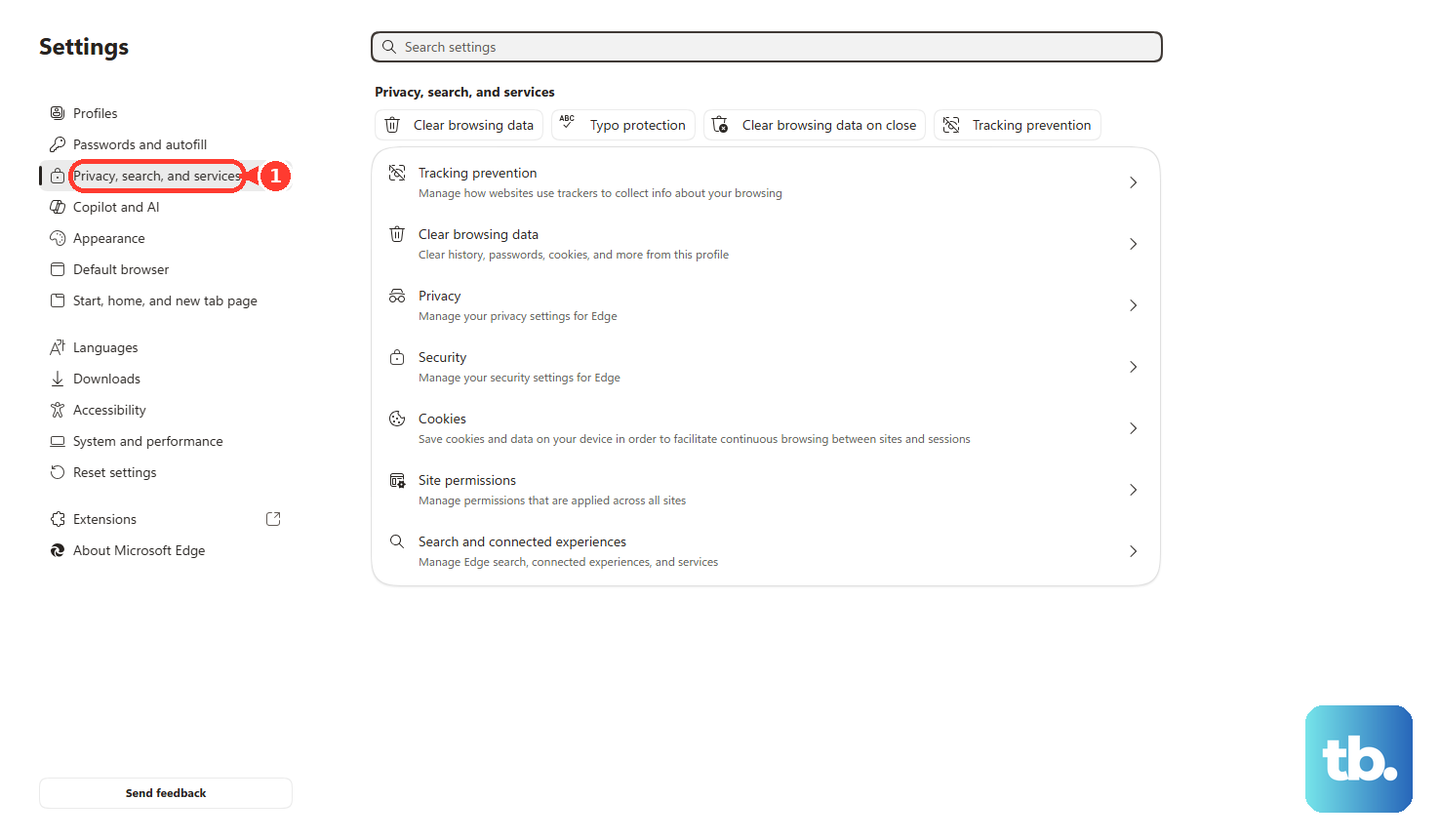
In Microsoft Edge, open Settings and more > Settings > Privacy, search, and services > Site Permissions > All sites, choose the website, and change Microphone from Block to Allow.
In Firefox, open Menu > Settings > Privacy & Security > Permissions > Microphone > Settings, set the website to Allow, then select Save Changes.
6. Re-enable the microphone from classic Sound settings
Open Start > Settings > System > Sound.
Go to Advanced > More sound settings.
Open the Recording tab.
Select your microphone and choose Properties.
Next to Device usage, choose Use this device (enable).
Open the Levels tab.
Raise Microphone or Microphone Array, and make sure the level is unmuted.
Use Microphone Boost only when your PC shows that slider.
7. Run the Windows input troubleshooter
When the mic is unmuted but still does not work, open Settings > System > Sound > Advanced > Troubleshoot common sound problems > Input devices.
Let Windows check the recording device and apply the repair it recommends.
For more sound options, Microsoft also points to Settings > System > Sound > Advanced > All sound devices.
8. Update the audio driver
This fixes a microphone that stays muted, disappears from Windows, or refuses to respond after the basic controls are correct.
- 1.Open Start > Settings > Windows Update.
- 2.Select Check for updates.
- 3.Open Start, type Device Manager, and select Device Manager.
- 4.Open Sound, video and game controllers.
- 5.Right-click the audio device, choose Update driver, then select Search automatically for drivers.
- 6.To reinstall the device, right-click the audio device, choose Uninstall device, confirm, and restart the PC.
9. Escalate when the host or workplace controls the mic
In Teams, ask the meeting organizer to allow your microphone when Teams says mic access is unavailable.
Organizers, co-organizers, and presenters turn it back on from Controls > View more options > Participation, switch on Allow mic for attendees, then select Apply.
In Zoom, ask the host to allow participants to unmute when the meeting controls block your microphone.
On a work or school PC, contact your IT admin when Windows, Edge, Chrome, or the meeting app says microphone access is managed by your organization.
Admins can control microphone access for Windows apps through Computer Configuration > Windows Components > App Privacy > Let Windows apps access the microphone.
That policy does not cover desktop apps such as Teams, Zoom, or Chrome, which follow the Let desktop apps access your microphone setting and any app-specific admin policies.
Admins can control Edge audio capture through Administrative Templates/Microsoft Edge > Allow or block audio capture.
Skip old Windows 10 privacy paths and old right-click speaker menu instructions on Windows 11.
Use Settings > System > Sound and Settings > Privacy & security > Microphone.
Frequently Asked Questions
Why is my microphone still muted after I raise the Windows volume?
Another layer is blocking it. Check Windows microphone privacy access, the app’s own mute button, browser site permissions, and the physical mute switch on your headset or microphone.
What keyboard shortcut unmutes a microphone in Windows?
Windows key + Alt + K mutes or unmutes the microphone in supported apps. Teams uses Ctrl + Shift + M, Zoom uses Alt + A, and Google Meet uses Ctrl + D on Windows or ChromeOS.
Can a browser block my microphone when Windows allows it?
Yes. Chrome, Edge, and Firefox each keep site-level microphone permissions, so the browser must allow the site before the site can use the mic.
Why can’t I unmute myself in Teams or Zoom?
The meeting organizer, host, IT admin, or workplace policy is blocking participant microphones. Ask the organizer or host to allow your mic.