Archived Gmail messages vanish from the Inbox, but they are still in All Mail. To bring one back, you move it to Inbox. Start with Gmail web if you are at a computer, then use the mobile or mail app method that matches where you read Gmail.
Move an archived email back to Inbox on Gmail web
This fixes the standard case: one archived Gmail message is missing from your Inbox on a computer. Open Gmail in your desktop browser. On the left side, click More.
Click All Mail. Find the archived message you want to restore. Check the box next to the message. At the top of Gmail, click Move to Inbox.
Search for archived Gmail messages
Use Gmail search when All Mail is too crowded.
- 1.Open Gmail on a computer.
- 2.Click the search bar at the top.
- 3.Enter in:archive.
- 4.Find the archived message.
- 5.Check the box next to the message.
- 6.Click Move to Inbox.
Restore archived emails in the Gmail app
Open the Gmail app on Android, iPhone, or iPad. Tap Menu at the top left, then tap All mail.
Or tap the search bar and enter in:archive. Find the archived message. Touch and hold the message.
Tap More at the top right, then tap Move to Inbox. For a small batch, touch and hold each message before tapping More and Move to Inbox.
Restore many archived emails at once
Gmail web is the fastest place to unarchive a large batch because it can select every matching conversation in a search. Open Gmail on a computer. Search in:archive, or click More and then All Mail.
Click the Select box at the top left above your messages. Gmail then shows a notification above your messages, worded like All 50 conversations on this page are selected. Select all 2,000 conversations in Inbox, with the count and view name matching what you are looking at. Click the link in that notification to select every conversation in the current search or view.
Click Move to Inbox at the top. If this method fails, restore smaller groups from All Mail or run a narrower in:archive search.
Undo an archive right after it happens
This fixes an accidental archive only while Gmail can still undo the last action. Open Gmail on a computer. Click Settings. Click See all settings.
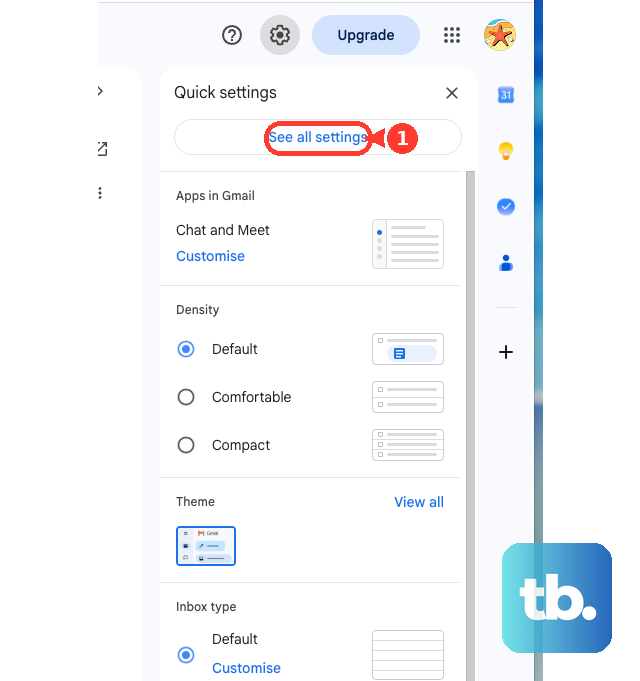
In Settings, set Keyboard shortcuts to Keyboard shortcuts on. Click Save Changes. Immediately after archiving a message, press z.
Use Apple Mail Outlook or another mail app
If you read Gmail through another email app, the job is the same: move the archived message back to Inbox.
In Apple Mail on iPhone or iPad, open the Gmail account mailbox list, choose Archive or All Mail, tap Select, choose the messages, tap the Folder button, and choose Inbox.
On iPhone, if you are looking at a sender's digest view, you can instead swipe left on the message, tap the Reply Actions button, tap Move Message, and choose Inbox.
On Mac, open the Gmail account's Archive or All Mail mailbox, select one or more messages, then drag them to Inbox or click the Move button and choose Inbox.
In Outlook, open the folder list, open the Gmail account's All Mail folder, select the message, and move it to Inbox. Outlook files archived Gmail messages under All Mail, so make sure that folder is shown over IMAP in your Gmail settings. Use the Gmail account's Archive folder only if that Outlook account was specifically set up to archive Gmail mail there.
In another supported mail client, add Gmail with Sign in with Google, open the Gmail account's Archive or All Mail mailbox, select the message, and move it to Inbox.
If this method fails, open Gmail itself and use More, All Mail, and Move to Inbox.
Handle work or school Gmail accounts
Use Gmail web first for a managed account, then fall back to the connected mail client if that is where the account is set up.
- 1.Open Gmail in a desktop browser.
- 2.Click More and then All Mail, or search in:archive.
- 3.Select the archived message.
- 4.Click Move to Inbox.
- 5.In a connected mail client, move the message from Archive or All Mail to Inbox.
Know why archived emails return by themselves
The most common cause is a new reply to an archived conversation. Gmail automatically returns that conversation to Inbox when someone replies.
To bring it back before a reply arrives, open All Mail or search in:archive. Select the conversation. Click or tap Move to Inbox.
Skip older Gmail unarchive advice
Some old instructions mention Inbox by Gmail or the standalone Gmail Offline Chrome app. Inbox by Gmail was shut down, and the standalone Gmail Offline Chrome app was removed.
Use Gmail instead: open Gmail, go to More and All Mail or search in:archive, then choose Move to Inbox. If this method fails on mobile, update the official Gmail app on Android, iPhone, or iPad, then repeat the steps from All mail or in:archive.
Frequently Asked Questions
Does unarchiving a Gmail email delete anything?
No. Unarchiving adds the message back to the Inbox. The conversation stays in Gmail.
Can I unarchive Gmail emails from my phone?
Yes. In the Gmail app, open All mail or search in:archive, touch and hold the message, tap More, then tap Move to Inbox.
Why did an archived Gmail conversation return to my Inbox?
Gmail returns an archived conversation to the Inbox automatically when someone replies to it.
Can I unarchive every archived Gmail email at once on mobile?
The Gmail mobile apps can restore selected messages. Use Gmail web when you need to select every matching archived conversation.