Your iPhone 17 is in Silent mode, but incoming calls and texts still aren't making it vibrate. Silent mode alone doesn't enable vibration, so start with the main vibration switch and your alert settings. Then you can choose patterns, set up the Action button, and add feedback while typing.
Turn on the main vibration switch
Open Settings. Tap Accessibility. Open Touch.
Turn on Vibration. Keep this master switch on even if you only want vibration for certain alerts or while typing.
Enable haptics for Silent mode
Want to feel calls and alerts while your phone stays quiet? Set up haptics for Silent mode, then silence the phone.
Open Settings > Sounds & Haptics. Apple documents two layouts for this screen.
If Haptics appears as its own option on this screen, as Apple describes for iOS 26 and in its Silent mode troubleshooting steps, tap it and select Play in Silent Mode.
If Haptics appears only below Ringtone, as in Apple's iOS 27 guide, it sets the vibration pattern for calls. Tap it and choose a pattern. Apple notes that iPhone may still vibrate when Silent mode is on.
Return to Settings > Sounds & Haptics. Turn on Silent mode.
If your Haptics menu shows four options, Always Play enables vibration in both Ring and Silent modes. Don’t Play in Silent Mode enables it only outside Silent mode, while Never Play disables call and alert haptics.
Check Do Not Disturb when alerts stay quiet
An active Do Not Disturb setting suppresses alerts even when vibration is enabled. Open Control Center. Tap Focus. If Do Not Disturb is highlighted, tap it to turn it off.
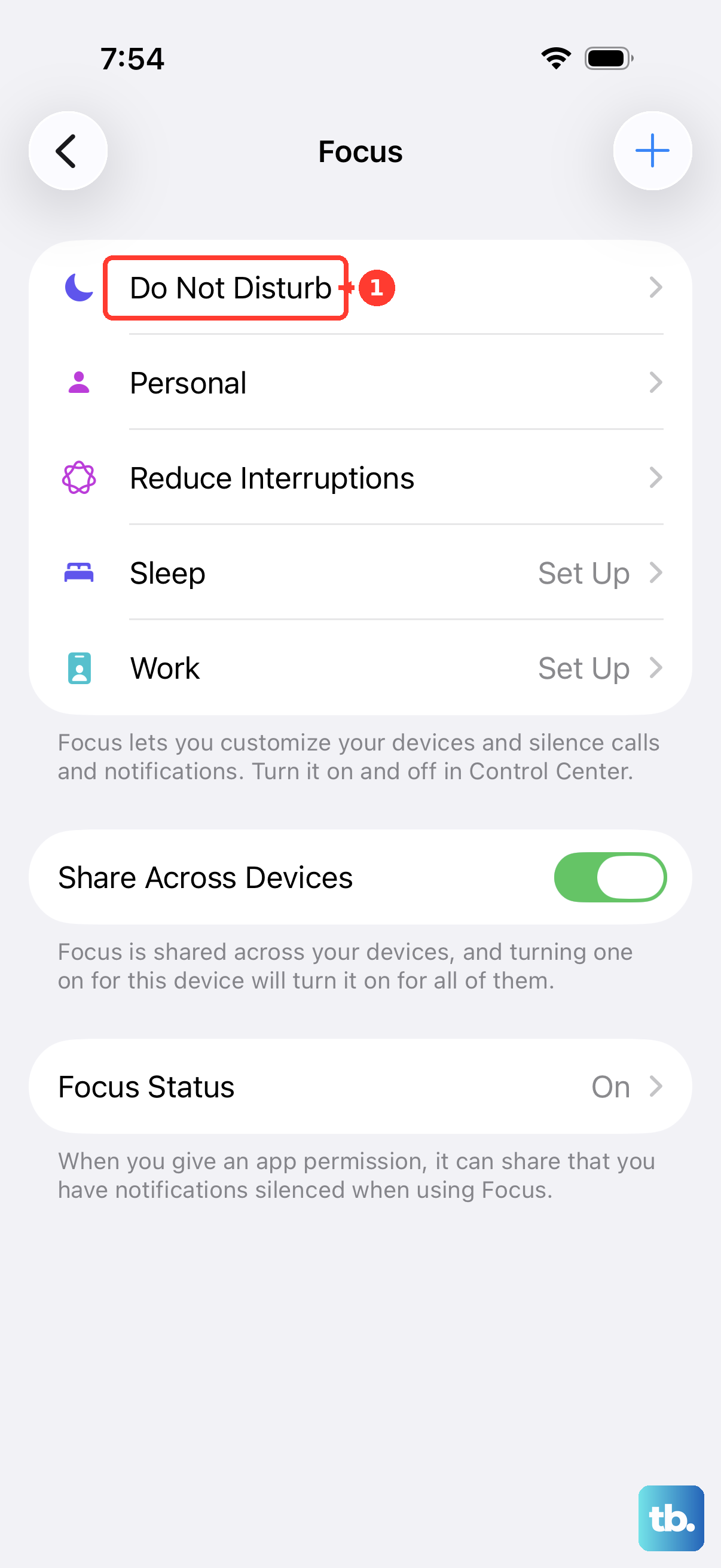
To keep a Focus active while allowing selected notifications, open that Focus under Settings > Focus. Open People or Choose People. Select Allow Notifications From. Add the contacts whose notifications you want to allow.
For app exceptions, open Apps or Choose Apps in the same Focus settings. Select Allow Notifications From. Add the apps you want to allow. These exceptions allow notification delivery; your vibration settings still need to be enabled.
Choose vibration patterns for calls and texts
Open Settings > Sounds & Haptics. On iOS 27, tap Haptics below Ringtone. Select a vibration pattern for incoming calls.
For texts, open Settings > Sounds & Haptics > Text Tone > Haptics. Choose your text vibration pattern.
To create your own pattern, tap Create New Vibration inside a sound category's Haptics settings. Record your pattern using the onscreen controls. You can also choose separate patterns for other sound categories, including Calendar Alerts.
Switch to quiet alerts with the Action button
With Vibration on and Haptics set up for Silent mode as described above, you can use the Action button to switch to quiet, vibrating alerts. Open Settings > Action Button. Swipe to Silent Mode.
Press and hold the Action button to enable Silent mode. Press and hold it again to disable it.
If your Action button handles another function, open Control Center. Tap the Mute Switch button to enable Silent mode. Neither shortcut independently turns on vibration.
The iPhone 17 has an Action button, so older instructions for a physical Ring/Silent switch don't apply.
Add feedback while typing and using controls
Keyboard vibration and feedback from system controls have separate settings.
- 1.Open Settings > Sounds & Haptics > Keyboard Feedback.
- 2.Turn on Haptic for vibration while typing.
- 3.Return to Settings > Sounds & Haptics.
- 4.Turn on System Haptics for feedback from system controls and interactions.
Restore alerts for an app or conversation
If vibration works elsewhere but one app stays quiet, check its notification permission. Notification options vary by app; there isn't a universal third-party vibration menu.
Open Settings > Apps. Select the app. Open Notifications, where available. Turn on Allow Notifications.
Configure the available sound options. If Notifications doesn't appear, the app might not be able to send notifications. For apps with additional controls, open Settings > Notifications.
Select the app under Notification Style. If its notifications are summarized, select Immediate Delivery under Notification Delivery. For apps that offer it, tap App Name Notification Settings to open the app's own controls.
If just one conversation is quiet, open that conversation in Messages. Tap the contact or group icon. Turn off Hide Alerts to allow the conversation's configured alerts again.
Wear an Apple Watch? Notifications normally go to your unlocked iPhone, or to your unlocked watch when the iPhone is locked or asleep, rather than both. Changing the watch's haptics doesn't enable vibration on your iPhone.
Frequently Asked Questions
Will Silent mode silence my iPhone 17 alarm?
No. Silent mode doesn't silence ordinary audible alarms. To choose an alarm vibration on iOS 27, open Clock > Alarms. Tap an existing alarm's time, then open Sound. Choose a vibration and tap Done. Alarm haptics are disabled in StandBy.
Can one contact's calls or texts get through when my iPhone is silenced?
Yes. Open Contacts and select the contact. Tap Edit, then Ringtone or Text Tone. Turn on Emergency Bypass. This allows that contact's sounds and vibrations through silencing, including audible alerts.
Can I make my iPhone vibrate immediately with Shortcuts?
Yes. Open Shortcuts and tap the Add button. Tap Add Action and add Vibrate Device. Tap Done, then run the shortcut. This produces a vibration; it doesn't enable vibration for future calls or notifications.
Can I make my iPhone vibrate along with music?
Yes. Open Settings > Accessibility > Music Haptics and turn on Music Haptics. It works with supported tracks in Apple Music, Music Classical, Shazam, and compatible apps. This setting is separate from notification vibration.