Your iPhone 16 is quiet because Silent Mode, Focus, low ringer volume, or a notification setting is blocking sounds. Start with the ringer controls Apple gives you on iPhone 16, then check the settings that silence calls and alerts one layer deeper. By the end, you will know exactly which switch, slider, or app setting needs changing.
Turn Silent Mode off in Settings
Open Settings, tap Sounds & Haptics, then turn Silent Mode off. When Silent Mode is off, iPhone plays ringtones and alerts. If the ringer works now, leave the other settings alone.
Use the Action button for Ring mode
Use this when you want the fastest physical control on iPhone 16. On iPhone 16 and later models with Camera Control, Silent Mode is the default Action button function.
Press and hold the Action button once, then check that the phone switches from Silent to Ring. If the Action button is assigned to something else, open Settings, tap Action Button, then swipe to Silent Mode. Press and hold the Action button to turn Silent Mode off.
Raise the ringer and alerts volume
The most common cause after Silent Mode is off is a low Ringtone and Alerts slider. Open Settings, tap Sounds & Haptics, then drag the slider below Ringtone and Alerts to the right.
Turn on Change with Buttons if you want the physical buttons to control ringer volume. Press Volume Up while you are not listening to media or using another app.
Switch Silent Mode off from Control Center
Swipe down from the top-right corner to open Control Center, find Silent Mode, then tap Silent Mode so it is off. Use this as a quick check when you do not want to open the full Settings app.
Add the Silent Mode control if it is missing
Use this when Control Center does not show a Silent Mode button. iPhone lets you add that control back.
Open Control Center, tap the Add button at the top left, then tap Add a Control. Add Silent Mode, then tap Silent Mode so it is off.
Turn off Focus or Do Not Disturb
Focus silences calls, alerts, and notifications even when Silent Mode is off. Open Control Center, tap Focus, then tap the active Focus to turn it off.
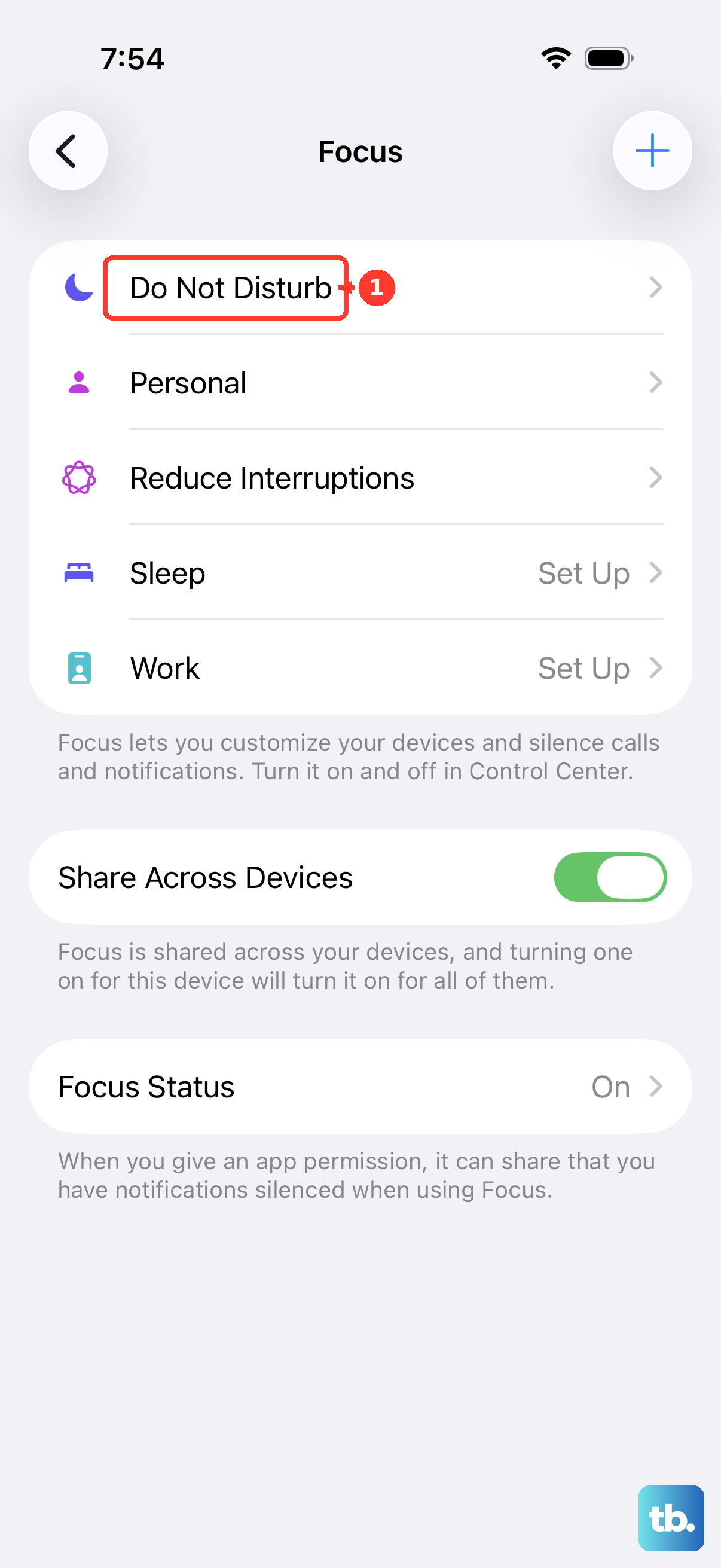
You can also open Settings, tap Focus, choose the active Focus, and turn it off there. To stop Do Not Disturb from turning back on, open Settings, tap Focus, tap Do Not Disturb, scroll to Set a Schedule, and turn off active schedules.
If this fails, check Ringtone and Alerts volume and the specific app, thread, or caller settings next.
Choose a sound for calls, texts, or one contact
Open Settings, tap Sounds & Haptics, then tap Ringtone, Text Tone, or another alert type. Choose an audible tone.
For one person, open Contacts, tap the person's name, then tap Edit. Choose a Ringtone or Text Tone. This fixes a phone that rings normally but skips one sound or one contact.
Fix one app, message thread, or caller
This fixes cases where the iPhone ringer works, but one app, conversation, contact, or unknown caller stays quiet. For an app, open Settings, tap Notifications, then select the app below Notification Style.
Turn on Allow Notifications, tap Sounds, then select a sound. Tap Back.
For a muted Messages conversation, open Messages, swipe left on the conversation, then tap the Mute button to toggle alerts. Or open the conversation, tap the contact or icon at the top, and turn Hide Alerts off.
For unknown numbers that do not ring, open Settings, tap Apps, then tap Phone. Under Screen Unknown Callers, choose Never instead of Ask Reason for Calling or Silence so calls from unknown numbers ring instead of being silenced and sent to voicemail.
Call Screening arrived in iOS 26, so Ask Reason for Calling appears only on an updated iPhone 16 in a region and language where Apple offers the feature. If you do not see all three choices, use the unknown-caller setting your version shows. Calls are also never screened while you are roaming.
Ringing for unknown numbers comes from Screen Unknown Callers set to Never, not from Call Filtering. To stop carrier-identified spam and fraud calls from being silenced and sent to voicemail, open Settings, tap Apps, tap Phone, then turn Spam off under Call Filtering. Turning Unknown Callers off there only stops missed calls and voicemails from being sorted into a separate Unknown Callers list.
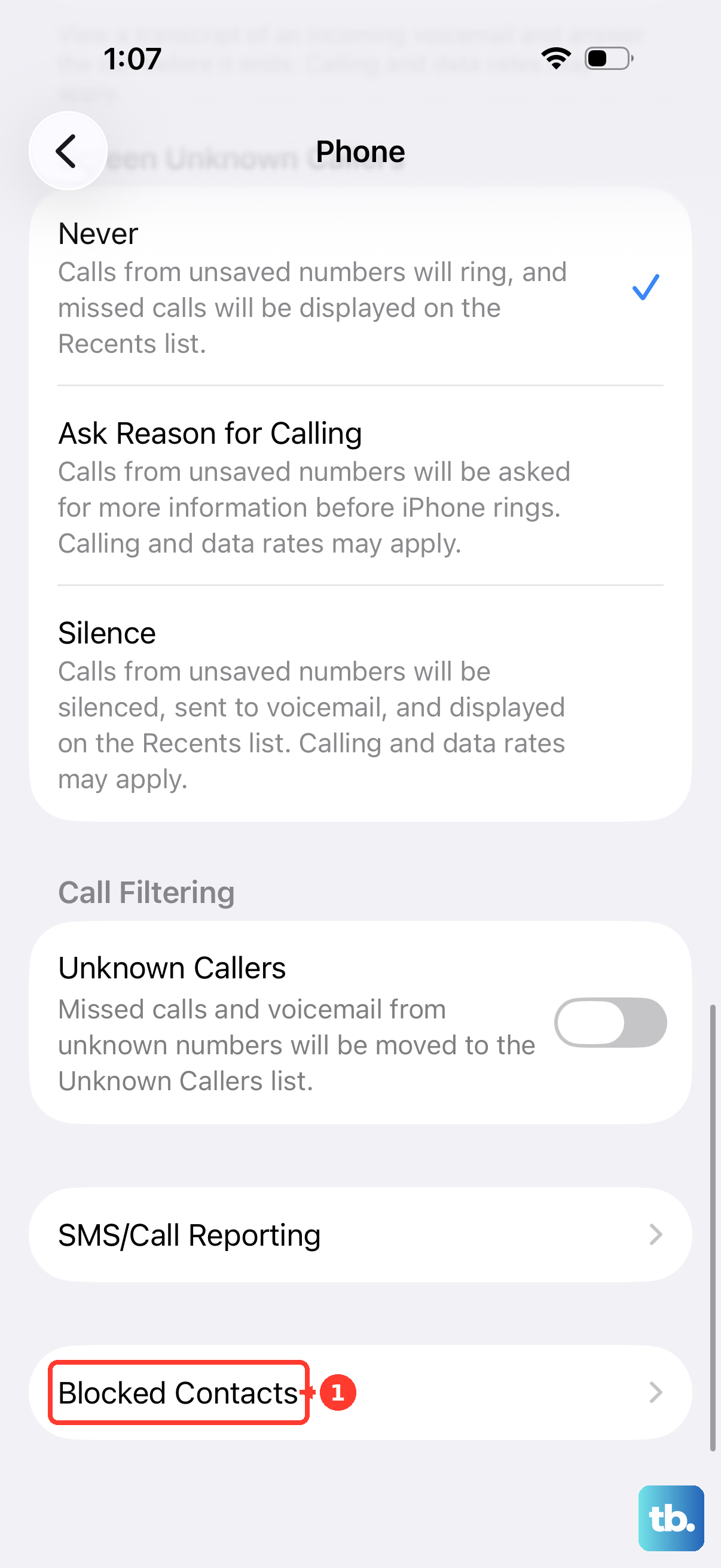
If a blocked contact never rings, open Settings, tap Apps, tap Phone, tap Blocked Contacts, tap Edit, tap the Remove button, then tap Unblock.
Skip older ringer switch tips
Older iPhone guides mention the Ring/Silent switch. That switch applies to iPhone models that have it, but iPhone 16 models use the Action button instead.
Pressing the Side button or either Volume button during an incoming call only silences that call. It does not turn the ringer back on.
On a supervised school or work iPhone, an organization can control notification sounds. If the normal settings are unavailable or keep changing, contact the school or work IT admin.
Frequently Asked Questions
Why is my iPhone 16 not ringing even when Silent Mode is off?
Check Focus, Do Not Disturb, the Ringtone and Alerts slider, and notification sounds for the specific app, conversation, or contact.
Does iPhone 16 have a Ring/Silent switch?
No. iPhone 16 models use the Action button for Silent Mode instead of the older Ring/Silent switch.
Can Siri turn the iPhone 16 ringer on directly?
Siri can turn Focus modes off and can run a user-created Silent Mode shortcut. Apple does not provide a direct built-in Siri command for Silent Mode.
Why do calls from unknown numbers not ring on my iPhone 16?
Screen Unknown Callers is set to Ask Reason for Calling or Silence. Go to Settings, then Apps, then Phone, then set Screen Unknown Callers to Never so calls from unknown numbers ring.