You want to see yourself on your MacBook, but there is no camera power switch to click. The built-in camera turns on when an app uses it. Start with Photo Booth for a live preview, then follow the steps for photos, calls, recordings, or a camera that refuses to start.
Turn on your camera with Photo Booth
Open Photo Booth to activate the built-in camera and check its picture.
- 1.Remove or open any cover over the camera lens.
- 2.Press Command-Space bar to open Spotlight.
- 3.Type Photo Booth and press Return.
- 4.Check for your live preview and the green camera indicator light.
Take a photo and save it
If Photo Booth displays a saved item, click View Photo or View Video to return to the camera.
Select Picture for a single photo or Four Pictures for a four-picture strip.
Click Take Photo.
Select the resulting thumbnail.
Choose File > Export to save the picture outside Photo Booth.
Tip: Option-click Take Photo to skip the countdown, or Shift-click it to suppress the flash.
Start video in your calling app
FaceTime requires an Apple Account for calls. Open FaceTime to begin signing in.
Enter your Apple Account email address or phone number.
Click Sign In.
Enter your password.
Click Sign In again.
On macOS 27, click New Call.
Enter a contact, phone number, or email address.
Press Return.
Click FaceTime Video Call to start the call.
During a call, click Camera to turn your video on or off.
For Zoom meetings, click Start Video.
To choose your Zoom camera beforehand, click your profile picture.
Open Settings > Video & effects.
Select the built-in camera under Camera.
In Teams, turn on the Camera toggle before joining, or click Camera during the meeting.
In Google Meet, open Settings > Video > Camera.
Select the built-in camera.
Click Done.
If video still will not start, check the app or browser's macOS camera permission below. For a browser call, check the website permission next.
Allow camera access in System Settings
This fixes camera access denied by an app's macOS permission setting.
Open the Apple menu > System Settings.
Select Privacy & Security.
Open Camera.
Turn on the switch beside the app or browser you want to use.
If the app is missing, request camera access inside that app first. Apps appear here after requesting access; built-in apps such as Photo Booth and FaceTime have automatic camera access.
If the permission change requires reopening the app, quit it.
Reopen the app to try the camera again.
Record a webcam video in QuickTime Player
QuickTime Player lets you record yourself and save the result as a movie.
- 1.Open QuickTime Player.
- 2.Choose File > New Movie Recording, or press Option-Command-N while QuickTime Player is active.
- 3.Open the Capture Device Selection Menu and choose the built-in camera under Camera. Select your Microphone and Quality settings.
- 4.Click Start Recording.
- 5.Click Stop Recording when you finish.
- 6.Choose File > Save.
Give a website permission to use the camera
A browser call needs website permission as well as macOS camera permission. Check these settings when Photo Booth works but a website cannot access the camera.
In Safari, open Safari > Settings > Websites > Camera.
Set the relevant website to Allow or Ask instead of Deny.
In Chrome, open the calling website.
Request video on the site.
Choose Allow while visiting the site or Allow this time at Chrome's camera prompt.
To change a saved Chrome denial, click View site information to the left of the website address.
Open Site settings.
Change the camera permission to Allow.
In Firefox, open the website.
Press Command-I to open Page Info.
Select Permissions.
Under Use the camera, clear Use Default.
Select Allow.
Check Screen Time restrictions and app limits
Screen Time has separate controls for camera access and the time an app is allowed to run. Changes to a child's restrictions require a parent or authorized account holder.
On macOS 27, the camera control is under Apple menu > System Settings > Screen Time > Content & Privacy Restrictions > Other Features. The Camera setting needs to change from Blocked to Allowed.
For an app that has run out of time on macOS 27, System Settings > Screen Time > Time Allowances contains its category and allowance. The category containing the camera app needs a larger allowance. Apps in All Others also have controls under Additional Time Allowances.
On macOS Tahoe 26, the Camera switch is under System Settings > Screen Time > Content & Privacy > App & Feature Restrictions and needs to be on. A time restriction is separate: the relevant limit under Screen Time > App Limits needs to be off to remove it.
Restore a missing or black preview
A green light means the built-in camera is active. If the light is on but the preview stays black, check that no cover blocks the lens, and remove or open any cover before trying again.
If Photo Booth is using an external or virtual camera, select the built-in camera from Camera.
In FaceTime, select the built-in camera from Video.
If the preview still fails, quit the camera app.
Reopen it to test the preview.
On an Apple silicon MacBook, choose Apple menu > Restart if the camera remains unavailable.
To check for a macOS update, open Apple menu > System Settings > General > Software Update.
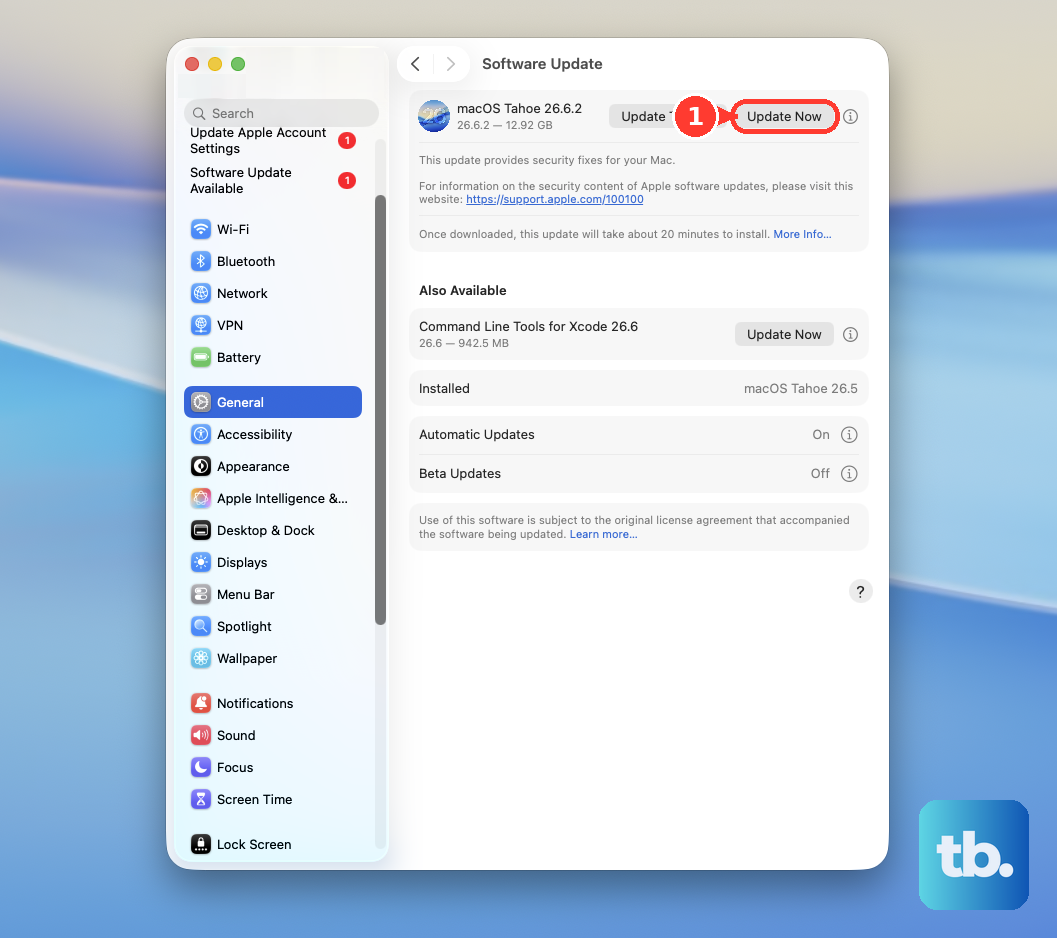
Install the offered compatible update.
If the camera remains unavailable after these checks, or its green indicator flashes, contact Apple support to arrange assessment.
Frequently Asked Questions
How do I turn off my MacBook camera completely?
Quit every app or feature using the camera. Turning off video in one call does not stop another app or feature from using it.
Can Siri turn on my MacBook camera?
With Siri enabled, ask it to open Photo Booth. Siri launches the app, which activates the camera preview; this is an app-opening command.
Why is the camera blocked on my work or school MacBook?
Managed Macs support camera restrictions controlled by the device administrator. Ask the administrator to review the Use of cameras restriction and any app-specific Camera denial. macOS has no universal consumer switch that overrides those policies.
Can I save a Photo Booth photo without its effect?
Yes. Select the photo's thumbnail, then choose File > Export Original to export the original photo without the applied effect.