Xbox Game Bar gets irritating fast when it opens from a controller button, keeps recording in the background, or throws pop-ups over your screen. The fix depends on what you want to stop.
You can turn off the controller shortcut from Start > Settings > Gaming > Game Bar, stop recording from Start > Settings > Gaming > Captures, silence alerts, or remove the app when Windows exposes that option.
Stop the controller button from opening Game Bar
For most Windows 11 PCs, the fastest fix is Start > Settings > Gaming > Game Bar. Turn off Open Game Bar using a button on a controller or Allow Controller to open Game Bar.
That stops an Xbox-compatible controller from opening Game Bar when you press its Xbox button. It does not remove Game Bar, and it does not disable Windows logo key + G.
If Game Bar still appears because of recording or alerts, change those settings next.
Turn off background recording
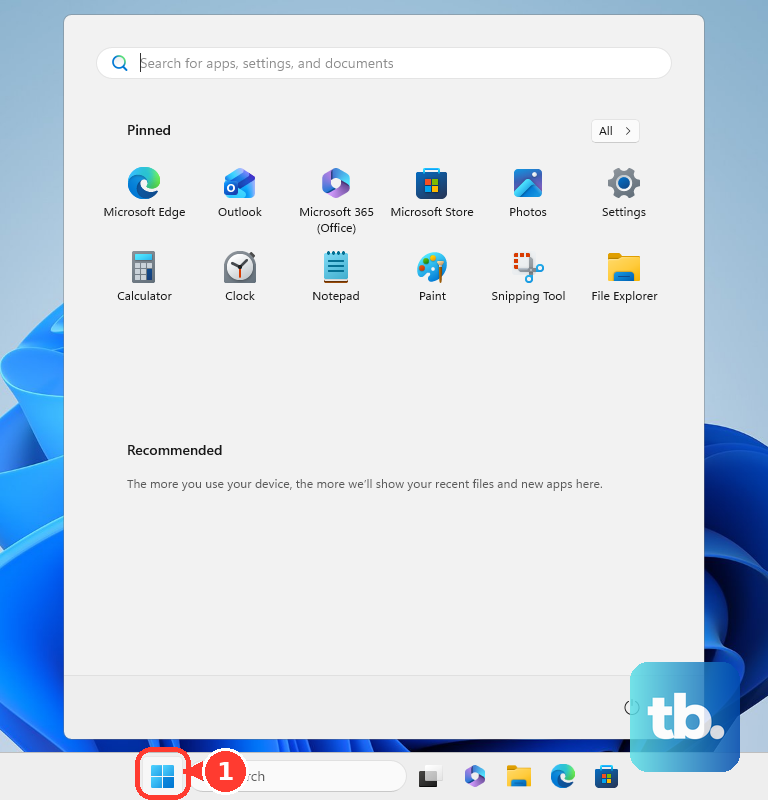
Open Start.
Open Settings, then select Gaming and select Captures. Turn off Record what happened. This stops the background buffer used for recent gameplay clips.
Switch off background capture inside Game Bar
You can also turn off background capture from inside the Game Bar overlay.
- 1.Press Windows logo key + G.
- 2.Open Settings.
- 3.Select Capturing.
- 4.Clear Record in the background while I’m playing a game.
If your version of Game Bar has no Capturing section, look under Settings > More settings > Widgets instead. Newer Game Bar layouts, including the one on handhelds like the ROG Xbox Ally, list Record in the background while playing a game there.
Silence Game Bar pop-ups
The most common cause is that Game Bar notifications are still allowed after recording or controller launch settings have been changed.
Press Windows logo key + G, then open Settings. Go to More Settings > General > Notifications. Change the checkboxes and radio buttons for the Game Bar and Xbox pop-up notifications you do not want.
For Windows notification controls, open Start > Settings > System > Notifications. Select Xbox Game Bar or Game Bar under Notifications from apps and other senders, then turn notifications off or disable banners and sounds.
Remove Xbox Game Bar from Settings
Open Start > Settings > Apps > Installed apps. Find Game Bar or Xbox Game Bar, select More, then choose Uninstall.
You can also open Start > All apps, right-click Game Bar or Xbox Game Bar, then select Uninstall. If Windows does not show Uninstall, that build may treat Game Bar as a built-in app that cannot be removed from Settings. Try PowerShell next.
Use PowerShell when Settings will not remove it
The most common cause is that Windows does not expose a normal uninstall button for the Game Bar app package. Open PowerShell or Windows Terminal as administrator.
Run Get-AppxPackage Microsoft.XboxGamingOverlay | Remove-AppxPackage. Restart the PC. This removes the Microsoft.XboxGamingOverlay package for the current user on systems where Game Bar is installed that way.
Reinstall Game Bar later
Open the Microsoft Store product page for Game Bar. Select Get or Install. Wait for the Store to finish installing it. Use this when you removed Game Bar and want the overlay, widgets, or capture tools back.
Avoid outdated Windows fixes on work devices
Older guides often mention Start > Settings > Gaming > Xbox Game Bar and a single Xbox Game Bar master switch that kills the whole overlay. That single switch is Windows 10-era guidance, and Windows 11 does not give you one. The name is a different matter: depending on your build and Game Bar version, that page can read Game Bar or Xbox Game Bar, so look under Settings > Gaming for either.
Current Windows 11 guidance points to Start > Settings > Gaming > Game Bar, shown as Xbox Game Bar on some builds, for the controller button, and Start > Settings > Gaming > Captures for background recording.
Group Policy, MDM, and registry advice for blocking Game DVR maps to older or managed-device behavior. Microsoft documents that policy enforcement for this setting as Windows 10 desktop only, so it is not a reliable consumer fix for current Windows 11.
On a work or school PC, your organization can control gaming and recording settings. If those settings are missing or locked, contact your IT administrator.
Hide the Microsoft Edge Game Assist widget
This fixes the Edge gaming widget that appears through Game Bar. It does not turn off Xbox Game Bar itself.
Reopen Game Bar by selecting Game Assist or pressing Windows logo key + G. In the Game Assist title bar, select Unpin next to Close. To remove the widget instead, use the Apps page in Windows Settings.
Frequently Asked Questions
Does turning off the controller button disable Win+G?
No. The Windows 11 Game Bar setting stops an Xbox-compatible controller button from opening Game Bar, but it does not disable the Windows logo key + G shortcut.
Will turning off Record what happened remove Xbox Game Bar?
No. It stops background capture buffering for recent gameplay clips. Game Bar can still open unless you uninstall it or change the relevant launch and notification settings.
Why do I not see an Uninstall button for Xbox Game Bar?
Microsoft notes that some built-in apps cannot be uninstalled from Settings. Availability can vary by Windows build, edition, and provisioning state.
Can I get Xbox Game Bar back after removing it?
Yes. Open the Microsoft Store product page for Game Bar and select Get or Install.