A touch screen that keeps reacting to stray taps can make a laptop, phone, tablet, or video app hard to use. The fix depends on the device in front of you. Windows uses Device Manager, iPhone and iPad use Guided Access, Android uses app pinning or Samsung tools, and YouTube has its own playback lock.
1. Disable the Windows touch screen in Device Manager
Right-click Start, open Device Manager, and expand Human Interface Devices. Right-click HID-compliant touch screen, select Disable device, and repeat this for every HID-compliant touch screen entry listed.
This works on Windows 11 and Windows 10 devices that list a HID-compliant touch screen, and it requires administrator rights.
2. Reset Surface touch drivers when touch misbehaves
This fixes a broken Surface touch driver session, not permanent touch disabling. Use the taskbar search box to open Device Manager, then expand Human Interface Devices.
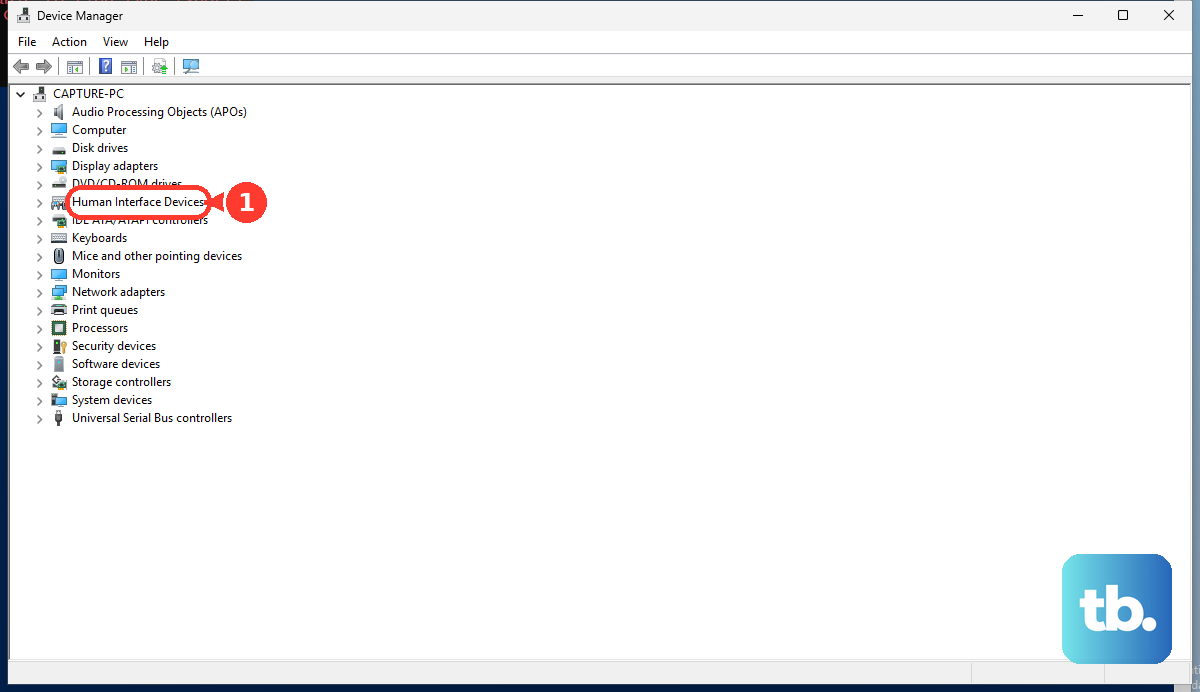
Right-click Intel(R) Precise Touch Device and select Uninstall device, then choose Uninstall. Next, right-click HID-compliant touch screen and select Uninstall device, then choose Uninstall. If two HID-compliant touch screen drivers are listed, uninstall both.
Open Action, select Scan for hardware changes, or restart the Surface to reinstall the driver. Microsoft says not to do this on Surface Pro X.
3. Stop all touch on iPhone or iPad with Guided Access
Open Settings, go to Accessibility, tap Guided Access, and turn on Guided Access. Then open the app you want to keep on screen.
Triple-click the side button on iPhone, the top button on iPad, or the Home button on older devices. Choose Guided Access when the accessibility shortcuts menu opens, then open Session Settings or Options. Turn off Touch, tap Done, then tap Start.
Guided Access disables touch only for the current app session. It is not a global iPhone or iPad touch screen switch.
4. Block part of the iPhone or iPad screen
This keeps an app running while selected areas ignore taps. Open Settings, go to Accessibility, tap Guided Access and turn it on.
Open the app, triple-click the side button, top button, or Home button, and choose Guided Access. Circle the areas of the screen you want to disable, then tap Start.
After Guided Access is enabled, Siri can start it too. Open the app, ask Siri to turn on Guided Access, then set the touch option in the Guided Access screen.
5. Pin an Android app without disabling touch
Android's built-in path is Settings > Security or Security & location > Advanced > App pinning. Turn it on, open the app, then swipe up to the middle and hold or tap Overview. Tap the app icon at the top, then choose Pin.
On Pixel phones, Google notes that some of these steps only work on Android 11 and up. On Android 8.1 and earlier, tap Overview, swipe up to show Pin at the bottom right of the selected screen, then tap it.
If you cannot find App pinning in Settings, check your device manufacturer's instructions. This keeps one app in view, but it does not turn off touch inside that app.
6. Choose the right Samsung touch control
Samsung Galaxy phones and tablets add touch controls for pinned apps, restricted areas, pockets, and games. To pin an app, open Settings, go to Security and privacy, and tap More security settings. Turn on Allow apps to be pinned, open the app, tap Recents, tap the app icon, then choose Pin this app.
To block part of the screen, open Settings, go to Accessibility, tap Interaction and dexterity, and open Interaction Control. Turn on the interaction control shortcut, then press Side button and Volume Up together inside an app. Adjust the frame or draw around the restricted area, then tap Done.
To reduce unintended touches in dark places or pockets, open Settings, tap Display, then turn on Accidental touch protection. When the protection screen appears, swipe the lock icon left or right to dismiss it.
For games, open Game Booster while playing and tap Touch protection. To unlock, touch the screen and drag the lock icon.
7. Lock the YouTube mobile video player
Open a video in the YouTube mobile app. Tap Settings, then tap Lock screen.
To unlock, tap anywhere on the video player so the lock button appears, then tap the unlock control. YouTube says some in-app notifications and ads can temporarily allow interaction.
8. Toggle the Chromebook touch shortcut
On Chromebooks, the practical shortcut path is chrome://flags/#ash-debug-shortcuts > Debugging keyboard shortcuts > Enabled > Restart. After the restart, press Search + Shift + T, or Launcher + Shift + T, to toggle the touch screen.
This shortcut comes from a ChromeOS debugging flag, not a standard Chromebook setting.
9. Skip outdated touch screen fixes
Use these notes to avoid old or model-specific paths that the makers do not list as current consumer fixes. Do not rely on the old Control Panel > Hardware and Sound > Pen and touch > Touch path as the main fix for modern Windows.
Do not treat Surface UEFI as a confirmed current touch screen off method. Microsoft documents Surface UEFI device controls, but its current component list does not show a touch screen disable slider.
For work or school Windows devices, ask your administrator. Managed Windows editions can turn off Tablet PC touch input by policy, and the user must log off before that change takes effect.
Frequently Asked Questions
Can I turn off a touch screen permanently on Windows?
Yes. Disable the HID-compliant touch screen device in Device Manager. Re-enable that device later when you want touch back.
Does iPhone have a global touch screen off switch?
No. iPhone and iPad use Guided Access to disable touch during one app session.
Does Android app pinning disable touch?
No. App pinning keeps one app on screen, but taps inside that app still work.
What is the best option for a child watching YouTube?
Use the YouTube mobile app's Lock screen option during playback. It blocks most accidental taps on the video player, though some notifications and ads may still allow interaction.