Sticky Keys gets frustrating fast when Windows starts treating Shift, Ctrl, Alt, or the Windows logo key like they are being held down. The clean fix is to turn it off in Settings, then shut off the shortcut that brings it back.
Use the main Windows 11 path first, then try the faster routes when you need to get typing again without digging around.
1. Turn Sticky Keys off in Windows Settings
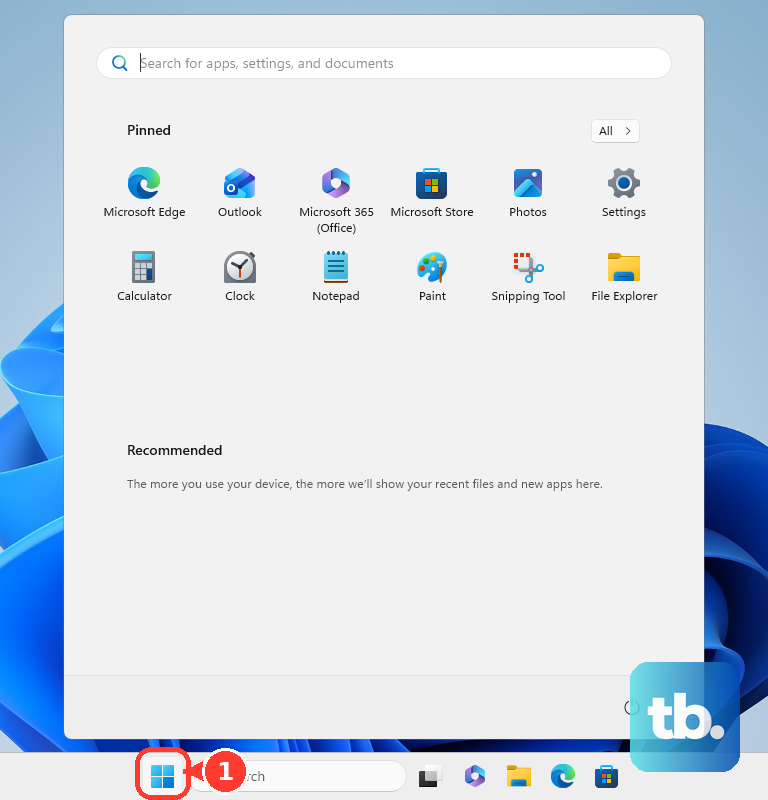
Open Start > Settings > Accessibility > Keyboard, then open Sticky keys and switch Use Sticky keys off. Turn Keyboard shortcut for Sticky keys off in the same screen to stop the five-Shift-key shortcut from enabling it again. This is the current Windows 11 Settings route for consumer Home and Pro PCs.
2. Stop the Shift shortcut from bringing it back
Open Start, select Settings, then select Accessibility and Keyboard. Open Sticky keys, turn Keyboard shortcut for Sticky keys off, and keep Use Sticky keys off. This fixes the common accidental trigger where pressing Shift five times turns Sticky Keys on.
3. Press Shift five times when the shortcut still works
Press Shift five times, then check that Sticky Keys turns off. After that, open Start > Settings > Accessibility > Keyboard > Sticky keys and turn Keyboard shortcut for Sticky keys off.
4. Switch it off from Quick Settings
Press Windows logo key + A to open Quick settings > Accessibility, then turn Sticky keys off. This Windows 11 route is useful when Sticky Keys is interrupting typing and you want the shortest keyboard path to the toggle.
5. Use the taskbar Accessibility flyout
Go to the right side of the taskbar and open Quick settings. Next, select Accessibility and turn Sticky keys off.
6. Open the keyboard page directly with Run
Press Windows logo key + R, enter ms-settings:easeofaccess-keyboard, and press Enter. Windows opens Settings > Accessibility > Keyboard, where you can open Sticky keys and turn Use Sticky keys off.
The same Settings URI can open from supported Windows app links and browser address bars.
7. Find Sticky Keys through Windows Search
Open Start or Search, then type Sticky keys or Accessibility keyboard settings. Open the matching Settings result and turn Sticky keys or Use Sticky keys off. When Search opens the broader keyboard page, open Sticky keys from there.
8. Sync the off setting to your other Windows devices
After turning Sticky Keys off on this PC, open Settings > Accounts > Windows backup > Remember my preferences and keep Accessibility included. Windows Backup syncs accessibility preferences to other Windows devices signed in with the same Microsoft account. This is the Windows settings sync surface, not a separate web switch for Sticky Keys.
9. Skip old Control Panel and registry fixes
Use Start > Settings > Accessibility > Keyboard on current Windows 11 PCs, and skip older Control Panel tutorials as your main fix. Do not use Registry Editor for a normal consumer fix. On a work or school PC, contact your administrator when Sticky keys controls are unavailable or change back.
Frequently Asked Questions
Why does Sticky Keys keep turning on?
The five-Shift-key shortcut is the usual trigger. Open Start > Settings > Accessibility > Keyboard > Sticky keys, then turn Keyboard shortcut for Sticky keys off.
Can I remove Sticky Keys from Windows?
No current Microsoft source documents an uninstall method. Sticky Keys is built into Windows, so the supported consumer action is turning it off.
Does pressing Shift five times always turn Sticky Keys off?
No. Pressing Shift five times toggles Sticky Keys only when the Sticky Keys keyboard shortcut is enabled.
Does this work on Windows 10?
Some routes apply to Windows 10, but Windows 10 reached end of support on October 14, 2025, and eligible consumer PCs can enroll in Extended Security Updates through October 12, 2027 at no additional cost by syncing PC settings, for 1,000 Microsoft Rewards points, or for a one-time $30 purchase. Current consumer guidance uses Windows Settings.