Steam Overlay gets in the way when you want a clean game screen or fewer popups during play. Steam gives you two current controls: one global switch for the desktop client and one per-game switch in your Library.
Start with the global setting if you want the overlay off everywhere. If it still appears in one game, check that game's own Properties... page next.
Turn off Steam Overlay in every game
Use the global switch in the Steam desktop client when you want the overlay off everywhere.
- 1.Open the Steam client.
- 2.Go to Steam > Settings > In-game.
- 3.Toggle off Enable the Steam Overlay while in-game.
Disable Steam Overlay for one game
Use this when Steam Overlay is useful in most games but causes trouble in one title.
- 1.Open Steam and go to your Library.
- 2.Find the game you want to change.
- 3.Open the game's Properties... menu.
- 4.Select General.
- 5.Uncheck Enable the Steam Overlay while in-game.
Change the Shift Tab overlay shortcut
This applies when you want to keep Steam Overlay available but stop the default shortcut from opening it during play. The overlay stays on, but Shift + Tab no longer has to be the key combination that opens it.
Open Steam, choose Settings, then select In-game.
Change Steam Overlay shortcut key from Shift + Tab to another key combination.
This changes only the shortcut. It does not disable Steam Overlay.
Check what changes after turning it off
Games use Steam Overlay differently, so turning it off changes more than the popup surface in some titles.
Valve lists in-game purchasing, invites, screenshots, trading, and market features among the Steam features that rely on the overlay in supported games.
If one of those features stops working, return to Steam > Settings > In-game and turn Enable the Steam Overlay while in-game back on. For a single title, open the game's Properties... page, choose General, and enable Enable the Steam Overlay while in-game.
Hide the Steam Performance Monitor
Open Steam.
Select Settings.
Go to In Game and open the Performance Monitor settings.
Set the monitor or detail level options so the Performance Monitor is not shown.
On Windows PCs, Steam's full metrics set is the main focus; other supported operating systems receive part of that support.
Turn off overlay support for Steamworks software
This applies only if you manage a Steamworks Software app. It is not a normal player setting for a home Steam account. Your Steam account needs the Edit App Metadata permission for that app before you can change this.
Open the Steamworks app landing page.
Select Edit Steamworks Settings.
Go to the Installation tab, then open General Installation.
Uncheck Enable Steam Overlay for Application.
Publish the change.
Valve keeps the overlay automatically disabled for Software app types unless the app owner enables it.
Ignore older Steam Overlay labels
Use the current Steam labels instead of these older paths.
Do not use Enable Steam Community In-Game as the current setting name.
Use Enable the Steam Overlay while in-game.
Use Steam > Settings > In-game for the global overlay switch.
Use the game's Properties... > General page for the per-game switch.
Remove Steam when you want it gone completely
Exit Steam first.
Valve gives this uninstall sequence for Windows 10. On older versions of Windows, check Microsoft's support site for how to remove an application on your specific version.
On Windows 10, move C:\Program Files (x86)\Steam\steamapps outside the Steam folder first if you want to keep installed game files.
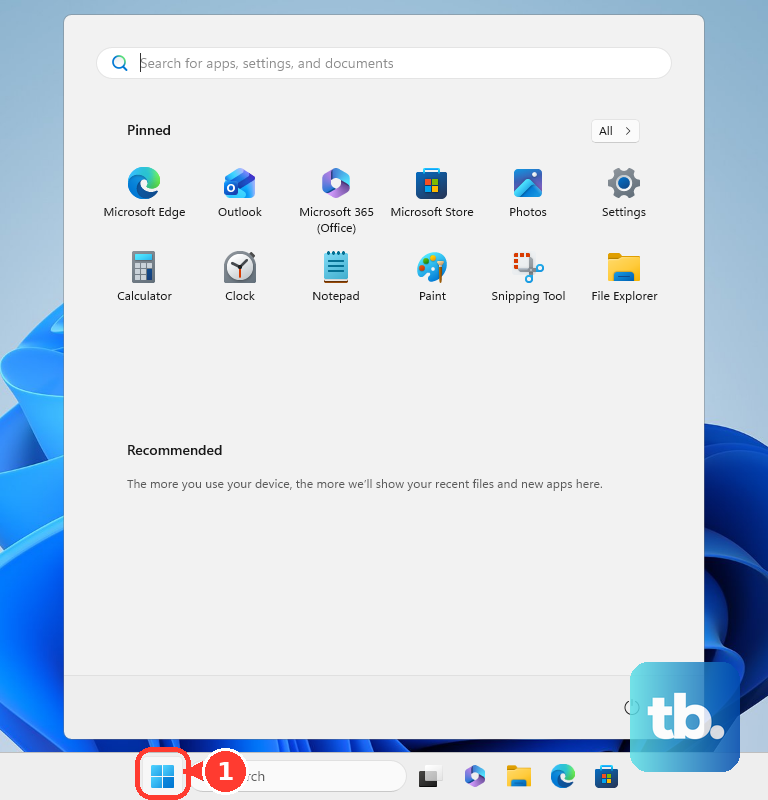
Click the Windows Start button, select the gear icon for Settings, then choose Apps.
Select Steam, choose Uninstall, then follow Automatic, Next, and Finish.
On macOS, make Steam active, choose Steam, then select Quit Steam.
Open Applications and drag Steam to Trash.
In Finder, open Go, hold Option, open Library, then go to Application Support > Steam.
Delete the whole Steam folder, or delete everything inside it except SteamApps.
Empty the Trash with Finder > Empty Trash. Dragging Steam to the Trash on its own does not fully remove it.
Use Steam's official product page when you reinstall later.
Frequently Asked Questions
Where is the main Steam Overlay setting?
Open Steam, then go to Steam, Settings, In-game, and turn off Enable the Steam Overlay while in-game.
Can I turn Steam Overlay off for only one game?
Yes. Open the game in your Steam Library, go to Properties..., then General, and uncheck Enable the Steam Overlay while in-game.
Does changing Shift Tab disable Steam Overlay?
No. Changing Steam Overlay shortcut key only stops Shift + Tab from opening it. The overlay remains enabled.
Should I uninstall Steam to remove the overlay?
No. Uninstall Steam only when you want the Steam client removed entirely. Use the overlay settings for normal overlay control.