Turning off iCloud Photos gets tricky when your device holds optimized copies instead of full-resolution pictures. Download the originals and save a separate copy before disconnecting. Start with the steps for your device, then use the account-wide option only if you also want to remove your library from iCloud.
Keep your pictures before turning off sync
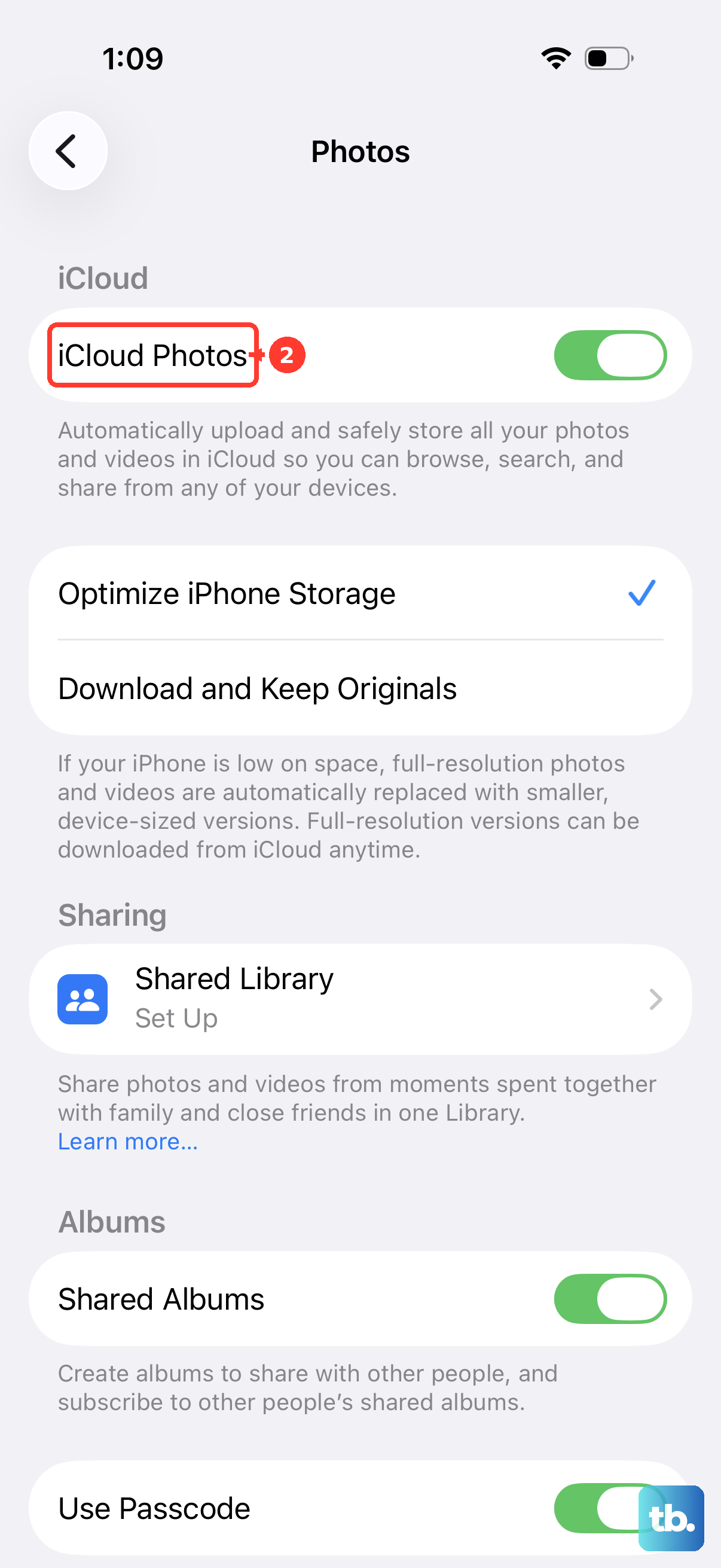
On an iPhone running iOS 27, open Settings > [your name] > iCloud > Photos > iPhone Storage. On iPadOS 27, use iPad Storage instead. On iOS 26 and earlier, the download option sits directly under Photos.
Select Download and Keep Originals.
Wait until all originals finish downloading. Your device needs enough storage for the full-resolution photos and videos; optimized thumbnails are not enough.
For an independent archive, open Photos > Library on your iPhone or iPad.
Tap Select.
Choose the pictures and videos you want to preserve.
Tap Share > Export Unmodified Originals.
Choose local storage or an external drive under Locations.
Tap Save.
To preserve applied edits too, use the complete Mac library copy described below. Original-file exports leave those edits out.
If you have shared pictures to keep, complete the shared-library steps below before disconnecting.
Return to Settings > [your name] > iCloud.
Open Photos under Saved to iCloud.
Turn off Sync this iPhone or Sync this iPad.
Choose Download Photos & Videos when offered.
Tip: Turning off sync on one device leaves your iCloud photo library available elsewhere.
If your device cannot hold all the originals
Insufficient storage prevents a full originals download because the full-resolution library needs more room than its optimized copies.
On a Mac or Windows computer, sign in to iCloud.com/photos to create an independent archive.
Select up to 1,000 pictures and videos at a time.
Click the More button.
Choose More Download Options.
Select Unmodified Originals.
Click Download.
Repeat for the remaining pictures and videos.
Save the completed downloads to local storage or an external drive before disabling sync. Downloads stored only in iCloud Drive are not an independent archive.
Grant web-access permission and approve access on a trusted device when requested. If you cannot access your pictures through the website, use the Mac Photos download method below.
Turn off iCloud Photos on your Mac
Use this method to keep a local Mac photo library while stopping iCloud synchronization. A fully downloaded library preserves your edited pictures alongside the originals.
Open Photos > Settings > iCloud.
Select Download Originals to this Mac.
Wait for the complete library to download.
In Finder, locate your Photos library, normally in the Pictures folder.
Copy the library to an external storage device.
Separately copy any referenced files stored outside the library.
Open Apple menu > System Settings > [your name] > iCloud.
Choose Photos under Saved to iCloud.
Turn off Sync this Mac.
Choose Download when offered.
For the alternative Photos app route, open Photos > Settings > iCloud after completing the originals download and library copy.
Deselect iCloud Photos.
Choose Download when offered.
The extra step Windows users need
On Windows, even pinned pictures disappear from the managed folder when they are deleted from iCloud. You need a separate copy outside the iCloud Photos folder before disconnecting.
Open File Explorer > iCloud Photos, right-click the pictures or the entire folder, and select Always keep on this device. Wait for the downloads to finish.

Copy the downloaded files to a folder outside iCloud Photos or to an external drive. This gives you an independent archive.
Open iCloud for Windows and click the arrow beside iCloud Photos. Switch iCloud Photos off, then click Done.
When the pictures belong to a shared library
Shared pictures need separate handling because Shared Albums and Shared Photo Library have different controls for keeping their contents.
For a Shared Album on iPhone or iPad, open Photos > Collections > Shared Albums.
Open the album.
Tap Select.
Choose the pictures you want to keep.
Tap Share > Save Image.
Download or export the saved copies using the preservation steps above. Copying does not preserve comments or likes, and some older Shared Album copies have reduced fidelity.
If you participate in someone else's Shared Photo Library, open Settings > Apps > Photos > Shared Library. Leave iCloud Photos enabled until the copying process finishes.
Tap Leave Shared Library.
Choose the option to copy everything.
Confirm Leave Shared Library.
Download the retained originals before disabling sync.
If you own a Shared Photo Library, resolve it before shutting down iCloud Photos account-wide. Open Settings > Apps > Photos > Shared Library.
Tap Delete Shared Library.
Select Keep Everything.
Confirm Delete Shared Library.
Download the retained originals.
Save an independent archive before proceeding.
Remove the library from iCloud only when you are ready
Account-wide shutdown schedules your cloud photo library for deletion after 30 days. First, archive every picture and video you want to keep and resolve any Shared Photo Library you own. To stop just one device from syncing, use its sync switch without scheduling cloud deletion.
On iPhone, iPad, or Apple Vision Pro, open Settings > [your name] > iCloud > Storage > iCloud Photos and choose Turn Off and Delete Photos. Select Undo Delete within 30 days to reverse the request.
On Mac, open System Settings > [your name] > iCloud > Manage > iCloud Photos. Choose Turn Off and Delete Photos, or Turn Off and Delete from iCloud if that is the button shown.
Apple's current Mac instructions call the reversal option either Recover iCloud Photos or Undo Delete. Select whichever appears within 30 days to reverse deletion.
Frequently Asked Questions
Will an iPhone backup keep all my iCloud pictures?
An iCloud or computer device backup made while iCloud Photos is enabled is not an independent backup of that cloud library. Download the originals and export separate copies first.
Can my pictures still enter iCloud Backup after I turn off iCloud Photos?
Yes. Backup is separate from photo synchronization. After disabling iCloud Photos, open Settings > [your name] > iCloud > Storage > Backups > [this device]. Turn off Photos in the list of apps backed up for that device, then tap Turn Off to confirm. This excludes those pictures from iCloud Backup.
Does canceling iCloud+ turn off iCloud Photos?
No. Canceling iCloud+ does not disable iCloud Photos. Exceeding the resulting storage quota interrupts synchronization, but the service remains enabled.
Does transferring pictures to Google Photos disable iCloud Photos?
No. The transfer copies pictures without turning off or deleting iCloud Photos. It transfers the latest edit and excludes some formats, shared content, and metadata, so it is not a complete archive. Confirm that the transfer has finished before separately disabling iCloud Photos.