HDR can leave a movie looking too dark, and finding the off switch on a Roku TV depends on how you’re watching. Roku does not document a universal HDR-off switch for every Roku TV. Start with the app you use or the device connected through HDMI, then choose the option below that fits your setup.
Turn off HDR inside Netflix
Open Netflix on your Roku TV. Choose your profile, then press Back from the Netflix home screen.
If navigation runs across the top, move left to the profile icon. Open Get Help. With the left-side navigation layout, this option is at the bottom of the menu. Select Video.
Choose HDR Off. Netflix does not offer this control on every HDR-capable TV; the next section covers the alternative when it is missing. Resume playback. Keep this setting’s scope in mind: it changes Netflix playback only, leaving other apps and HDMI devices unaffected.
Lower Netflix quality when the HDR toggle is missing
Netflix does not provide its HDR toggle on every HDR-capable TV, so a missing control does not mean you overlooked a Roku setting. Open your Netflix Account in a browser, then select Profiles.
Choose the profile you use on your Roku TV. Open Playback settings and select Medium or Low. Netflix saves the preference automatically.
The tradeoff is lower picture quality wherever you use that profile. Netflix requires Auto or High streaming quality for HDR on Roku TVs, so this workaround follows from that requirement. It is not a dedicated HDR-off control.
Reduce Disney+ streaming quality
This moves Disney+ playback below its 4K UHD and HDR quality tier. Open Disney+ on the TV. This method applies to TV apps that offer the quality settings below.
Open the navigation menu. The change affects every Disney+ profile on this device. Select Settings. Phone and browser data settings do not change the TV app’s setting.
Open App Settings. Disney+ lists 4K UHD and HDR under Automatic; avoiding HDR through a lower tier follows from that quality table, rather than an explicit HDR-off switch. Choose Moderate for up to 1080p Full HD with audio limited to 5.1.
For standard definition instead, choose Save data. This also limits audio to stereo.
Use Compatibility mode for an HDMI input
This method applies to UHD Roku TVs whose HDMI mode menu offers Compatibility. It affects the connected HDMI device only, leaving built-in streaming apps, USB playback, and network media unchanged. Press Home on the Roku TV remote, then open Settings.
Select TV inputs, called Inputs in newer Roku support instructions. Choose the HDMI input used by your connected device. Open HDMI mode and select Compatibility.
Repeat the change for other HDMI inputs as needed. Roku documents Standard mode as required for HDR, which makes Compatibility an SDR workaround. Compatibility uses HDMI 1.4 and limits full-UHD refresh rate to 30 Hz. Neither Standard nor Auto turns HDR off.
If Compatibility is missing, use your connected device’s output controls below.
Set a connected streaming player to SDR
An external Roku player or Apple TV 4K controls its own video output. These settings affect playback through that box, including the option to keep 4K without HDR. They do not change apps installed directly on your Roku TV.
On an external Roku player, press Home using the player’s remote. Open Settings, then select Display type.
Choose 4K without HDR, or 1080p. Available choices depend on the player and connected display. Press OK and confirm Yes, I can see it.
For an Apple TV 4K, open Settings on the Apple TV. Select Video and Audio, then open Format. Choose an SDR format, such as 4K SDR, at a supported refresh rate.
Return to Video and Audio and open Match Content. Turn off Match Dynamic Range. Leaving it enabled allows HDR content to switch the output back to HDR.
If changing the player’s output does not resolve the problem, try Compatibility mode on the Roku TV’s connected HDMI input, accepting its 30 Hz limit at full UHD.
Disable HDR on a connected console or computer
These controls turn off HDR in the connected device’s output only. On a PS5, open Settings. Select Screen and Video, then open Video Output.
Select HDR and choose Off. For a Windows 11 PC, open Start.
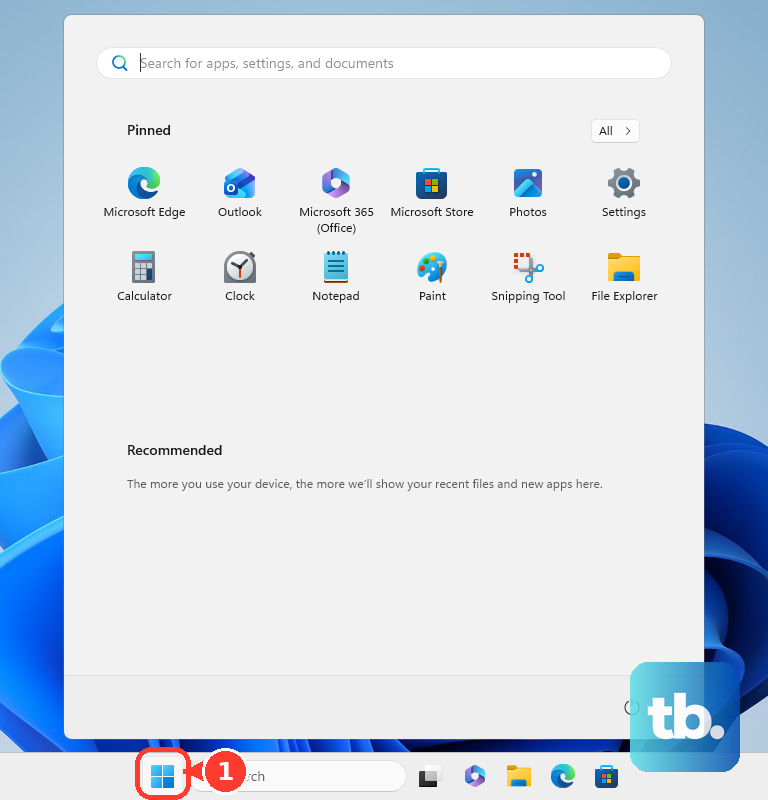
Open Settings, then select System. Open Display. Select your Roku TV if multiple displays are connected.
On versions with a separate HDR settings page, open HDR. Turn off HDR. Older interfaces use the label Use HDR. On a compatible Mac, open the Apple menu.
Select System Settings. Open Displays and select the external Roku TV. Turn off High Dynamic Range. This control appears only with an HDR-capable Mac and a supported external display.
Check what your settings change actually controls
Turning off the HDR or Dolby Vision notification hides the startup message without disabling playback in that format. For Netflix playback, choose HDR Off under Get Help > Video where available. Picture modes, brightness, local dimming, and expert picture controls change how HDR looks without disabling it.
For a connected HDMI device, select Compatibility under that input’s HDMI mode where available. An HDMI change cannot disable HDR inside a built-in streaming app, just as a Netflix setting cannot change Disney+ playback.
If you arrived here through an older secret-menu tutorial, use the applicable app or connected-device procedure above. The secret-menu HDR switch has no current official support, and Roku does not document a universal replacement switch for its TVs.
Frequently Asked Questions
Can I turn off HDR using the Roku mobile app?
The mobile app can operate controls already available on your TV or streaming app. Connect it to your Roku TV, select Remote, and follow the applicable procedure above. It does not add an independent HDR-off setting.
Will changing my Netflix plan remove HDR?
Yes. Netflix lists HDR as a Premium feature. In a browser, open Netflix’s Change Plan page, choose an available plan without HDR such as Standard, select Continue or Update, then select Confirm Change or Confirm. This removes HDR account-wide, along with other Premium benefits including 4K. A downgrade normally takes effect on the next billing date. Partner billing and regional plan availability affect the procedure or timing.
Can I disable HDR through my Roku account website?
Roku does not document an account or web-portal switch for disabling HDR on a Roku TV. Use the applicable TV, streaming-app, or connected-device control.