Your Xbox controller can stay awake after a PC game closes, especially over Bluetooth or the Xbox Wireless Adapter. Start with the controller itself before digging through Windows menus. Here are the current ways to shut it down, disconnect it, or stop it from reconnecting.
Hold the Xbox button
Press and hold the Xbox button in the center of the controller.
Keep holding it for 5 to 10 seconds, until the controller powers off.
For Xbox One Wireless Controller and Xbox Elite Wireless Controller Series 2, hold the Xbox button for about 6 seconds.
Use this first because it is the direct power-off method for modern Xbox controllers on a Windows PC.
Keep holding through Game Bar or Task View
On Windows 11, a short press of the Xbox button opens Game Bar by default, unless Allow your controller to open Game Bar is turned off under Settings > Gaming > Game Bar. On updated Windows 11 builds, a long press can open Task View, so the screen may change before the controller shuts down.
Keep holding the Xbox button when Game Bar or Task View appears.
Wait until the controller powers off.
If the controller stays on, turn off Bluetooth for a Bluetooth connection, or unplug the USB cable for a wired session.
Use Quick Settings for Bluetooth
Use this when your Xbox Wireless Controller is connected to the PC over Bluetooth. Turning Bluetooth off disconnects Bluetooth accessories, so it is broader than a controller-only shutdown.
Select the Network, Sound, or Battery icon next to the time and date.
Select the Bluetooth tile to turn Bluetooth off. If the Bluetooth tile is not visible, add it to Quick Settings or use Settings > Bluetooth & devices instead.
Turn Bluetooth back on later when you want your Bluetooth devices to reconnect.
Turn Bluetooth off in Settings
This fixes a controller that keeps reconnecting over Bluetooth during the current session.
Select Start.
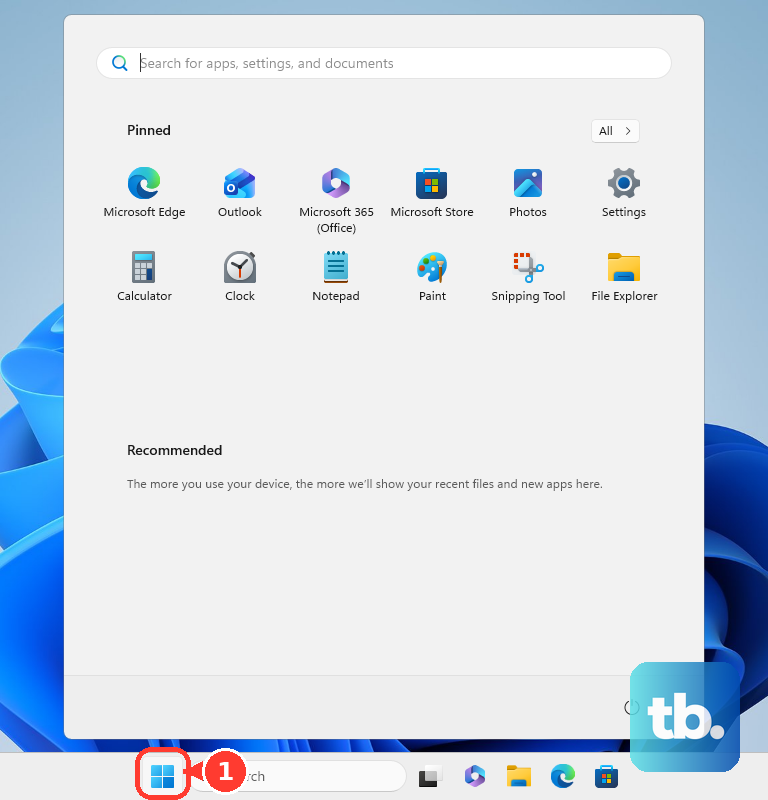
Open Settings.
Go to Bluetooth & devices.
Next to Bluetooth, switch Bluetooth Off.
Remove the controller from paired devices
Use this when you do not want the controller to reconnect automatically until you pair it again.
- 1.Select Start and open Settings.
- 2.Go to Bluetooth & devices.
- 3.Open Devices.
- 4.Select More options for the Xbox controller.
- 5.Choose Remove device, then select Yes.
Unplug a wired controller session
Use this when the controller is connected to your Windows PC by USB. It applies to Xbox Wireless Controller, Xbox Elite Wireless Controller Series 2, Xbox Adaptive Controller, and Xbox 360 wired controller sessions.
Disconnect the USB cable from the controller or the PC.
If the controller has batteries installed, hold the Xbox button for 5 to 10 seconds after unplugging.
Wait for the controller to power off.
Pull removable batteries
For Xbox Wireless Controllers that use AA batteries or a removable rechargeable battery pack, removing the batteries cuts power to the controller.
Open the controller battery compartment and remove the AA batteries or removable battery pack.
For an Xbox 360 Wireless Controller, press the tab on the top of the AA battery pack, then pull down to detach the pack.
If your controller is an Xbox Elite Wireless Controller Series 2, use the Xbox button hold instead because that controller has a built-in rechargeable battery.
Skip older Windows paths
Use Settings > Bluetooth & devices on Windows 11.
Use Windows 11 Quick Settings when you want the faster Bluetooth toggle.
Avoid following Windows 10 Bluetooth menu paths as the main fix, because Windows 10 support ended on October 14, 2025.
On work, school, or managed PCs, ask the administrator about Bluetooth blocks or controller hardware restrictions if the controller cannot connect or stay disconnected.
Frequently Asked Questions
What is the fastest way to turn off an Xbox controller on PC?
Hold the Xbox button for 5 to 10 seconds. On Xbox One Wireless Controller and Xbox Elite Wireless Controller Series 2, about 6 seconds turns the controller off.
Why does pressing the Xbox button open Game Bar instead of turning off the controller?
A short press opens Game Bar on Windows 11. Keep holding the Xbox button; on updated Windows 11 builds, a long press can open Task View, and continuing to hold powers off the controller.
Does turning off Bluetooth power off the Xbox controller?
No. Turning off Bluetooth disconnects Bluetooth accessories from the PC. To power off the controller itself, hold the Xbox button.
Can the Xbox Accessories app turn off an Xbox controller on PC?
The Xbox Accessories app can configure supported controllers and install firmware updates. Microsoft does not list a Windows command in that app for turning off the controller.