Windows 11 quietly tailors what you see. Ads inside apps, "recommended" entries in the Start menu, tips on the lock screen, and suggestions inside Settings are all driven by a handful of personalization and tracking features running in the background.
The good news: every one of these lives in a real toggle you can turn off. There is no single master switch, so this guide walks each surface in order, quickest and most common first, with the exact menu paths.
One honest caveat from Microsoft before you start: turning off the advertising ID does not reduce how many ads you see. It only makes them less relevant. To genuinely cut down on promotional content, you also need the Start, lock screen, and notification steps further down.
Turn Off the Windows Advertising ID
This is the single setting most people are looking for. The advertising ID is a unique per-user identifier Windows generates so apps and ad networks can serve interest-based ads inside apps, much like a website cookie.
Select Start, then open Settings (or press Windows key + I).
Select Privacy & security in the left column.
Under the Windows permissions section, select General.
Turn OFF "Let apps show me personalized ads by using my advertising ID."
Two things worth knowing. This toggle only affects Windows apps that use the advertising identifier; it does not cover cookies or interest-based ads served by Microsoft or third parties on websites. And if you ever switch it back on, Windows resets and regenerates the ID.
On a shared PC, each user account has its own ID, so every person must change this separately.
Disable the Other General Privacy Toggles
While you are on that same General page, three more toggles feed personalization and tracking.
Turn OFF "Let websites show me locally relevant content by accessing my language list."
Then turn OFF "Let Windows improve Start and search results by tracking app launches."
After that, turn OFF "Show me suggested content in the Settings app."
The app-launch toggle is the one that quietly tracks which programs you open, so it is worth disabling even if you keep the others.
Stop Tailored Experiences From Diagnostic Data
Tailored experiences uses your diagnostic data to deliver suggestions plus ads and recommendations for Microsoft and third-party products across Windows. Cutting it off is one of the higher-impact steps.
Go to Settings > Privacy & security > Diagnostics & feedback.
Under Tailored experiences, turn the toggle OFF.
Optionally, under Diagnostic data, select Required rather than Optional. With Required selected, personalization is based only on device info, settings, and capabilities; with Optional, it also draws on how you use apps and features.
Optionally turn OFF "Improve inking and typing."
If you want to clear data already sent, use Delete diagnostic data > Delete on the same page. Note that this clears past data only and does not stop future collection.
Turn Off Start Menu Recommendations
The "Recommended" section of the Start menu surfaces promoted apps and tips alongside your recent files.
Go to Settings > Personalization > Start.
Turn OFF "Show recommendations for tips, shortcuts, new apps, and more."
Remove Lock Screen Tips and Spotlight Ads
Windows Spotlight rotates lock screen images that sometimes include promotional content, and a separate toggle pushes tips and "fun facts."
Go to Settings > Personalization > Lock screen.
Change "Personalize your lock screen" from Windows spotlight to Picture or Slideshow.
Uncheck "Get fun facts, tips, tricks, and more on your lock screen."
Optionally set Lock screen status to None.
Switch Off Suggestion and Welcome Notifications
Several notification toggles are how Microsoft surfaces promotions and setup nudges.
Go to Settings > System > Notifications.
Scroll to the bottom and expand Additional settings if it is present.
Turn OFF "Show the Windows welcome experience after updates and when signed in to show what's new and suggested."
Now turn OFF "Get tips and suggestions when using Windows."
Finally, turn OFF "Suggest ways I can finish setting up my device to get the most out of Windows."
Notification wording shifts between Windows 11 builds. That last item may now appear shortened to simply "Suggested" in newer versions, so look for the closest match if the long label is gone.
Clear Your Device Usage Categories
If you ever told Windows how you use the PC (Gaming, Business, and so on), you opted into tailored tips, recommendations, and personalized ads tied to those categories.
Go to Settings > Personalization > Device usage.
Turn OFF every usage-category toggle you do not want: Development, Gaming, Family, Creativity, School, Entertainment, and Business.
Microsoft states this data is not shared with third parties and that you can opt out at any time, which is exactly what turning these off does.
Disable Search Highlights
Search highlights inject curated content and suggestions into Windows Search.
Go to Settings > Privacy & security > Search permissions.
Scroll to the More settings area and turn OFF "Show search highlights."
Turn Off File Explorer Sync Provider Notifications
File Explorer can show banner notifications that promote OneDrive and Microsoft 365. These are labeled "sync provider notifications."
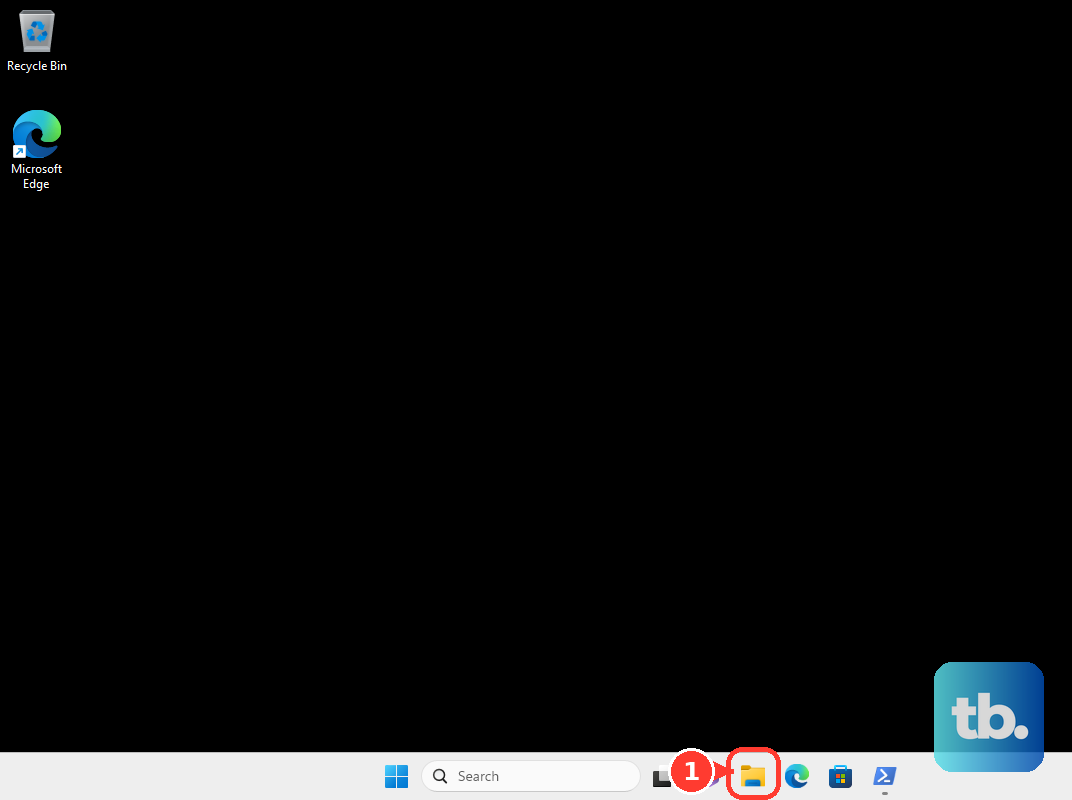
Open File Explorer, click the three-dots (...) menu on the command bar, and choose Options.
In Folder Options, open the View tab.
Under Advanced settings, uncheck "Show sync provider notifications."
Click OK.
Opt Out of Personalized Ads in Your Microsoft Account
The device toggles do not touch the ad personalization tied to your Microsoft account, which can follow you onto third-party sites through data sharing. Handle that at the account level.
In a desktop browser, go to account.microsoft.com/privacy/ad-settings and sign in with your Microsoft account.
Turn OFF the toggle for seeing ads and offers that interest you (its exact wording varies slightly by build).
Turn OFF "Share my data with third parties for personalized ads."
Sign in to set this; a signed-in choice saves to your account and persists across every device and browser until you change it. If you make the change while signed out, it is only stored as a cookie on that one browser and lasts six months or until you clear cookies.
Raise Tracking Prevention in Microsoft Edge
If you browse with Edge, cross-site trackers are what drive personalized ads online. Tightening tracking prevention reduces that.
In Edge, select Settings and more (...) > Settings > Privacy, search, and services.
Under Tracking prevention, make sure it is turned on.
Choose your level: Strict blocks most trackers across sites so content and ads have minimal personalization; Balanced (the default) blocks trackers from sites you have not visited; Basic blocks harmful trackers but still allows ad-personalizing ones.
Strict gives the least ad personalization but can cause some websites to misbehave. If a site breaks, add it under Exceptions rather than dropping back a level.
Frequently Asked Questions
Will turning off the advertising ID actually reduce the ads I see?
No. Microsoft is explicit that disabling the advertising ID does not reduce the number of ads; it only makes them less relevant. To cut down on promotional content itself, use the Start, lock screen, and notification steps above.
What is the difference between Required and Optional diagnostic data?
With Optional selected, personalization additionally draws on how you use apps and features. With Required, it is limited to device info, settings, and capabilities. Choosing Required narrows what Microsoft can personalize from.
I deleted my diagnostic data. Does that stop Windows from collecting more?
No. The Delete diagnostic data button clears data already collected but does not stop future collection. To limit ongoing collection, turn off Tailored experiences and set the diagnostic data level to Required.
Do I have to be signed in to opt out of personalized ads on my Microsoft account?
It works either way, but the behavior differs. Signed in, the opt-out saves to your account and persists across devices and browsers. Signed out, it is stored only as a cookie on that single browser and expires after six months or when you clear cookies, whichever comes first.
My family shares one PC. Does changing these settings cover everyone?
Not for the advertising ID, which is per-user. Each Windows account has its own ID, so every person who signs in must turn it off in their own session.
I switched the advertising ID back on by accident. Did that undo anything?
Turning it back on resets and regenerates the advertising ID, effectively giving you a fresh identifier. Switch it off again to stop apps from using it.