Your domain won’t load, www sends visitors to the wrong place, or email stops arriving after a hosting change. Incorrect records, wrong nameservers, and stale DNS caches each need a different fix. Start with the service and account checks below, then follow the steps for the part that’s failing.
Check for an outage or a domain account problem
When a working domain suddenly stops responding, check its service and account status before editing DNS. An outage, expired registration, or outstanding contact verification needs its own fix.
Open GoDaddy Status to check Domain Services > DNS, Domain Manager, and the hosting or email service you use. Review Past Incidents for symptoms matching yours before changing working settings.
Check your domain in Domain Portfolio. If it has expired and remains eligible for renewal, select Renew Now on its Renew card. Eligibility and redemption charges depend on registry rules.
Choose your renewal options. Select Continue. Complete checkout.
For an outstanding contact-verification requirement, select Send Confirmation Email in the Status column. Open the confirmation message. If it is missing, check your junk folders and the domain’s contact address.
Select Verify your email address. GoDaddy allows up to 24 hours for the verification status to update.
Make sure you’re editing DNS at the right provider
This fixes edits made at the wrong DNS provider and incorrect nameserver assignments. Sign in to Domain Portfolio. Select your domain. Open DNS > Nameservers.
Identify the provider operating the assigned nameservers. Registering a domain with GoDaddy does not necessarily mean GoDaddy hosts its DNS. Make record corrections at that provider using the relevant steps below.
For an externally registered domain already added to GoDaddy DNS Hosting, open Domain Portfolio > Services > DNS Hosting. Select the externally registered domain. Confirm at the external registrar that it uses its assigned GoDaddy nameservers. Otherwise, edits in GoDaddy DNS Hosting will not control its live DNS.
Before changing an accessible GoDaddy zone, open the domain’s DNS > Actions > Export Zone File. Keep the downloaded file for comparison and recovery.
If the nameservers are incorrect, return to DNS > Nameservers. Choose GoDaddy Nameservers (recommended) or I'll use my own nameservers, according to the provider you intend to use. For your own nameservers, enter the exact nameservers assigned by that provider.
Select Save. Select Continue. Complete identity verification if requested.
Verify the website and email records at the destination provider against each service’s requirements. Changing nameservers is not a universal reset; both services need the correct records there.
Repair the website address and www record
If GoDaddy hosts your DNS, compare the website records with your hosting provider’s required values. Obtain the correct IPv4 address and any required alias or IPv6 values from your hosting provider.
In Domain Portfolio, select the domain. Open DNS. Select Edit beside the website’s A record.
Set Name to @ for the root domain or the appropriate subdomain prefix. Enter the host’s IPv4 address in Value. Check TTL. Select Save.
Complete verification if prompted. For a missing www alias, select Add New Record. Choose CNAME under Type.
Enter www in Name. Enter the provider’s destination hostname in Value. Enter the required TTL.
Select Save. GoDaddy supports @ as the value when www should point to the root domain. The CNAME name itself cannot be @ or conflict with another record.
If your host requires IPv6, compare the existing AAAA record with its requirements. To restore a missing entry, select Add New Record. Choose AAAA under Type.
Enter Name. Enter the host’s IPv6 address in Value. Enter TTL.
Select Save. An IPv4 address does not belong in an AAAA record.
Unlock records controlled by forwarding or a connection
Open your domain’s DNS > Forwarding page in Domain Portfolio to inspect an unwanted redirect or a forwarding entry that locks the A record. To keep forwarding but correct its destination, select Edit beside the domain. Update the forwarding configuration with the intended destination. Select Save.
Complete verification if requested. To stop forwarding instead, select Delete beside the forwarding entry. Confirm with Delete.
Complete verification if requested. Removing forwarding unlocks its A record for editing. For a connected-service template that prevents editing, return to DNS. Select Remove beside the template above the records table.
Confirm with Yes, let's do it!. Configure the replacement service’s required records after removing the connection. Use the forwarding editor for an unwanted redirect; correcting its destination does not repair DNS resolution.
Restore email delivery with the right mail records
If email stopped arriving, compare your mail records with the active email provider’s requirements. Use that provider’s exact values; cPanel mail settings belong only on domains whose email is hosted in cPanel.
For Microsoft 365 from GoDaddy, open Email & Office Dashboard. If the reception-warning banner appears, select Help me fix this. Without that banner, open Users > Manage beside the mailbox > Setup > Recheck DNS.
Select Recheck DNS again. Follow the checker’s reported MX corrections. For other mail services, obtain the exact required records from that provider instead of copying generic GoDaddy MX values.
To restore a missing MX record in GoDaddy-hosted DNS, open the domain’s DNS page. Select Add New Record. Choose MX under Type.
Fill in the provider’s Name, Priority, Value, and TTL. Select Save. Compare existing records with the provider’s requirements before removing obsolete mail routing. Multiple MX or A records are valid in configurations that require them.
For missing verification, SPF, or DMARC text, select Add New Record. Choose TXT under Type.
Fill in the provider’s Name, exact Value, and TTL. Select Save.
Check propagation and the answers visitors receive
After saving a correct change, allow existing DNS caches to expire. GoDaddy says propagation commonly takes hours, with up to 48 hours required depending on resolvers and the domain registry. Repeatedly saving the same records does not correct a wrong value.
Open Google Admin Toolbox Dig, enter the hostname in Name, and query the relevant record type. Compare the root-domain and www answers separately with your host’s requirements. For geographical differences, enter the domain at Whatsmydns.net and select the record type.
For a stale Google Public DNS entry, open Google Public DNS Flush Cache. Enter Domain Name and RR Type, then select Flush Cache. This refreshes Google’s resolver cache, not every ISP or device cache.
A lower TTL is mainly useful before a planned change. In the record editor, choose Custom under TTL, enter the required seconds, and select Save ahead of the change; GoDaddy documents a minimum of 600 seconds. Lowering it does not immediately invalidate answers cached under the previous value.
Try local fixes when only your device fails
Test the affected website on another phone or computer using the same network. If only one device fails, focus on that device’s settings. On Windows, open Command Prompt as administrator.
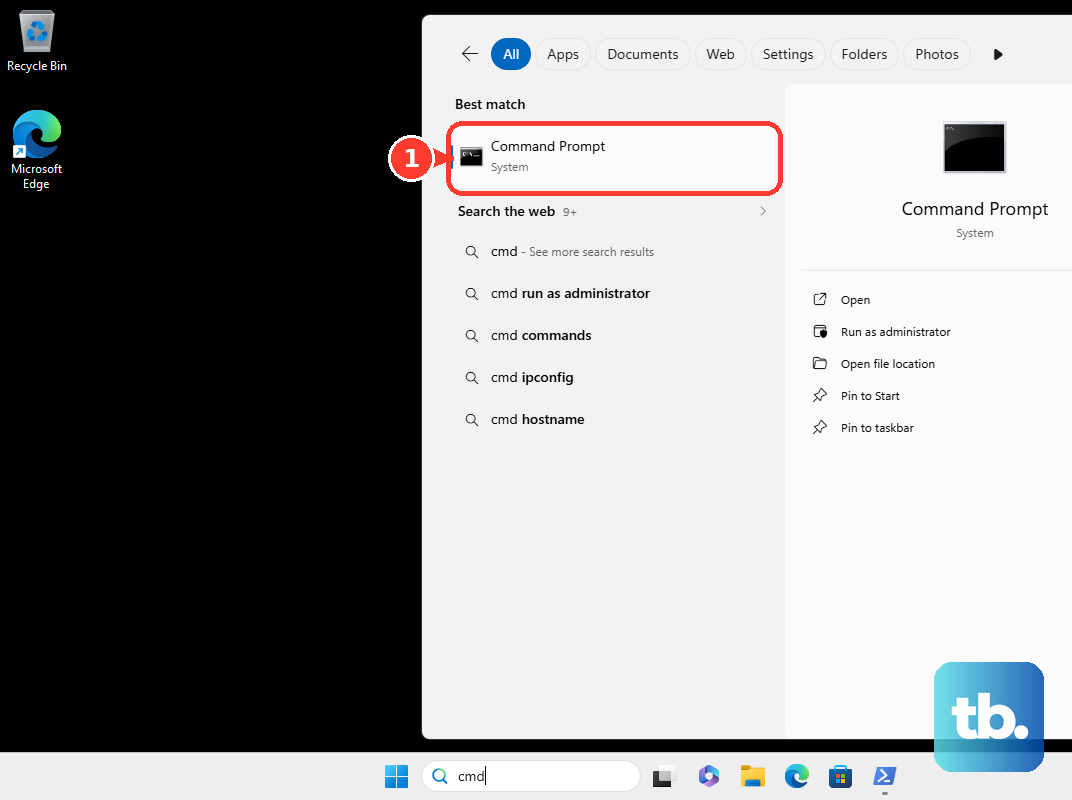
Run ipconfig /flushdns to clear stale local DNS entries. This does not change your domain’s records at GoDaddy.
For a network-wide connectivity or resolver problem, disconnect power from the modem and router. Wait at least 30 seconds. Reconnect the modem. Wait for the modem to initialize.
Reconnect the router. A combined modem and router needs only one restart. Retest the website.
If desktop Chrome uses a failing custom DNS provider, open More > Settings > Privacy and security > Security. Under Advanced, adjust Use Secure DNS or temporarily disable the failing custom provider. Retest the website.
On Android with a failing custom Private DNS provider, open Settings > Network & internet > Private DNS. If your manufacturer uses a different menu, search Settings for Private DNS. Select Automatic, then tap Save. Retest the website.
Reserve browser-cache clearing for stale page content or portal issues; it does not repair authoritative DNS records.
Narrow down persistent failures before contacting support
If the domain still fails after the relevant corrections and propagation time, use these checks to identify the next repair. Recheck the assigned nameservers and intended records. If answers remain incorrect after 48 hours, revisit the configuration instead of continuing to resave it.
For SERVFAIL errors, especially after a nameserver or DNSSEC change, look up the domain at dns.google. Enter the hostname in DNS Name. Select Resolve.
Ask the DNS provider to check validation: if the failure disappears with DNSSEC validation disabled, have the provider investigate broken signatures or delegation inconsistencies. Keep DNSSEC changes tied to that diagnosis.
If the provider confirms a stale DS record after a migration, open Domain Portfolio. Select the domain. Open DNS > DS Records.
Select Delete beside the confirmed obsolete record. Confirm with Delete Record. For a domain registered elsewhere, make that correction at its registrar.
When DNS resolves correctly but the website still fails, check hosting status under Renewals and Billing > Manage Subscriptions. For a missing website or application error, move on to hosting troubleshooting.
Open GoDaddy’s contact page. Select Chat Now or Call Us. Supply the domain, failed hostname, exact error, recent change time, intended records, and lookup results. Use Phone numbers and hours to check availability in your region.
Frequently Asked Questions
Can I fix a GoDaddy DNS problem if I don’t own the website?
You can troubleshoot your device, network, or resolver cache. Changes to the domain’s nameservers and DNS records require access to the domain or its DNS provider.
Can I undo an accidentally deleted DNS record?
GoDaddy has no undo operation for deleted records. To restore missing entries from a known-good backup, open the domain’s DNS > Actions > Import Zone File. Use Browse files to select a BIND/RFC 1035 zone file, then select Apply Zone File. Imports add to existing records and fail on conflicts; they do not replace or reset the whole zone.
Why is my Websites + Marketing domain still connecting after 48 hours?
GoDaddy allows up to 72 hours for Websites + Marketing connection changes. Its automatic connection flow requires a custom-domain-capable paid plan, with the website and GoDaddy domain in the same account.
Why can’t my delegate account change domain settings?
The account owner controls domain-management permissions through folders. Ask the owner to open Domain Portfolio > Folders, choose the folder, and select Edit Folder. Enable the required Management Access, then select Save. Check All Domains as well as individual folders. Transfer permission is separate.