Your camera opens to a black screen, disappears from a meeting app, looks blurry, or gets blocked before a call even starts. The fix is usually close by: a privacy switch, a permission toggle, the wrong camera choice, an update, or a driver setting. Work through these in order, from the fastest checks to the deeper device fixes.
1. Unblock the lens and test the hardware
Start with the things you can see and touch. A closed privacy shutter or blocked phone lens can make every app look broken.
Open the physical webcam shutter, slider, switch, button, or camera cover on the laptop, Chromebook, tablet, or external webcam.
For a USB webcam, check the cable, plug it into another USB port, then test the webcam on another device.
On iPhone or iPad, remove the case, film, polarizer, extender, magnifier, metallic case, magnetic lens mount, or accessory covering the camera.
Clean the front and back lenses with a microfiber cloth.
Open Camera, take a photo, then tap the rotate camera button to test the front and rear cameras separately.
If the camera works in the built-in camera app but fails in Zoom, Teams, Meet, Safari, Chrome, Firefox, or Edge, move straight to app and browser permissions.
2. Turn on camera access for the device
On Windows 11, open Start > Settings > Privacy & security > Camera. Turn on Camera access, turn on Let apps access your camera, enable the target app, then turn on Let desktop apps access your camera for browsers and desktop video apps.
On macOS, open Apple menu > System Settings > Privacy & Security > Camera. Turn on access for the app, then quit and reopen it when prompted.
On iPhone or iPad, open Settings > Privacy & Security > Camera, then turn on camera access for the app.
On Android, open Settings > Security & privacy > Privacy > Privacy controls, then turn on Camera access.
On Chromebook, select the bottom-right Time > Settings > Privacy and security > Privacy controls, then turn on Camera access.
Device-level camera access blocks every app beneath it, so turn on the main switch first and then allow the app that needs the camera. On Android, also check the specific app: open Settings > Apps > select the app > Permissions > Camera, then choose Allow, Allow only while using the app, or Ask every time. If Android paused permissions after inactivity, open the app's settings and turn off Pause app activity if unused.
3. Choose the camera inside the app
Meeting and camera apps can point to the wrong device. Pick the real camera manually.
In Zoom, click the arrow next to Start Video or Stop Video, choose Video Settings, then select the correct device under Camera.
In FaceTime on Mac, click Video in the menu bar, then choose a camera.
In Photo Booth, click Camera in the menu bar, then choose a camera.
In QuickTime Player, click File > New Movie Recording, click the down arrow, then choose a camera.
On Windows 11, open Start > Settings > Bluetooth & devices > Cameras, select the connected camera, and use the preview to confirm Windows sees it.
4. Allow the camera in your browser
In Chrome desktop, open More > Settings > Privacy and security > Site settings > Camera. Choose Sites can ask to use your camera, select the correct camera, remove blocked sites, or set the target site to Allow.
In Chrome for Android, open More > Settings > Site settings > Camera, turn on camera access, then allow the site.
In Chrome for iPhone or iPad, tap Allow when the site asks. To change it later, tap Camera or Microphone near the address bar and turn permissions on, then check Settings > Chrome if device-level access is off.
In Firefox desktop, open Settings > Privacy & Security > Permissions > Camera > Settings, set the site to Allow, then click Save Changes.
In Safari on Mac, open Safari > Settings > Websites > Camera, select the website, then choose Ask or Allow.
In Safari on iPhone or iPad, open Settings > Apps > Safari > Camera, then choose Ask or Allow.
In Microsoft Edge, open Settings and more > Settings > Privacy, search, and services > Site Permissions > All sites, select the website, then set Camera to Allow.
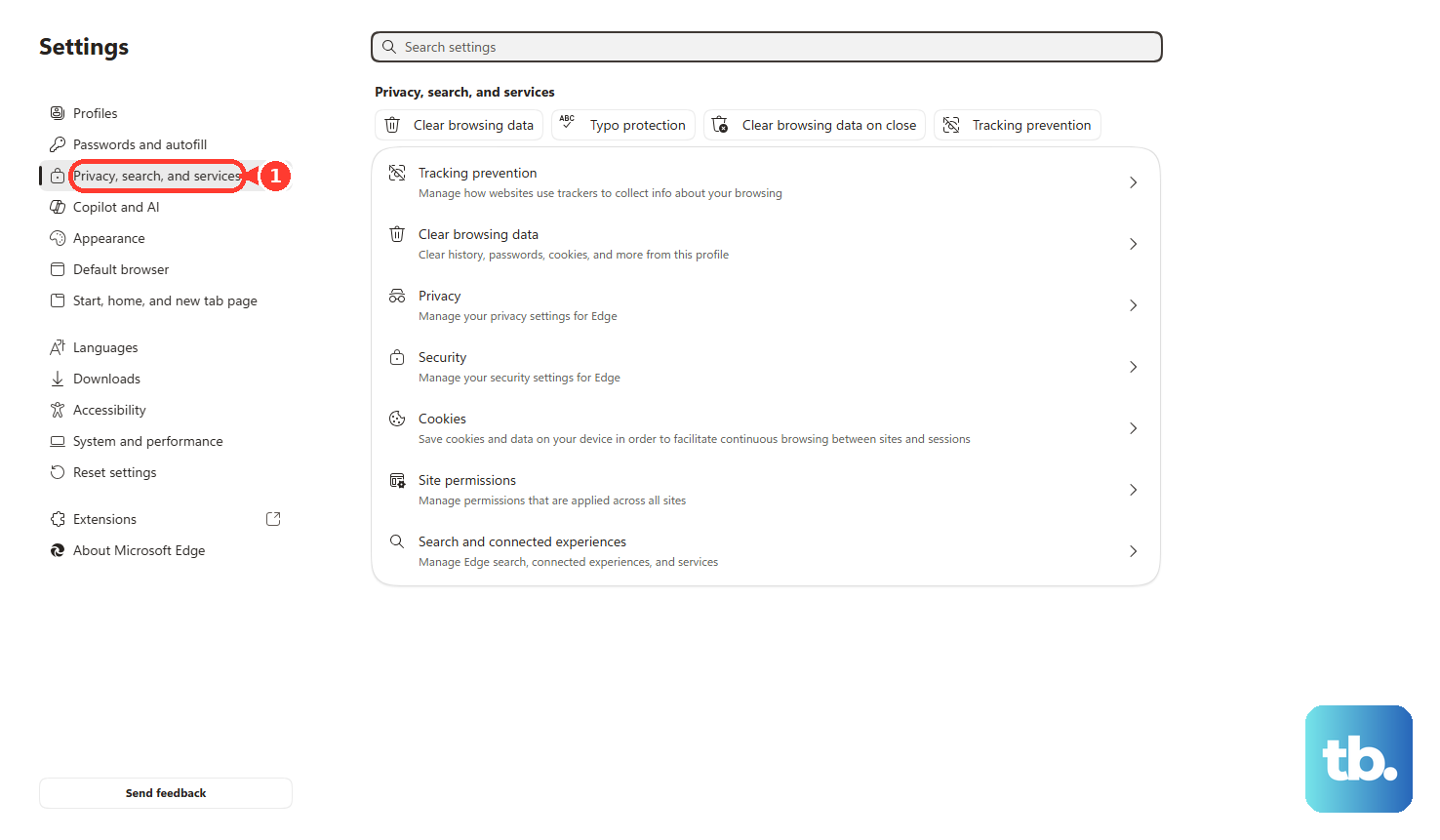
Browser permissions sit between the website and the operating system, so a site can stay blocked even after the device-level camera switch is on. For Google Meet, open meet.google.com, join a meeting, click the camera icon in the address bar, turn on Camera, then click Allow on every visit.
5. Restart and install current updates
A real restart clears camera sessions that stayed stuck after sleep, app switching, or a failed call. Then install the updates the device offers.
On Windows 11, click Start > Power > Restart. After it restarts, open Start > Settings > Windows Update > Check for updates, then open Advanced options > Optional updates and install camera driver updates.
On Mac, open Apple menu > System Settings > General > Software Update, install available updates, then retest the camera.
On iPhone or iPad, restart the device, then open Settings > General > Software Update and install the latest iOS or iPadOS update.
On Samsung Galaxy, open Settings > Software update or System updates > Download and install or Check for software updates.
For Zoom, uninstall Zoom, open the Zoom Download Center, install the latest Zoom Workplace app, then test the camera again.
6. Reset phone camera settings and app data
On iPhone or iPad, open Control Center and tap Flashlight to test the flash. If flash fails only in photos, open Camera, tap the flash button, and choose a different flash setting.
On Pixel, clean the camera lens and laser, restart the phone or tablet, clear the Camera app cache, update apps, and check app conflicts.
On Samsung Galaxy, open Camera > Settings > Reset settings > Reset. On Galaxy S25 series and One UI 7.0 or later, tap the four-dot Quick settings icon first, then tap Settings.
On Samsung Galaxy, open Settings > Apps > Camera > Storage > Clear cache. If the Camera app still fails, tap Clear data and confirm.
On Samsung Galaxy, open the power menu, touch and hold Power off until the Safe mode icon appears, then tap Safe mode. Test Camera; if it works in Safe mode, return to normal mode and uninstall recently installed or suspect third-party apps.
When the phone camera app opens but behaves badly, reset the camera app before you chase hardware service.
7. Repair Windows camera drivers
If Windows cannot see the camera, fix the disabled device or driver from Windows settings and Device Manager.
- 1.Open Start > Settings > Bluetooth & devices > Cameras. Under Disabled cameras, select the camera, then choose Enable.
- 2.Open Device Manager > Cameras, right-click the camera, then choose Enable device. If the menu shows Disable device, the camera is already enabled.
- 3.Right-click the camera, choose Update driver > Search automatically for drivers, then restart after the update.
- 4.If the camera stopped after a driver change, open Properties > Driver > Roll Back Driver > Yes, then restart.
- 5.If the camera still fails, open Properties > Driver > Uninstall Device, select Attempt to remove the driver for this device, choose OK, then click Action > Scan for hardware changes and restart.
For Windows error 0xA00F4244 NoCamerasAreAttached, open Device Manager > Cameras, right-click the problem camera, then choose Properties > Driver > Update driver > Browse my computer for drivers > Let me pick from a list of available drivers on my computer > USB Video Device > Next > Close.
8. Check Mac Screen Time and Surface camera fixes
On Mac, open Apple menu > System Settings > Screen Time > Content & Privacy > App Restrictions or Apps, then make sure Camera is selected.
Still in Screen Time, open App Limits and make sure the app that needs the camera is off or not selected.
On Apple silicon Macs, restart the computer.
On Intel-based Macs, use Apple's SMC reset procedure for that Mac model.
On Surface, open Device Manager > Cameras, look for Intel(R) TGL AVStream Camera or Intel(R) AVStream Camera, then use Driver > Uninstall Device > Attempt to remove the driver for this device > Uninstall, and restart the Surface. Do not use this Surface driver removal path on Surface Pro X.
To force-restart a Surface, click Start > Power > Shut down, wait, then hold the power button for 20 seconds through the first logo until the logo appears again.
Mac Screen Time can block the camera outside the normal privacy menu. Surface devices also have a specific camera-driver path.
9. Stop when admin policy blocks the camera
Work and school devices can block camera access with management policy. Reinstalling apps will not override that.
On Windows, organization settings can control Allow Use of Camera and camera device restrictions through management tools such as Intune.
Managed Chrome and ChromeOS can enforce video input rules.
Managed Microsoft Edge can control video capture with VideoCaptureAllowed and VideoCaptureAllowedUrls.
When camera settings are grayed out or marked as managed by your organization, contact the work or school admin.
Frequently Asked Questions
Why is my camera black even though the app opens?
Check the physical shutter, lens cover, app camera selection, device camera access, and app permission. If the built-in Camera app also shows black, move to updates, drivers, or device service.
Why does my camera work in the Camera app but not Zoom, Teams, or Meet?
The hardware is working. Allow camera access for the meeting app or website, refresh the browser tab if needed, then select the correct camera inside Zoom, Teams, or Meet.
What does Windows camera error 0xA00F4244 mean?
Microsoft documents 0xA00F4244 as NoCamerasAreAttached. Enable the camera, update or reinstall its driver, then try the generic USB Video Device driver when Windows still does not recognize it.
Why is my phone camera blurry after I cleaned it?
Remove any case, film, polarizer, extender, magnifier, metallic case, magnetic lens mount, or accessory that affects the lens or stabilization, then test the front and rear cameras separately.
Can Screen Time block the camera on a Mac?
Yes. Open System Settings, check Screen Time Content & Privacy settings, make sure Camera is allowed, and remove app limits from the app that needs camera access.