Your Apple Store password reset is stuck, and another attempt has brought you back to the same screen. Your Apple Account, formerly called Apple ID, also serves the App Store, so check which account you are resetting first. Then follow the fix that matches your roadblock, whether that is a missing code, a frozen reset page, or a security waiting period.
Check that you are resetting the right account
The wrong email address or phone number sends you through a reset for the wrong account.
On a signed-in iPhone or iPad, open Settings > [your name] > Sign-In & Security to check your account details.
On a Mac, open System Settings > [your name] > Sign-In & Security.
Without a signed-in Apple device, check the identifier under your name in iCloud for Windows.
Alternatively, look through your Apple receipts for account details. You can sign in using an email address or phone number on file for your account.
Reset from a device already signed in
Start with a trusted device, using the iPhone, iPad, or Apple Vision Pro steps below, or the Mac and signed-out alternatives at the end.
- 1.On an iPhone, iPad, or Apple Vision Pro already signed in and protected by a passcode, open Settings and select [your name].
- 2.Choose Sign-In & Security, then Change Password.
- 3.Enter the device passcode when requested.
- 4.Complete the prompts to set your new Apple Account password.
- 5.On a trusted Mac instead, open Apple menu > System Settings > [your name] > Sign-In & Security > Change Password. Authenticate with your Mac login password and finish the prompts.
- 6.If your device is signed out, use its sign-in screen: on iPhone or iPad, open Settings > Apple Account > Sign in manually > Forgot password?; on Mac, choose Apple menu > System Settings > Sign in > Forgot password. Follow the reset prompts.
Borrow a device to use Apple Support
No trusted device handy? Use the Apple Support app on a compatible device borrowed from a friend or relative, or provided at an Apple Store. This route requires access to your trusted phone number.
Open Apple Support > Support Tools > Reset Password > Help Someone Else.
Enter your account email address or phone number.
Select Continue and follow the prompts.
If this route fails or you cannot borrow a device, visit iforgot.apple.com and follow its reset prompts. It works in a browser on Windows or a borrowed computer; follow any instruction to continue on a trusted device. If neither route lets you reset the password, use the recovery options below.
Complete the security delay
Stolen Device Protection deliberately delays certain Apple Account password changes on your iPhone.
When the security delay appears, authenticate with Face ID or Touch ID.
Wait one hour.
Authenticate again to complete the change.
To check the setting, open Settings > Face ID & Passcode > Stolen Device Protection, or use Touch ID & Passcode on an iPhone with Touch ID.
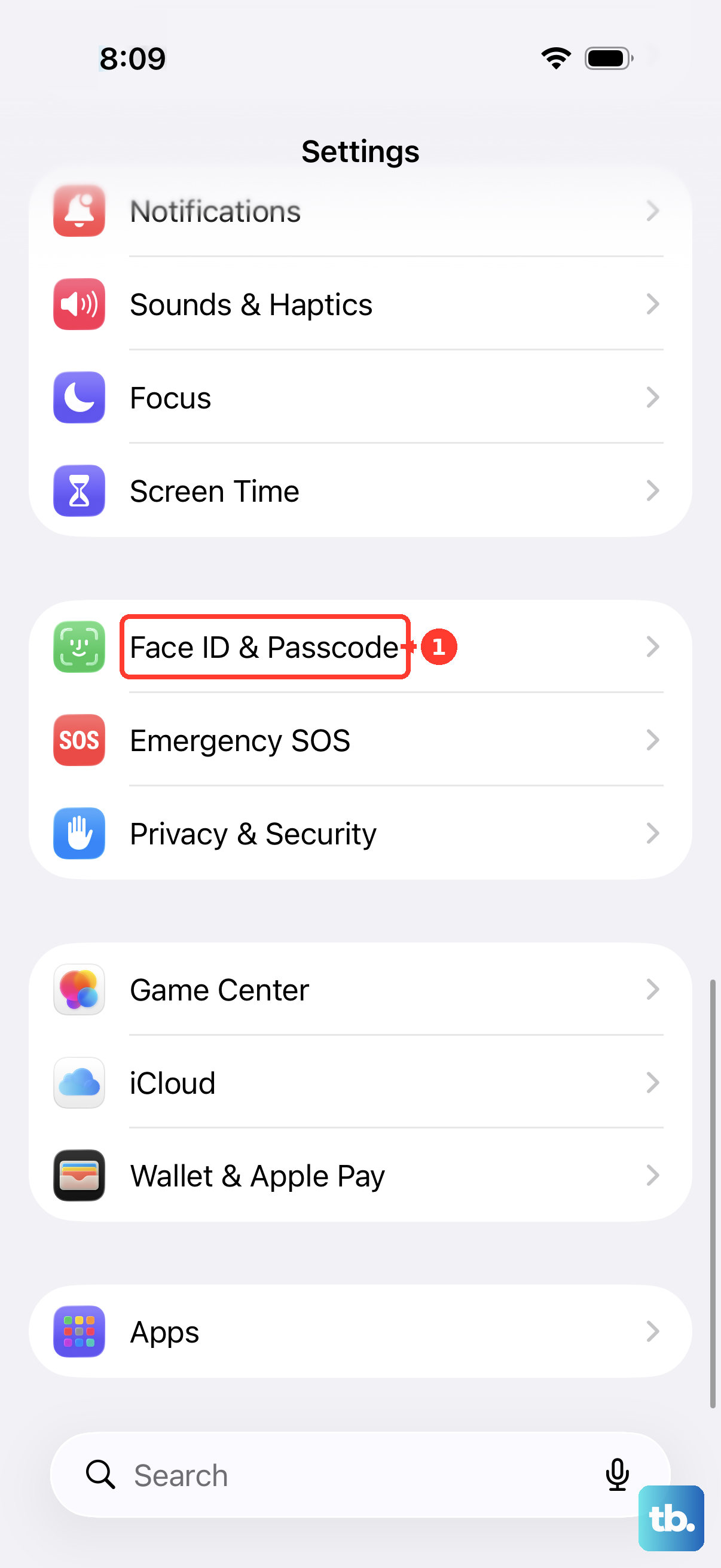
Check Require Security Delay. When it is set to Always, the delay also applies at familiar locations.
Otherwise, returning to a recognized familiar location allows the delay to end early. A newly restored iPhone needs time to recognize familiar locations, so returning home does not guarantee an immediate reset.
Restore access to grayed-out account settings
Screen Time restrictions block account changes when they are configured to disallow them. Open Settings > Screen Time > Content & Privacy Restrictions.
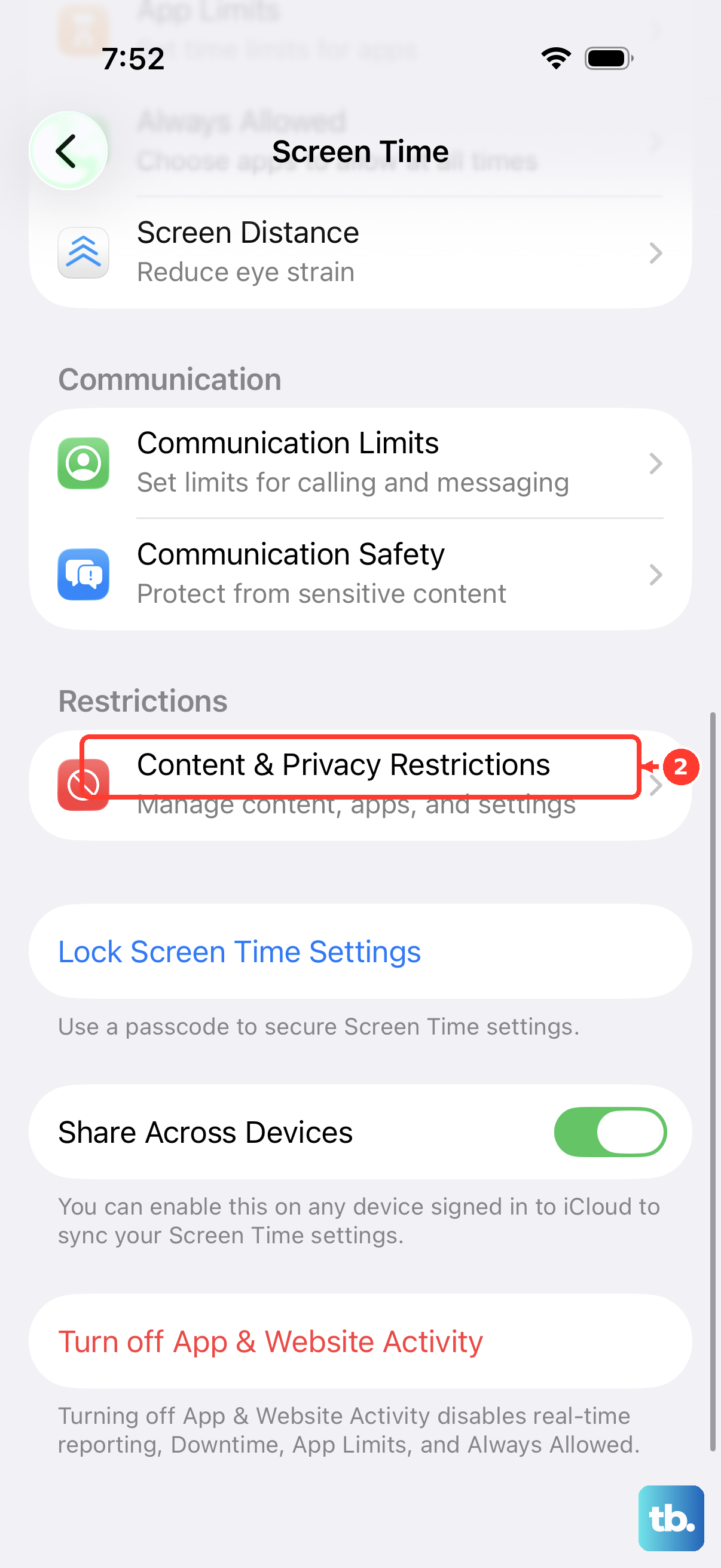
If All Restrictions is enabled, find Privacy Restrictions > Allow Changes to Settings > Accounts and select Allow.
Enter the Screen Time passcode when requested. For a child’s device, ask the parent or guardian who manages the restrictions.
Return to Settings > [your name] > Sign-In & Security > Change Password to try the reset again.
Get the missing code or reset email
Match the next action to the message you are waiting for.
For a sign-in verification code, approve the notification on a trusted device by selecting Allow.
Without that notification, select Didn’t Get a Code? or Can’t get to your devices? on the verification screen.
Request a text or call to your trusted number.
Check filtered messages for the text.
If you cannot access that number, select Can’t use [phone number] and follow the recovery prompts. If access is only temporarily unavailable, Apple recommends waiting until you can use your trusted device or number.
For a reset flow that sends email, search all associated mailboxes, including Spam, Junk, Trash, Deleted Items, and Archive.
Allow messages from email.apple.com.
Repeat the password-reset procedure to resend its email.
Contact your email provider if messages still do not arrive. Reset emails, two-factor verification codes, and account-recovery notifications serve different purposes: resending an email does not replace two-factor verification or shorten the recovery wait.
Get the reset website loading again
A connection failure stops the reset page before you reach the password prompts.
Check Apple’s System Status page for an applicable outage.
If the affected service is unavailable, retry after service returns.
Test an ordinary website using cellular data or a different Wi-Fi network.
On an iPhone or cellular-capable iPad, enable cellular access in Settings > Cellular or Settings > Mobile Data if needed.
Check your VPN app or settings if websites still fail to load. A VPN that interferes with website access also prevents the reset page from opening.
Retry iforgot.apple.com after resolving the connection problem.
For a persistent Safari loading problem on iPhone or iPad, open Settings > Apps > Safari > Clear History and Website Data > Clear History. This clears browser history and website data, so be prepared to sign in to websites again.
If JavaScript is disabled, turn it on under Settings > Apps > Safari > Advanced > JavaScript.
Reopen the reset page. These fixes address website loading; account security requirements and recovery delays still apply.
Use recovery when the direct reset fails
Use recovery when the other reset routes fail. Start with a recovery contact or recovery key if you previously set one up.
For an existing recovery contact, begin recovery and complete the identity questions.
Ask your contact to open Settings, or System Settings on Mac, then [their name] > Sign-In & Security > Recovery Contacts > Account Recovery For > [your name] > Get Recovery Code.
Enter the six-digit code they give you on your device to continue resetting your password.
If you enabled Recovery Key, enter your previously generated 28-character key when requested. This route requires an Apple device and access to your trusted phone number. Enabling Recovery Key disables standard account recovery.
Enter the verification code sent to your trusted phone number.
If the recovery key fails, update your device software before trying again, as Apple recommends. On iPhone or iPad, first back up the device.
Connect it to power and Wi-Fi.
Open Settings > General > Software Update.
Select Download and Install when offered.
For an eligible account without Recovery Key enabled, start standard recovery at iforgot.apple.com by choosing Reset Password.
Complete the identity prompts. Expect confirmation within 72 hours, although that is not the recovery deadline. The recovery waiting period varies and lasts days or longer.
Power off other devices signed in to your account while recovery is pending. If you started recovery through Settings, System Settings, or Apple Support, you are allowed to continue using that initiating device.
For recovery started in a browser, avoid using signed-in Apple devices.
Power off the initiating device too, if possible. Using your account during the waiting period puts the request at risk of automatic cancellation.
Check progress at iforgot.apple.com using the same account identifier you used to begin recovery.
Once the stated waiting period ends, return there to finish, even if the expected text or call never arrives. Apple Support cannot shorten the wait.
Resolve sign-in problems after a successful reset
Read the alert if your new password still does not restore access. A security lockout requires a password reset. For a locked or not-active account, select Request Access in the alert or use iforgot.apple.com.
For a disabled Media & Purchases account, select Continue in the alert to follow the reactivation route. A password reset alone does not guarantee that purchases are reactivated.
If repeated password prompts began after restoring an iCloud backup, keep the device connected to reliable Wi-Fi and power until restoration finishes. Those prompts alone do not establish that the reset failed.
For continuing apple.com shopping sign-in problems, contact Apple Store Customer Service through Apple’s shopping account-help page. Staff provide troubleshooting assistance, but they cannot reset the password for you.
Frequently Asked Questions
Can a parent reset a child’s Apple Account password?
Yes. On the parent’s trusted iPhone, iPad, or Apple Vision Pro, open Settings > Family > [child]. If Screen Time is enabled, select Personal Information first. Choose Change [child’s Name] Password and complete the prompts.
Why did my third-party mail app stop accepting its password after the reset?
Resetting your main Apple Account password automatically revokes existing app-specific passwords. Sign in at account.apple.com and open Sign-In and Security > App-Specific Passwords > Generate an app-specific password. Enter the generated credential in the third-party app. This does not apply to the App Store itself.
Is a physical security key the same as a recovery key?
No. A recovery key is a 28-character code. A physical security key is a separate device previously paired with your account. For an account configured with physical security keys, open Settings > [your name] > Sign-In & Security > Change Password on your iPhone. Follow the prompts to connect the key or hold an NFC key near the top of the phone.
What if my work or school controls the account or device?
Contact your organization’s IT team. If device management blocks account-password changes, the administrator must adjust the policy. For a Managed Apple Account, use your organization’s administrator reset route or, for federated authentication, its identity provider’s password-reset process. There is no universal consumer setting that overrides management restrictions.