To troubleshoot a computer green screen crash, record the stop code, restart Windows, then undo recent hardware or software changes before repairing drivers and system files. If the screen is solid green without an error message, check the display connection and graphics driver first. Use recovery tools if Windows cannot stay running long enough to make those changes.
Microsoft documents green stop screens on Windows preview builds, but the color alone does not identify the cause. These steps use Windows 11 menu labels. Follow the fixes that match your symptoms, and stop when the crashes no longer recur.
The short version
- Record the error: Save the stop code and any driver name before Windows restarts.
- Check recent changes: Remove newly added hardware or undo the driver, app, or update change that preceded the crashes.
- Separate display problems: A solid green screen or green video needs display troubleshooting before Windows recovery.
- Escalate gradually: Repair system files and test hardware before resetting Windows.
| Check or fix | When to use it |
|---|---|
| Normal restart | An isolated crash |
| Forced restart | Normal controls are unavailable |
| Reliability Monitor | You need details about a recurring failure |
| Safe Mode | Normal Windows is too unstable for repairs |
| Graphics driver reset | A solid green display with Windows still responsive |
| Cable and monitor checks | Green or corrupted display output |
| Display output selection | Windows is using the wrong output |
| Another browser | Only the video player turns green |
| Chrome graphics acceleration | Green video persists in Chrome |
| Hardware removal | Crashes began after adding hardware |
| Peripheral isolation | An external device may trigger the crash |
| Windows updates | Windows offers fixes |
| Optional driver updates | Windows offers a relevant driver |
| Build and known issue checks | A Windows release or preview build may be involved |
| Automatic driver update | A device or driver is implicated |
| Driver rollback | Crashes began after a driver update |
| Downloaded driver installation | You have a compatible manufacturer package |
| Driver reinstallation | Updating or rolling back did not help |
| App removal | Crashes followed an app installation |
| Startup app isolation | Crashes begin after sign-in |
| Clean boot | The suspected background software is unclear |
| Drive cleanup | The system drive is short on space |
| DISM repair | Persistent crashes warrant a component store repair |
| System File Checker | DISM completed successfully |
| Malware scan | Crashes remain unexplained |
| Memory diagnostic | You need to check for memory errors |
| Disk check | You suspect storage problems |
| Cooling checks | Airflow or blocked vents may be involved |
| Dell preboot diagnostics | You need hardware tests without usable Windows |
| Startup Repair | Windows cannot start |
| Quality update removal | Startup failures followed a removable update |
| System Restore | A restore point predates the crashes |
| Windows Update reinstallation | Windows still runs and offers this repair |
| Windows reset | Other software repairs have failed |
Record the stop code and restart
Write down the stop code and any driver or module named on the crash screen. Allow Windows to restart, or select Start > Power > Restart if the desktop remains usable. Investigate further if the crash happens again.
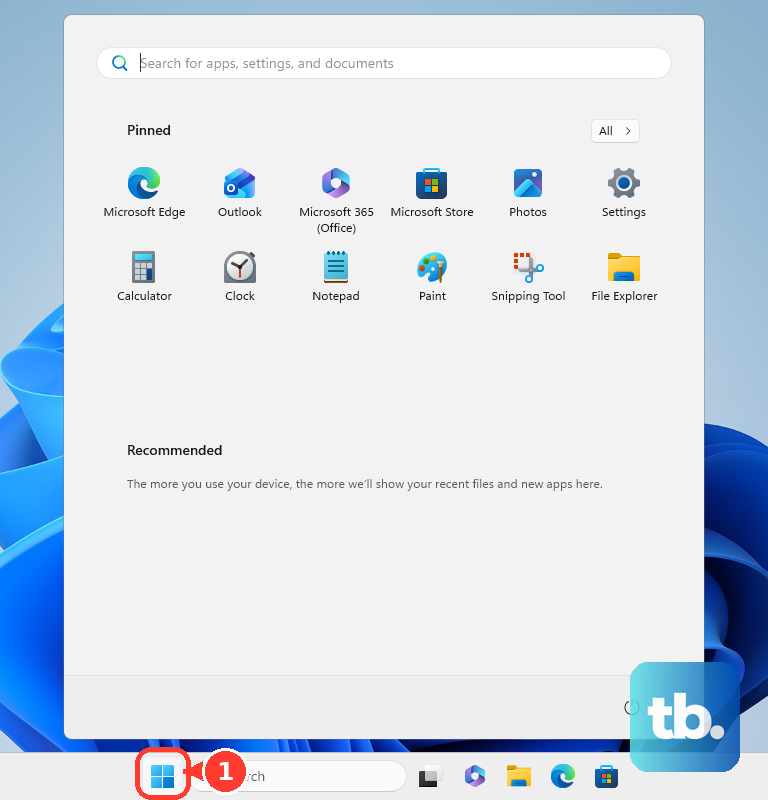
When normal controls are unavailable, restart a computer that is unresponsive by holding its power button until it shuts down, then starting it again. Microsoft's blank-screen procedure specifies approximately 20 seconds. Unsaved work can be lost, so use the normal restart controls whenever you can.
After Windows starts, search for View reliability history, select the crash date, and inspect its red failure marker. Compare the failure information with the stop code and anything installed or connected shortly before the crash. Treat a named driver as a lead, not conclusive proof that it caused the failure.
Use Safe Mode if Windows keeps crashing
If Windows will not stay running, enter recovery to access Safe Mode. Before using recovery tools, obtain your BitLocker recovery key, and back up accessible files before restoration or reinstallation. If your key was saved to a personal Microsoft account, open your BitLocker recovery keys on another device and sign in. Match the first eight digits of the displayed key ID, then enter the matching 48-digit key when requested.
To enter recovery from Windows, open Settings > System > Recovery > Advanced startup > Restart now. From the sign-in screen, hold Shift while selecting Power > Restart. Windows Recovery Environment can also open automatically after repeated startup failures.
Select Troubleshoot > Advanced options > Startup Settings > Restart, then press 4 or F4 for Enable Safe Mode. Use it to remove implicated apps or repair drivers when normal Windows is unstable. Pressing F8 alone is not a reliable Windows 11 procedure. If Windows still cannot start, use the recovery repairs in the final section.
Check a solid green screen or green video
If Windows remains responsive beneath a solid green display, press Windows + Ctrl + Shift + B to reset the graphics driver. A beep or flicker can indicate that the reset occurred. This shortcut does not repair a stop error that has already completed.
Check and reseat the display connections, then try another cable or monitor. On a laptop, disconnect external displays to test the built-in screen. For an output-selection problem, press Windows + P, press P again to move through the choices, then press Enter.
If only the video player turns green while audio continues, play the same video in another browser before changing Windows recovery settings. In Chrome, open More > Settings > System, turn off Use graphics acceleration when available, and restart Chrome. If the entire PC still crashes, continue with the driver and system checks.
Remove recent hardware and install updates
Start with hardware added immediately before the crashes began. Shut down the PC, remove that hardware following its manufacturer's instructions, and restart. For removable peripherals, disconnect everything except the keyboard and mouse, then restart and reconnect devices individually to identify which connection reproduces the crash.
Open Settings > Windows Update and select Check for updates. Install offered fixes and restart when requested. For relevant optional drivers, open Advanced options > Optional updates, select the driver updates, and choose Download and install. Restart afterward.
Check your build under Settings > System > About > Windows specifications. On an Insider PC, check the channel under Settings > Windows Update > Windows Insider Program > Choose your Insider settings. Review the Known issues for your installed version on Microsoft's Windows release health page, or the known issues in the official flight blog post for an Insider build, before making broad recovery changes.
Update or roll back the implicated driver
Right-click Start, open Device Manager, and look for devices with an exclamation mark. Prioritize the device associated with the crash message or recent change. Expand its category, right-click the device, select Update driver, choose the option that searches automatically, then follow the prompts and restart.
When crashes began after a driver update, try returning to the previous driver. Right-click the device, select Properties > Driver > Roll Back Driver, choose a reason, select Yes, and restart. This requires administrator access and an available previous driver. If rollback is unavailable, use a compatible package from the PC or component manufacturer.
To install a downloaded package through Device Manager, select Update driver > Browse my computer for drivers > Browse…. Choose the driver folder, then select OK > Next > Close. Match the package to your hardware and Windows version.
If updating or rolling back does not help, have the correct manufacturer driver available before reinstalling the device. Right-click it in Device Manager, select Uninstall device > Uninstall, then restart. Windows attempts to reinstall the driver; use the manufacturer package if automatic reinstallation fails.
Isolate recently installed and startup apps
If crashes followed an app installation, open Settings > Apps > Installed apps, open the suspected app's More menu, and select Uninstall. Restart and check whether the same activity still triggers a crash.
For crashes that begin after sign-in, stop apps from opening on startup through Settings > Apps > Startup. Set the suspected app to Off, restart, and compare the behavior. Re-enable it after testing if it is not responsible.
Use a clean boot when the suspected background software is unclear, recording the original settings first. As an administrator, search for System Configuration, open Services, select Hide all Microsoft services, then choose Disable all > Apply. Open Startup > Open Task Manager and disable enabled startup apps.
Close Task Manager, select OK, and restart. If the crashes stop, re-enable items in groups to isolate the culprit. Restore the original settings after testing so unrelated services are not left disabled.
Free drive space and repair system files
Open File Explorer > This PC and check the system drive under Devices and drives. Microsoft recommends approximately 10 to 15 percent free space when troubleshooting stop errors. To clear space, open Settings > System > Storage > Cleanup recommendations, review the categories, and select Clean up.
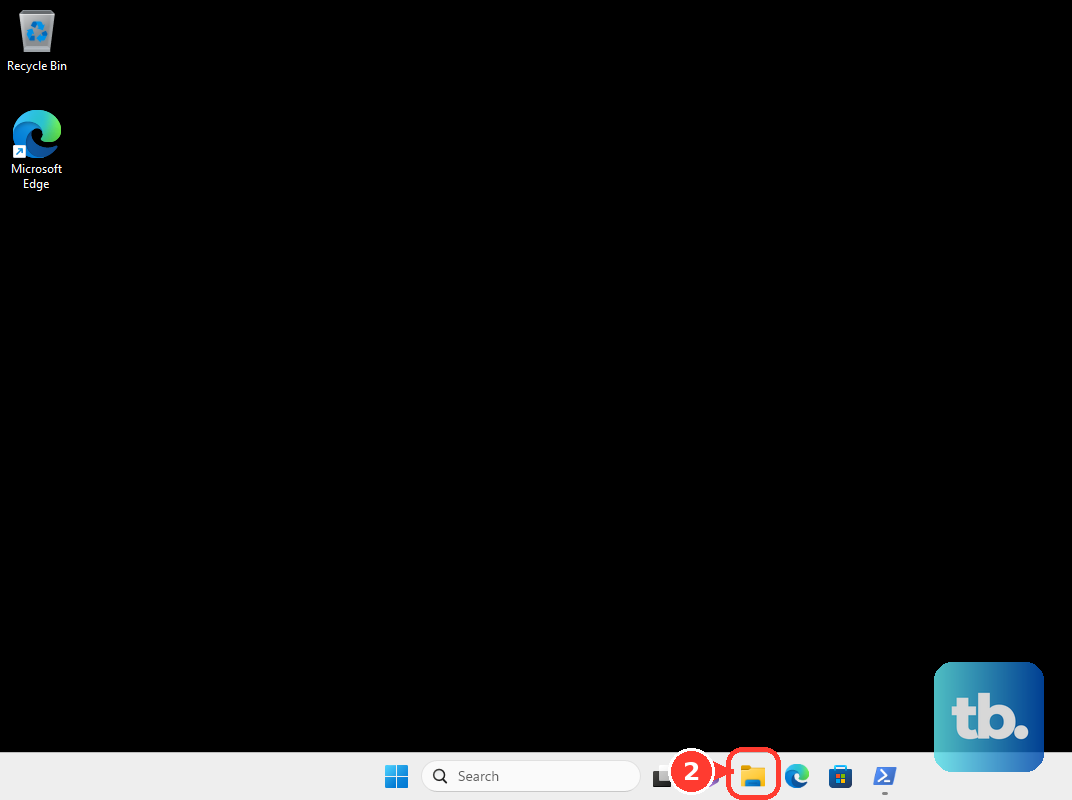
For persistent crashes, repair the Windows component store before checking protected system files. Search for Command Prompt, select Run as administrator, choose Yes, and run this command:
DISM.exe /Online /Cleanup-image /RestorehealthWait for DISM to complete successfully before proceeding. Then run System File Checker in the same elevated Command Prompt:
sfc /scannowAllow verification to finish, then check whether the crashes recur. If they remain unexplained, run a malware scan through Windows Security > Virus & threat protection > Scan options. Choose Full scan or Microsoft Defender Antivirus (offline scan), then initiate the scan. Offline scanning restarts the PC; review Protection history afterward.
Test memory and check cooling
Search for Windows Memory Diagnostic and select Restart now and check for problems. Review the results notification after the test, or open Event Viewer > Windows Logs > System and find MemoryDiagnostics-Results. Report memory errors to the PC manufacturer before attempting a Windows reset.
For suspected storage problems, open Command Prompt as administrator. Run the following command, replacing the drive letter if another drive is affected:
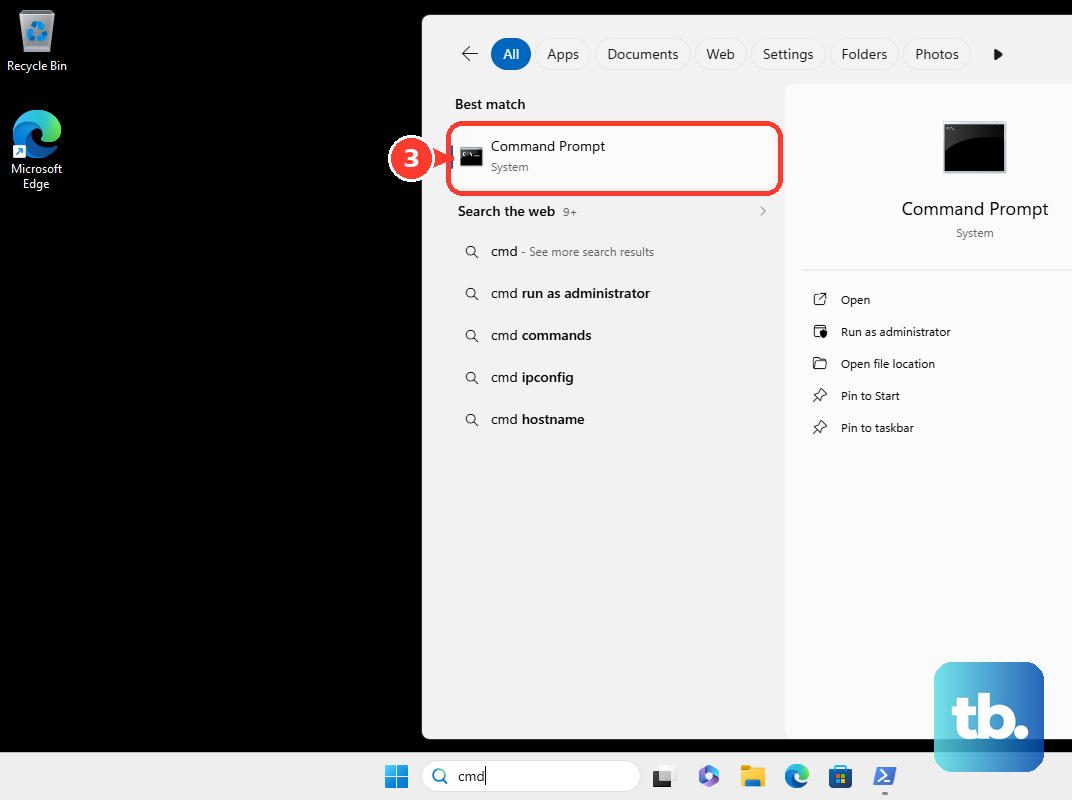
chkdsk C: /f /rIf asked to schedule the check, type Y, press Enter, and restart. Allow considerable time for the check to finish.
Check cooling by using a hard, flat surface and inspecting airflow and blocked vents. Follow the manufacturer's powered-off vent-cleaning instructions. Temperature alone does not establish the cause of a green crash, so continue with diagnostics if improving airflow does not help.
On a Dell PC, press F12 at startup and select Diagnostics to test hardware without usable Windows. Record any error and validation codes for support. If hardware tests identify a fault, use those results to arrange repair before reinstalling Windows.
Restore or repair Windows if crashes continue
If Windows cannot start, enter recovery and select Troubleshoot > Advanced options > Startup Repair > Restart. For a crash that began after a quality update, use Uninstall Updates > Uninstall latest quality update in the same advanced menu. Some updates cannot be uninstalled.
An existing restore point offers another way to undo recent system changes while retaining personal files. In recovery, choose Troubleshoot > Advanced options > System Restore, select a point from before the crashes, then choose Next > Finish. Restart after restoration and check the behavior again.
When Windows still runs, try Settings > System > Recovery > Fix problems using Windows Update > Reinstall now > OK. This repair preserves files, apps, and settings, but may be unavailable on managed devices. Keep power and internet connected throughout the process.
If software repairs fail, back up your files before you reset a laptop through Windows recovery. Open Settings > System > Recovery > Reset PC, or select Troubleshoot > Reset this PC when Windows cannot start. Choose Keep my files or Remove everything, then Cloud download or Local reinstall, and follow the prompts. Both reset choices remove apps and settings, while Remove everything also removes personal files.
Frequently Asked Questions
Will resetting Windows remove an Insider Preview build?
Resetting an Insider installation does not necessarily leave its preview build. On eligible devices, open Settings > Windows Update > Windows Insider Program > Stop Insider Preview Builds and enable the option to unenroll when the next public release becomes available. Experimental (Future Platforms) devices require a clean installation to leave that build line.
What can you do if Windows restarts before you can read the stop code?
In recovery, open Troubleshoot > Advanced options > Startup Settings and select Restart. Press 9 or F9 to select Disable automatic restart on system failure. This keeps the error visible long enough to record it.
Should you use Driver Verifier to find the cause?
Reserve Driver Verifier for advanced testing of a specifically suspected driver with technical guidance. Microsoft warns that it can deliberately crash your computer. It is not a routine first repair for a green screen.
Does an unexpected shutdown event identify the faulty component?
An unexpected shutdown event alone does not identify the cause. In Event Viewer > Windows Logs > System, compare errors around the crash time with your stop code and recent changes. Use those details to guide further driver or hardware investigation.
How can you report a recurring crash to Microsoft?
Press Windows + F to open Feedback Hub and start a new problem report. Enter a short, descriptive title in Summarize your feedback, describe the problem and the steps that reproduce it, and check that the selected category matches the issue. Attach relevant evidence, such as a screenshot or file, then select Submit. Feedback Hub reports bugs but does not provide immediate repair support.