
Trimming a video on Snapchat lets you cut out the dead air and keep only the moment that matters. It works on a clip you just recorded, a video you imported from your camera roll, and even the Sound playing over your Snap.
The exact buttons have changed over the years as Snapchat moved editing into its Timeline Editor, so the steps below reflect how trimming works in the current app. Layouts can differ slightly between iPhone and Android and between app versions, so look for the labeled option rather than a fixed screen position.
What Trimming Does to Your Snap
When you trim a video, you set a new start and end point by dragging the ends of the clip inward. Everything outside those points is left out of the Snap you send, so you can drop a slow intro or a shaky ending without re-recording.
Trimming only affects the version you are about to share. The original video in your camera roll or Memories stays untouched, so you can always go back to the full clip later.
This matters because Snaps have length limits. A single recorded Snap is short by default, while uploads can run longer, so trimming helps you fit a clip into the format and hold your viewer's attention.
Trim a Video You Just Recorded
Open Snapchat, press and hold the capture button to record your video, then release when you are done.
You land on the preview screen with your clip ready to edit.
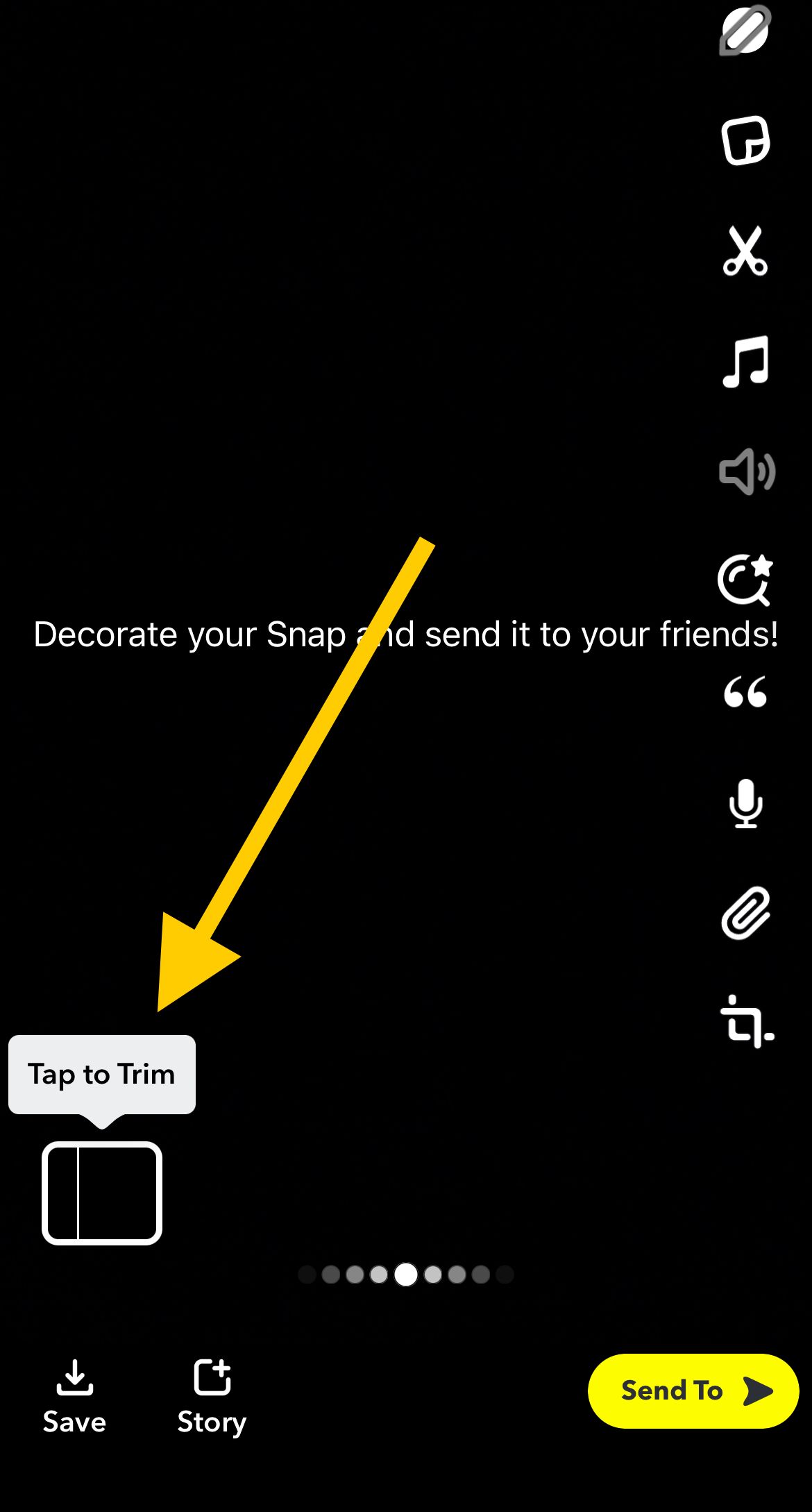
On the preview screen, tap the video thumbnail labeled Edit, or tap the three dots menu and choose Edit Video to open the Timeline Editor.
Find your clip on the timeline at the bottom of the screen.
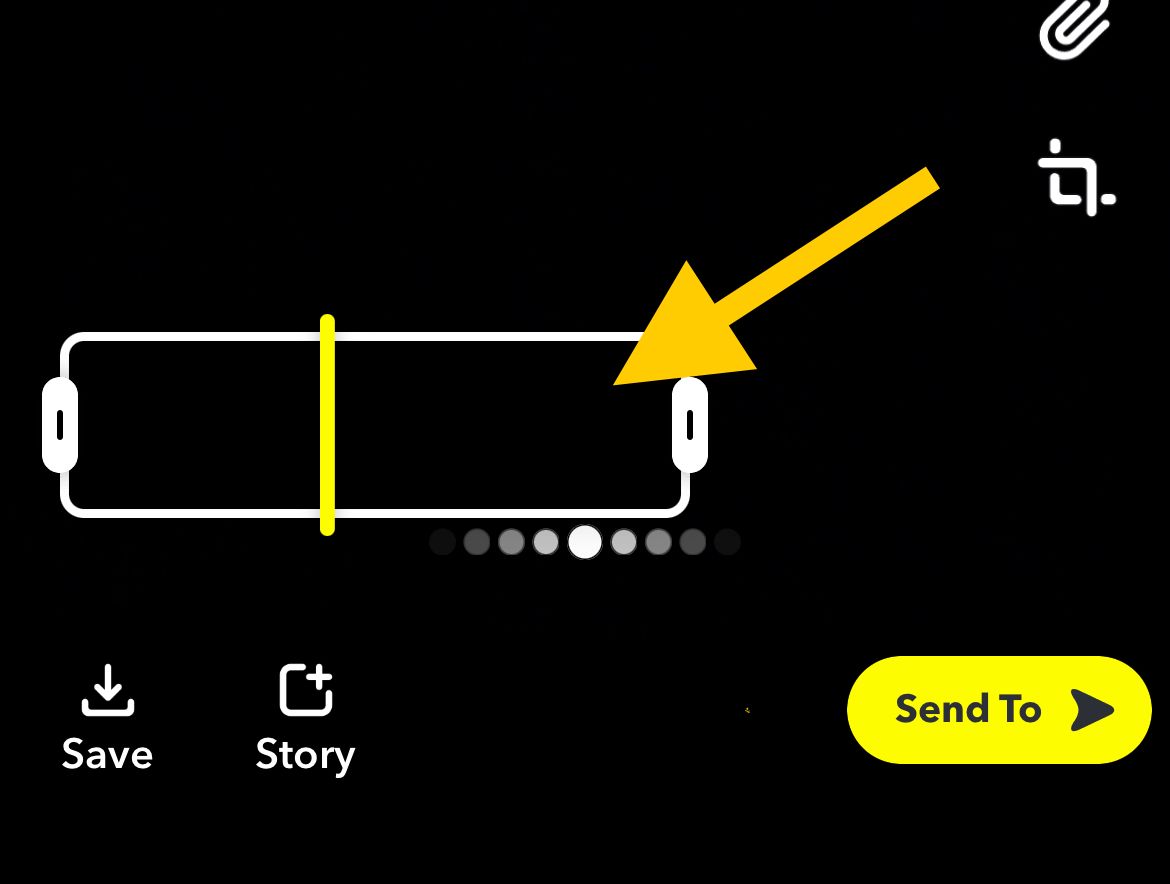
Drag the handle on the left inward to set a new start point, and drag the handle on the right inward to set a new end point.
Play the clip to confirm the trim catches exactly the part you want.
When you are happy with the cut, tap Send To to share it with friends or post it to your Story. You can also save the trimmed Snap to Memories or your camera roll before sending if you want to keep this version.
Trim a Video from Your Camera Roll
You can import a video you already filmed and trim it the same way inside Snapchat. Start from the Camera screen so you can reach the gallery.
Tap the gallery or Memories button next to the capture button, then select the video you want to use.
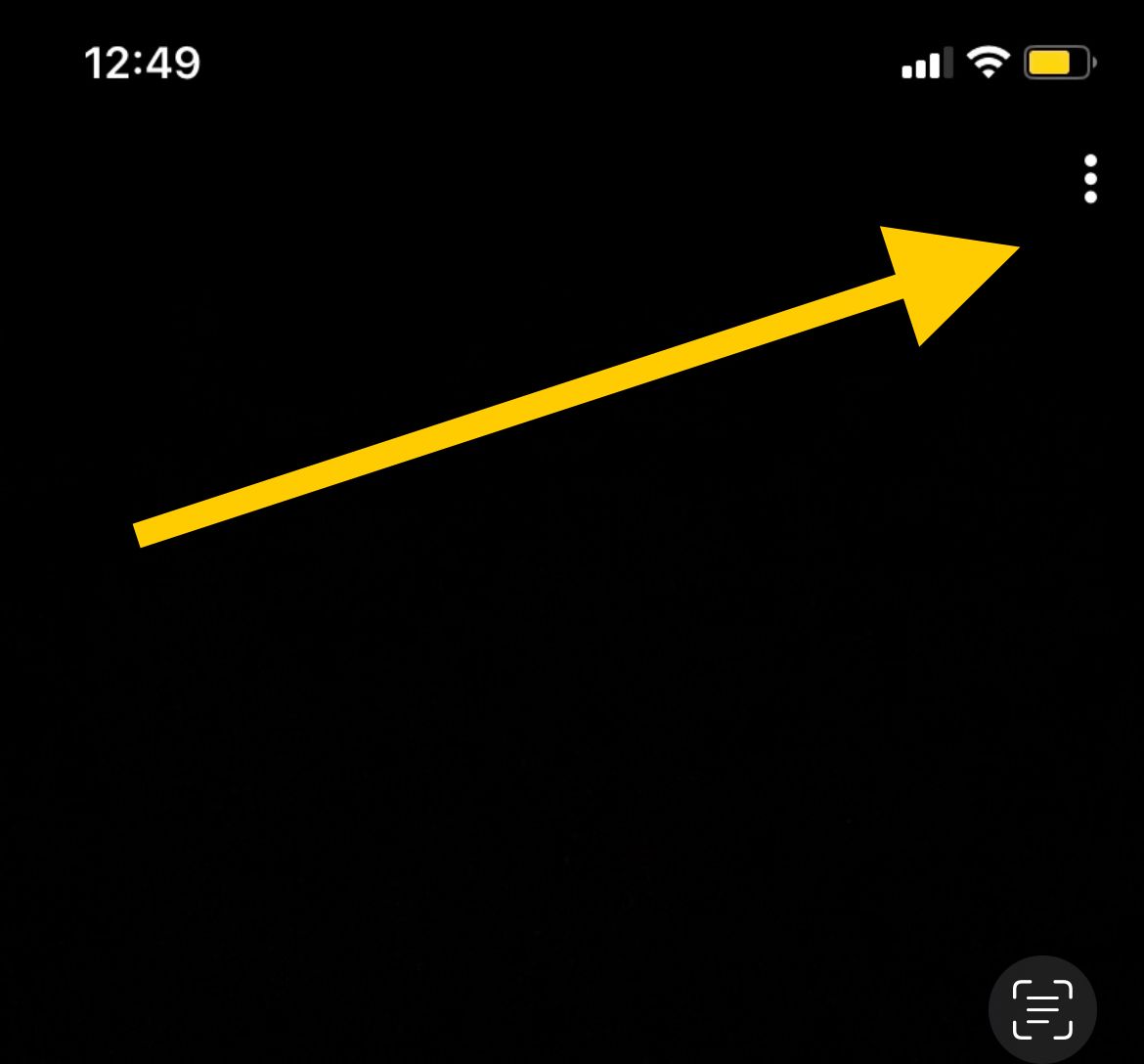
Next, tap the three dots menu in the top corner and choose Edit Video.
On the timeline, drag the left and right handles inward to set your start and end points.
After that, preview the clip, then adjust the handles again if the trim cuts too early or too late.
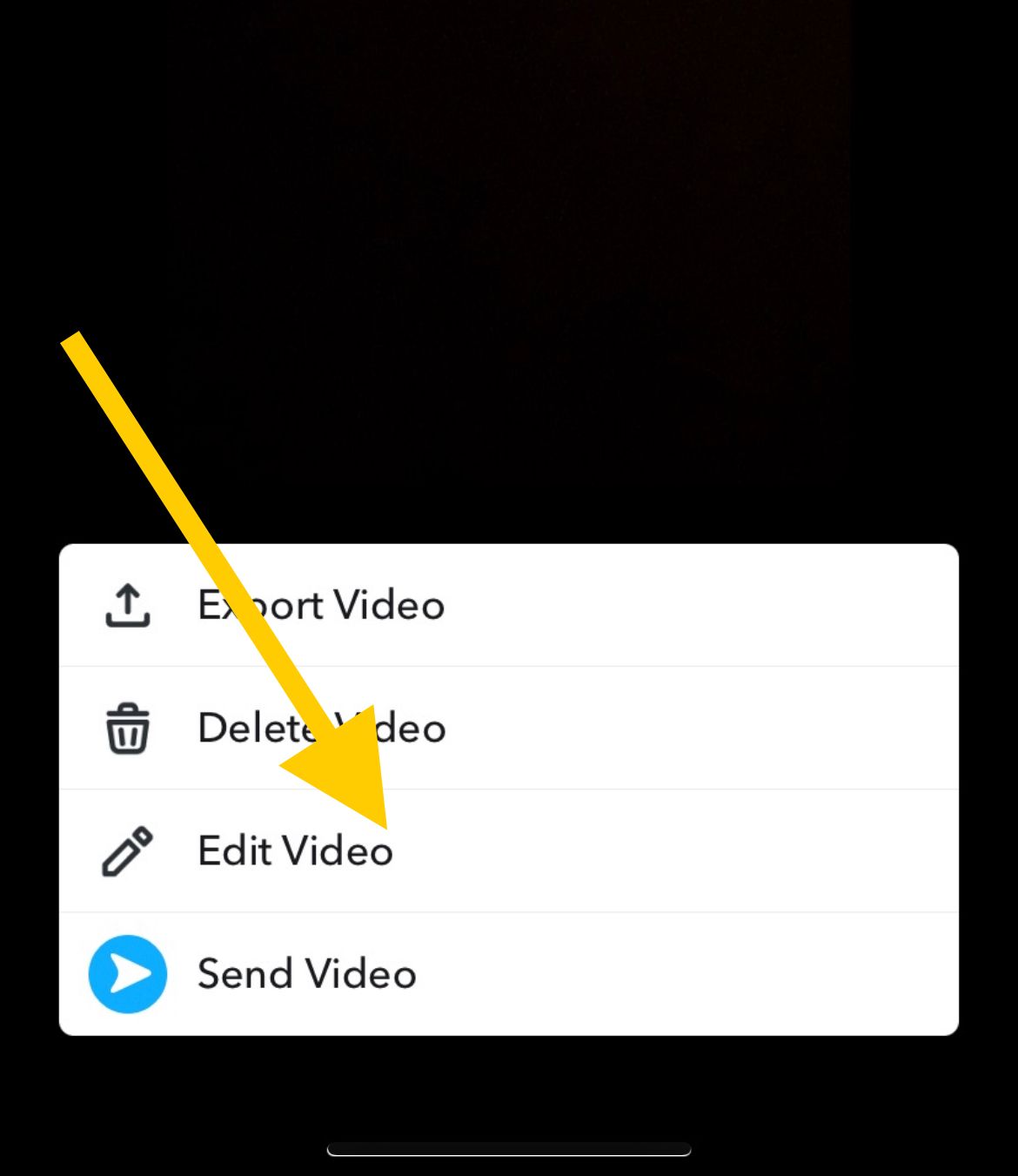
Once the clip looks right, send it to a friend or your Story, or save the edited copy. On some devices the trim and Edit Video options vary by app version, so if you do not see them, update Snapchat to the latest release first.
Trim a Sound on Your Snap
If you add music or a Sound to your Snap, you can trim it so the right part of the track lines up with your video. This keeps the chorus or the punchline playing at the exact moment you want.
In the editor, tap Sounds or the music note icon and choose a track.
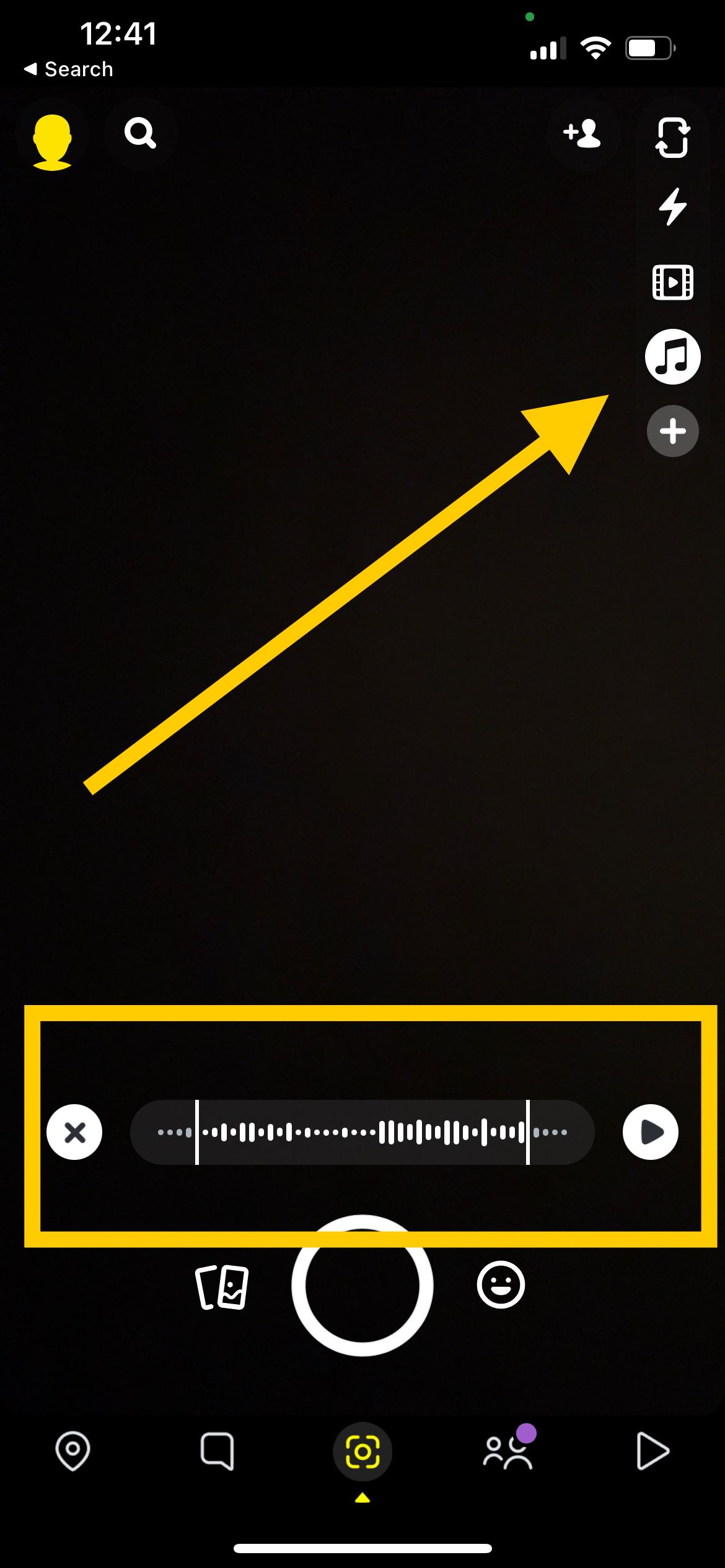
Then drag the handles on the Sound to pick which section of the song plays over your clip.
Preview the Snap so the audio and video stay in sync, then send or save it.
Only one licensed song can play at a time. If your video is longer than the section of the track you chose, the Sound may loop to fill the rest of the clip.
Frequently Asked Questions
Does trimming a video on Snapchat delete the original file
No. Trimming only changes the version you send. The full video stays in your camera roll or Memories, so you can edit it again differently at any time.
Why can I not find the trim or Edit Video button
The editing tools depend on your app version and device. Update Snapchat to the latest release, then look for the Edit thumbnail or the Edit Video option in the three dots menu on the preview screen.
How long can a Snapchat video be
A single recorded Snap is short, while Snapchat lets you record longer clips and upload even longer videos for Chats, Stories, and Spotlight. Trimming helps you fit a clip within the format you are posting to.
Can I trim a video after I save it to Memories
Yes. Open the clip from Memories, choose the edit option, and drag the handles to trim it. Saving the edited version creates a separate copy and keeps the original intact.
Can I trim the music separately from the video
Yes. After adding a Sound, drag the handles on the audio layer to choose which part of the song plays. The video and the Sound are trimmed independently.