Switching to a new Samsung Galaxy Z Fold 7 should feel like upgrading, not a headache. Samsung's Smart Switch tool makes moving everything from your old phone pretty painless, whether you're coming from another Android or an iPhone. Here's the fastest way to get your data onto that gorgeous foldable screen.
Smart Switch handles it all
Smart Switch is built into your Z Fold 7. Open Settings > Accounts and backup > Bring data from old device to find it. You can connect wirelessly or with a cable, and it'll move contacts, messages, photos, apps, and even home screen layouts.
If you go wireless, install Smart Switch on your old phone too (it's free on the Play Store or Galaxy Store). Choose Send data on the old device and Receive data on your Fold. Keep the two phones within a few feet of each other while it transfers.
Use a USB-C cable for faster transfers
For the quickest move, grab a USB-C to USB-C cable and connect both phones. You'll need a USB-OTG adapter if your old phone uses micro-USB, but your Z Fold 7 supports the cable natively. Smart Switch detects the connection automatically and runs much faster than wireless, especially with a big photo library.
If the cable doesn't seem to work, check the USB-C port on your Fold for lint or dust. A quick blast of compressed air can clear it out. Press and hold Volume down and Side together for ten seconds to force restart the phone if it gets stuck.
Bringing data from an iPhone
Smart Switch works with iPhones too. Open it on your Z Fold 7 and pick iPhone/iPad as the source. You can connect with a Lightning to USB-C cable directly or grab data from your iCloud backup by signing into your Apple ID in Smart Switch.
Messages, contacts, photos, and calendar entries transfer smoothly. Apps won't come over directly because they're different platforms, you'll download their Android versions from the Play Store. WhatsApp can be transferred separately (more on that below).
Restore from Samsung Cloud or Google
If your old Samsung or Android phone was backed up to Samsung Cloud, sign into your Samsung account during setup and choose Restore from Samsung Cloud. It'll bring over your recent backup.
Your Google account syncs automatically too. Contacts, calendar, Chrome bookmarks, and app data all come through. Go to Settings > Accounts and backup > Manage accounts > Google and make sure sync is turned on for everything you need.
Moving WhatsApp and other app data
WhatsApp has its own transfer tool. On your old phone, open WhatsApp and go to Settings > Chats > Transfer chats. Follow the prompts, then switch to your Z Fold 7, install WhatsApp, and verify your number. The chat history should appear.
For other apps, check if they have cloud sync built in. Games usually save progress to Google Play Games, and many apps like Spotify and Netflix store your settings on their servers. You'll only need to log in again after the transfer.
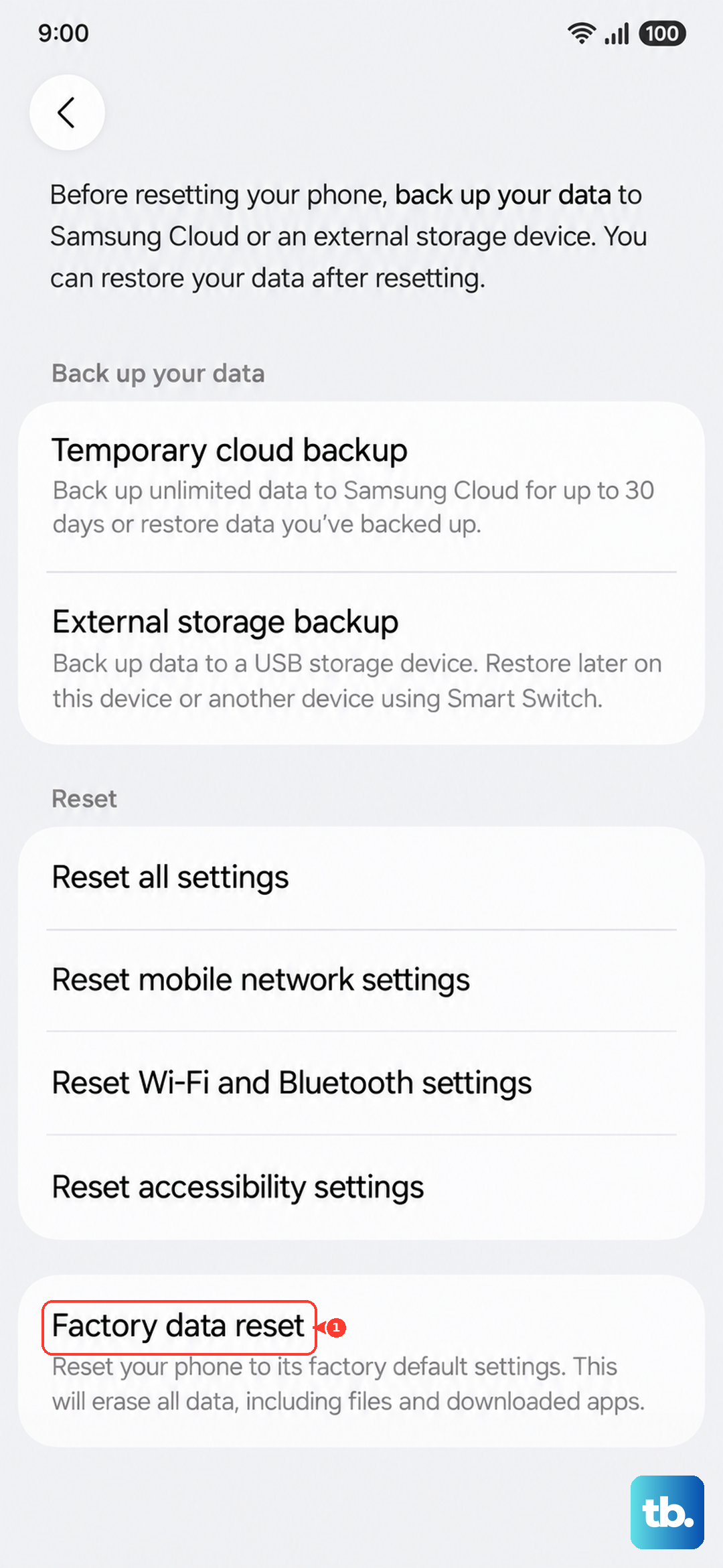
Once everything lands on your Galaxy Z Fold 7, take a few minutes to check your photos, contacts, and key apps. Sign back into anything that asks. When you're sure everything is there, wipe your old phone: Settings > General management > Reset > Factory data reset. That's it, your new foldable is ready to go.