Moving to a new tablet is one of those tasks that sounds complicated but really isn't. The Samsung Galaxy Tab S11 Ultra gives you several ways to bring everything over from your old device, and most of them take just a few taps. Here's how to get it done.
Smart Switch Is Your Best Bet
Samsung's Smart Switch app handles practically everything and it's probably already installed on your Tab S11 Ultra. Open Settings > Accounts and backup > Bring data from old device to launch it. You can connect wirelessly, with a USB cable, or from an SD card if you have one handy.
If you're going wireless, grab your old phone or tablet and install Smart Switch from the Play Store if it isn't there already. On your old device, tap Send data. On the Tab S11 Ultra, tap Receive data. Keep both devices close to each other and follow the prompts to pick what comes over.
You can transfer apps, contacts, messages, photos, videos, settings, and even your home screen layout. It's thorough enough that your new tablet will feel familiar within minutes.
Use a USB Cable for Speed
For the fastest option, connect both devices directly with a USB cable. If your old phone or tablet supports USB-C, a USB-C to USB-C cable does the job. If it's an older device with micro-USB, grab a USB-OTG adapter to connect them.
Smart Switch detects the cable connection immediately. This method is much faster than wireless, especially if you have a lot of photos or videos. Select what you want to transfer and tap Transfer. The Tab S11 Ultra's large screen makes it easy to see everything you're moving.
Bringing Data from an iPhone or iPad
If you're switching from an Apple device, Smart Switch handles that too. Open Smart Switch on your Tab S11 Ultra and choose iPhone/iPad as the source. You can either connect with a Lightning to USB-C cable or pull data from an iCloud backup.
For the iCloud method, sign into your Apple ID right inside Smart Switch and select your most recent backup. Contacts, messages, photos, calendar events, and notes come over. Apps don't transfer directly since they're built differently, but the Play Store will help you download Android versions.
Restore from Samsung Cloud
If your old Samsung tablet had Samsung Cloud backups going, you can restore them during setup. When you first turn on the Tab S11 Ultra, sign into your Samsung account. Pick Restore from Samsung Cloud and select the backup you want. This method is nearly effortless.
Keep in mind that Samsung Cloud backups don't always include everything. Photos and videos might not be there if you have them synced to Google Photos instead. Double check that your important files are stored somewhere accessible before wiping your old device.
Google Account Sync
Your Google account handles a ton of background syncing automatically. Contacts, calendar events, Gmail, Chrome bookmarks, and app data all sync when you sign into the same account on your Tab S11 Ultra. Go to Settings > Accounts and backup > Manage accounts > Google and make sure everything you need is toggled on.
This method works alongside Smart Switch, so you're not choosing one or the other. Signing into Google brings over the cloud stuff while Smart Switch handles the local data. Together they cover pretty much everything.
Move WhatsApp and Other App Data
WhatsApp on the Tab S11 Ultra works through the tablet version of the app. To transfer your chat history, open WhatsApp on your old phone, go to Settings > Chats > Transfer chats, and follow the on-screen instructions. This sends your messages and media to the new device.
Other apps handle data differently. Games often sync progress through Google Play Games automatically. Productivity apps like Todoist or Notion save to their own cloud servers when you log in. For anything that doesn't seem to transfer, check the app's settings for an export or backup option.
What to Do After Everything Moves Over
Once the transfer finishes, take a few minutes to confirm everything landed. Check your contacts list, scroll through your photo gallery, and open a few apps to see if they're signed in. Some apps will ask you to log in again for security reasons.
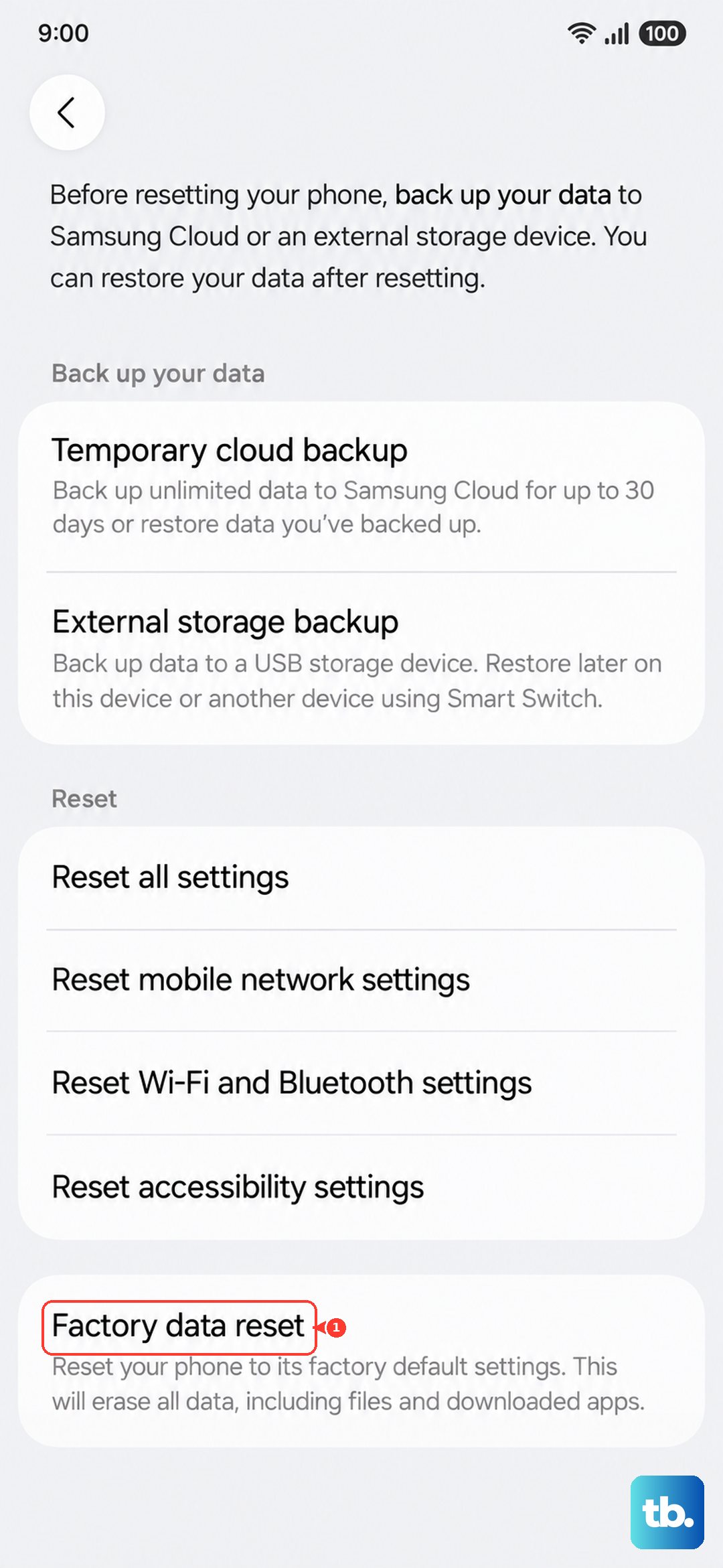
When you're confident everything is on the Tab S11 Ultra, you can safely wipe your old device. On a Samsung phone or tablet, go to Settings > General management > Reset > Factory data reset. This removes your personal data so you can trade it in, sell it, or pass it on without worry.