Moving to a new Samsung Galaxy S25 Edge should feel like an upgrade, not a chore. Samsung's built-in tools make it straightforward to bring everything over from your old phone, whether it's another Android device or an iPhone. Here's how to get your data onto your new S25 Edge without the headache.
Start with Smart Switch
Smart Switch is Samsung's official transfer tool, and it's the easiest way to move your stuff. On your new Galaxy S25 Edge, open the Smart Switch app. If you don't see it on the home screen, swipe up to open the app drawer and search for it. Then pick how you want to connect: wirelessly, with a USB cable, or via SD card/external storage.
If you choose wireless, download Smart Switch on your old phone from the Galaxy Store or Play Store. Select Send data on the old phone and Receive data on the S25 Edge. Follow the on-screen prompts to choose what to transfer, contacts, messages, photos, apps, settings, you name it. Keep both phones close during the transfer.
Use a USB-C Cable for Speed
The Galaxy S25 Edge has a USB-C port, which makes wired transfers quick and reliable. Connect your old phone to the S25 Edge using a USB-C to USB-C cable, or use a USB-OTG adapter if your old phone has a different port. Smart Switch will detect the connection automatically.
This method is noticeably faster than wireless, especially if you're moving a lot of photos or apps. Plug in, pick what to transfer, and let it run. You don't even need Wi-Fi for this.
Bring Data from an iPhone
Switching from an iPhone to the Galaxy S25 Edge? Smart Switch handles that too. Open the app on your Samsung and select iPhone/iPad as the source. You can either connect via cable (you'll need a Lightning to USB-C cable) or restore from an iCloud backup.
For iCloud, sign into your Apple ID in Smart Switch, pick the most recent backup, and select what to bring over. Contacts, messages, photos, and calendar entries transfer smoothly. Apps won't come over directly, you'll need to download them fresh from the Play Store.
Restore from Samsung Cloud
If you already backed up your old Samsung phone to Samsung Cloud, the S25 Edge can restore that backup during its initial setup or later through the settings. Sign into your Samsung account, go to Settings > Accounts and backup > Samsung Cloud > Restore data, and pick the backup you want.
Sync with Your Google Account
Most of your daily data lives in your Google account anyway. When you sign into the same Google account on the S25 Edge, contacts, calendar events, Chrome bookmarks, and app data sync automatically. Open Settings > Accounts and backup > Manage accounts > Google to check what's syncing and toggle anything missing.
This isn't a one-time transfer, it's a continuous sync, so new stuff on any device shows up everywhere.
Move WhatsApp and Other Apps
WhatsApp has its own migration tool these days. On your old phone, open WhatsApp, go to Settings > Chats > Transfer chats, and follow the prompts. On the S25 Edge, make sure you're using the same phone number during setup. For other apps, look for cloud sync options inside each app. Games usually save progress to Google Play Games automatically.
What to Do After the Transfer
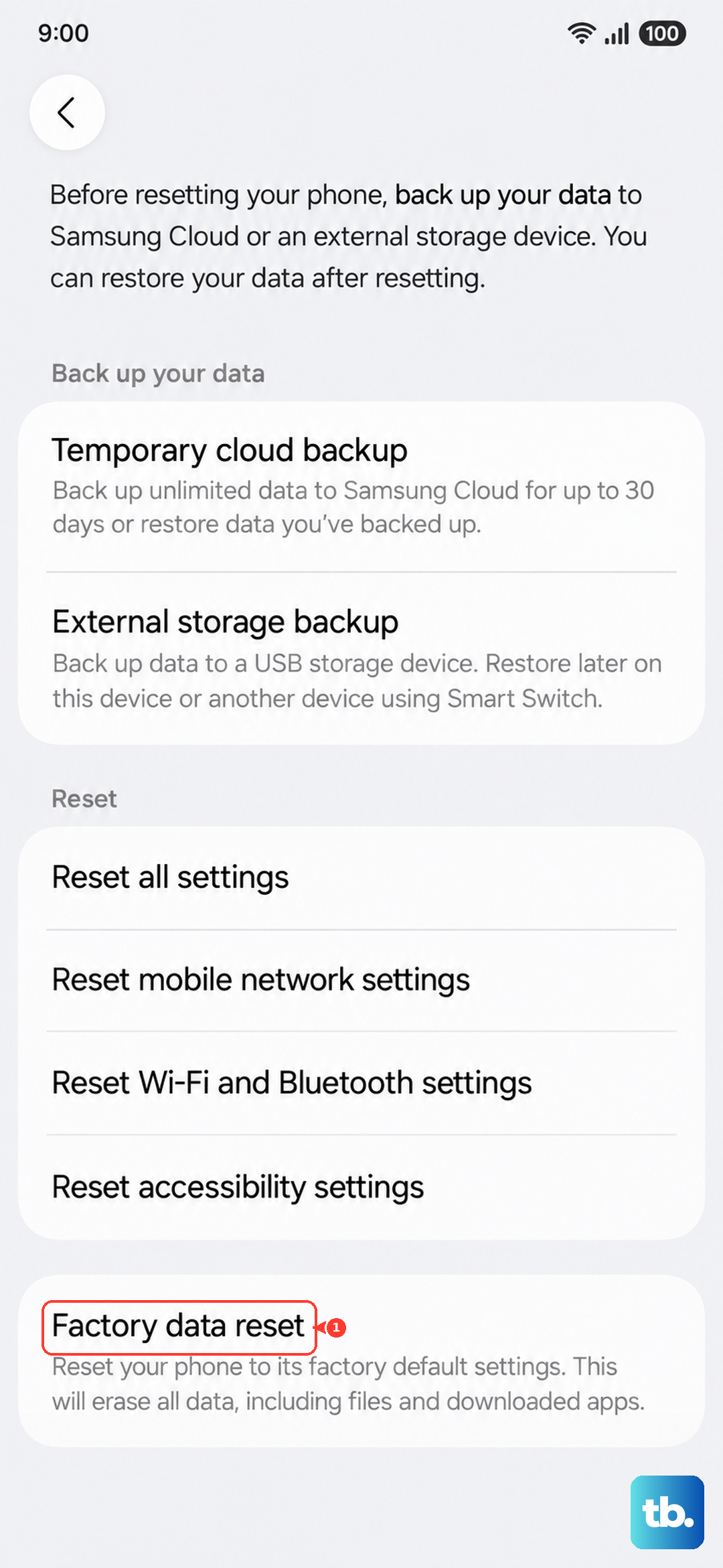
Once the transfer finishes, take a few minutes to check that everything landed correctly. Open your contacts, gallery, and messaging app. Some apps will ask you to log in again for security reasons. When you're sure all your data is safe on the S25 Edge, you can wipe your old phone, go to Settings > General management > Reset > Factory data reset to clear it.